TiviDeck
Menu
Español
Android TV · Google TV · Fire TV · Android phones

The player your
provider deserves.

Same subscription. Completely different television. TiviDeck turns a playlist into a guide you actually use, eight games on one screen, a sports hub that knows the score before you ask, and a house where the children have their own television and you have the remote.

From $9.99 once, for life. No subscription. Up to 5 devices on Family, 2 on Personal — TVs and phones Your provider, your login, your box

15 languagesEnglishEspañolFrançaisDeutschPortuguês (Brasil)ItalianoNederlandsPolskiČeštinaMagyarRomânăΕλληνικάTürkçeРусскийالعربية

NewFamily help: set up a relative’s TV from your phone, even in another country.See how it works

Coming soonTiviDeck for iPhone is on its way to the App Store. iPad, Apple TV, Mac and Windows are in the works.Tell me when it’s ready

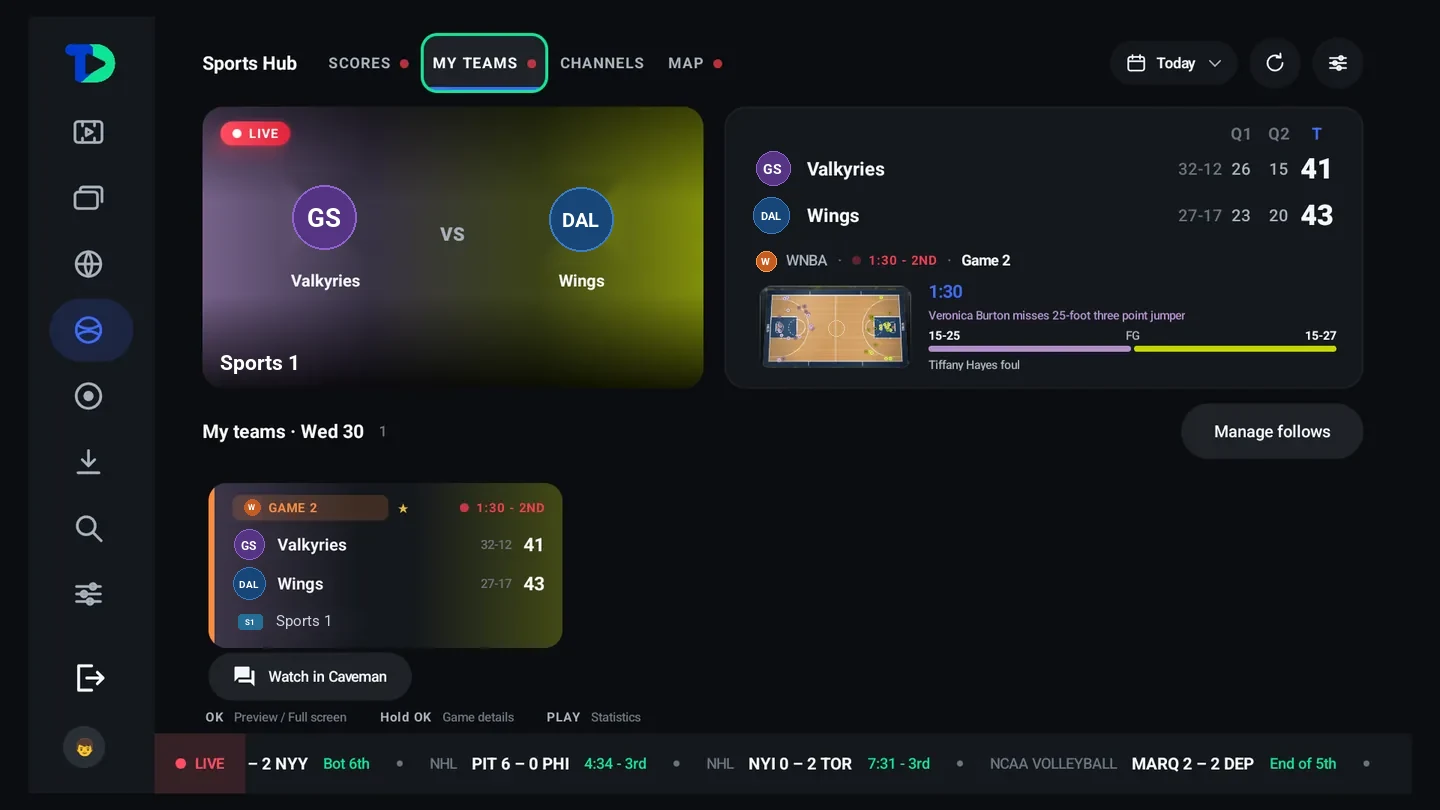
The TiviDeck Sports Hub on a television: a live WNBA game with the score by quarter and the latest play, beside a row of live college volleyball scores and a ticker of NHL games.
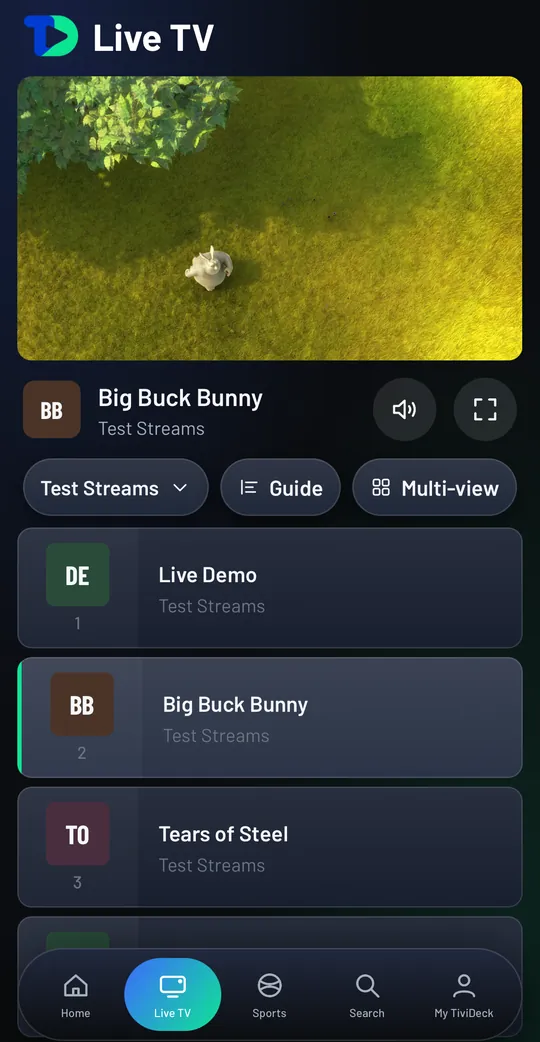
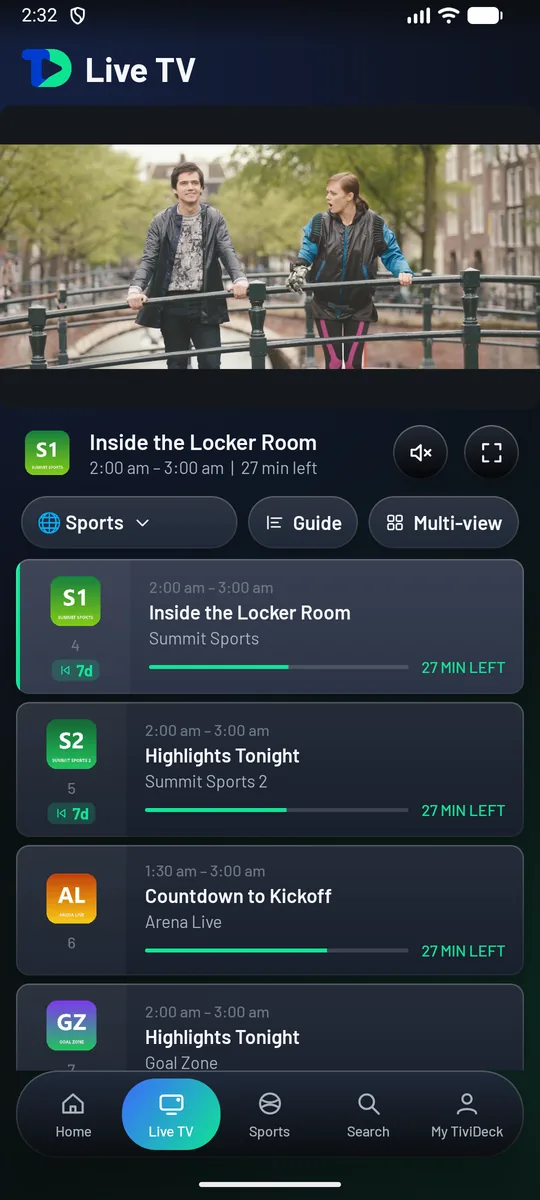
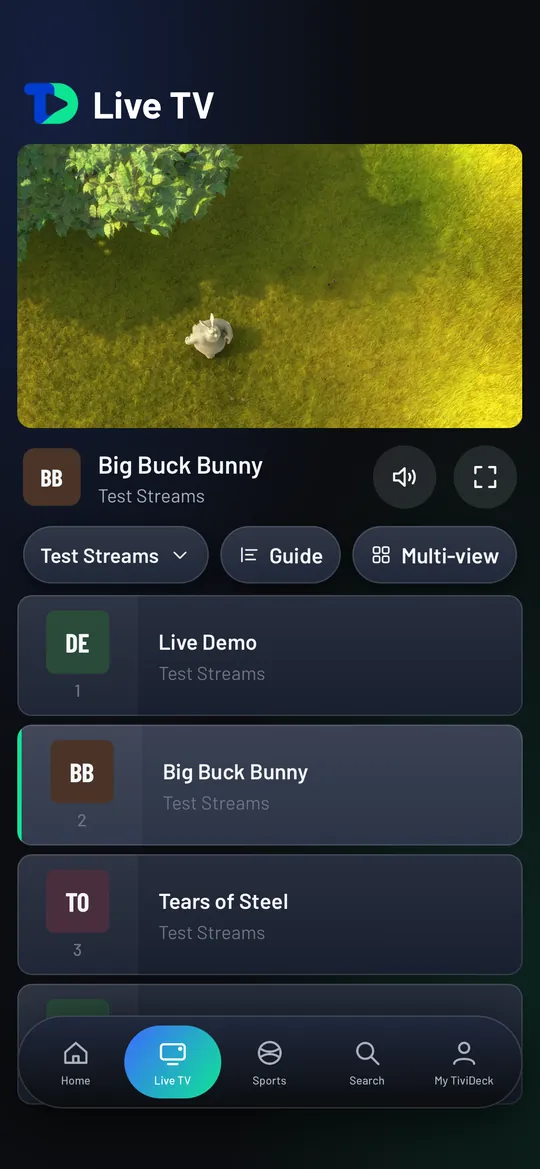
TiviDeck on an iPhone: Live TV with the channel playing at the top, Guide and Multi-view buttons, the channel list and the tab bar along the bottom.
7 days freeevery Premium feature, no card needed
8 at oncemulti‑view, sound on whichever you look at
16 sportslive scores, courts and fields, and a world map
$9.99 onceno subscription, ever — Family is $14.99 for five devices
NewFamily help

Look after Mom’s TV from your phone, even from another country.

Your mother lives abroad and her playlist has stopped working again. With Family help, her TV shows a short code, you type it on your phone, and you see her profiles, choose which provider each one uses, and send her a new provider login. Her TV applies it by itself. Nobody has to talk her through the remote on a phone call.

  1. 1Maria’s TV, in her home

    She shows a code

    On her TV, Settings › Account & profiles, then Get a code: six characters, good for 30 minutes and for one person. Her phone can make one too.

  2. 2Mike’s phone, anywhere

    You set it up

    In the phone app, Settings › Family help, type her code. You see her profiles, choose which providers each one uses, and add a provider for her: an Xtream Codes login or an M3U playlist.

  3. 3Back on Maria’s TV

    Her TV does the rest

    The login is locked on your phone for her devices alone. Her TV opens it and applies the change within about two minutes of being on, and her channels, guide, films and series follow.

Encrypted end to end

Each provider login is sealed on your phone with her devices’ own public keys (ECDH and AES‑GCM). TiviDeck’s servers pass it along but cannot read it.

Her TV, her say

You stay in your own household and never count as one of her devices. Her TV lists who helps her household, and she can remove a helper at any time.

What it does not do

A helper does not create, rename or delete her profiles, and does not change her parental rules. Family help sets up providers, and which provider each profile uses.

How Family help works → On Android TV, Google TV, Fire TV and the Android phone app today, and in the iPhone app when it arrives.
Why this one

Every other player hands you a list. This one hands you an evening.

Sports, family controls and personal style come together in one television experience.

01

A sports hub, not a sports row

Live scores, the full statistics deck, win probability where the league publishes it, recent form, which of your channels is carrying it, a room to talk in while you watch, and a world map that lights up the second a game starts anywhere on earth.

02

Children get their own television

Not the adult list with things taken away: a screen built for them. And for you — bedtimes that cross midnight, a different allowance for each day of the week, and a chart of each child’s week, day by day, inside the app. Adult content never touches a child profile or its history.

03

It becomes your television

Nine themes, any accent color on the wheel, text and spacing as a percentage, guide density, backgrounds, your own channel artwork, your own category names — and it still looks designed afterwards, because every choice comes out of one system instead of a settings dump.

04

It pays for itself

A local business buys a short spot at tivideck.com/advertise in about two minutes — no media buyer, no sales call. That is what keeps the free tier free. Take any Premium plan and your television is never sold to again.

Fifteen languages

It speaks your language.

The TV and phone apps are fully translated into English, Spanish, French, German, Portuguese (Brazil), Italian, Dutch, Polish, Czech, Hungarian, Romanian, Greek, Turkish, Russian and Arabic, and in Arabic the whole layout turns right to left. Pick one in Settings › Language, or let TiviDeck follow the TV or phone. Channel names and guide text come from your provider and stay as they are.

  • EnglishEnglish
  • EspañolSpanish
  • FrançaisFrench
  • DeutschGerman
  • Português (Brasil)Portuguese (Brazil)
  • ItalianoItalian
  • NederlandsDutch
  • PolskiPolish
  • ČeštinaCzech
  • MagyarHungarian
  • RomânăRomanian
  • ΕλληνικάGreek
  • TürkçeTurkish
  • РусскийRussian
  • العربيةArabic · right to left
Basic or Premium

Watch for free. Or get the whole television.

Every new household gets seven days of Premium with everything switched on. After that, Basic keeps your provider playing for free — and Premium keeps everything else.

 Basic · freePremium
Live TV, films, series and searchYesYes
ProvidersOne — your main oneEvery provider you have, at once
Program guideYour provider’s ownYour provider’s, plus your own XMLTV guide
ProfilesOneOne for everyone in the house
Providers chosen for each profile—Yes: each profile sees only the providers you give it
The Sports Hub: live scores in 16 sports, game pages, the world map, kickoff alerts, predictions, the Caveman Room—All of it
Pause, rewind and catch‑up on live TV—Yes
Recordings and series rules—Yes
Multi‑view—Up to 8 channels, grid or floating
The kids’ world: their own TV, bedtimes, allowances, a chart of each child’s week—Yes, with a parental PIN
Films kept on the box for the journey—Yes
Everything in sync across your TVs and phones—Profiles, favorites, lists, Continue watching, settings
Your own channel artwork—Yes
AdvertisingShort local spotsNone, ever
Price$0$9.99 or $14.99 once, for life

TiviDeck does not sell, host or resell television. You bring the provider you already pay for. On Basic your other providers stay saved, and come back the moment you choose a plan.

TiviDeck vs TiviMate, TIVRA, IPTV Smarters Pro, iMPlayer and IPTV Deck →

Every screen, one by one

Real captures from a real box.

Nothing below is a mockup. These are screenshots from a television running TiviDeck against a live provider — Settings captures use a test lineup; your content depends on your provider. Click any of them to see it full size.

Read the full manual — every screen, explained →

Home

The evening, already sorted

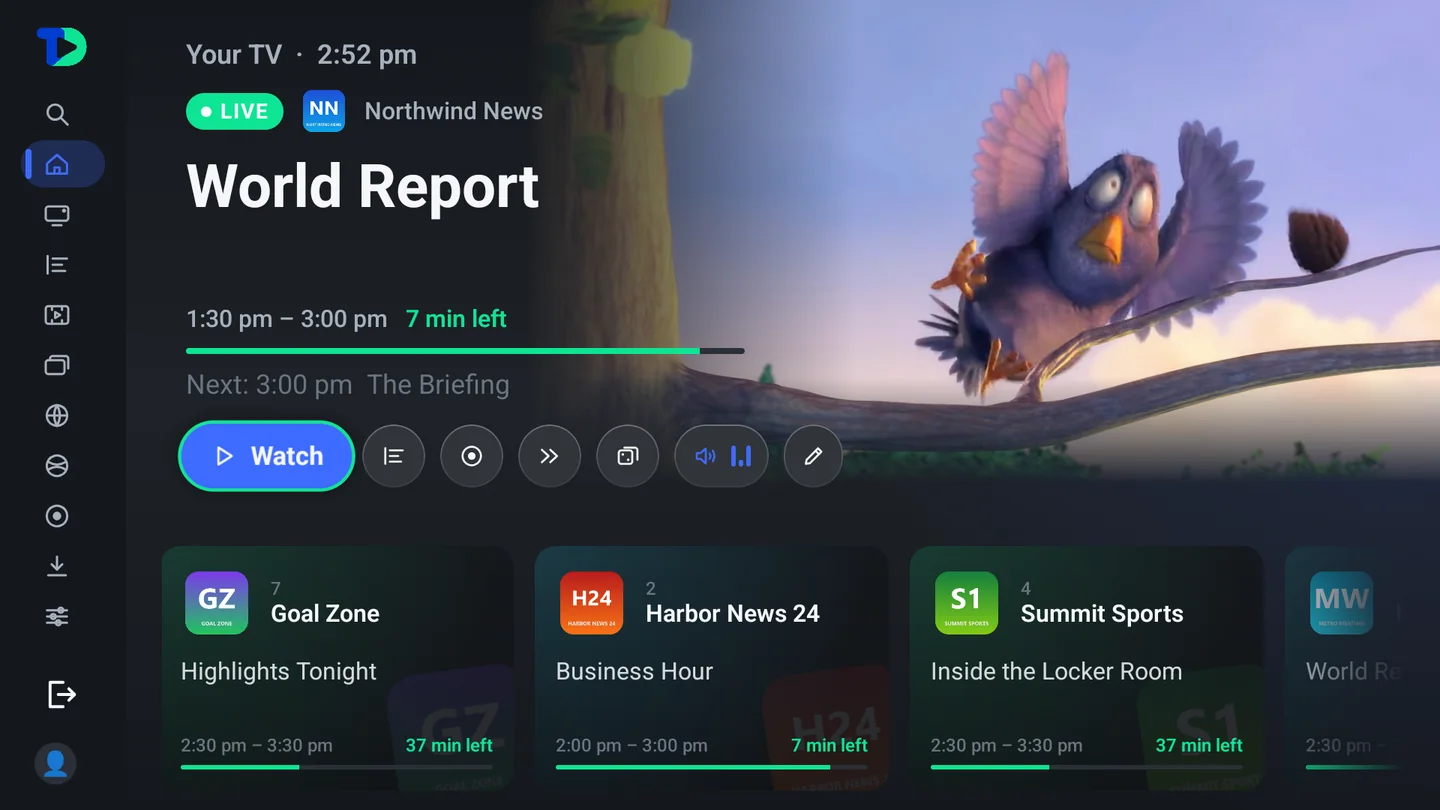
A row of the channels this household actually watches, then one large card for what is on right now — the program, the time left, a progress bar, and the five things anybody ever wants to do with it.

  • Watch, Guide, Record, Next and Surprise me on one row, no menus
  • Continue watching remembers films and episodes to the second, across your TVs and phones
  • Customize Home reorders every shelf, or removes it
  • Trial notices live here as a quiet band, never a pop‑up over playback
Home screen: channel tiles with the program on each and how far it has got, and the highlighted channel playing in a large preview beside the Watch, Guide and Record buttons.
Home
Live TV

Fifty thousand channels, and you still find yours

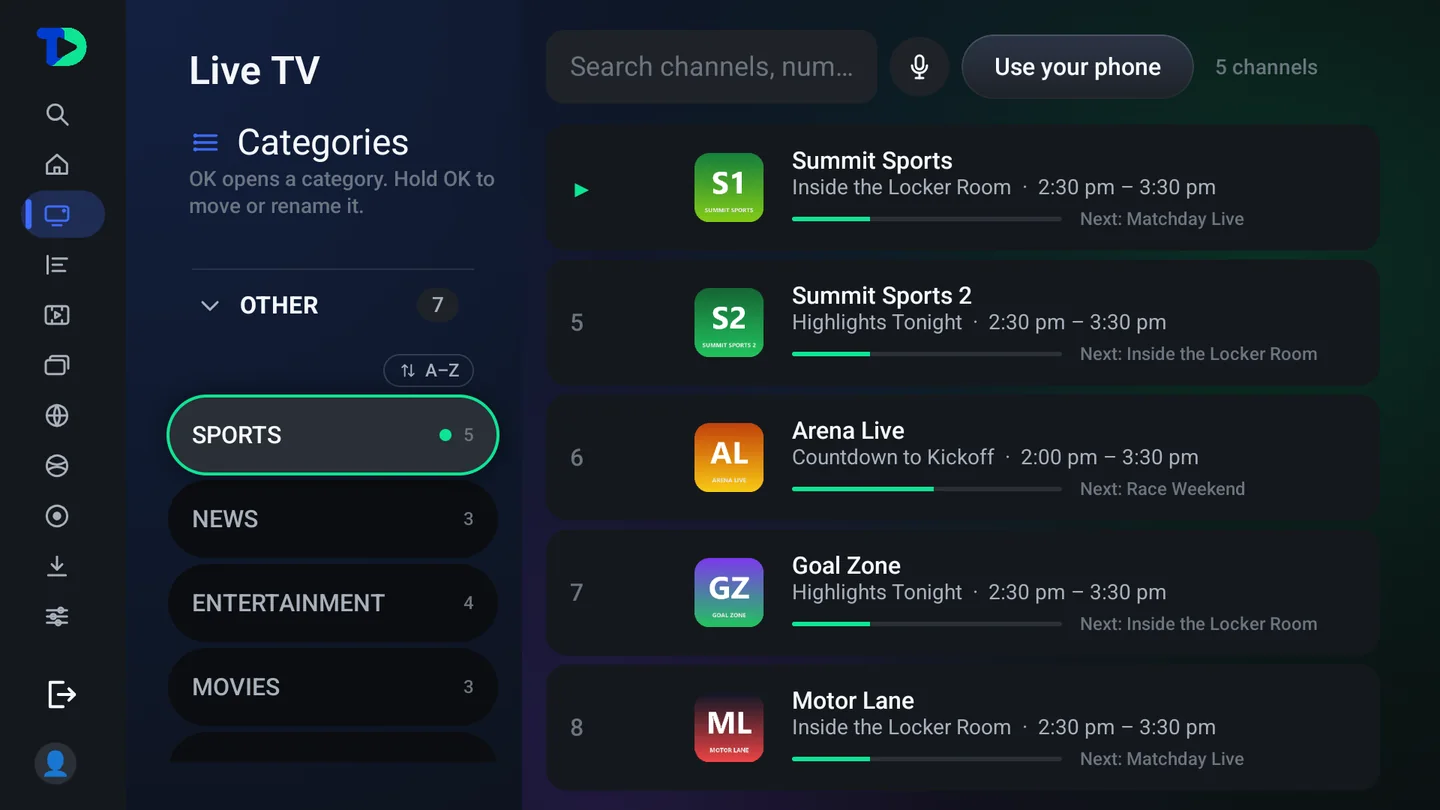
The left column is the household’s own order: recent, favorites, the lists you made yourself, then the categories each provider sent. Hold OK on any of them to move it, rename it, or lock it away behind the PIN.

The pills across the top switch providers without leaving the page, and the count on the right is always honest about how many channels the current filter is showing.

  • Search by name, number or what is on — or dictate it, or type it from your phone
  • Rename a category, or take the provider’s name back, whenever you like
  • Favorites in your own order: hold OK on a favorite, then Up and Down moves it — your own lists too
  • Down at the bottom goes back to the top: on the last channel or category, one more press lands on the first
  • Your own lists sit above the provider’s, because they matter more
  • Every row shows the channel number, its logo, and the program running now
  • Rename a channel and give it your own number: the number keys tune it, on every TV in the household
  • Your lineup puts the networks you have on the numbers you expect — locals from 2, news in the 100s, sports in the 200s — in one press, under Settings › TV guide › Your lineup
Live TV: a Categories column with lists and categories, a search box, and channel rows showing numbers, logos, current programs and what is next.
Live TV
Guide

A guide that behaves like a guide

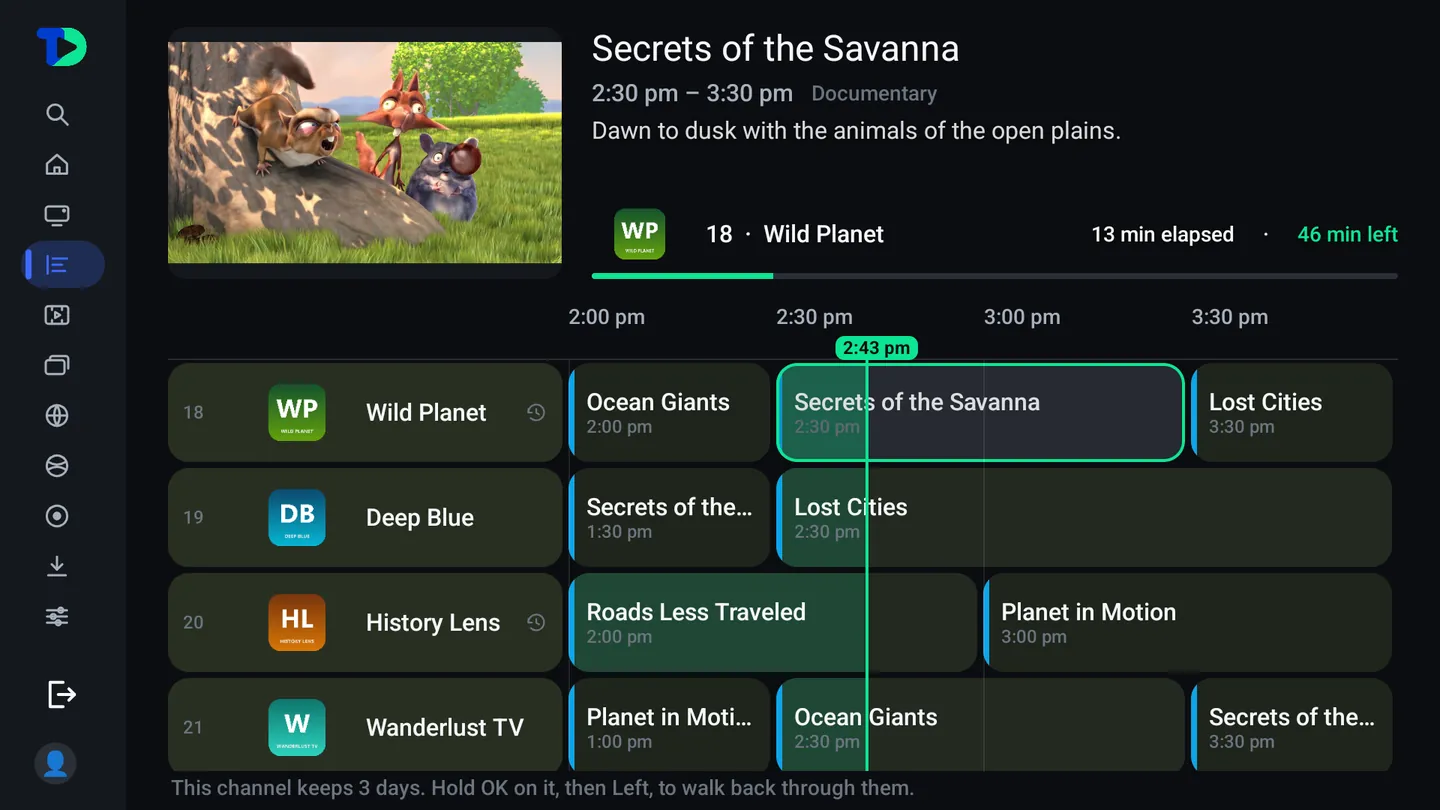
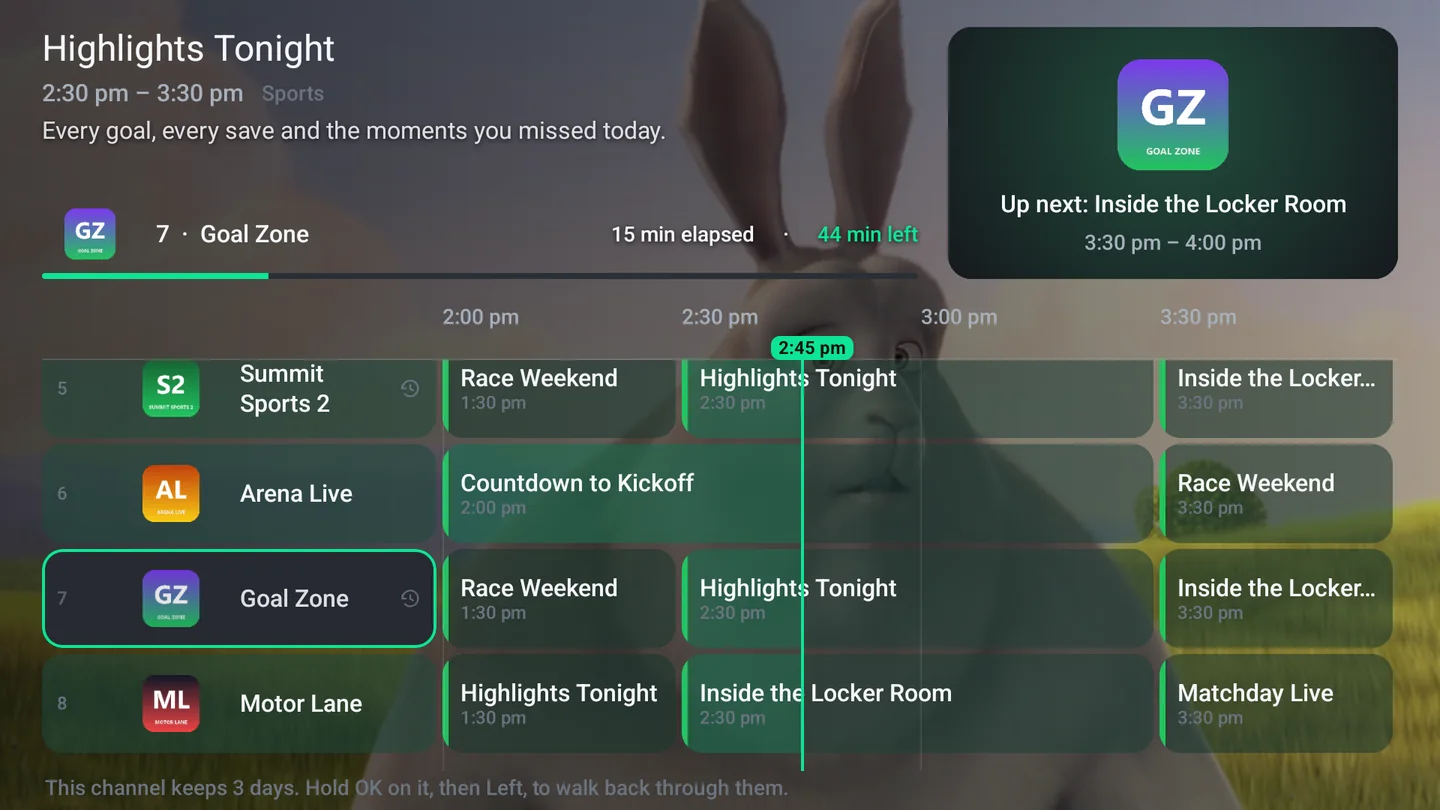
Now and next across every channel, with a green line that walks the hour and a preview of whatever is under the highlight — picture, synopsis, how much of it is already gone.

Where your provider keeps catch‑up, the guide says so in plain words: this channel keeps 3 days — hold OK on it, then Left, to walk back through them.

  • Catch‑up and restart from the same grid, on the channels that carry it — back as far as your provider’s archive goes
  • Record a program, or every showing of it, from the highlight
  • Jump by day, by category or by provider without losing your place
  • The guide can be filled from your provider, an XMLTV file of your own, or both
The program guide: channel rows with logos and full names, a time ruler, the current-time line, and a preview panel for the highlighted program.
Guide
The player

Controls that stay out of the picture

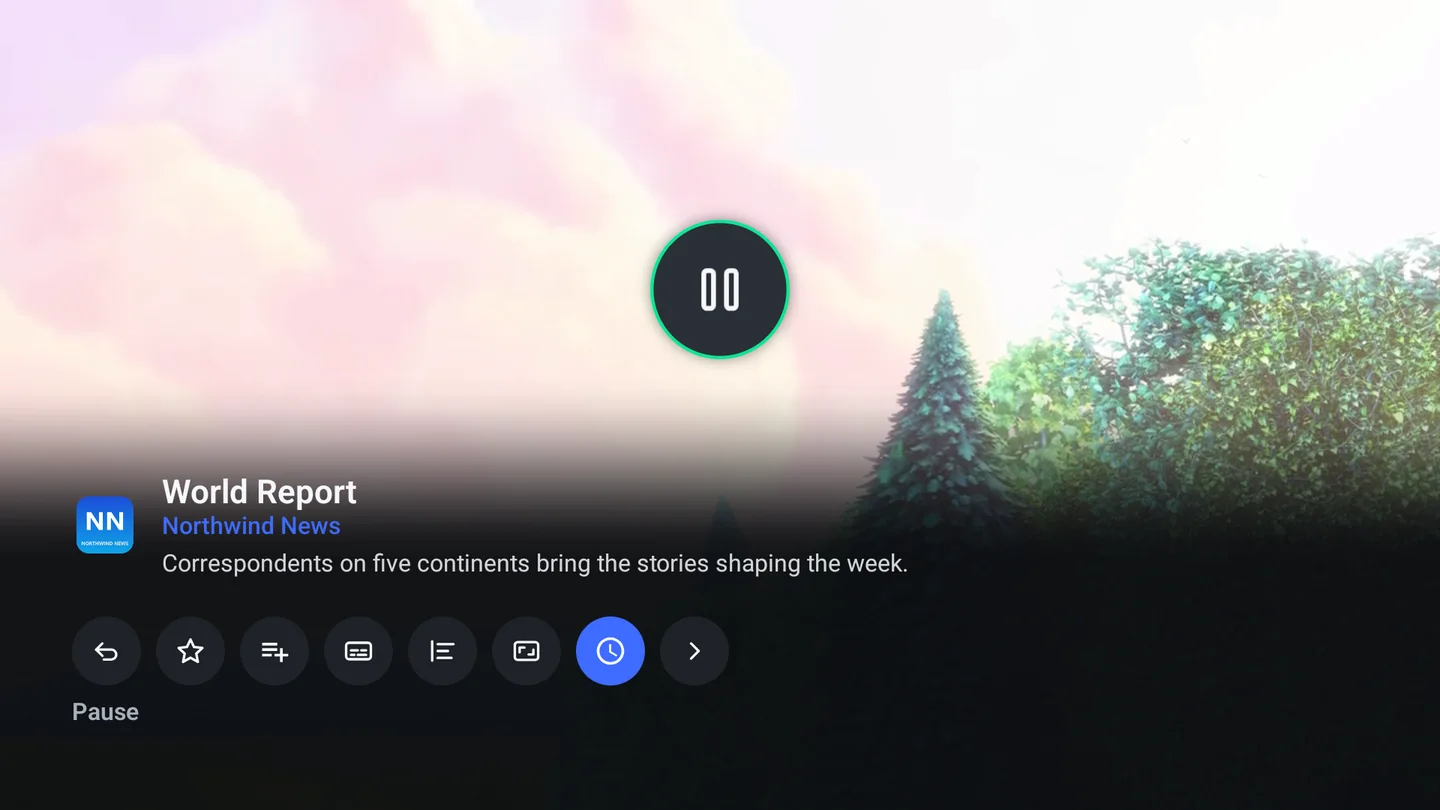
One press brings up the transport: rewind, pause, fast forward, the buffer drawn as a line you can see, and a row of the things you reach for — record, previous channel, favorite, add to a list, subtitles, guide, picture‑in‑picture. One more press down opens everything else.

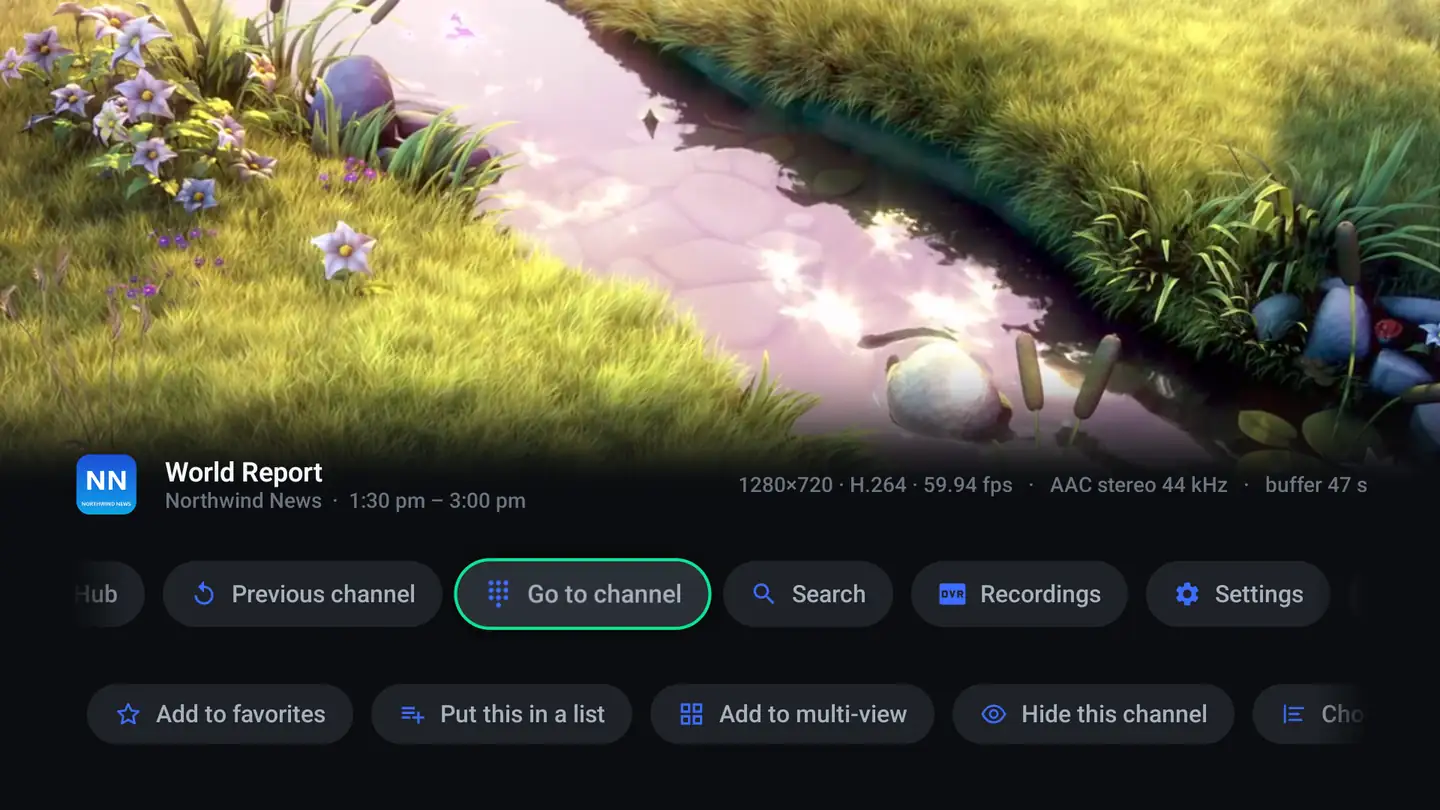
Left opens a mini guide over what is playing, and Left again opens its categories, with Favorites and your own lists. Right opens the options wall. Channel up and down work the way they have since 1985.

  • Audio, Subtitles and Picture tabs: tracks, delay, caption style, aspect and zoom
  • Info reports resolution, codec, audio and the current buffer — useful when a stream misbehaves
  • Continue on phone hands the stream to a phone at the exact second
  • Picture‑in‑picture keeps the film in a corner when you press Home
  • Previous channel flips back at once and lines up your last six channels along the bottom
  • A clock and your teams’ live scores over the picture, switched on or off right from the player bar

Rewind, fast forward, record and the scrub line appear on channels your provider serves as a continuous stream, which TiviDeck can hold on the box. A channel delivered only as a playlist keeps nothing to go back into, and the player says so rather than showing you buttons that do nothing.

Player controls over the picture: a large pause button and an icon row for previous channel, favorite, add to list, guide, picture shape and more.
Player controls
The guide drawn see-through over the playing film, so the picture never stops.
Left — the mini guide over playback, so you never lose the picture while you browse.
The player options wall over the playing channel: Open Sports Hub, Go to channel, Search, Recordings, Settings and Watch on your phone, and a second row for Add to favorites, Put this in a list, Add to multi-view, Hide this channel and Choose its guide.
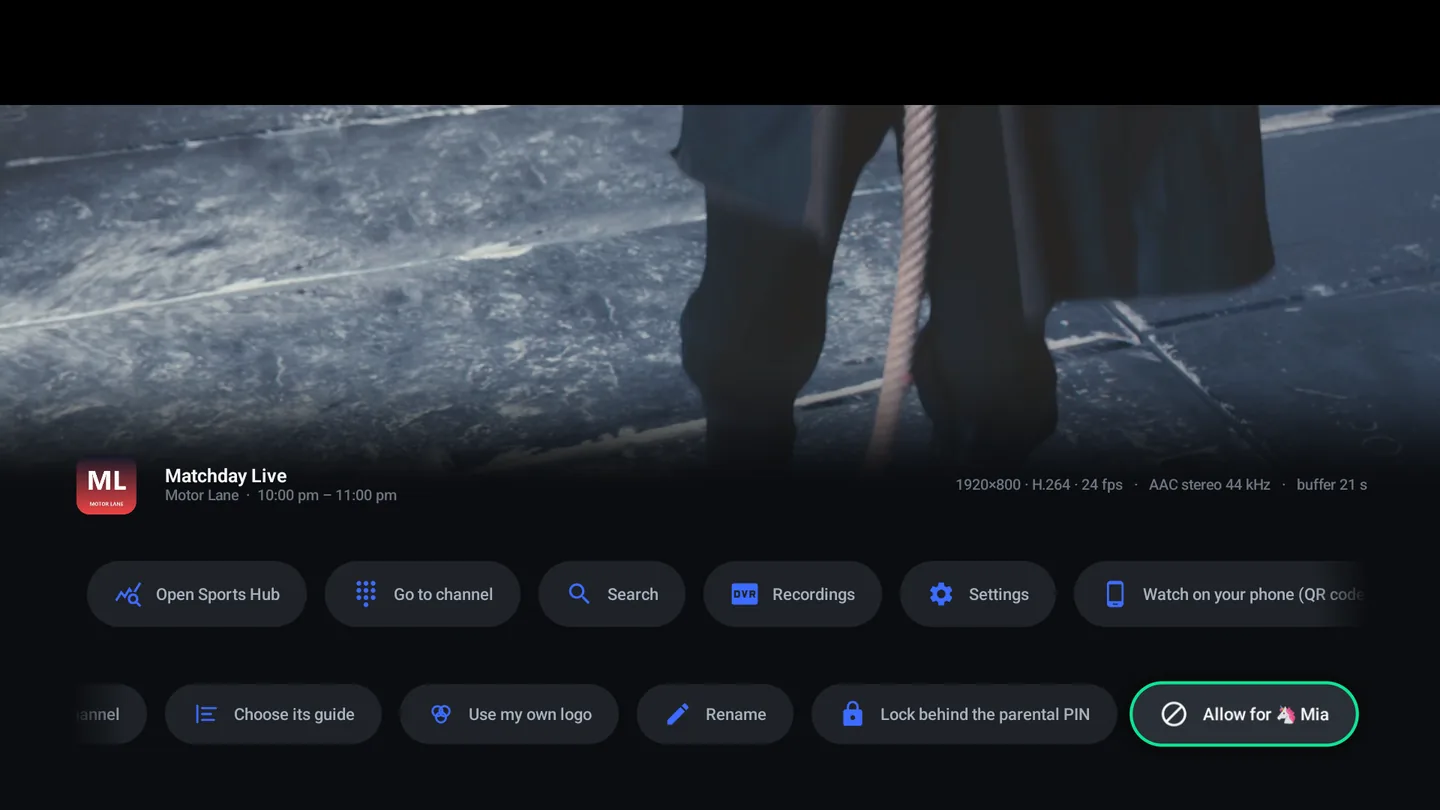
Right — everything else, including use my own logo and choose its guide.
The second row of player options scrolled along: Choose its guide, Use my own logo, Rename, Lock behind the parental PIN and Allow for a child profile.
Its guide, your own logo, a new name, the parental PIN, a child profile.
Films

A library, not a file list

Your provider’s film catalog arrives as posters, logos, ratings, cast and a backdrop that plays its trailer — shelved by what is new, what is top rated, what won something, and what is in 4K.

  • Keep on this box downloads a film for a journey, with Premium
  • Technical badges are honest: resolution, codec, audio layout, bitrate
  • Cast rows are searchable people with their photos, not text
  • Top 10 rows rank what is worth watching first
  • Watchlist and seen marks are per profile, and they sync
  • Add‑ons, on the Enhanced edition: Cinemeta catalogs and Stremio‑compatible add‑ons you add yourself, with your own debrid account if you have one, its key kept on the box, encrypted
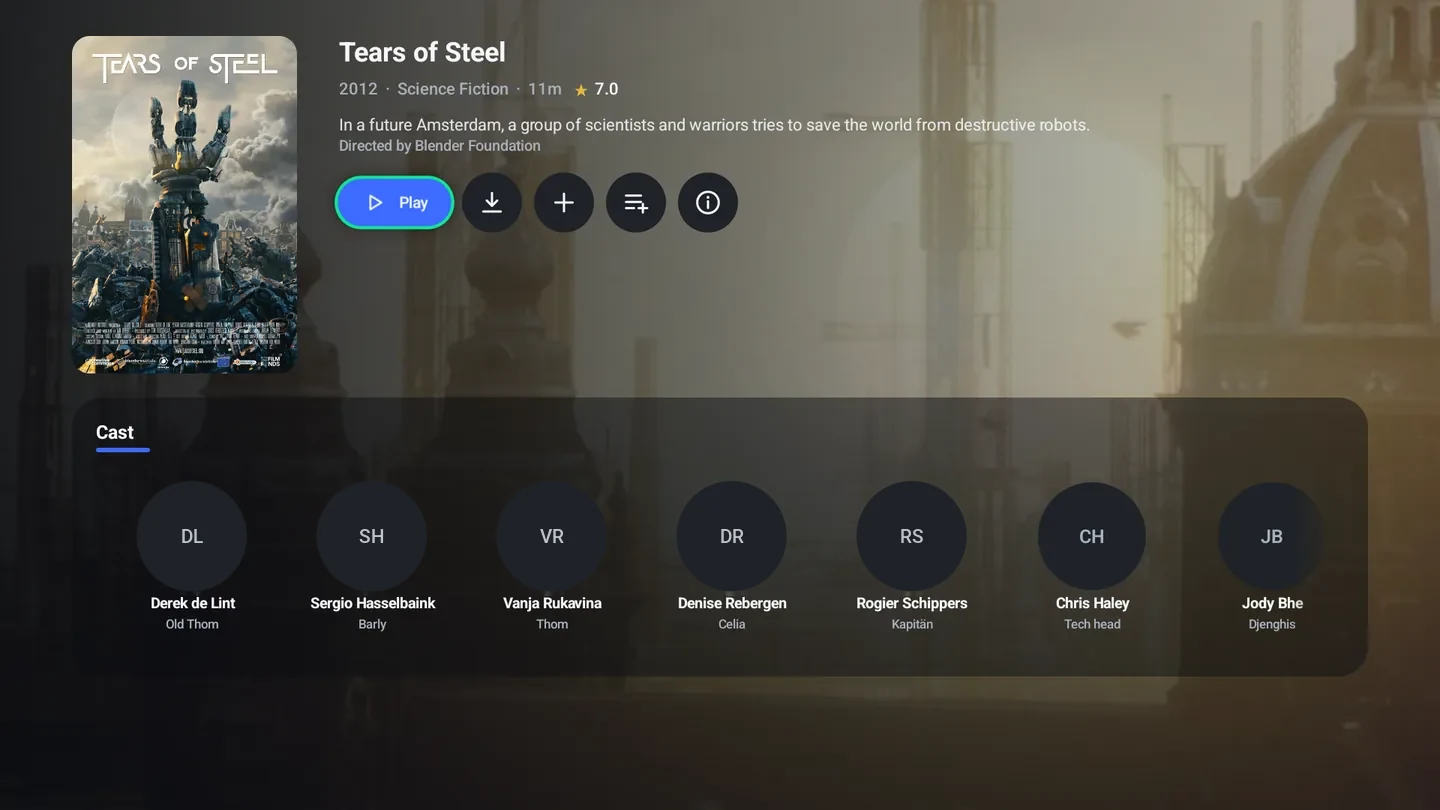
The film page for Tears of Steel (2012): poster, Play, Keep on this box and Add to list buttons, and a cast row with faces.
Film page
Series

Episodes that know where you stopped

Seasons, episode stills, runtimes and synopses, with the next unwatched episode already on the button. Start a series on the television and finish it in the phone app; the mark travels with the household, not the box.

  • Episodes, Cast and More like this as tabs, not separate pages
  • Series recording rules: keep the last n, or every episode
  • Progress and watchlists are shared across every TV and phone in the household
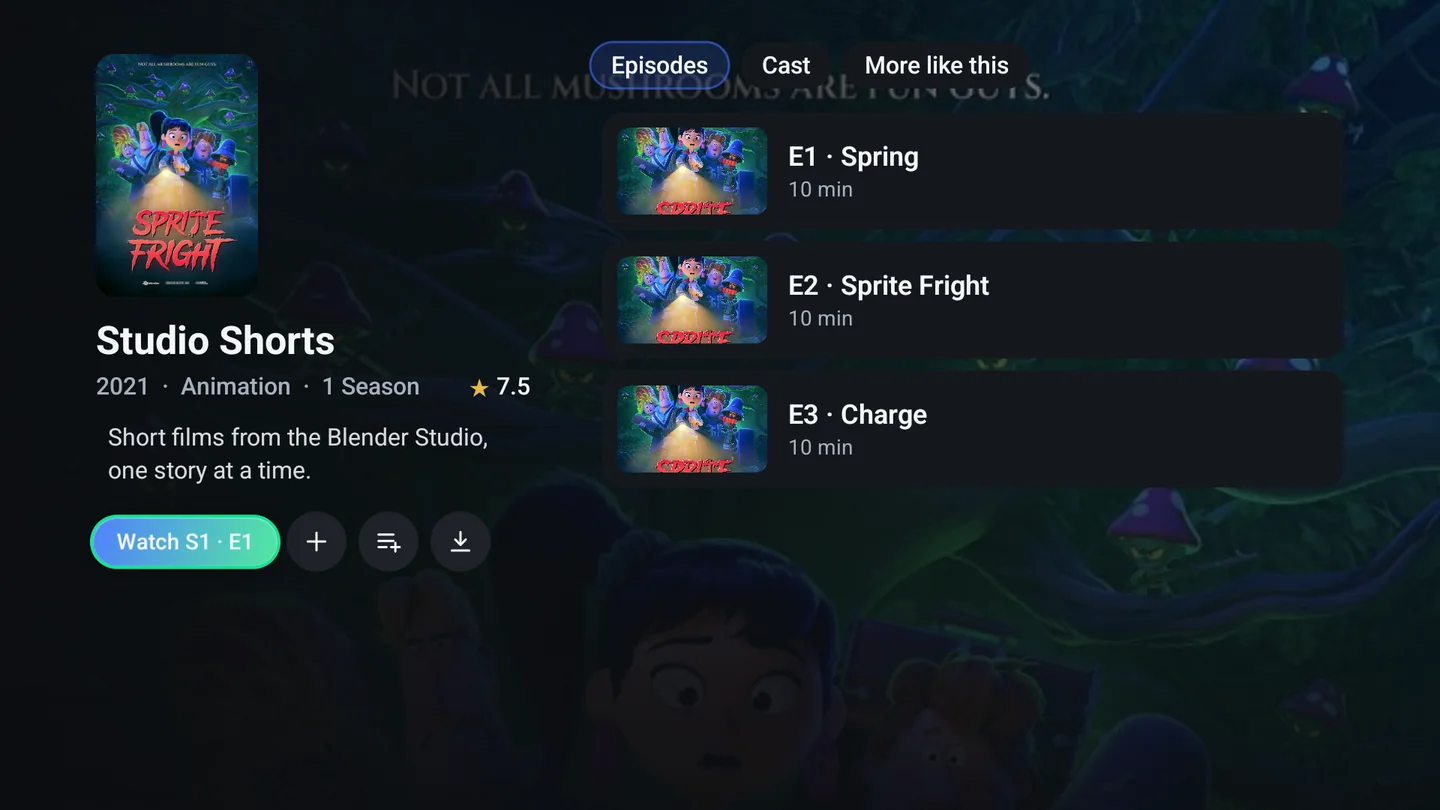
A series page for Studio Shorts: poster, Watch S1 E1 button, Episodes / Cast / More like this tabs, and episode rows with stills and runtimes.
Series
Multi‑view

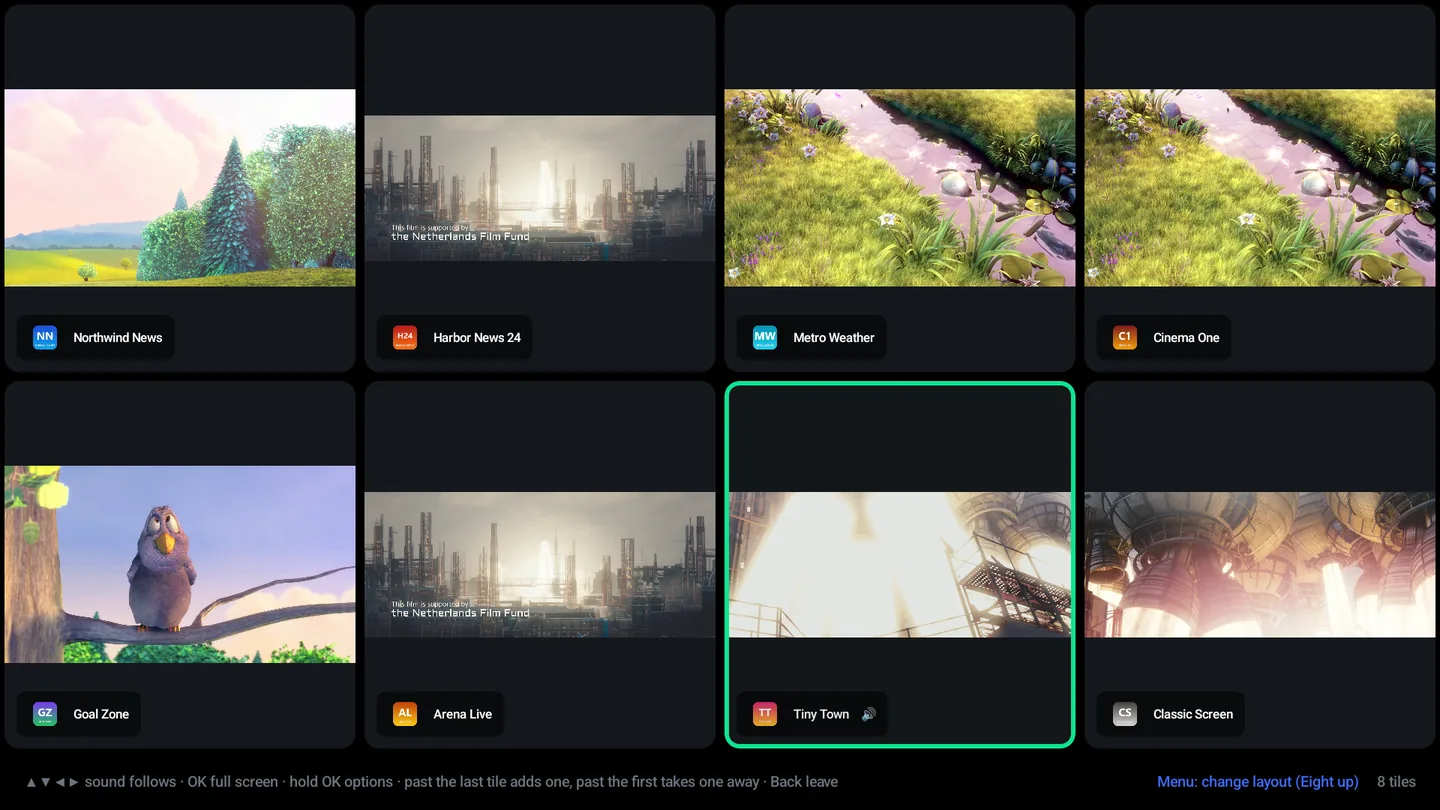
Two, four, six, eight — on one screen

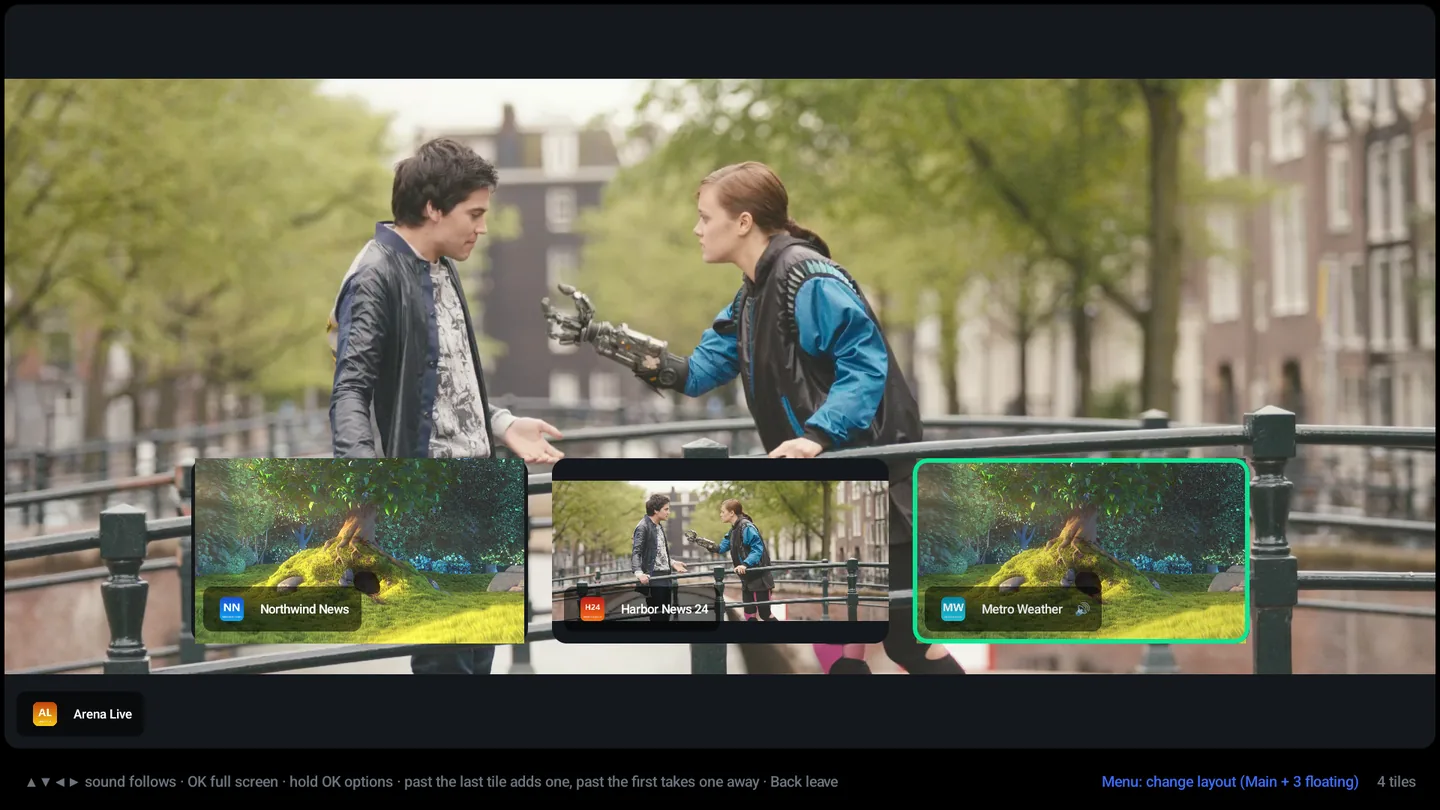
Sound follows the highlight. OK takes a tile full screen and Back brings the grid straight back. Pressing Right past the last tile adds one; pressing Left past the first takes one away. That is the whole interaction.

  • Layouts from side by side to eight up, changed with one button
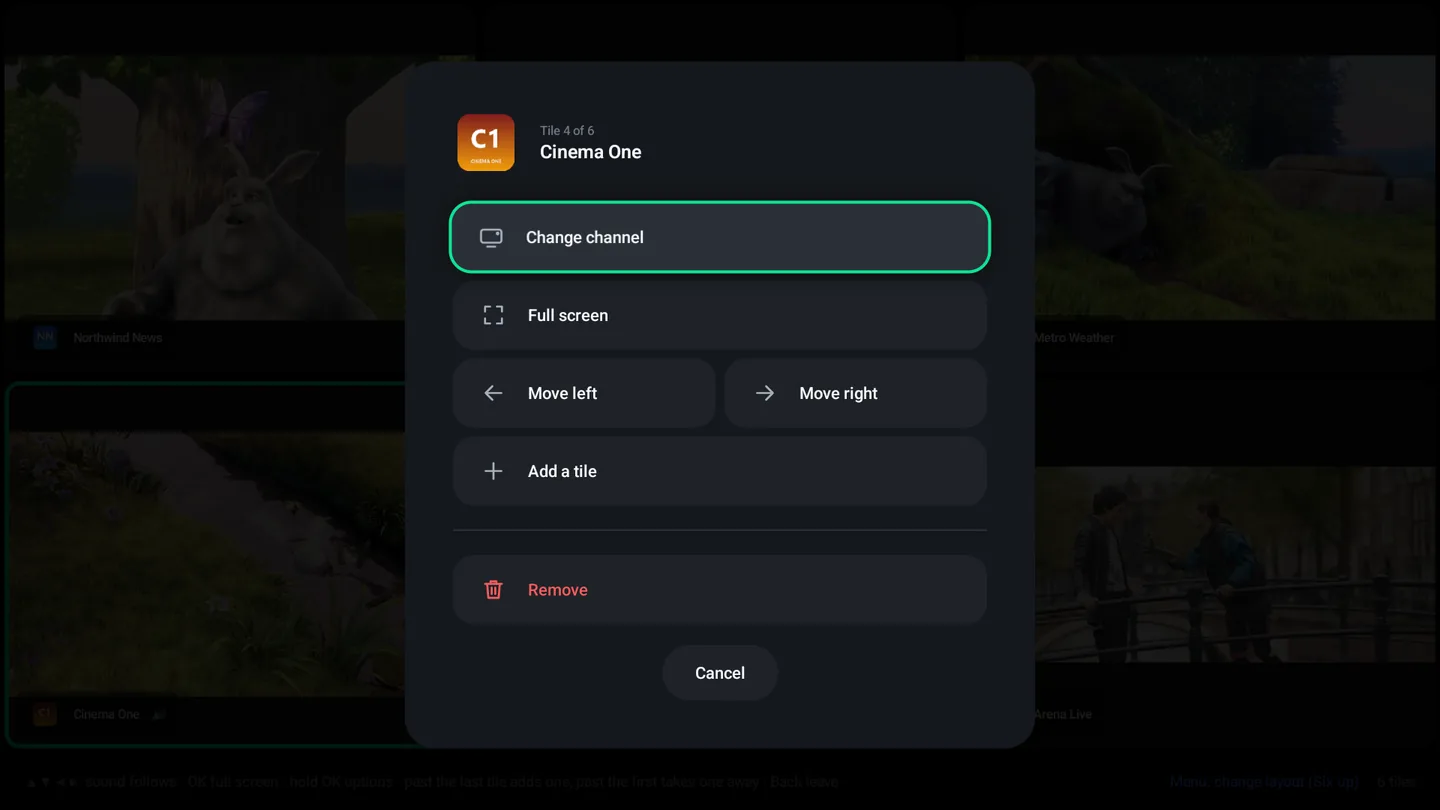
  • Hold OK on a tile to change its channel, move it, drop it, or add another
  • Start it from the channel menu, the player, or your remote’s own key
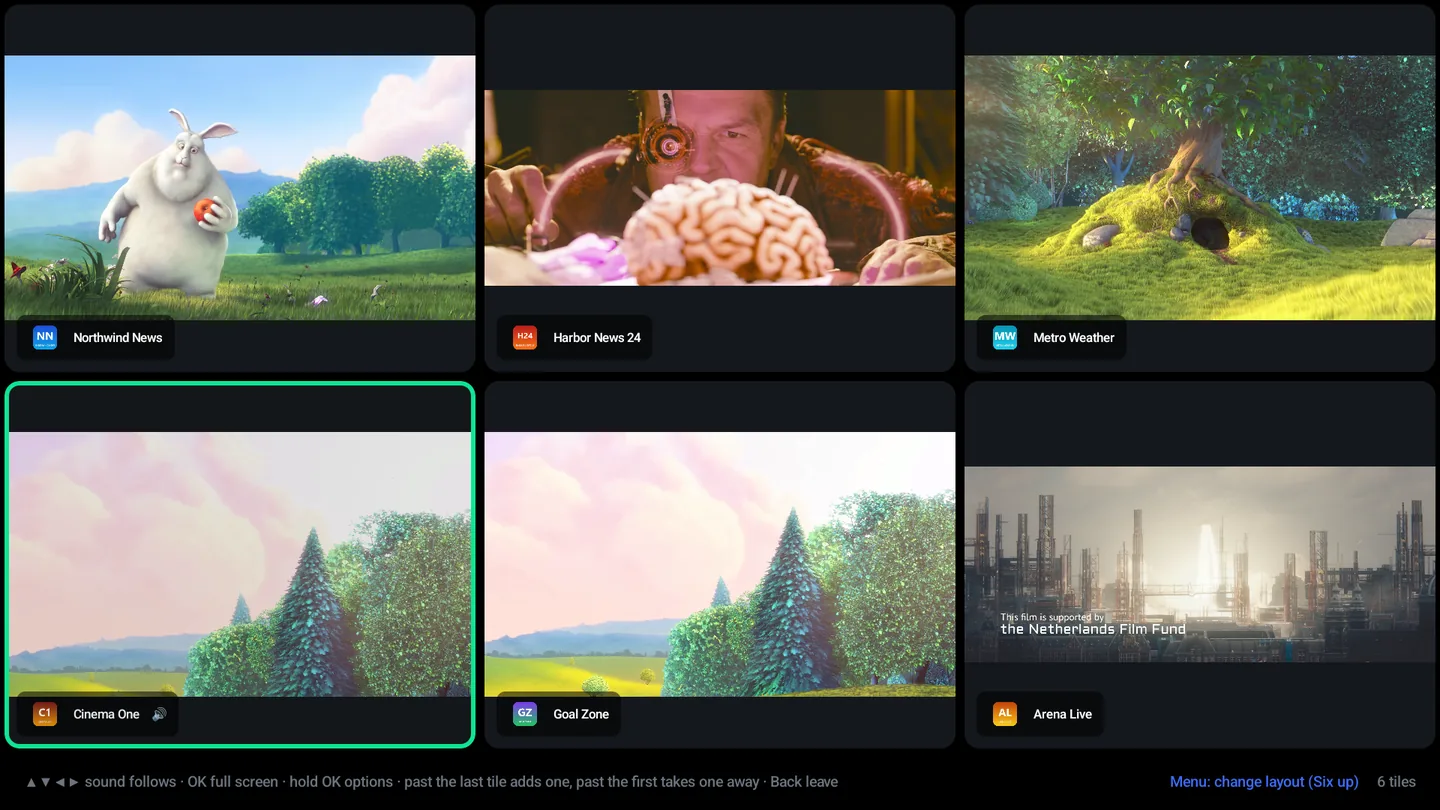
Multi-view with six channels playing at once in a three-by-two grid, each tile labeled with its channel.
Multi‑view, six up — every tile live
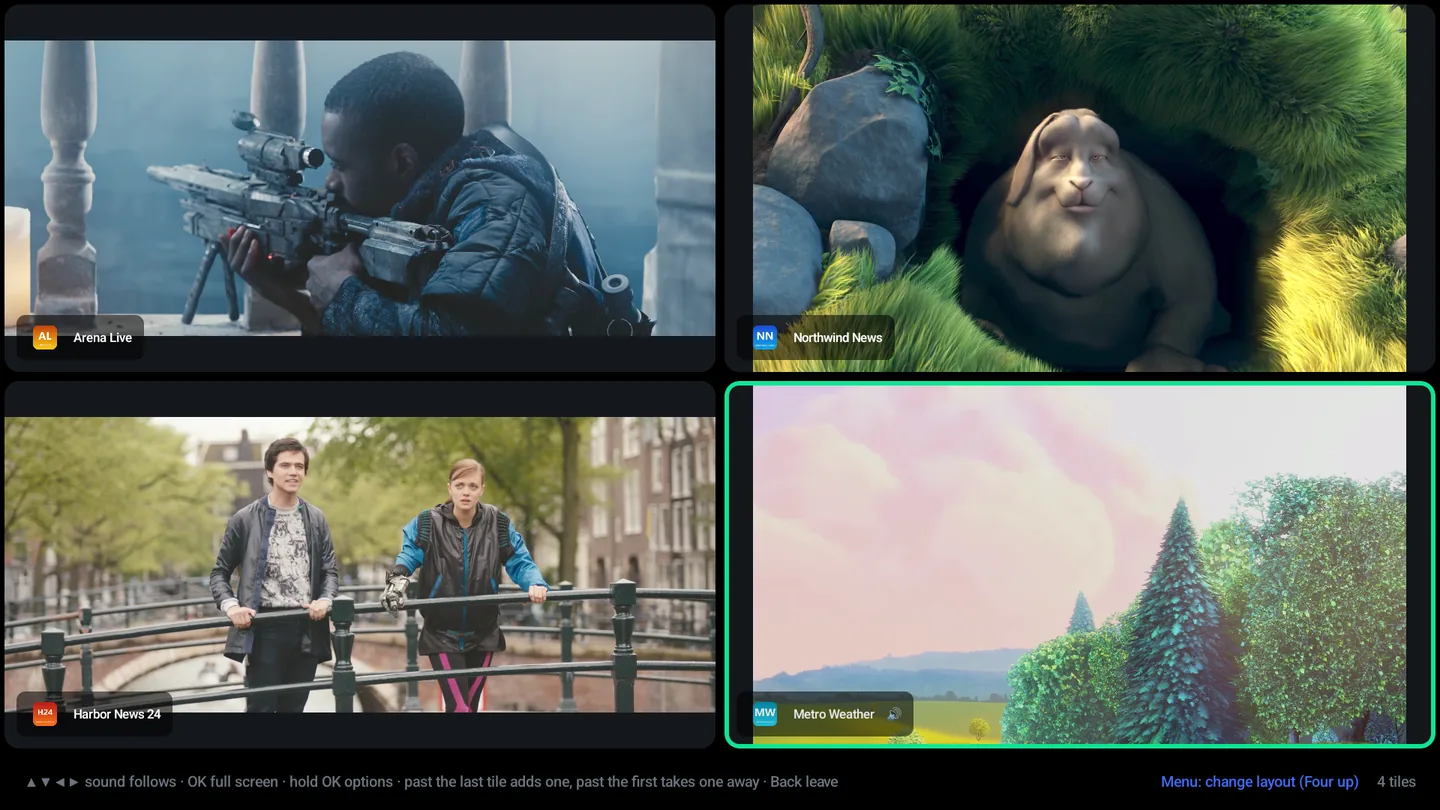
Multi-view with four channels playing at once in a grid.
Four up. The Saturday layout. Sound follows whichever tile you are on — there is nothing to press.
Multi-view with one film full size and three more floating over its lower edge.
Main and floating. One picture large and the rest floating over it — move the strip to any edge from a tile’s menu.
Multi-view with eight channels playing at once in a four-by-two grid.
Eight up. On a Shield, eight live streams at once. The app asks the box how many decoders it has and never offers a layout it cannot actually draw.
The tile menu in multi-view: Change channel, Full screen, Move left, Move right, Add a tile, Remove, Cancel.
Any tile’s own menu. Hold OK on it: change its channel, blow it up, move it along the wall, or take it out.
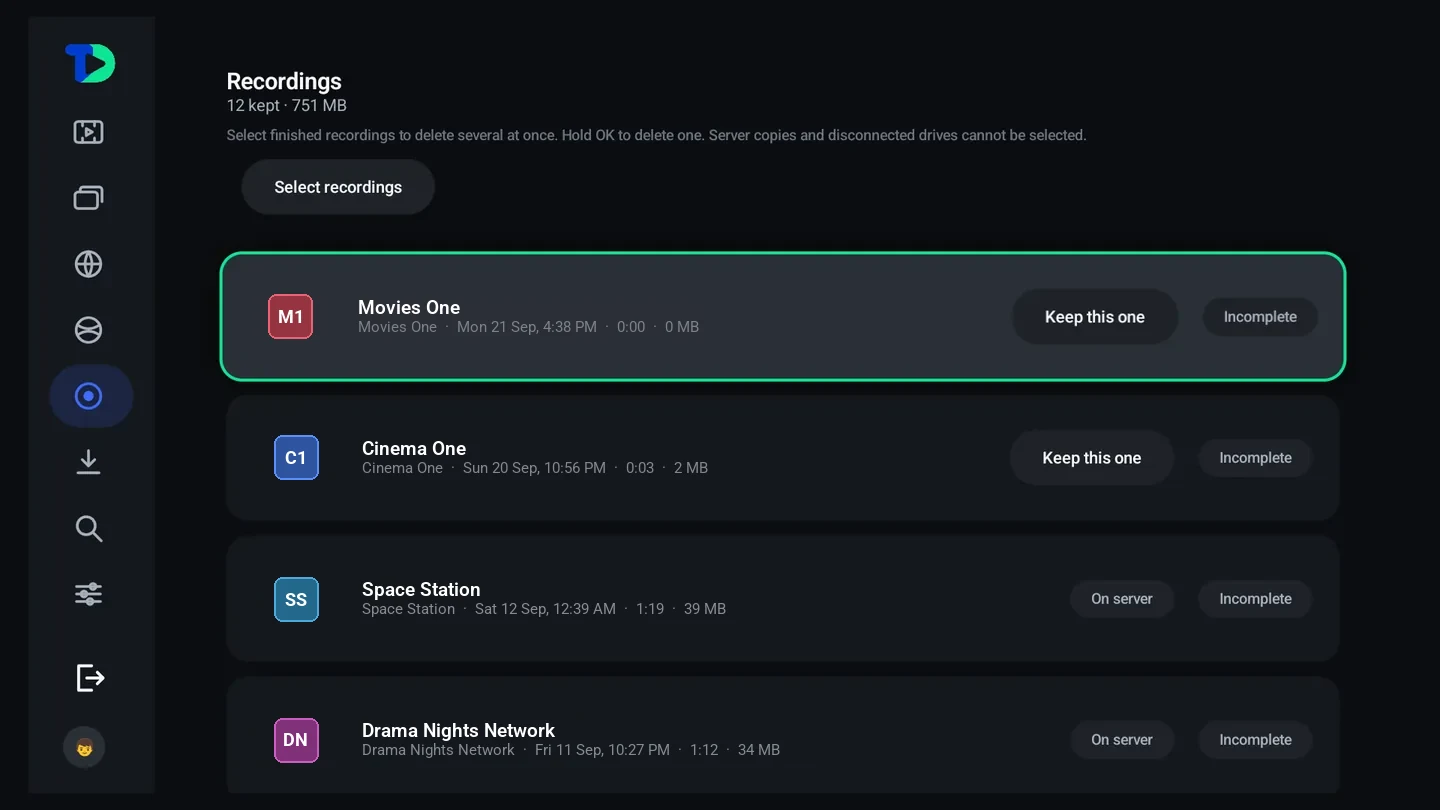
The recordings page: 12 kept, 751 MB in all, a Select recordings button, and each recording with its channel, date, duration and size, marked Keep this one, On server or Incomplete.
Recordings. What is kept, how big it is, what is still running, and which copies live on the provider’s server rather than this box.
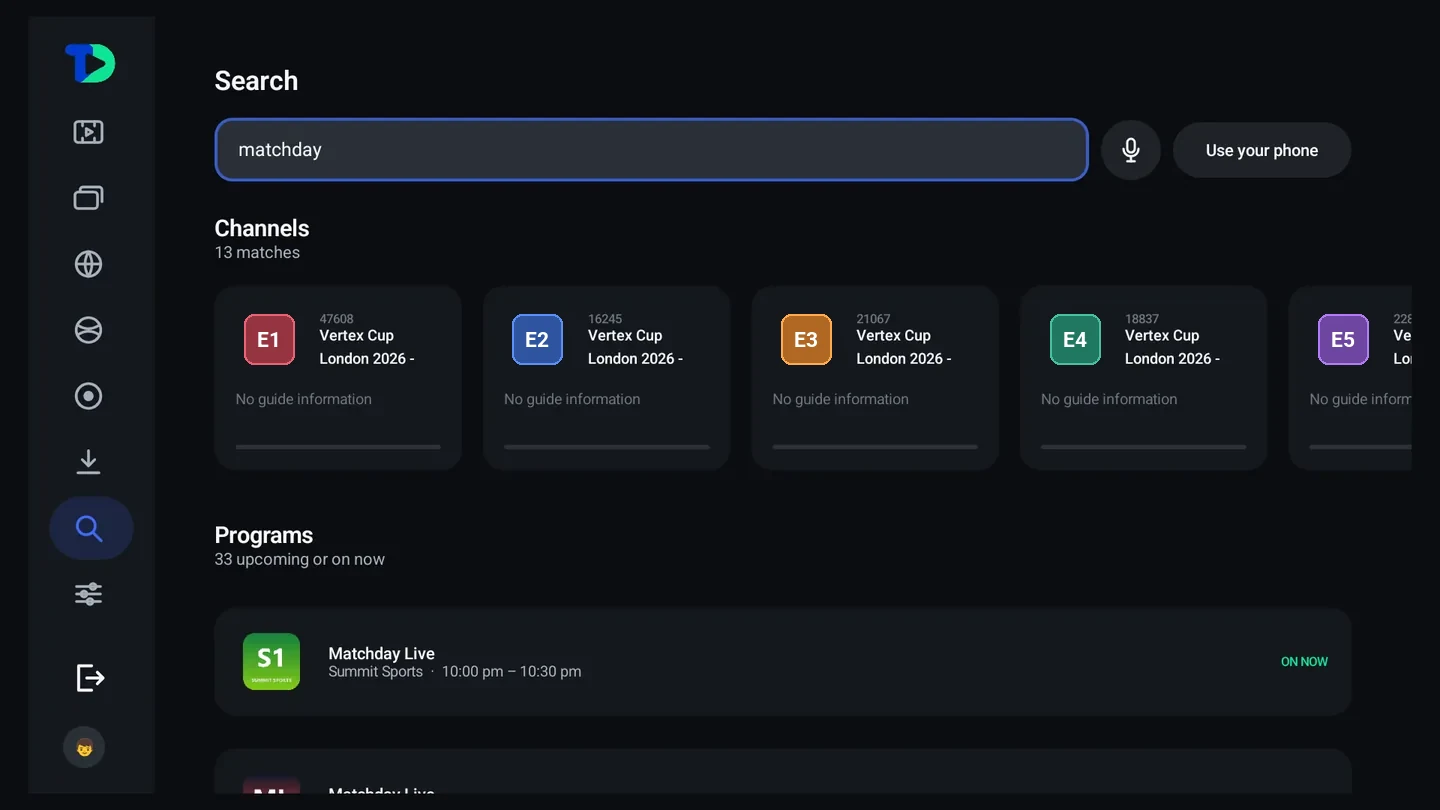
A search for matchday returning 13 matching channels and 33 programs upcoming or on now, each group counted.
Search. One word here found thirteen channels and thirty‑three programs, each group counted. Channels, programs, films, series, people and sports at once — by remote, by voice, or typed from your phone.
The Sports Hub

Stop checking your phone during the game.

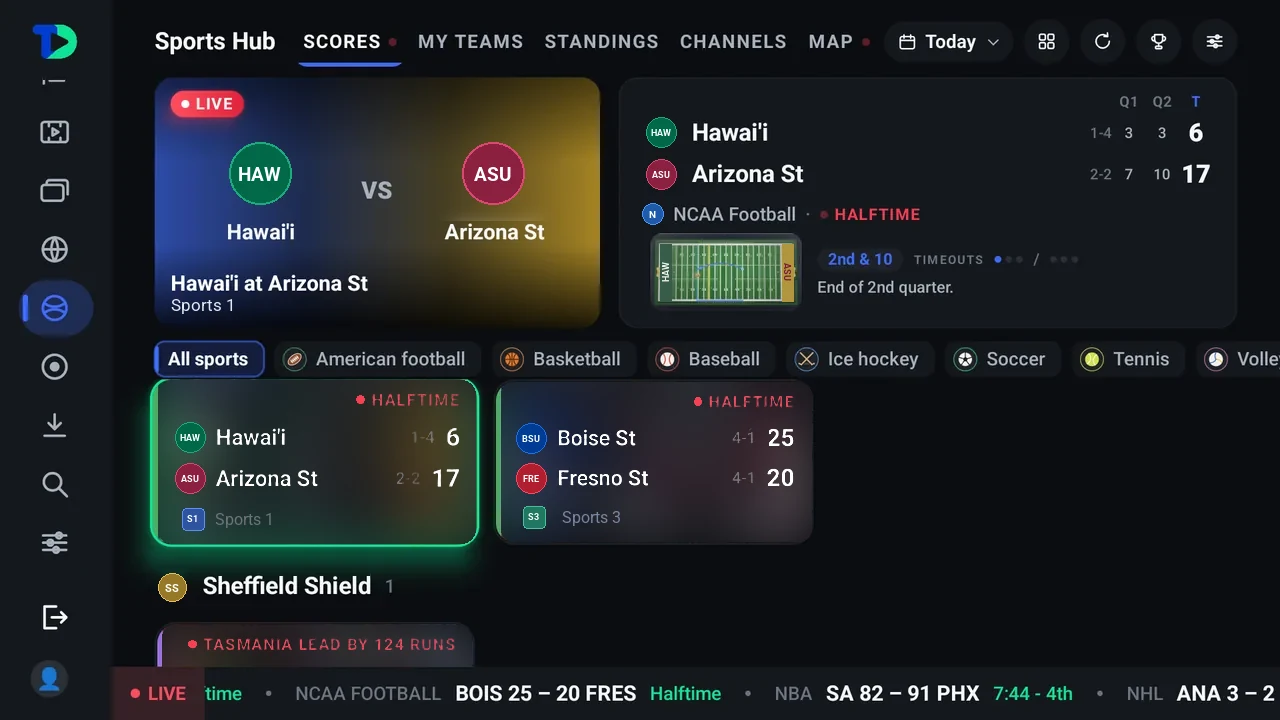
Live scores, statistics, previews and a court or field for every game — plus a room to talk in and a live map, all of it against the channels you already have, so the answer to “can I watch this?” is on the same card as the score.

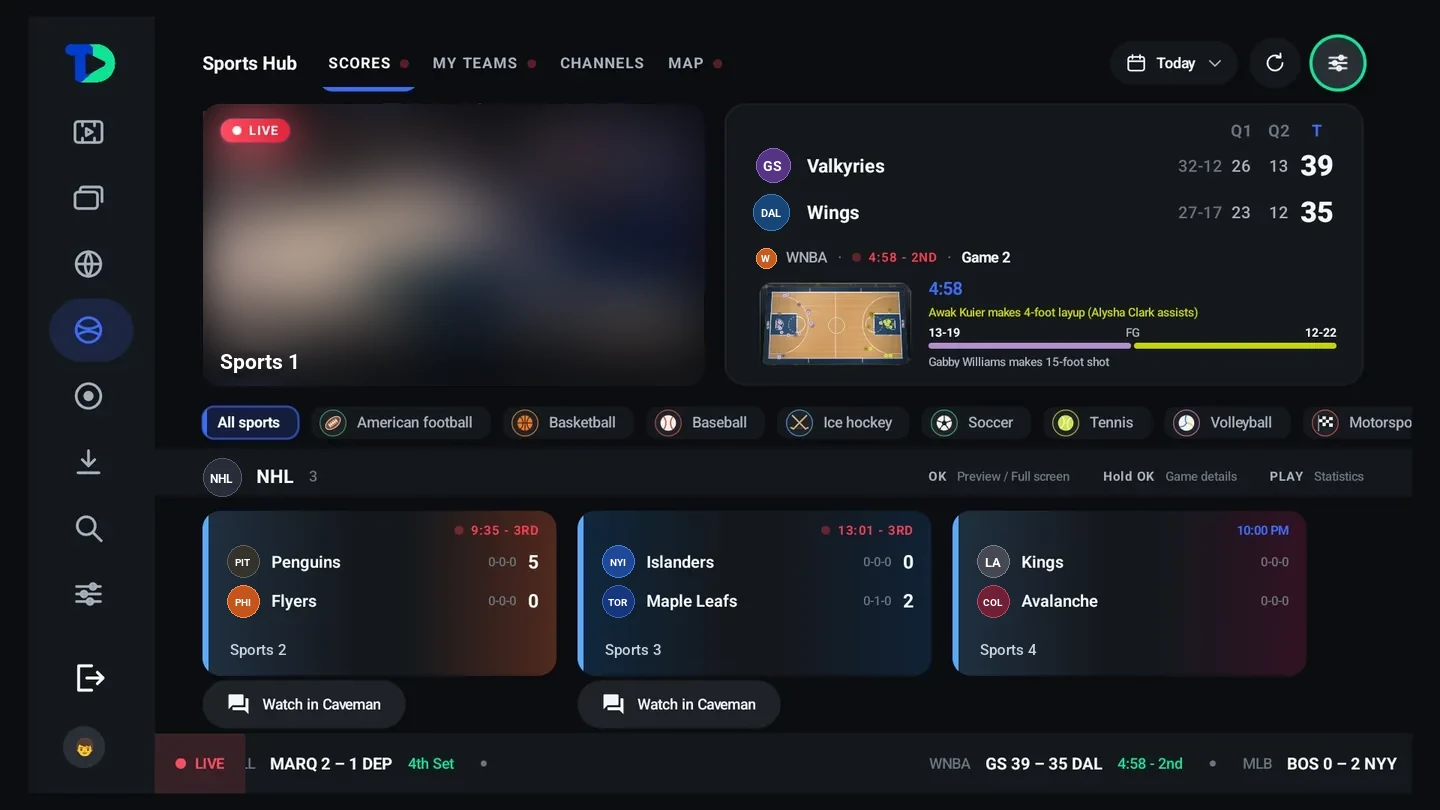
The Sports Hub Scores tab: a live WNBA playoff game, Valkyries at Wings, playing in the preview beside a quarter-by-quarter scoreboard and the latest play, sport chips, NHL games below with their channels, and a live score ticker along the bottom.
Scores

Every sport, one page

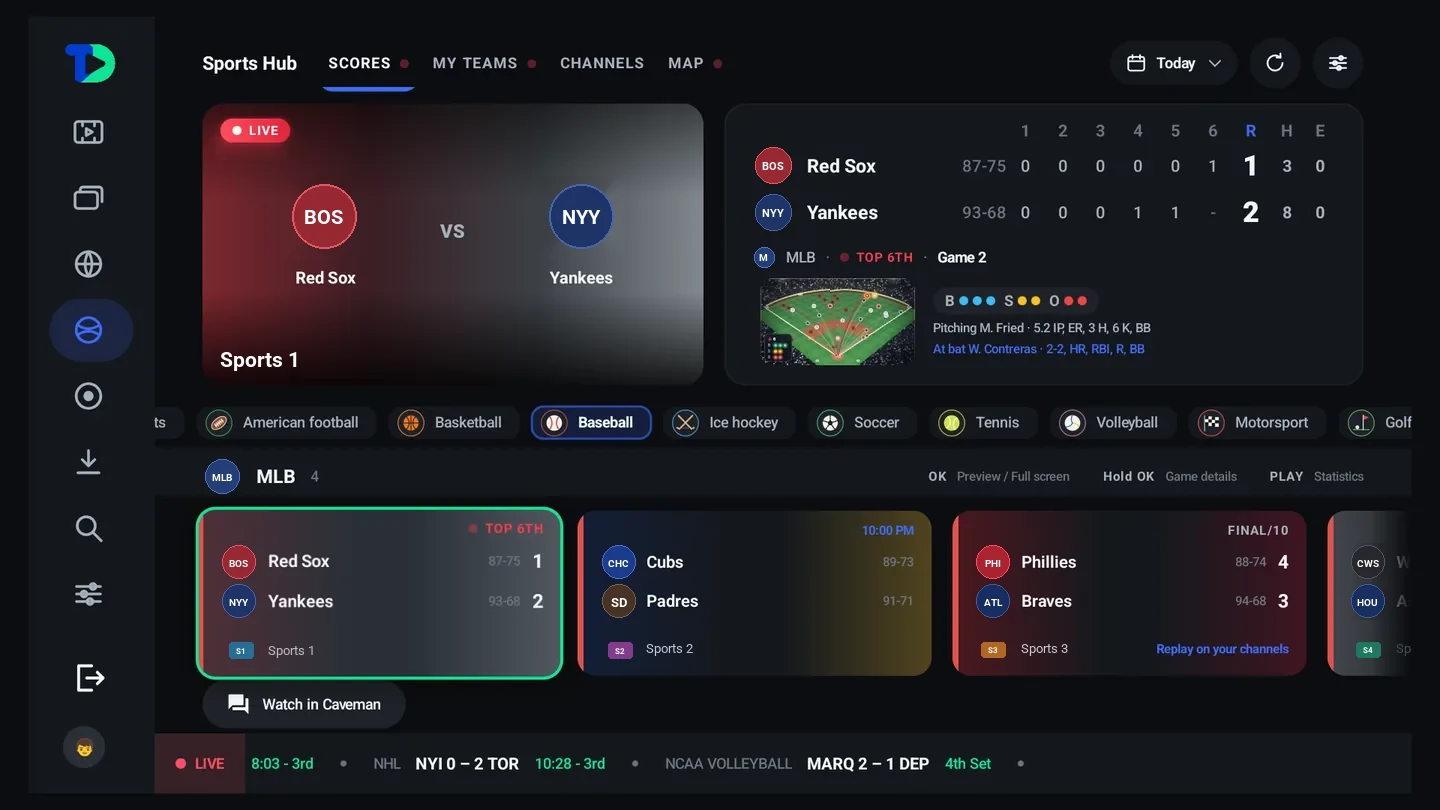
American football, basketball, baseball, ice hockey, soccer, tennis, volleyball, motorsport, golf, fighting, cricket, rugby, Australian rules, lacrosse, field hockey and water polo — more than 350 leagues, and each card telling you which of your channels is carrying it.

  • The card in focus previews the channel behind it, quietly, while you browse
  • Quarter, period, set or innings scores in the scoreboard, with the game’s leaders
  • Replay on your channels when a finished game is on a channel you have
  • Choose a day, from yesterday to a week ahead; the hub remembers the sport you care about
  • Who wins? Pick before the start, see how everyone picked, and climb the weekly leaderboard
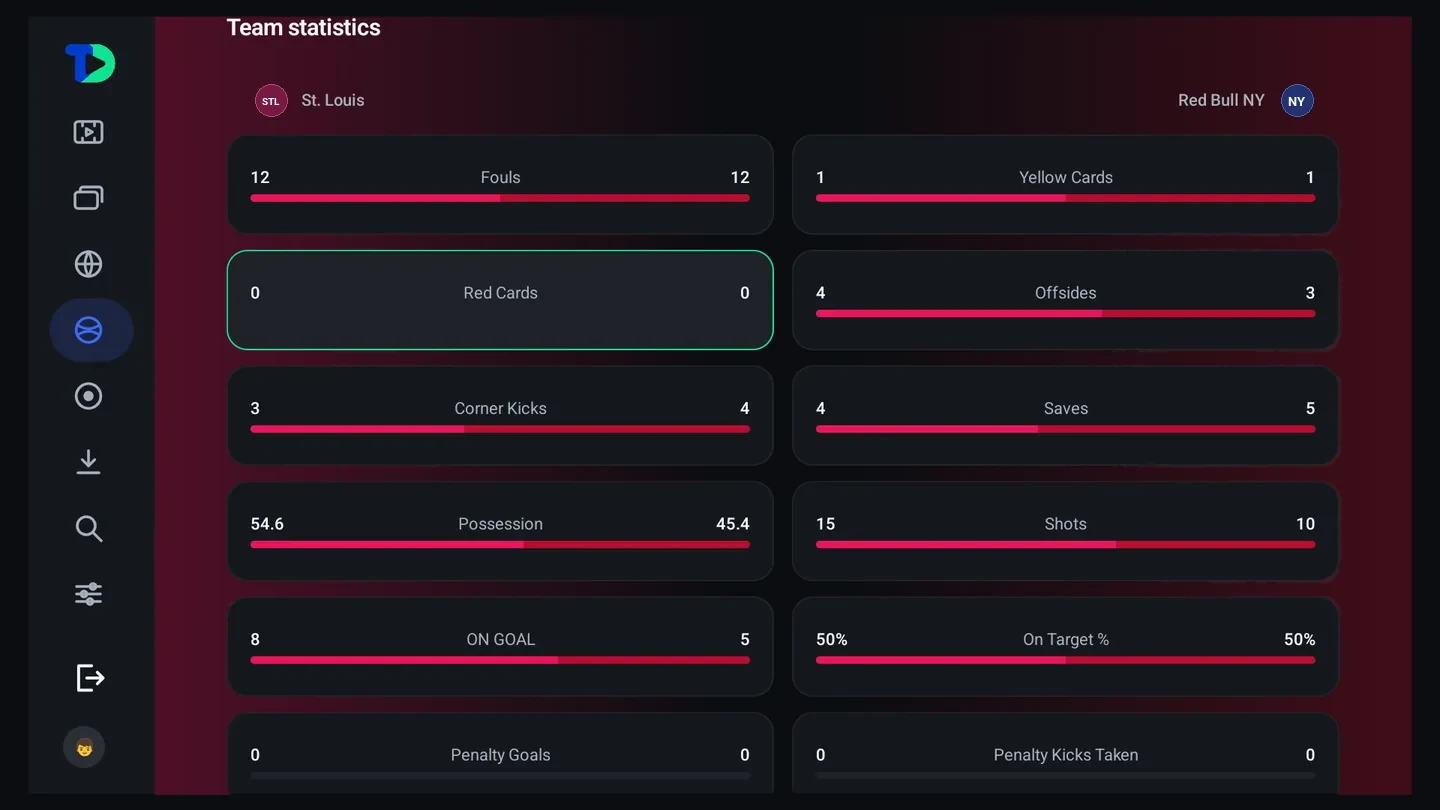
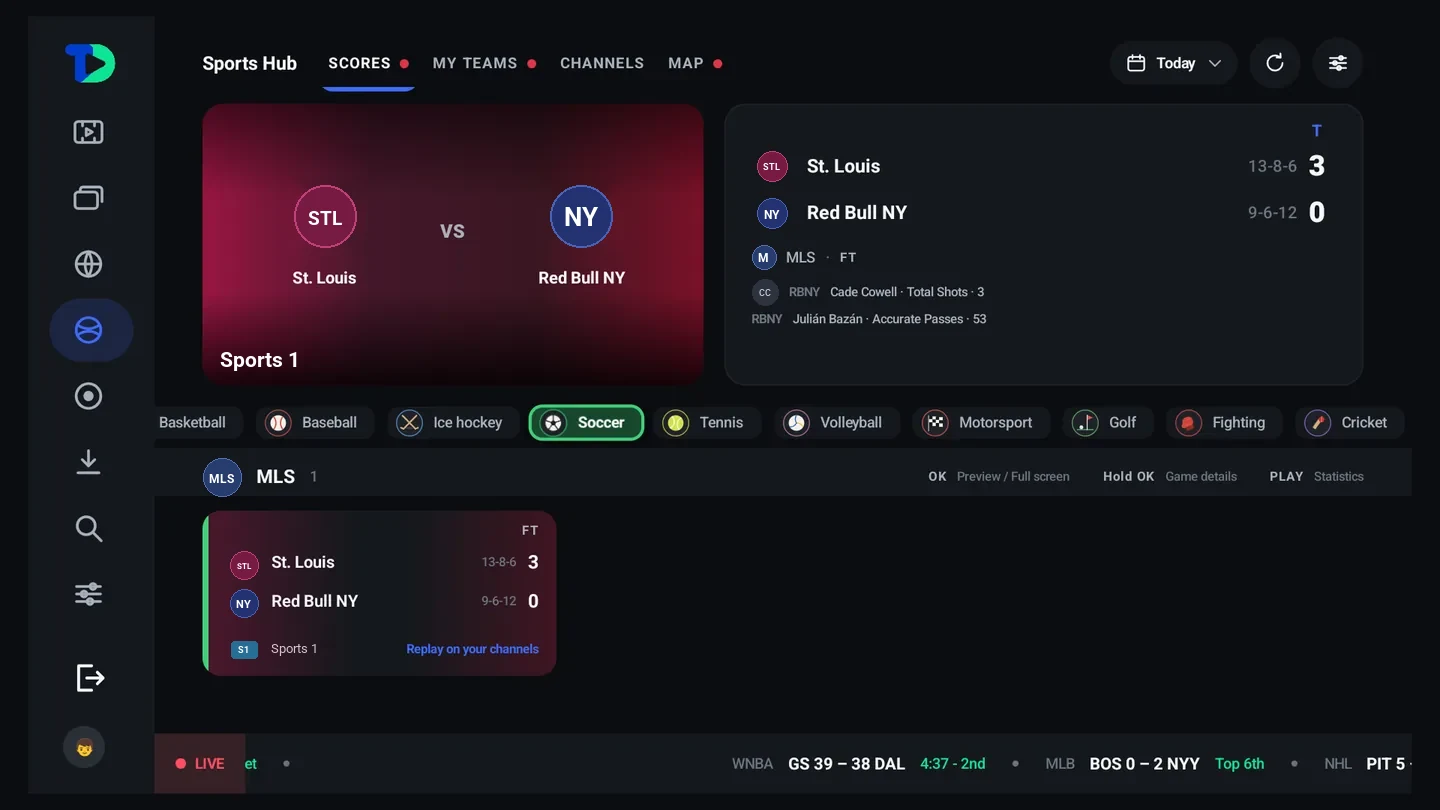
The Scores tab filtered to soccer: an MLS final, St. Louis 3-0 Red Bull NY, with the leading players and Replay on your channels.
One sport at a time. Sixteen of them, each with its own leagues and its own idea of what a score is.
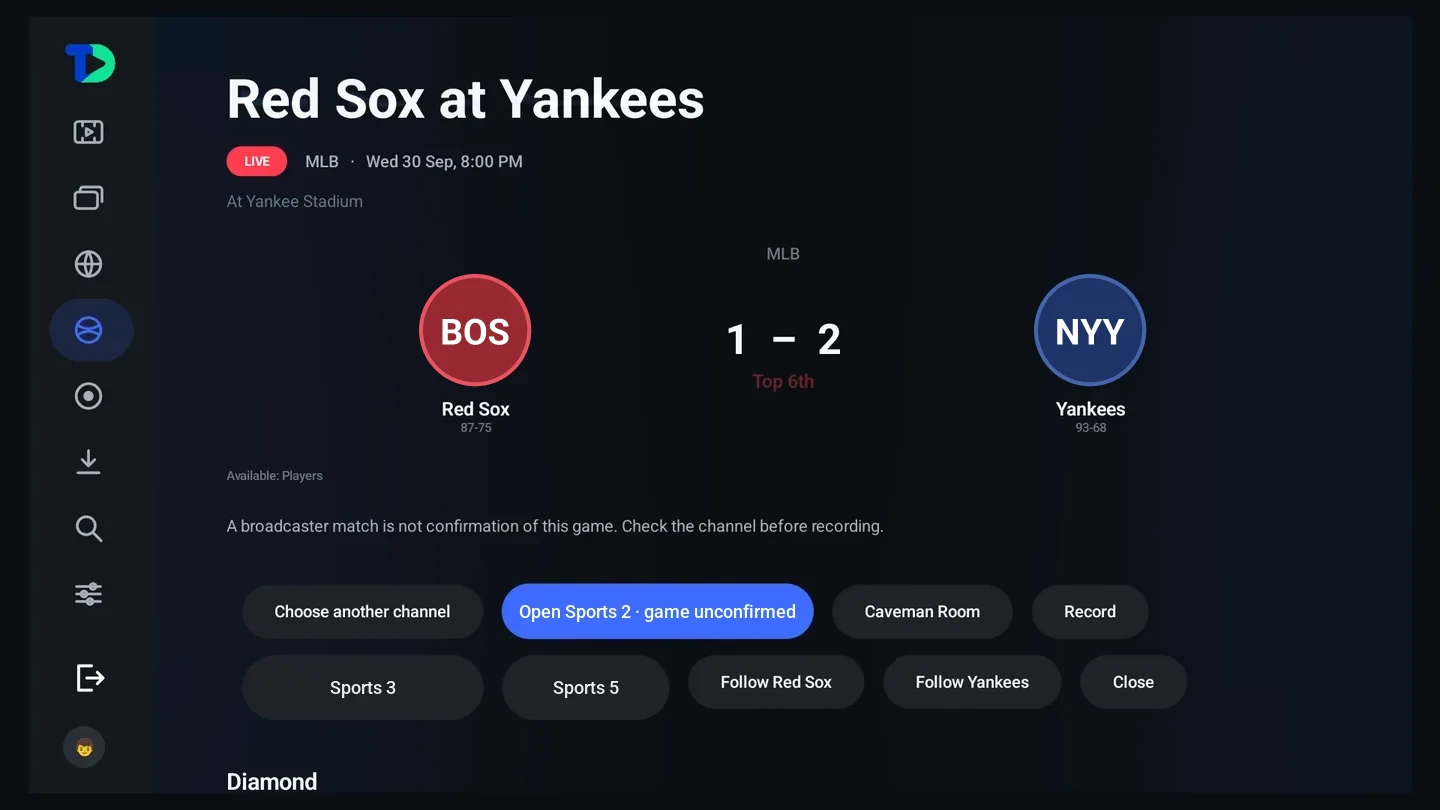
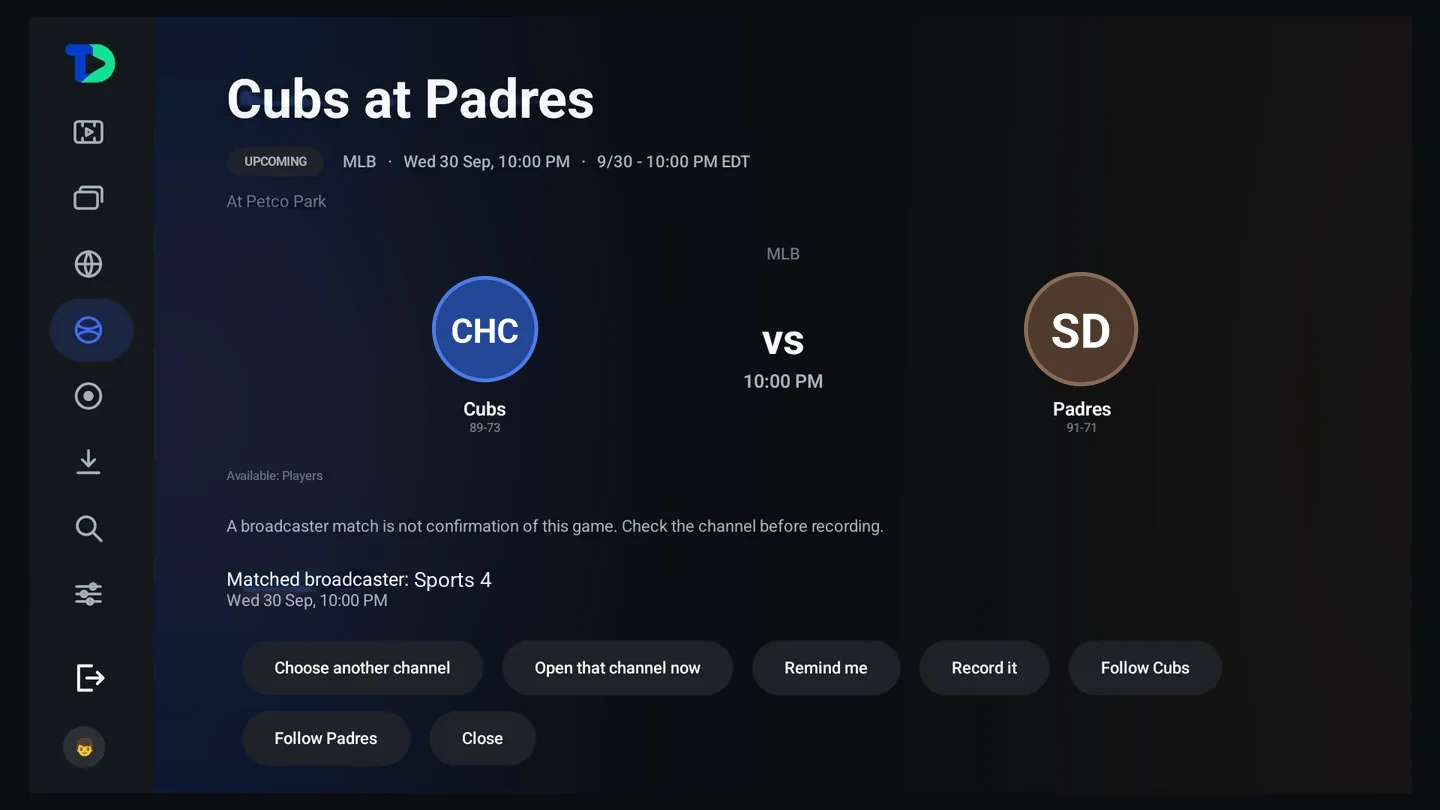
A game page for Cubs at Padres before the first pitch: crests and records, Petco Park, the start time, the matched broadcaster, and buttons to choose another channel, open that channel, set a reminder, record it or follow either team.
Before it starts. Who, where, when in your own clock, and which of your channels will have it.
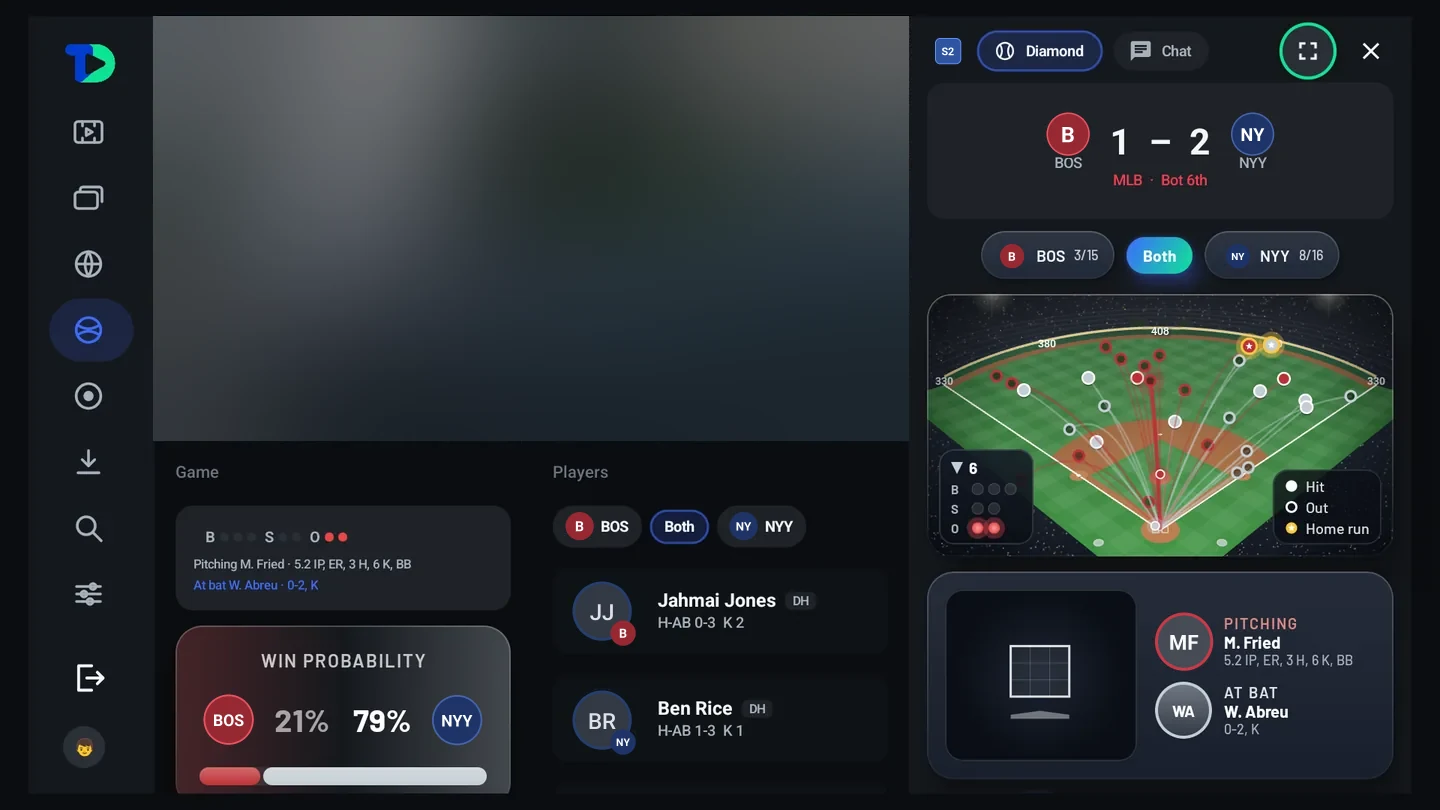
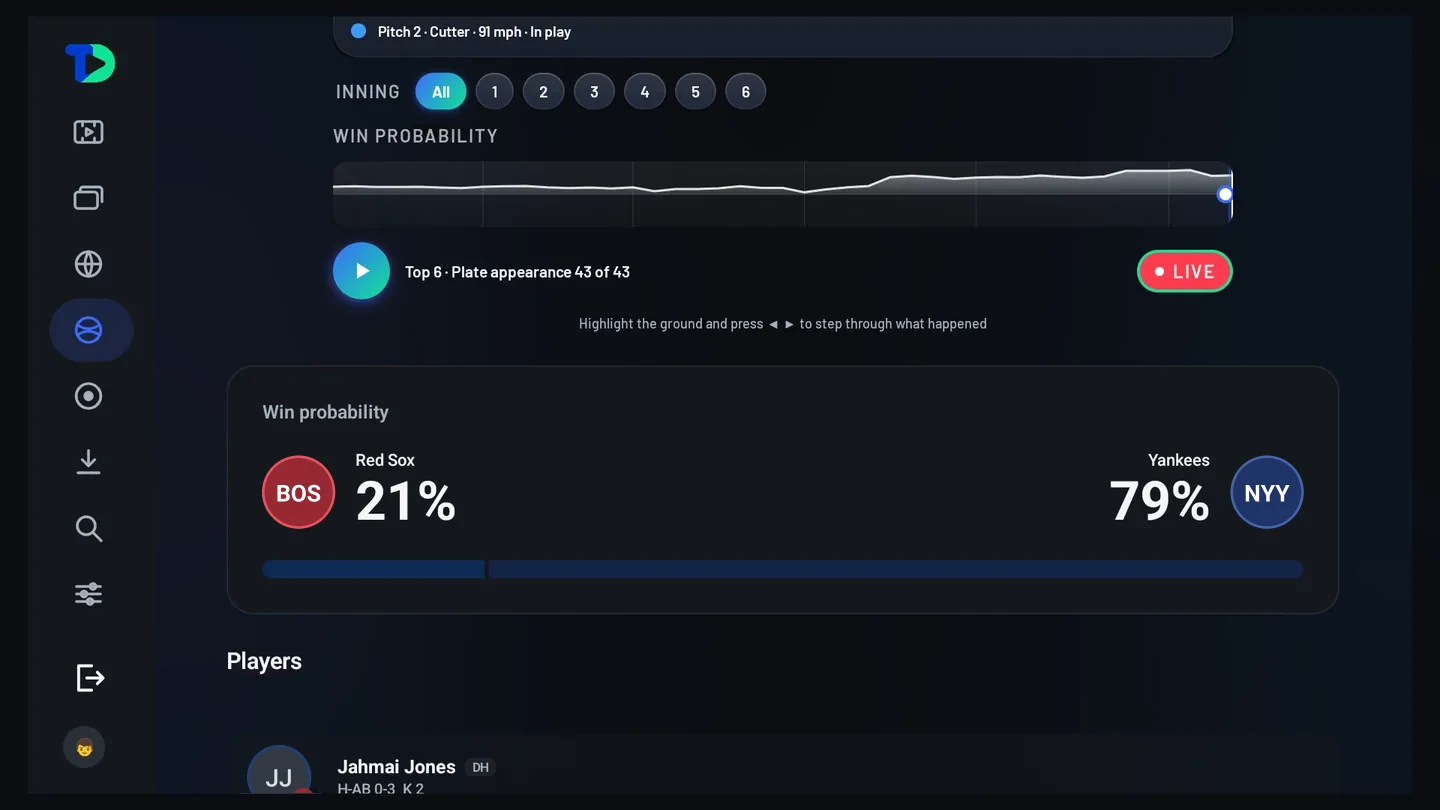
Live win probability, Red Sox 21 percent and Yankees 79 percent, with the win-probability line drawn through the game and a chip for each inning.
Win probability, live. Who is favored right now, and how it swung through the game, inning by inning.
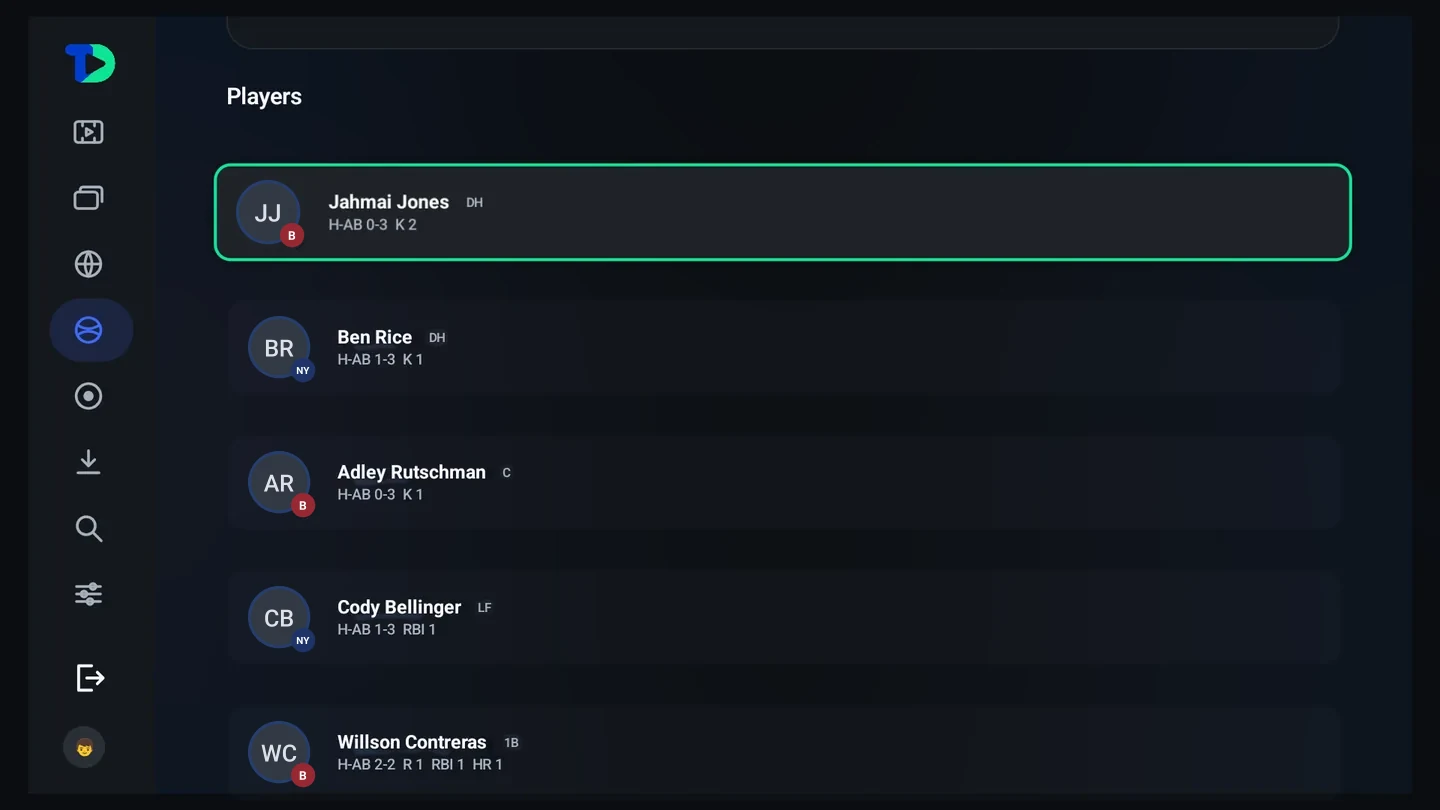
The players list further down: more players, each with a headshot and their line for this game.
The players. Every player with their face on, and their line for this game.
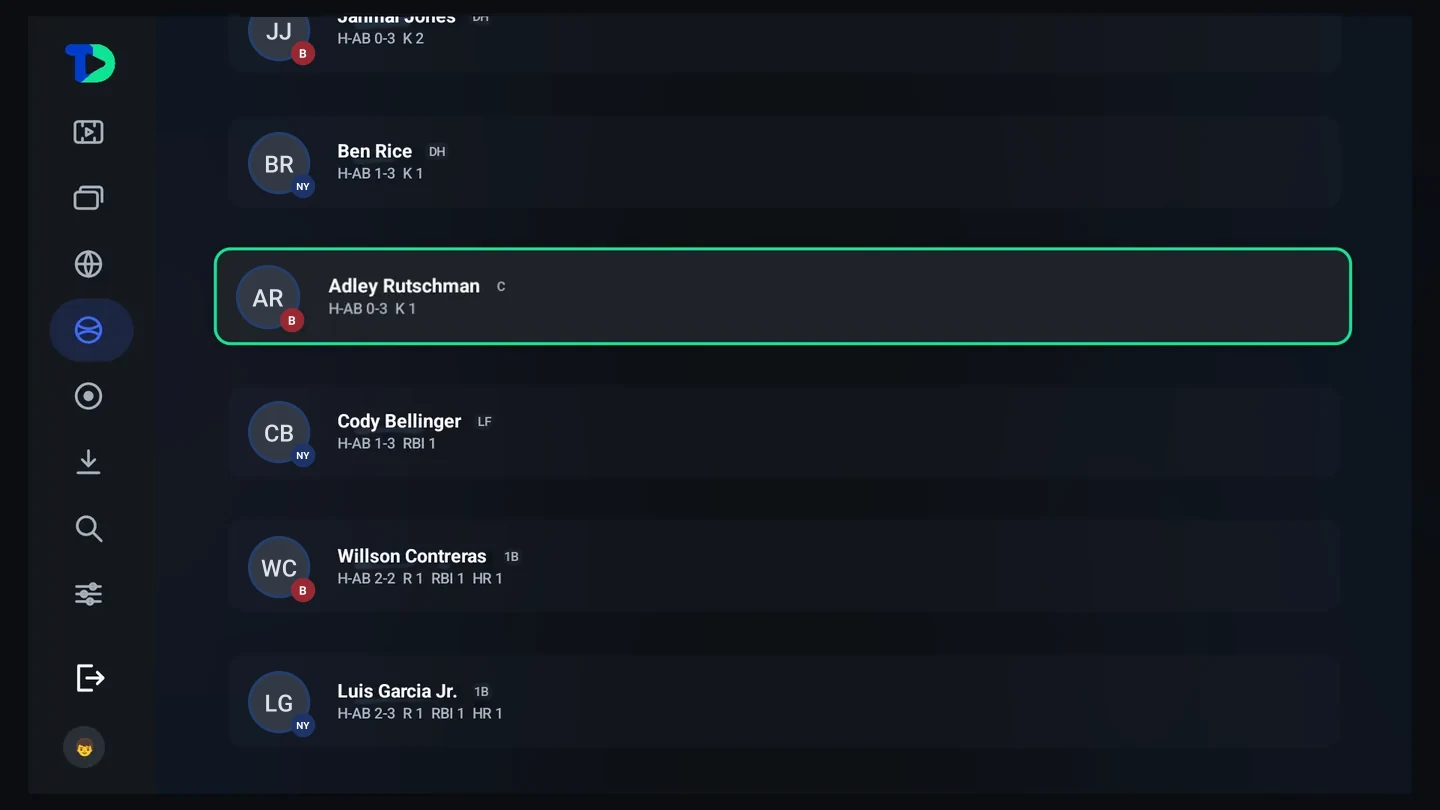
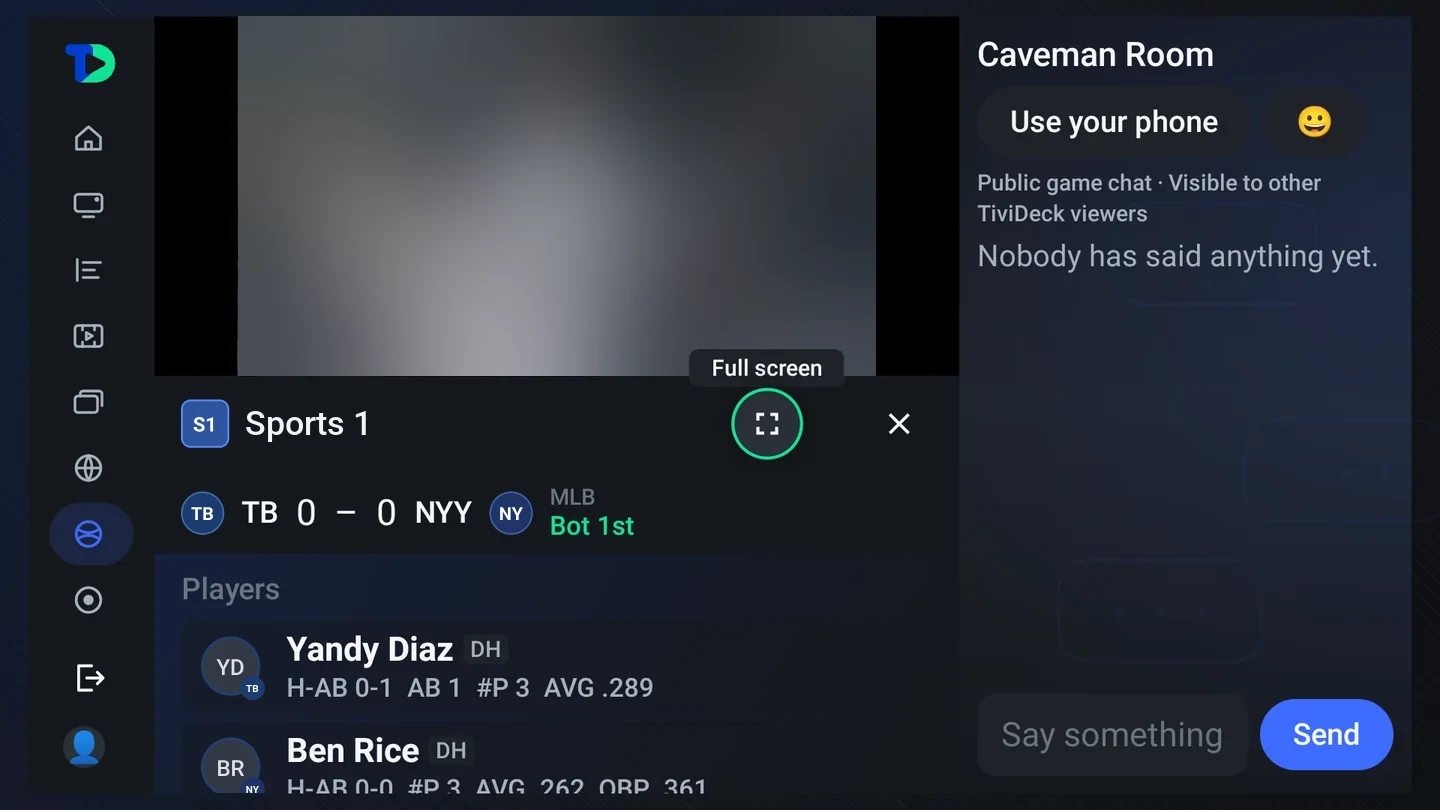
The Players list for this game: headshots and each player's line for this game: hits and at-bats, strikeouts, RBI and home runs.
The lineup, live. Every player’s line for this game — at-bats, hits, strikeouts — moving while you watch.
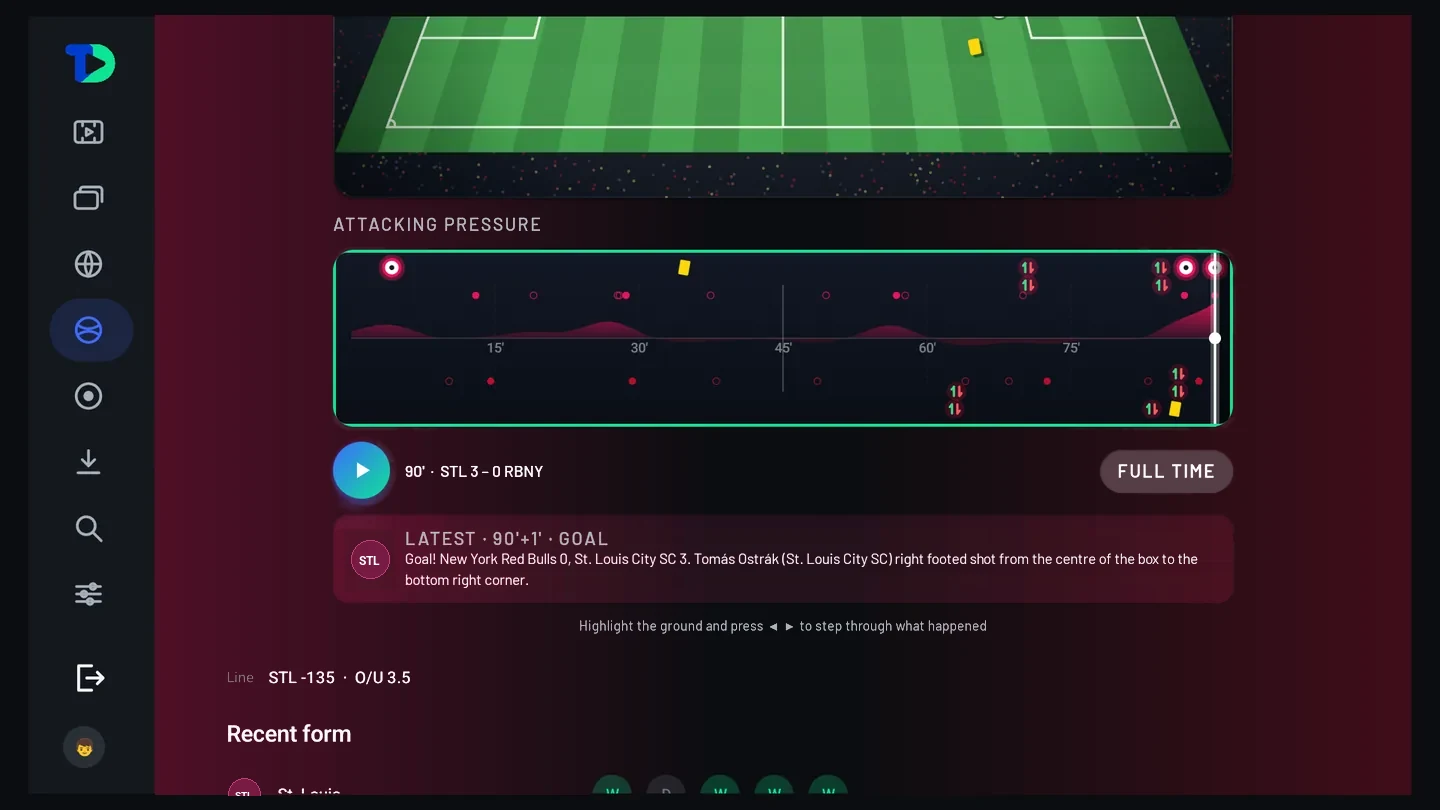
Attacking pressure across the whole match, with cards and goals marked, the latest event (a goal in stoppage time), and a hint to step through what happened.
Deeper, if you want it. For the person in the room who does.
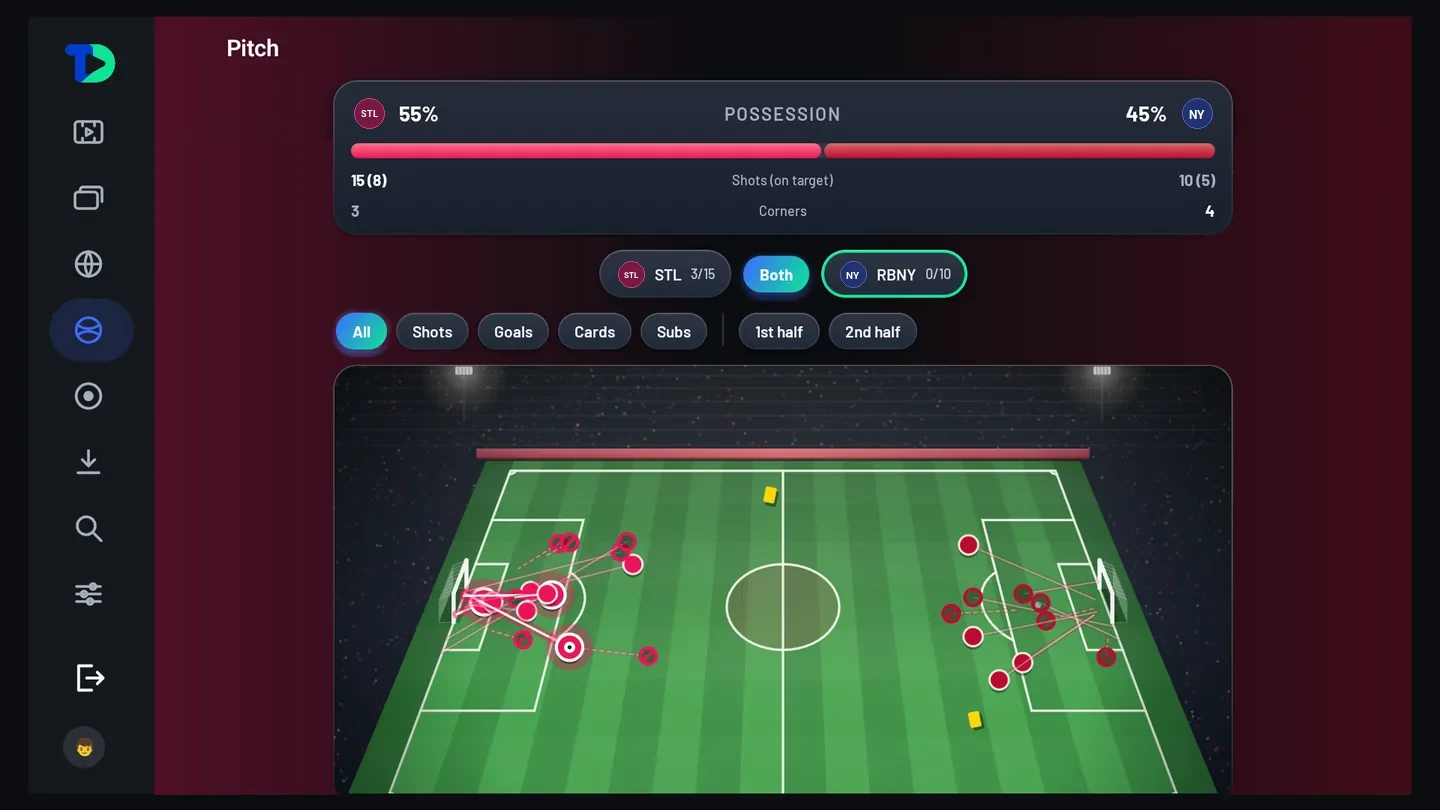
The soccer pitch view: possession 55 to 45 percent, shots, shots on target and corners, every shot plotted on the pitch, filters for all, shots, goals, cards and subs, and first and second half.
Soccer keeps different numbers. Possession, shots on target, corners, cards.
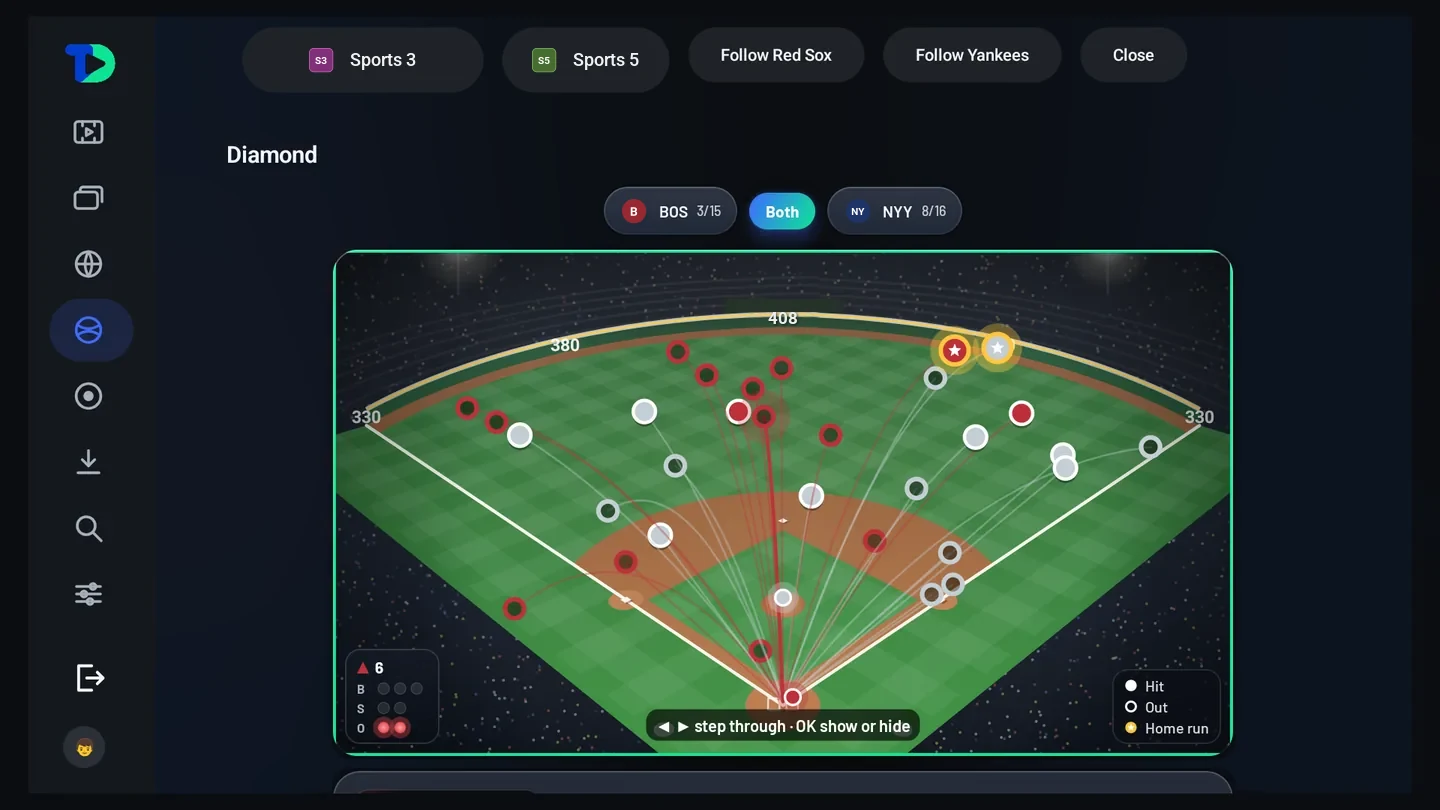
The baseball diamond with every batted ball of the game plotted on the field, a BOS / Both / NYY filter, and a legend for hit, out and home run.
Every sport gets its own deck. A baseball page and a football page are not the same page.
The baseball line score, Red Sox against Yankees inning by inning with runs, hits and errors, the count and outs, the pitcher and batter, and the day's MLB games below.
The box score. Innings, runs, hits and errors, inning by inning, live — and the rest of the day underneath.
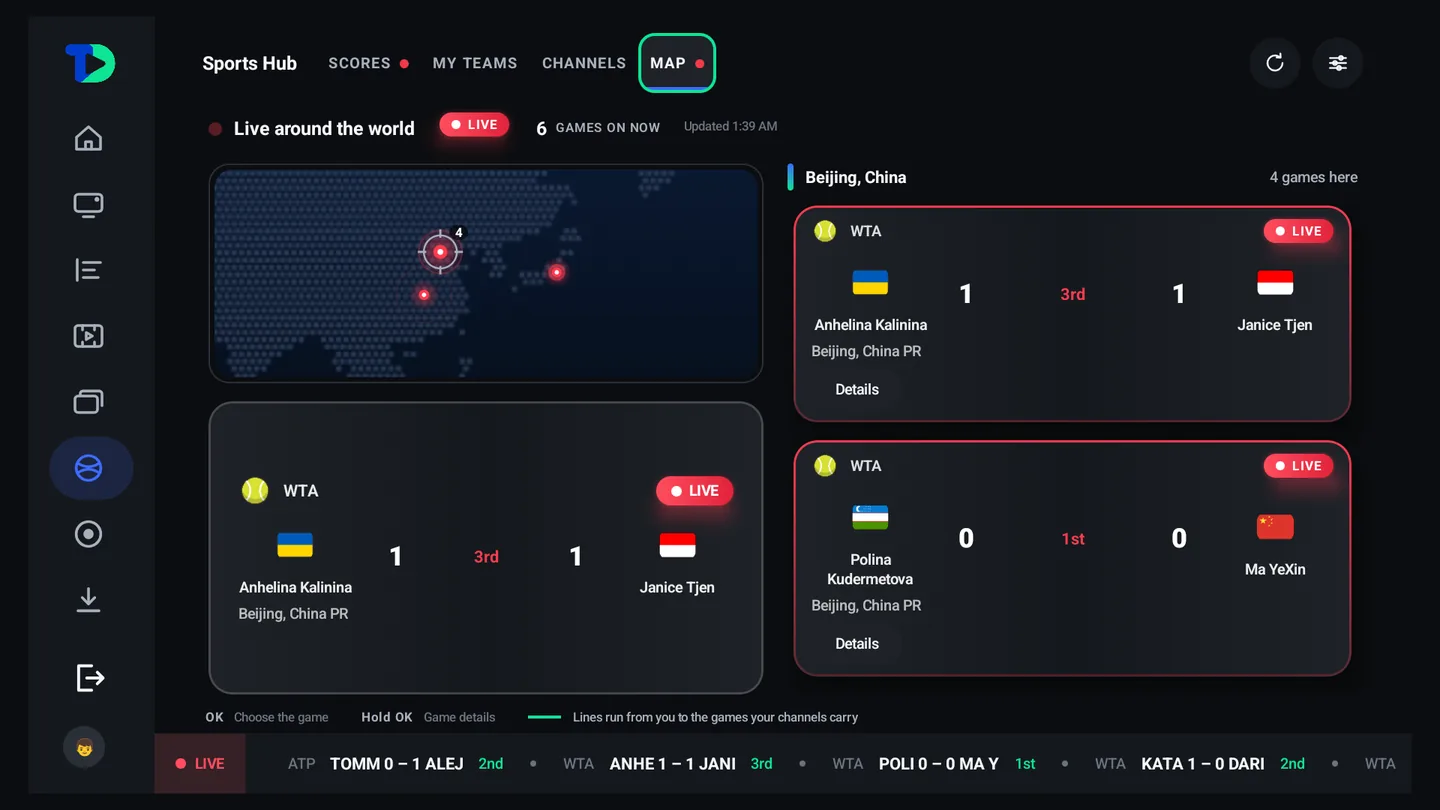
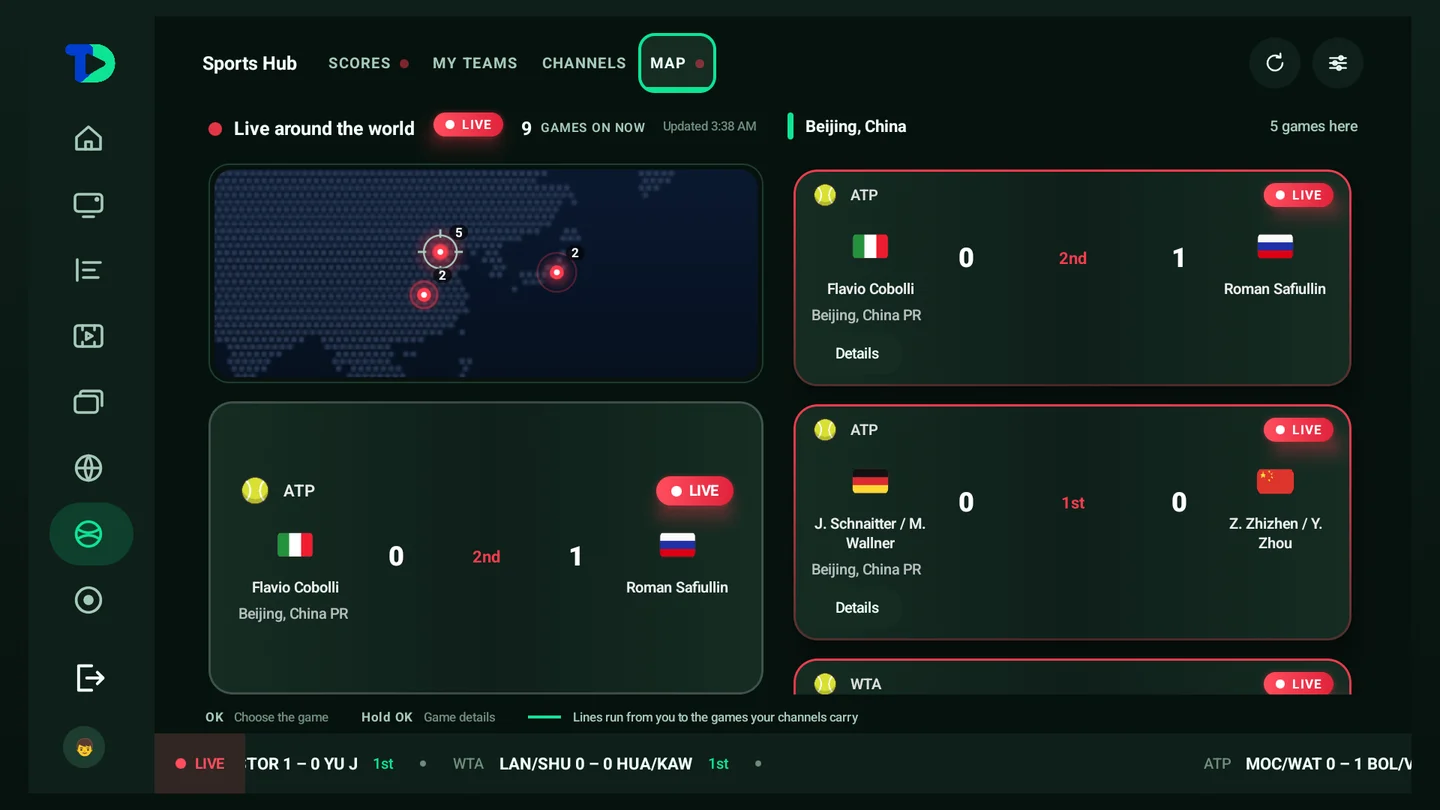
The live map with nine games on now: marks over Beijing and Tokyo, the lit place’s games listed at the side, their tops level with the map, and the lit game’s card under the map.
The count is the point. How many games are on anywhere, and how many of them you can actually watch. Under the map, the lit game; on a channel you have, its live picture plays there, not a thumbnail.
The Caveman Room before anybody has posted, showing Use your phone and the message field.
Before anybody says anything. Type on the remote, or press Use your phone and type with a keyboard that has keys.
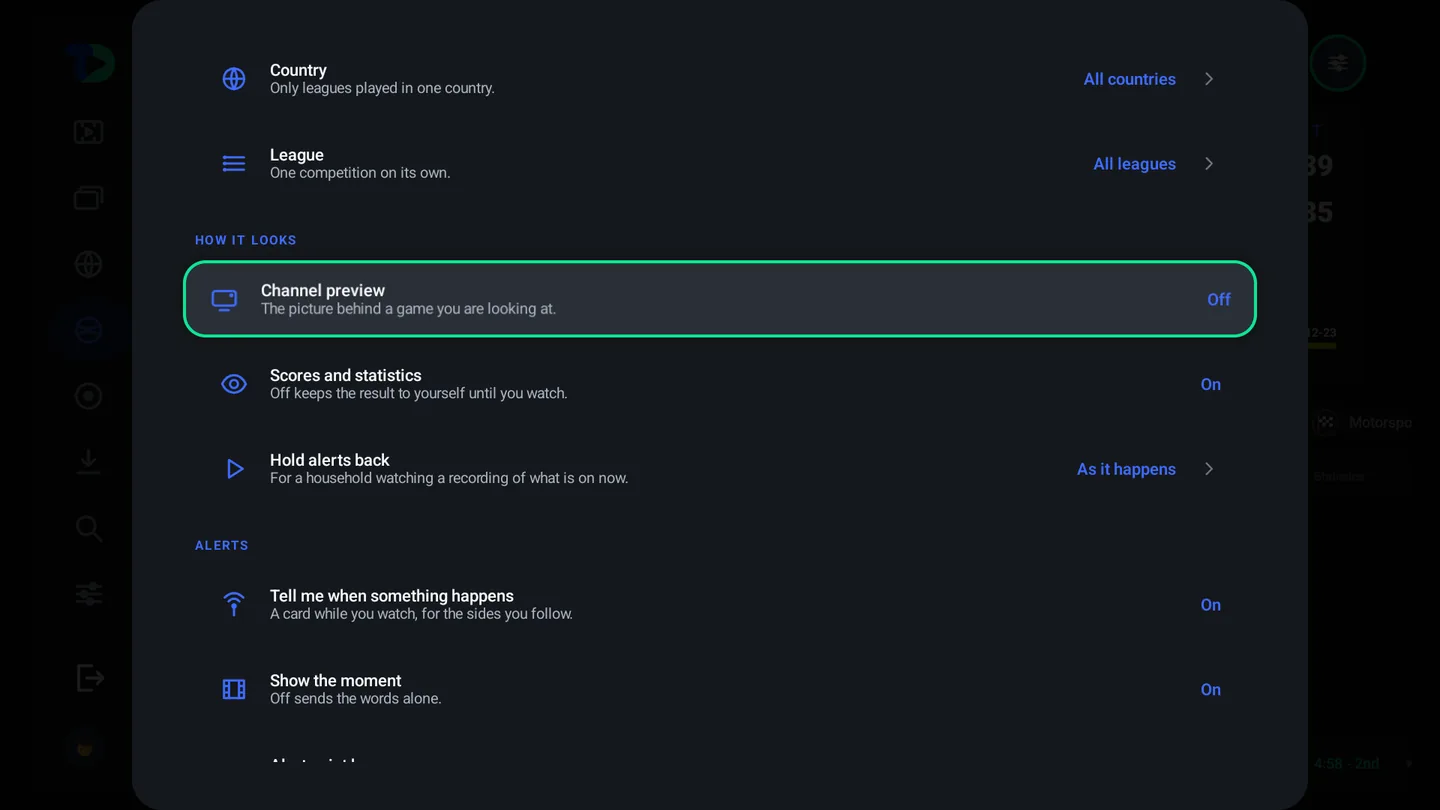
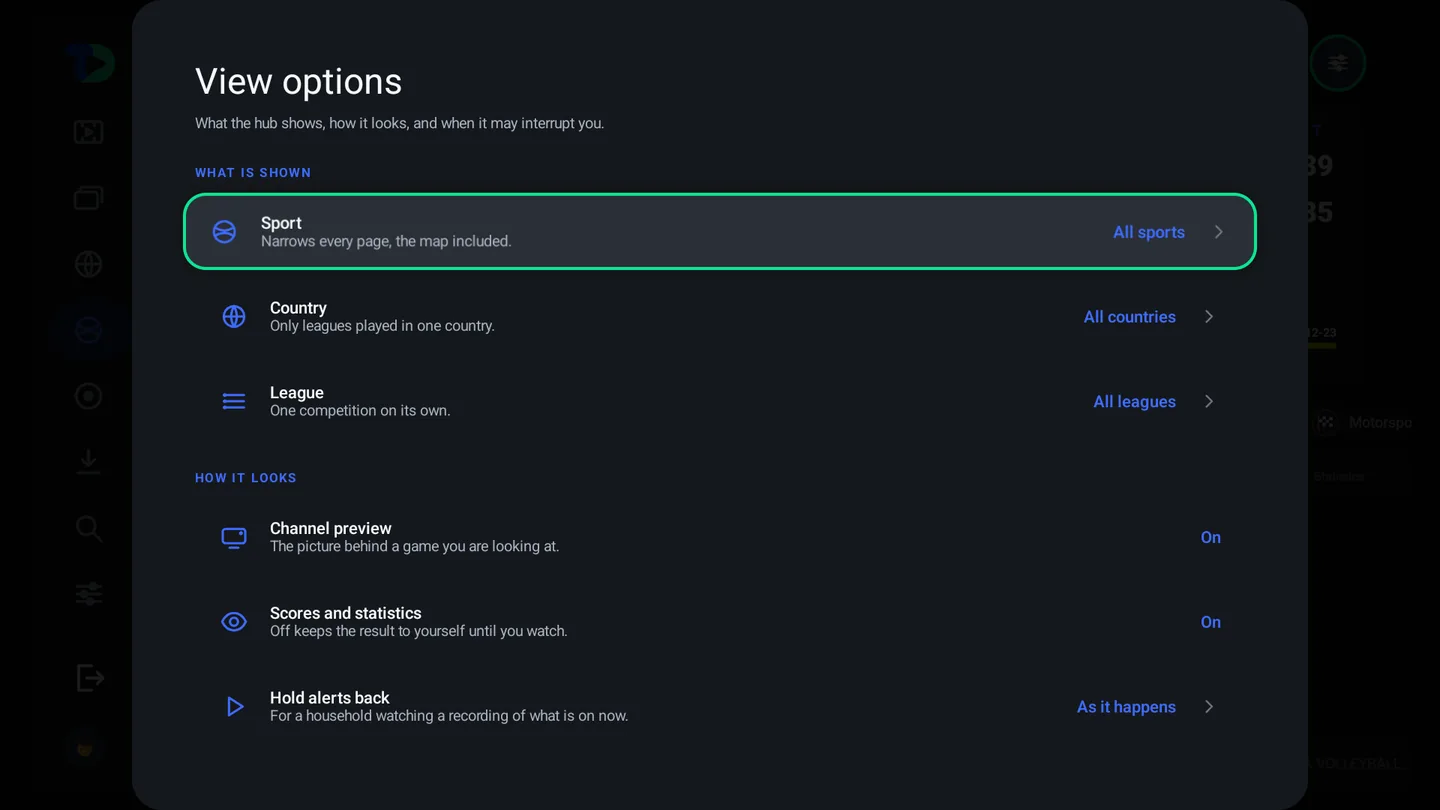
The Sports Hub view options: sport, country and league filters, channel preview, scores and statistics, and hold alerts back.
View options. Narrow the hub to one country, one competition or one sport — or switch the scores off entirely and keep the map.
16sports, each with its own leagues and score shapes
30 sstatistics refresh while a game is live
Caveman Rooma public room per game, with report/block controls, administrator review and distinct viewer tags
0spoilers, when you ask for none

The whole Sports Hub: 350+ leagues, every court, the map →

Profiles & family

One television. Everybody in the house.

Each profile keeps its own favorites, history, watchlists and look. Children get a television that is theirs — and parents get the rules, the clock and each child’s week, day by day, without standing over anybody.

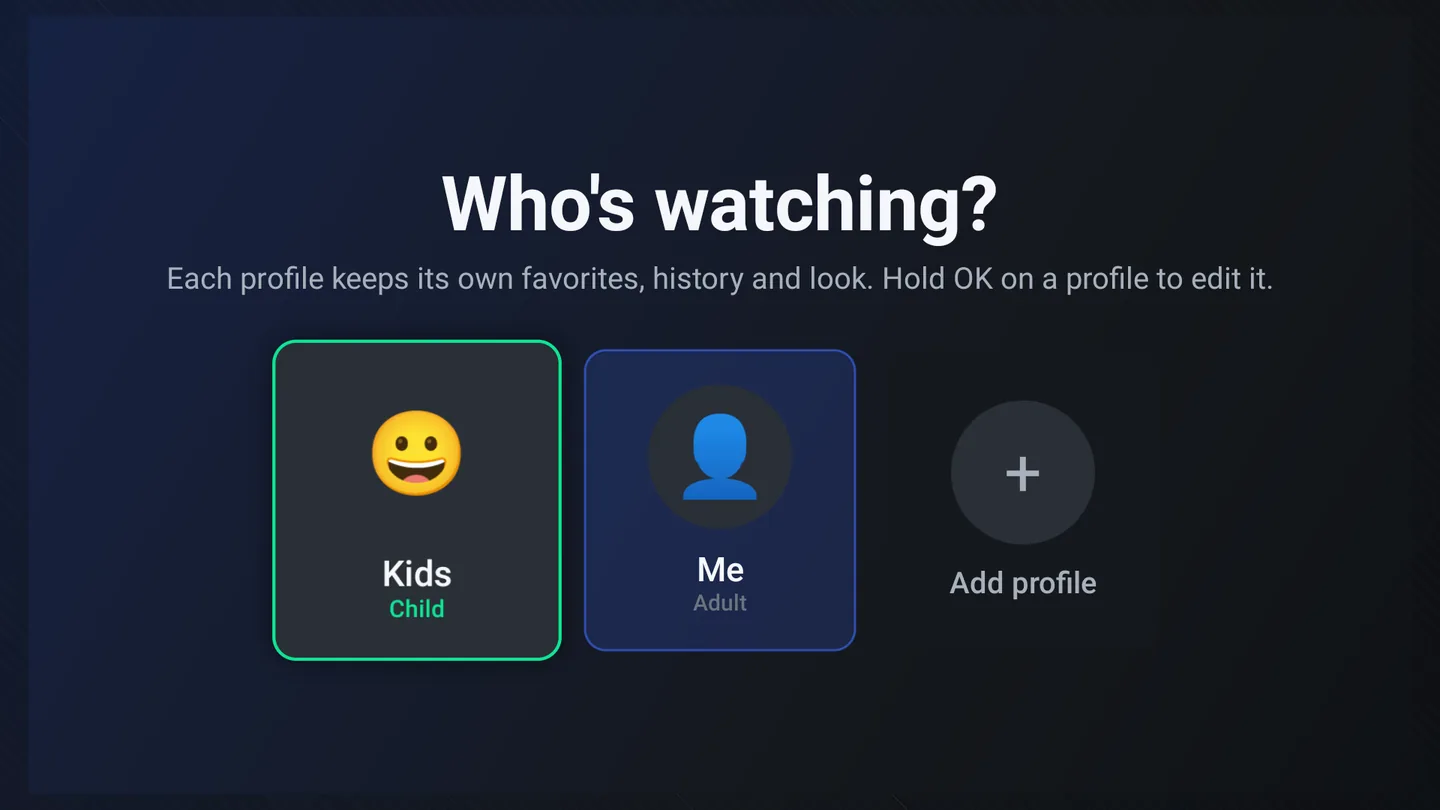
Who’s watching

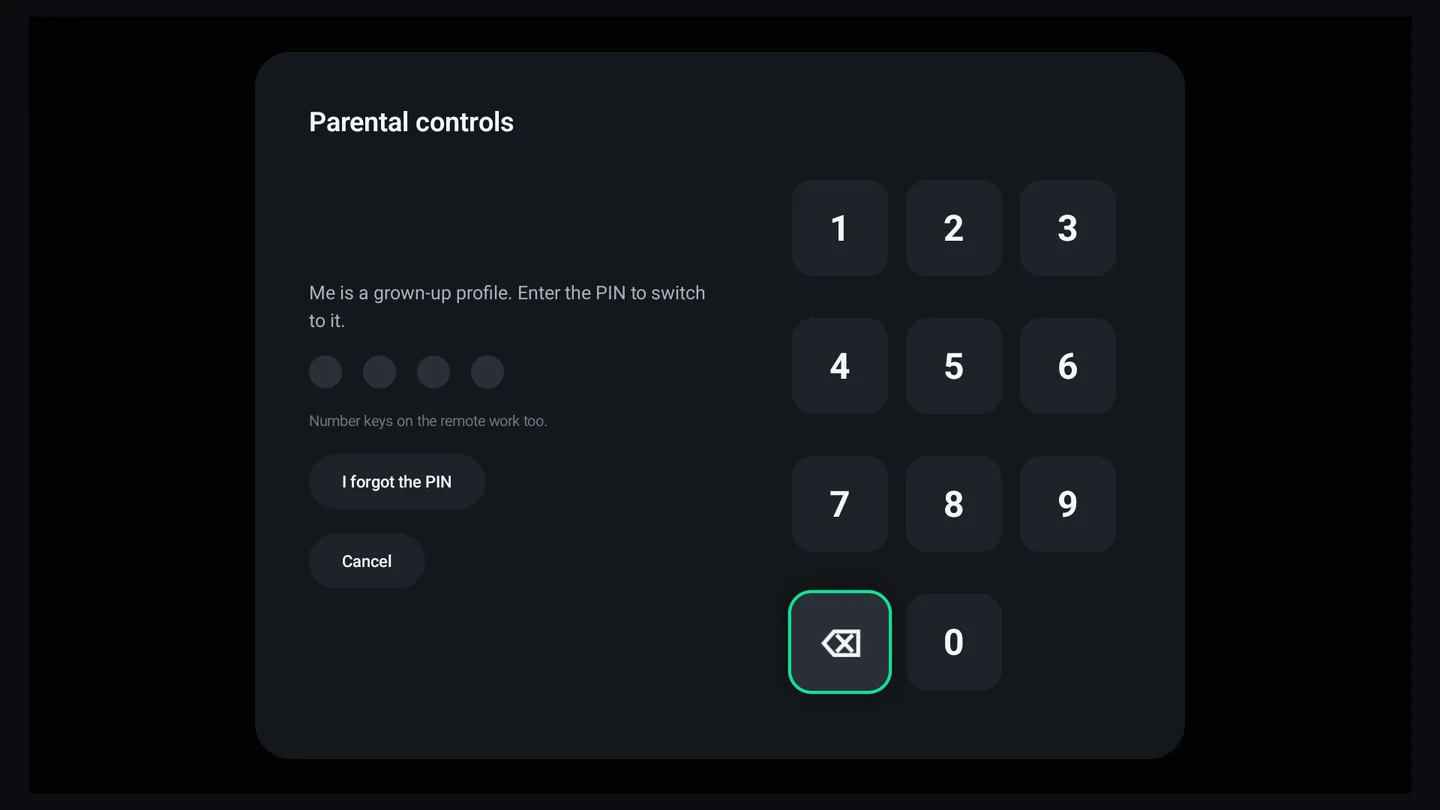
Switching is one press. Grown‑up profiles ask for the PIN; a child’s does not, because a child should never be locked out of their own television. Hold OK on a profile to edit it — the name, the photo or avatar, the kind, and every rule below.

  • Child, teen and adult profiles, each with its own idea of what television is
  • One parental PIN for the household, the same on every TV and phone, with a recovery code for the day it is forgotten and a waiting period after wrong tries
  • Adult categories never appear in a child profile or its history
  • Providers per profile: Grandma sees only her provider, the children only theirs — channels, guide, sports, films and series follow the profile
Who's watching? with a Kids profile marked Child, a Me profile marked Adult, and Add profile.
Who’s watching

Rules a parent actually sets

Not one blunt switch: a bedtime that crosses midnight the way real bedtimes do, a daily allowance, a different allowance for weekends, and a different one again for each day of the week.

  • Bedtime and time is up end the session on their own, with a screen that explains itself kindly
  • Allowed and blocked lists for channels, categories and library titles
  • Pause a profile entirely, for the week that calls for it
  • Each child’s own page: This week, day by day, sittings, favorites and habits — in the app, behind the PIN
The parental controls PIN pad with an I forgot the PIN option.
Parental controls
The kids world

A child does not get a smaller version. They get a different app.

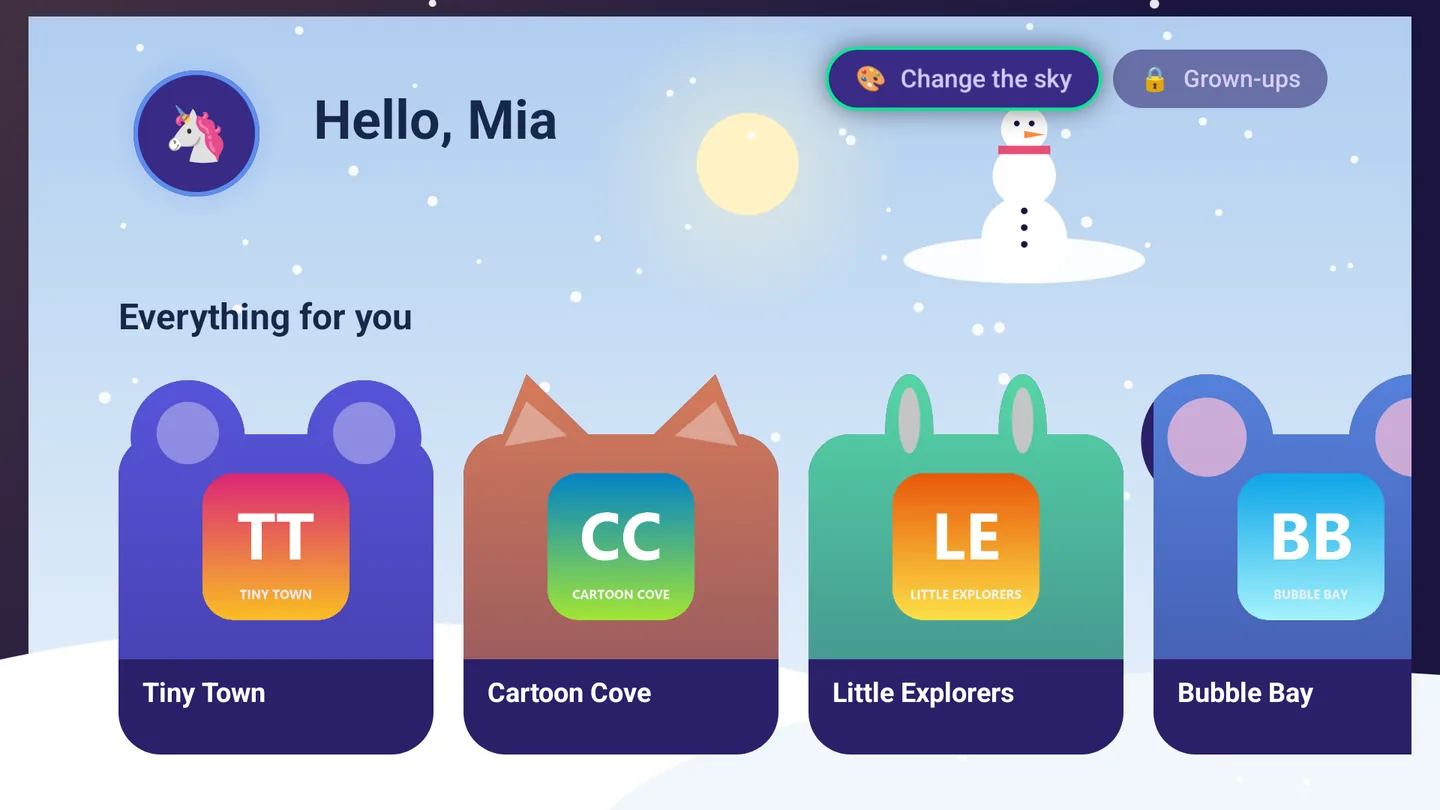
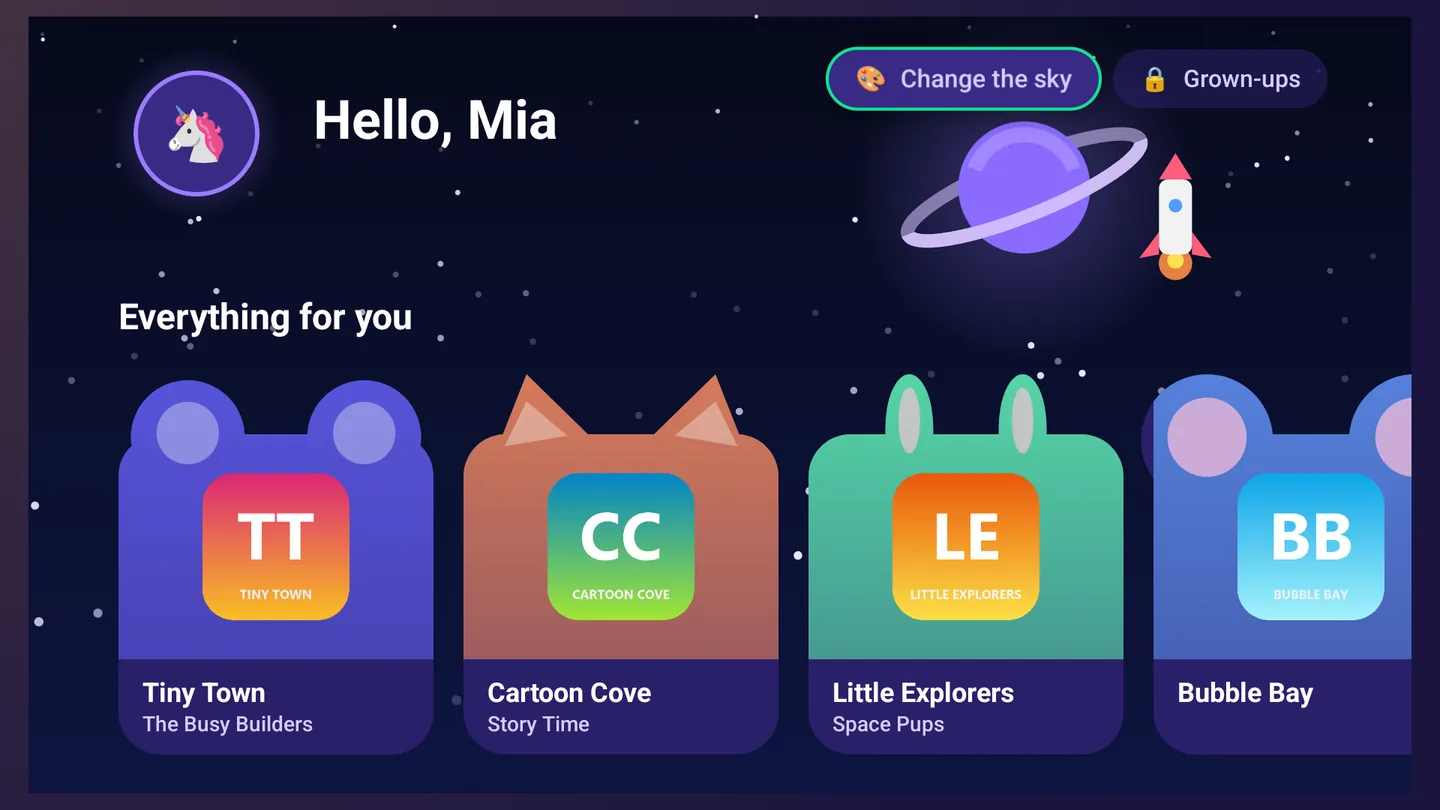
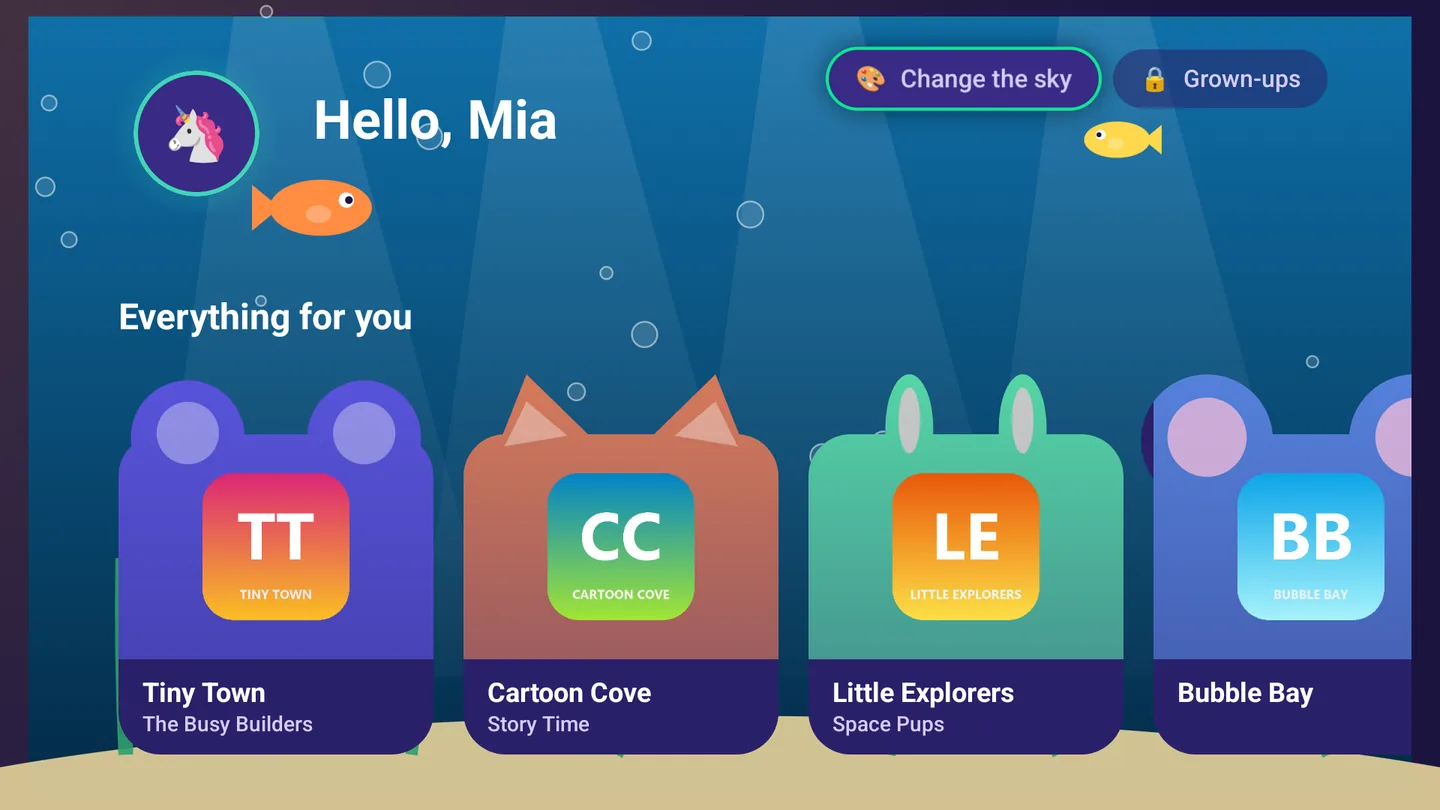
No rail, no settings, no guide, no search box with eight thousand channels behind it. A greeting, the things they were watching, the things you allowed — and a sky they pick themselves, which is the first thing every child does.

The kids home screen on the Snow day sky: a greeting for Mia, and the channels as animals -- a bear, a cat, a bunny and a mouse, each with the channel's logo for a face.
The channels are animals. A bear, a cat, a bunny, a mouse, a frog and a puppy, each with its channel’s logo for a face. The only two buttons are “Change the sky” and “Grown‑ups”, and the second one is locked.
The kids home screen on the Space sky, a ringed planet and a rocket: Hello, Mia, and the channels as animal-shaped cards with each channel's logo for a face.
Space. With a rocket that actually flies across it.
The kids home screen on the Under the sea sky, fish and bubbles: Hello, Mia, and the channels as animal-shaped cards with each channel's logo for a face.
Under the sea. Fish swim past while they choose what to watch.
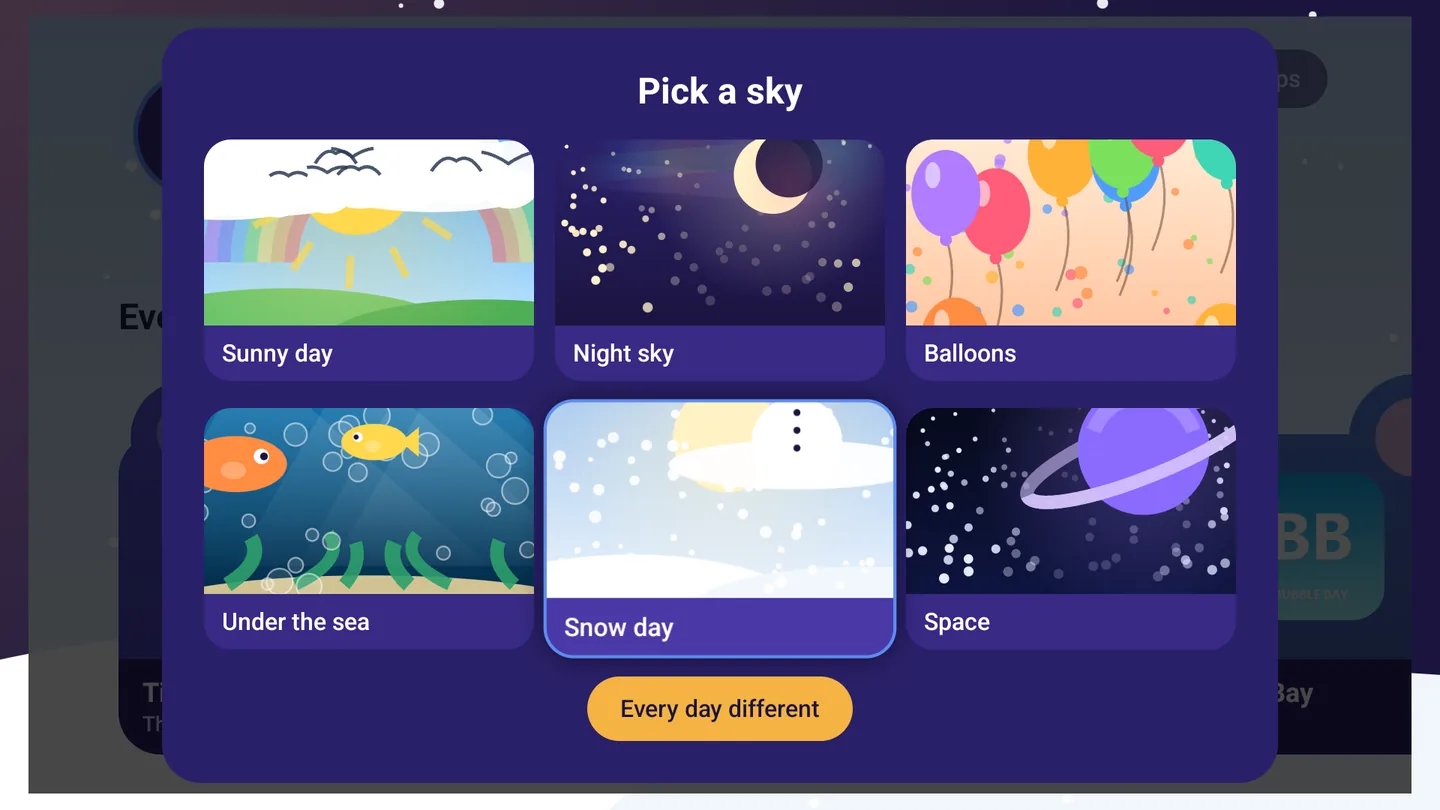
The Pick a sky chooser: sunny day, night sky, balloons, under the sea, snow day and space, plus Every day different.
Pick a sky. Six of them, all animated — or Every day different, which chooses for them each morning.

Every family control, one by one →

On your phone

The same household, in your pocket.

The phone app is designed for the phone, not the TV made smaller: live TV with its guide, films and series, the Sports Hub with alerts before kick‑off, the kids’ world, and a profile for everyone. Link it to your TV and your providers, profiles, favorites, settings and Continue watching follow you. Send a channel to a TiviDeck TV in the house, or cast it to a Chromecast or Google TV. Like the TV, it comes in a Store edition and an Enhanced edition.

The phone's Live TV: the channel playing at the top with its sound and full-screen buttons under it, and the channel list with programs and time left.
Live TV
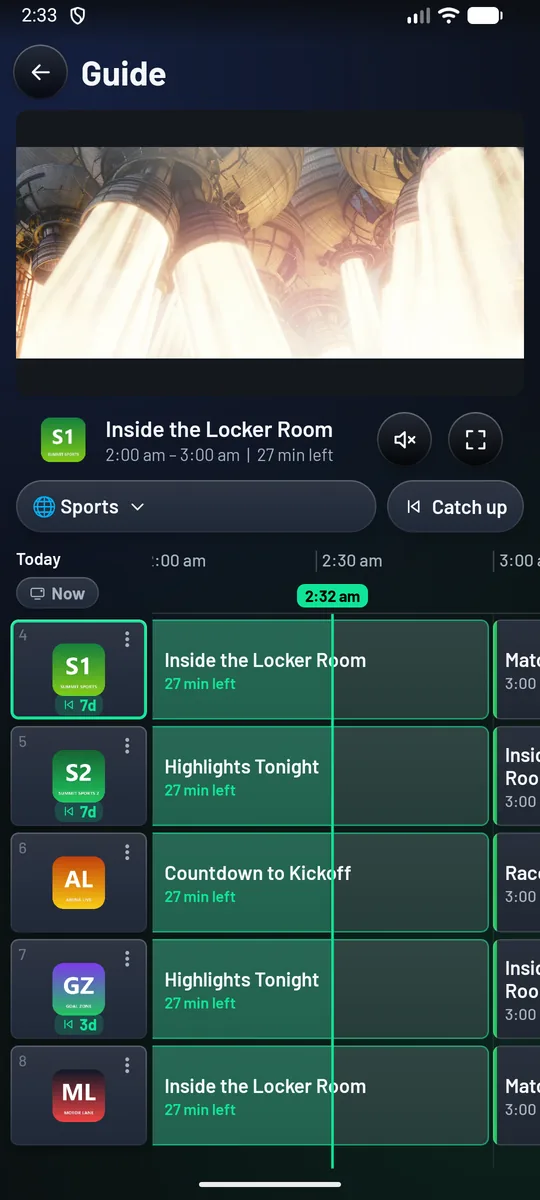
The phone's guide: the channel playing at the top, and a grid of channels and programs with the current-time line.
Guide
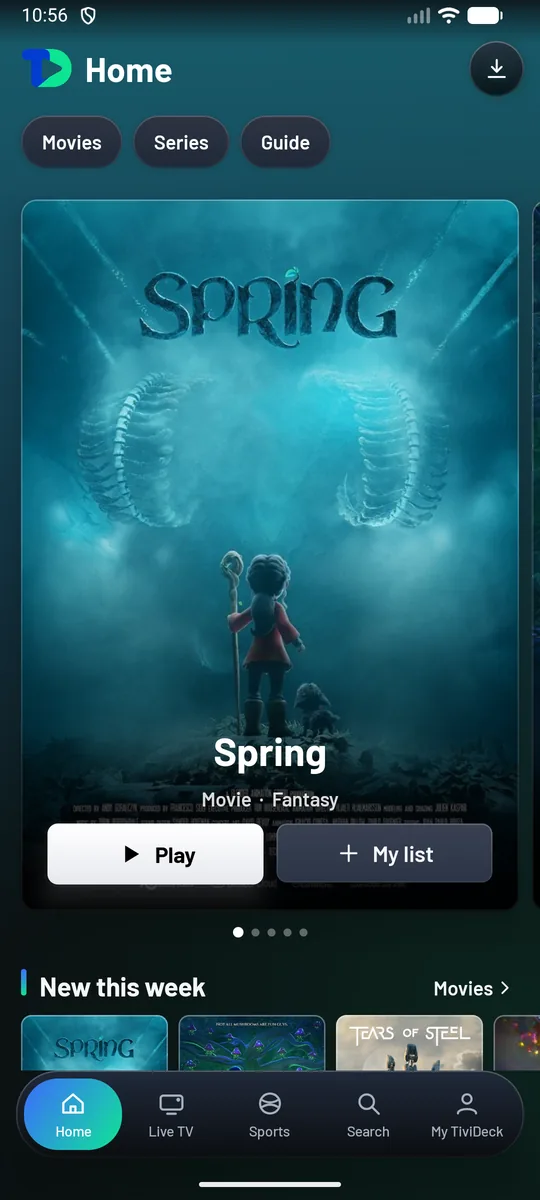
The phone's home screen with a large film poster, Play and My list.
Home
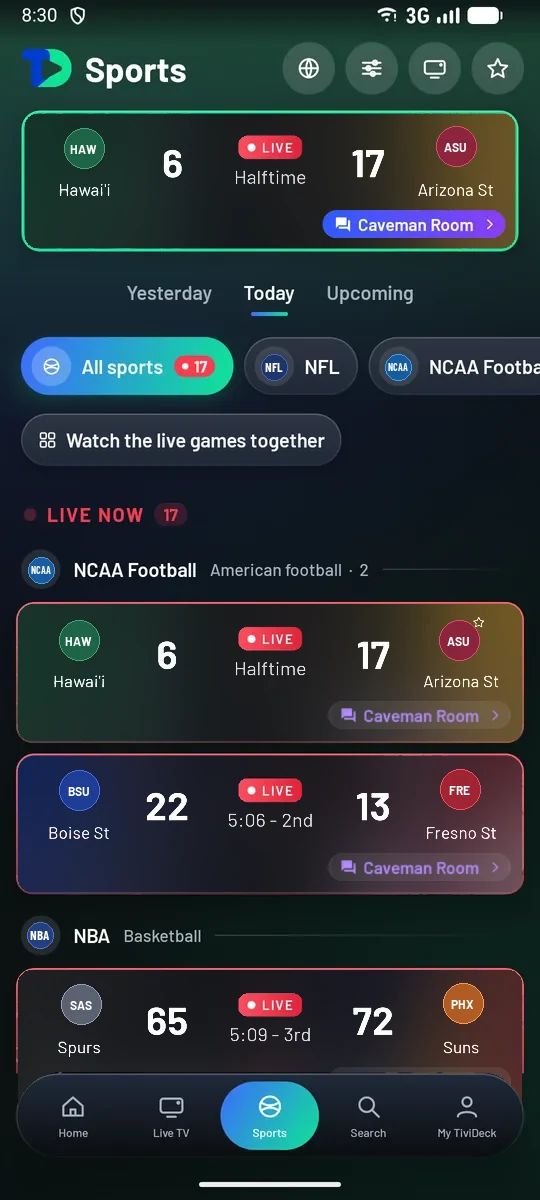
The phone's Sports Hub: live games, each card in both teams' colors with their crests.
Sports
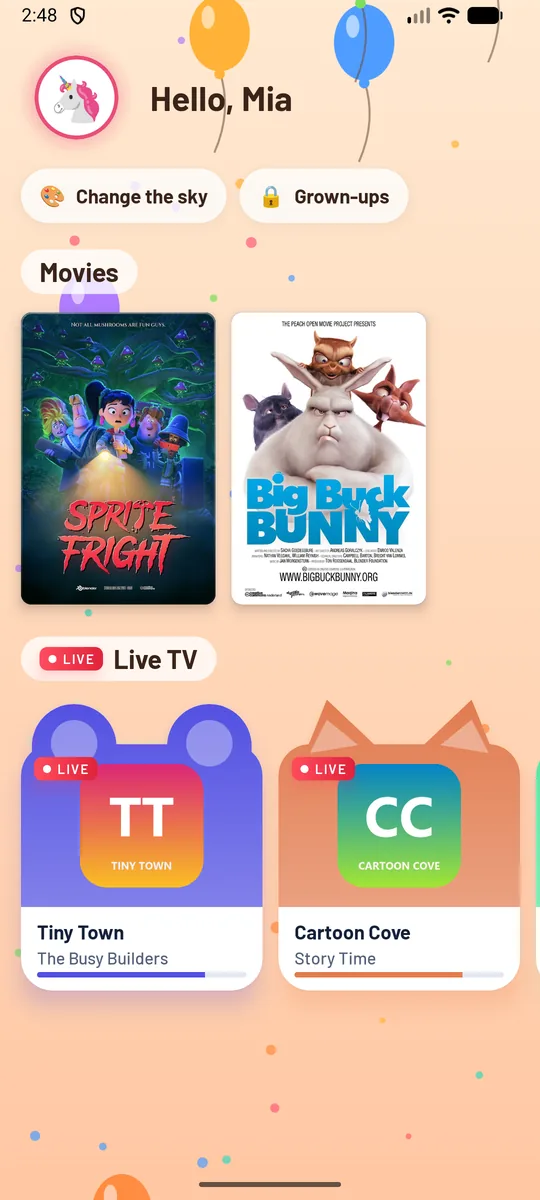
The phone's kids world for Mia: films, and live channels as a bear and a cat.
Kids
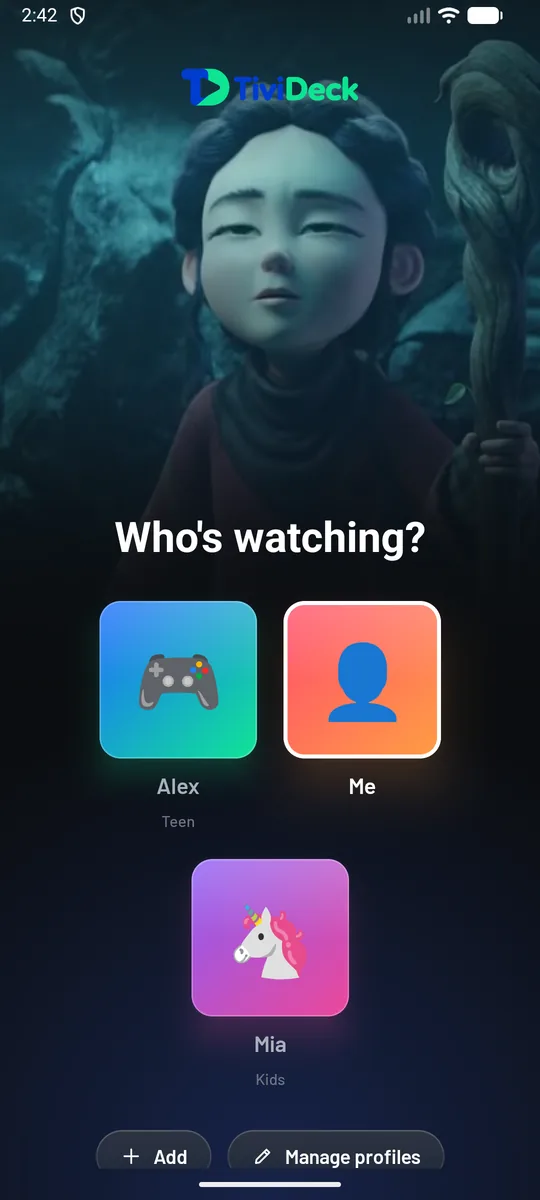
The phone's Who's watching screen with Alex (teen), Me and Mia (child).
Who’s watching
Coming soon to iPhone

The same television, on an iPhone.

The iPhone app is on its way to the App Store: live TV and the guide, films and series, the Sports Hub with its courts and game rooms, the kids’ world, multi‑view, downloads and Family help, in the same household as your TVs. The plans are the same, paid once, through the App Store.

Live TV on an iPhone: a test stream playing at the top with sound and full-screen buttons, Guide and Multi-view, and the channel list.
Live TV on iPhone
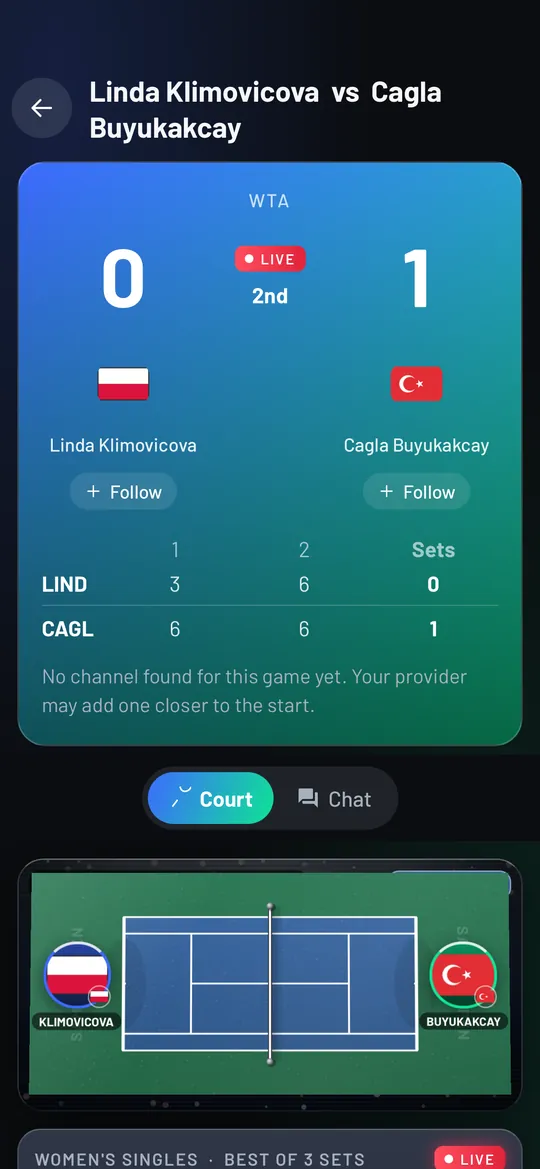
A live WTA tennis match on an iPhone: the score by set, Follow under each player, and the tennis court drawn below with both players at their ends.
A game on iPhone
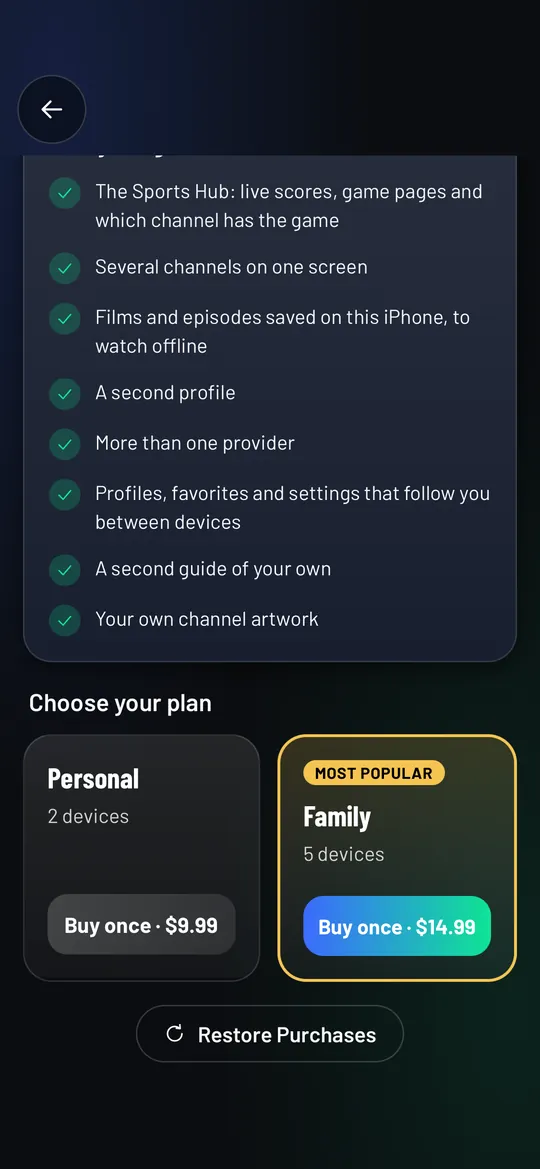
The Premium page on an iPhone: what Premium includes, Personal for 2 devices at $9.99 once, Family for 5 devices at $14.99 once, and Restore Purchases.
Paid once, on iPhone too
Make it yours

Customization that still looks designed.

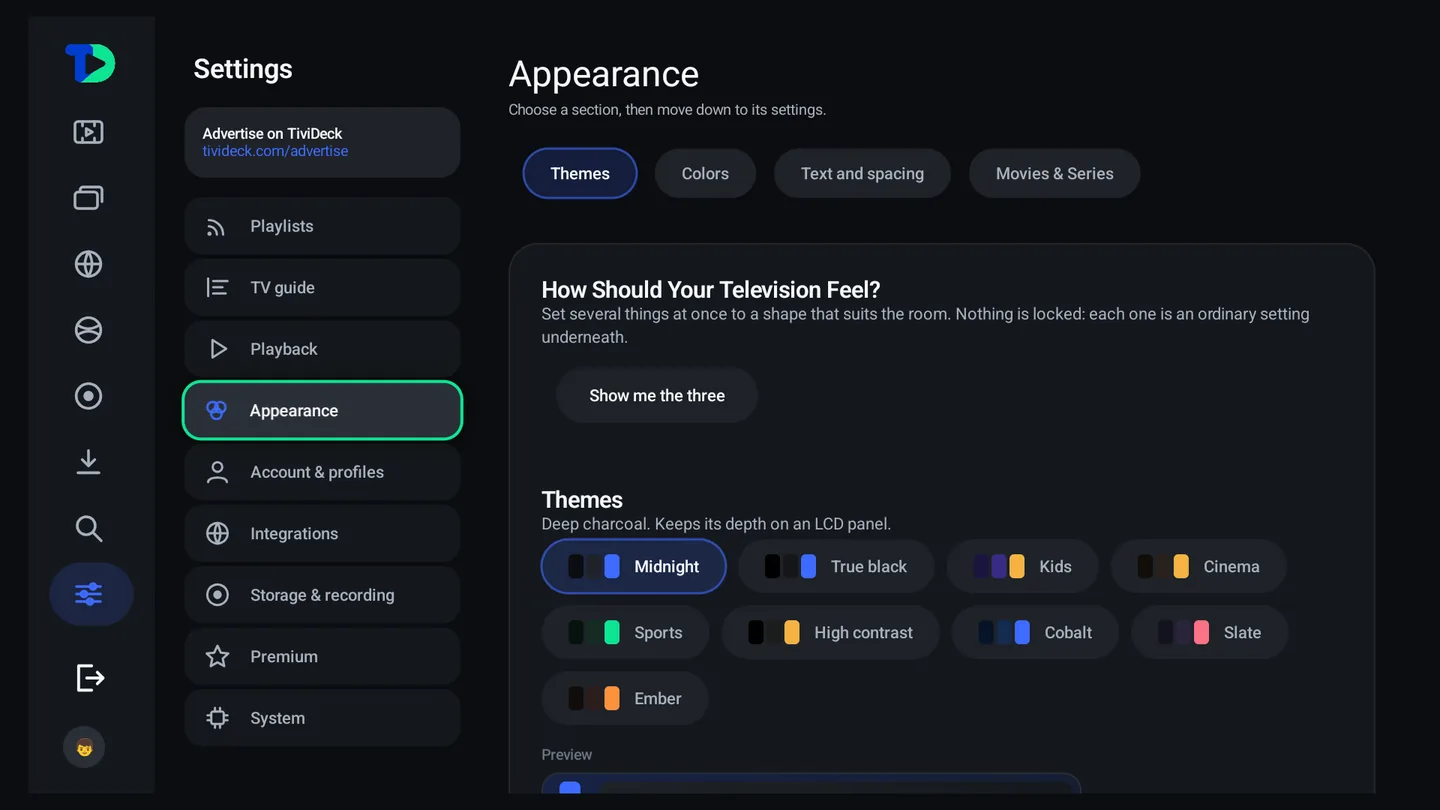
Nine themes, any accent color on the wheel, text and spacing as a percentage, guide density, backgrounds, rail order and home shelves — each one an ordinary setting underneath, so nothing is ever locked.

Appearance settings: Themes, with Midnight, True black, Kids, Cinema, Sports, High contrast, Cobalt, Slate and Ember themes and a live preview.
Themes. Midnight, True black, Kids, Cinema, Sports, High contrast, Cobalt, Slate, Ember — with a preview that updates as you move.
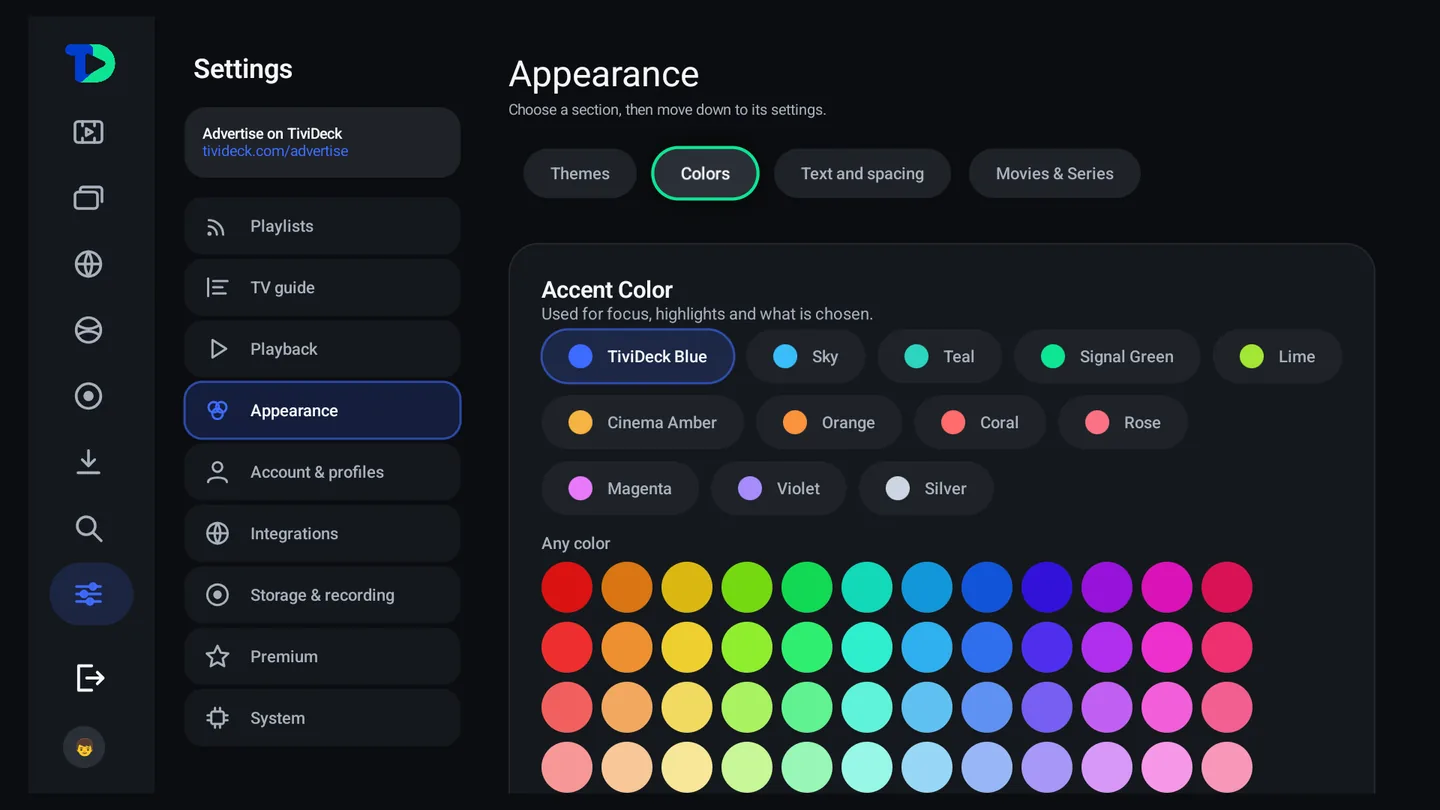
The Colors tab with named accent colors and a full color grid.
Color. Twelve named accents, or any color in the grid, for focus, highlights and everything chosen.
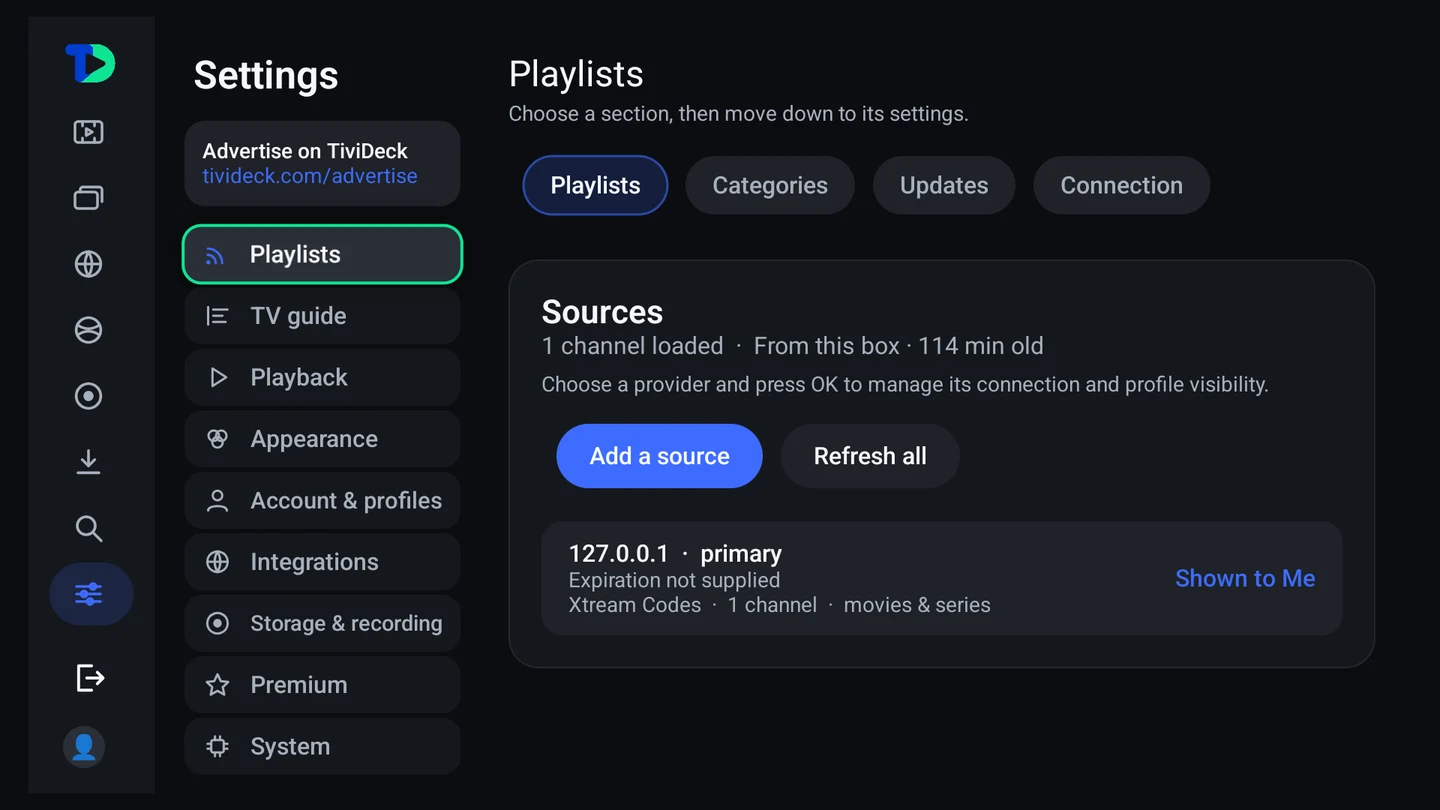
Settings sources: providers with channel counts and per-profile visibility, and a Channels & Categories section.
Sources. Several providers at once, each one visible to the profiles you choose, with a category manager for the 744 nobody asked for.
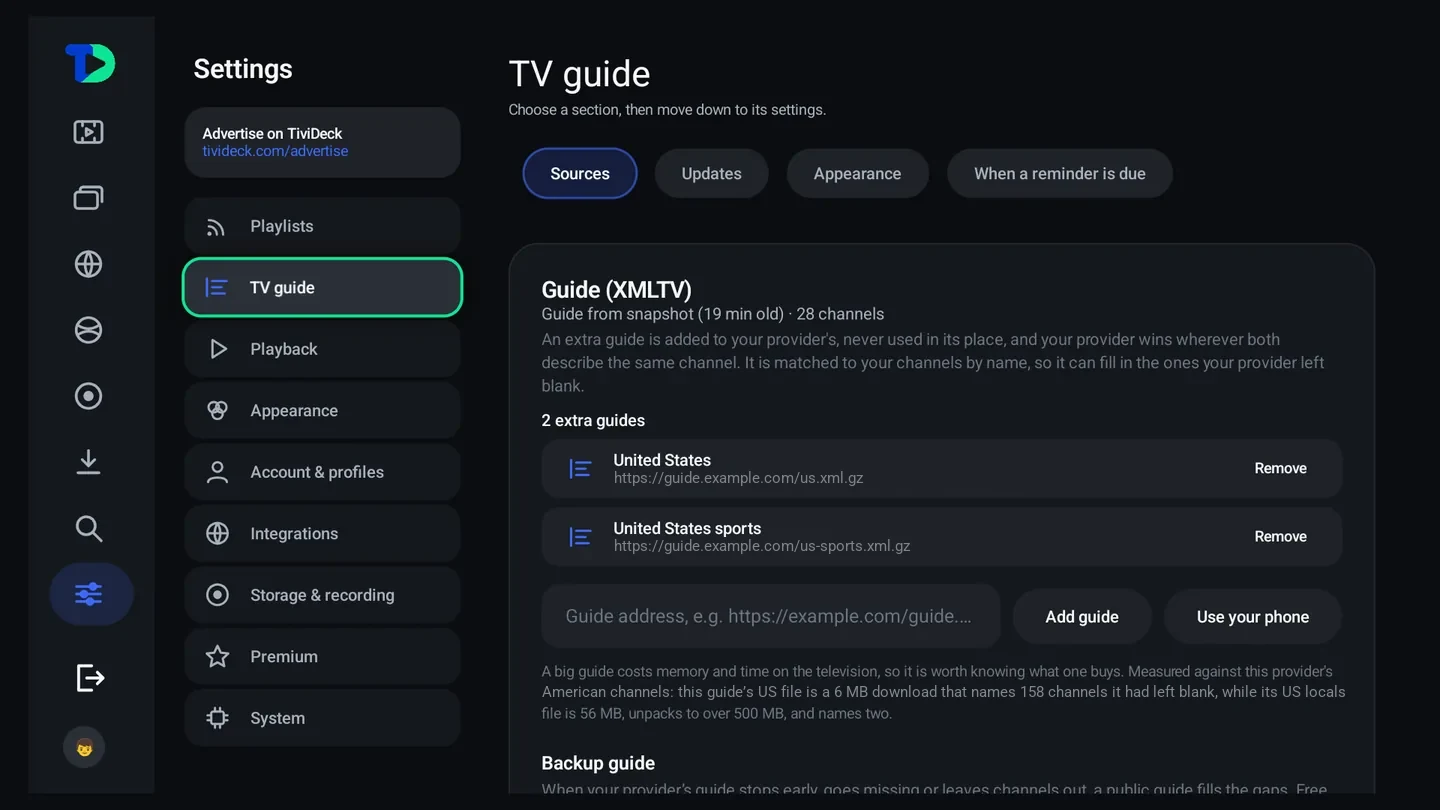
TV guide settings: an XMLTV guide from snapshot covering 28 channels, two extra guides for the United States and United States sports, a field to add a guide address, and Use your phone.
The guide. Your provider’s, plus an XMLTV file of your own that only fills in the blanks — and an honest note about what a 56 MB guide costs your box.
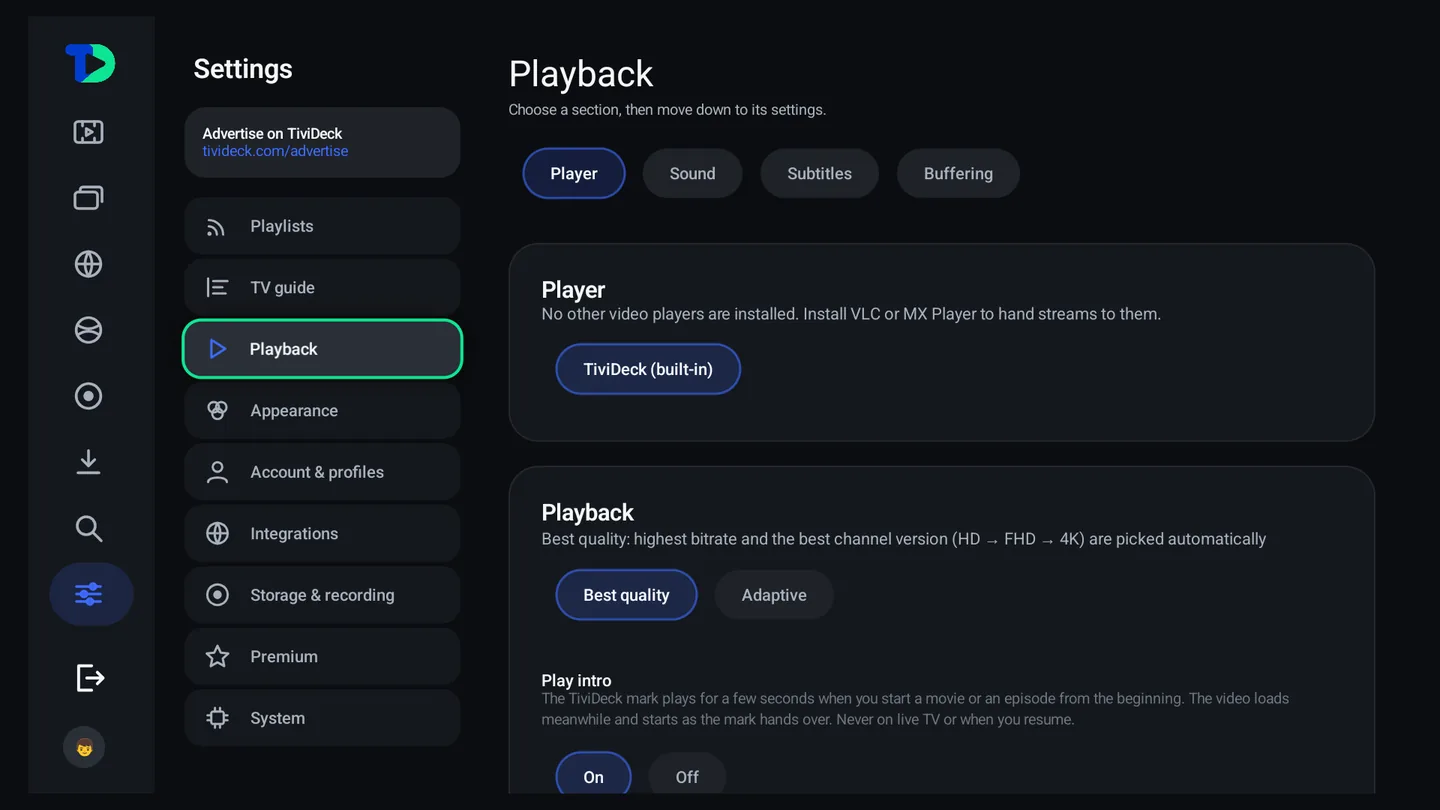
Playback settings: the player (TiviDeck built-in), quality set to Best quality or Adaptive, and Play intro on or off.
Playback. The built‑in player, best quality or adaptive, and whether the intro plays.
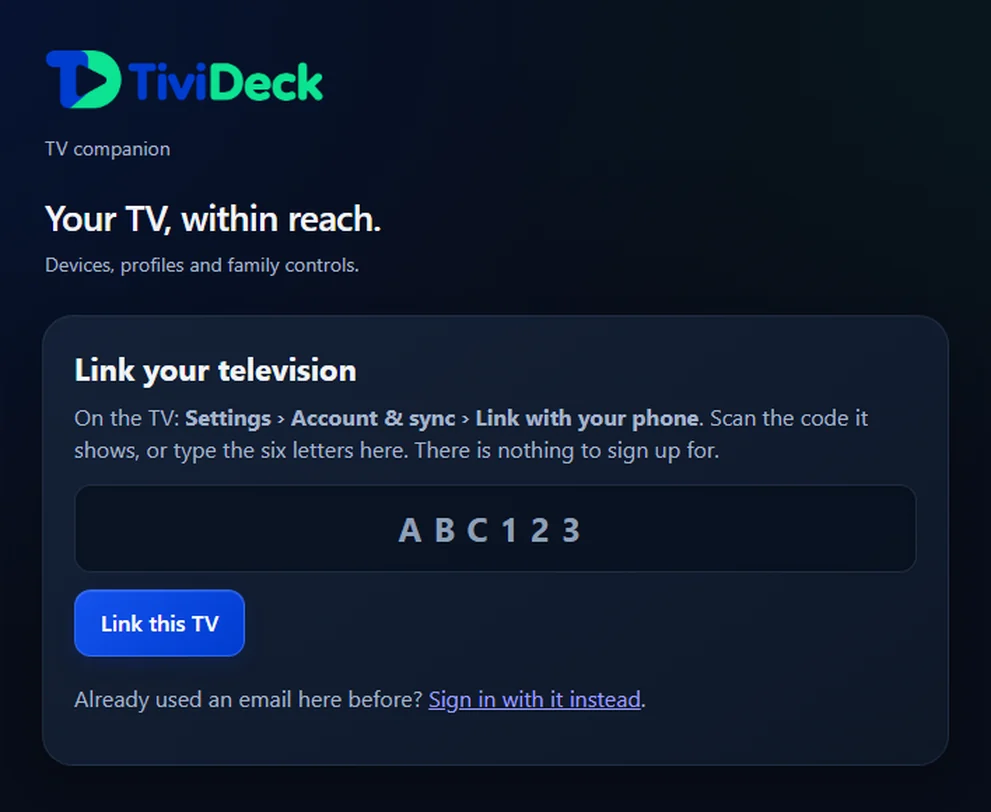
The phone companion page showing a six-letter code to link a television.
Your phone. Six letters links it — no account. Then type, search, send a note to the screen, or stop what is playing.
The same evening, three ways

This is what a theme actually changes.

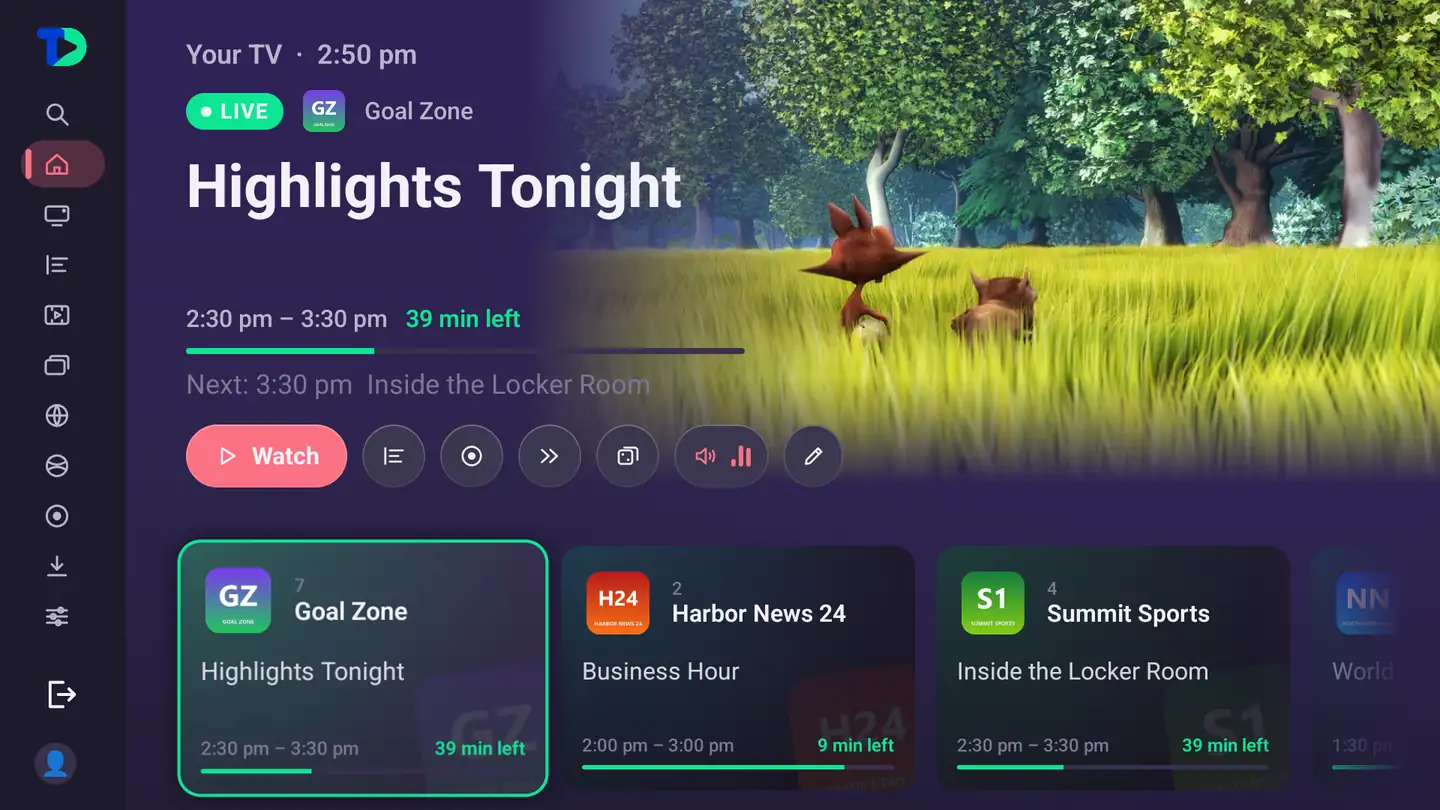
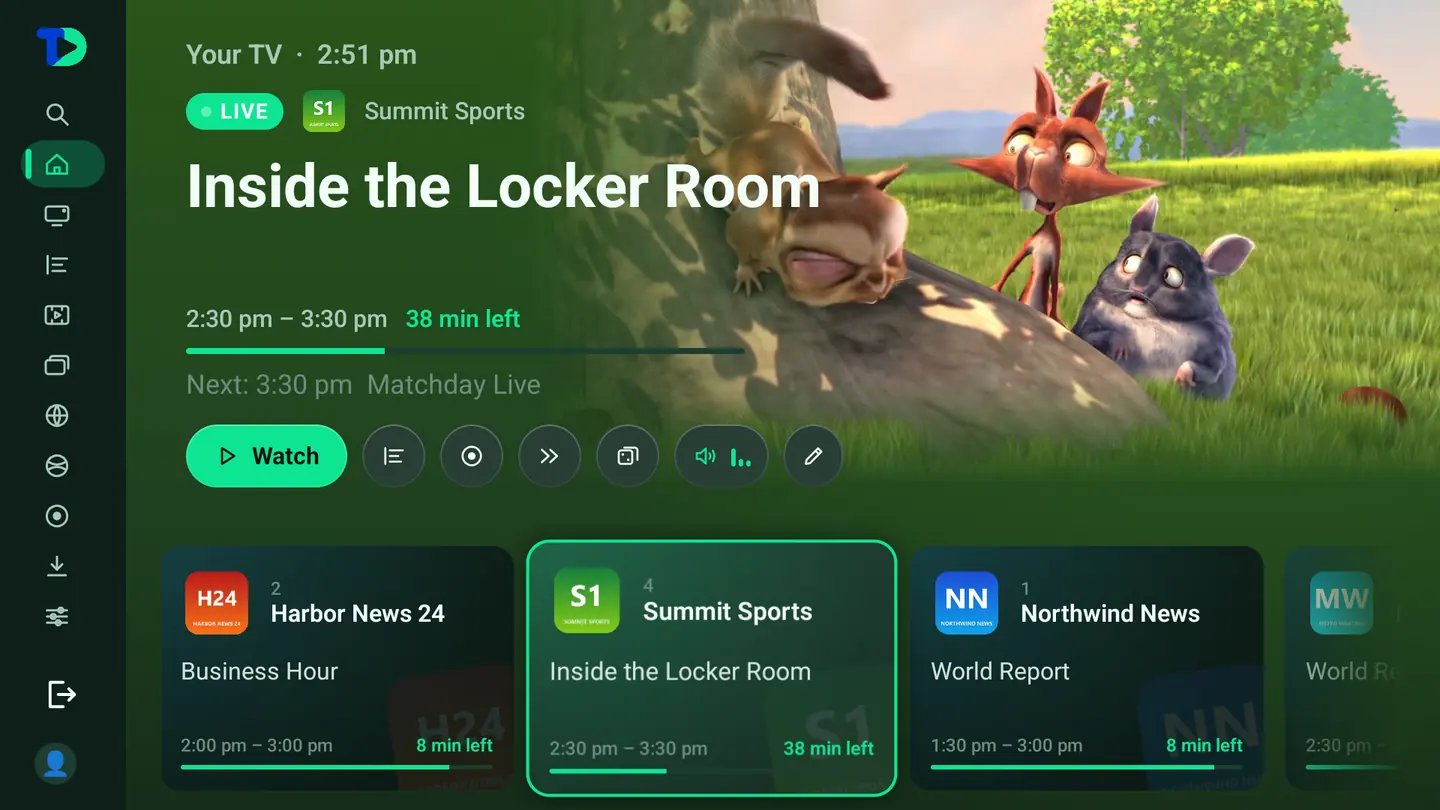
Same television, same home screen — three of the nine looks. Not an accent on a button: the background, the highlight, the cards and the words all move together.

The home screen in the Slate theme: purple-gray with a rose highlight.
Slate. Purple‑gray with a rose accent. Soft on a bright panel.
The home screen in the Sports theme: deep green with a green highlight.
Sports. Deep green, and a highlight the color of the pitch.
The home screen in the Midnight theme, the default: deep charcoal with a blue highlight.
Midnight. The default. Deep charcoal with a blue highlight.
The first evening

Sixty-five thousand channels arrive. You want a few thousand.

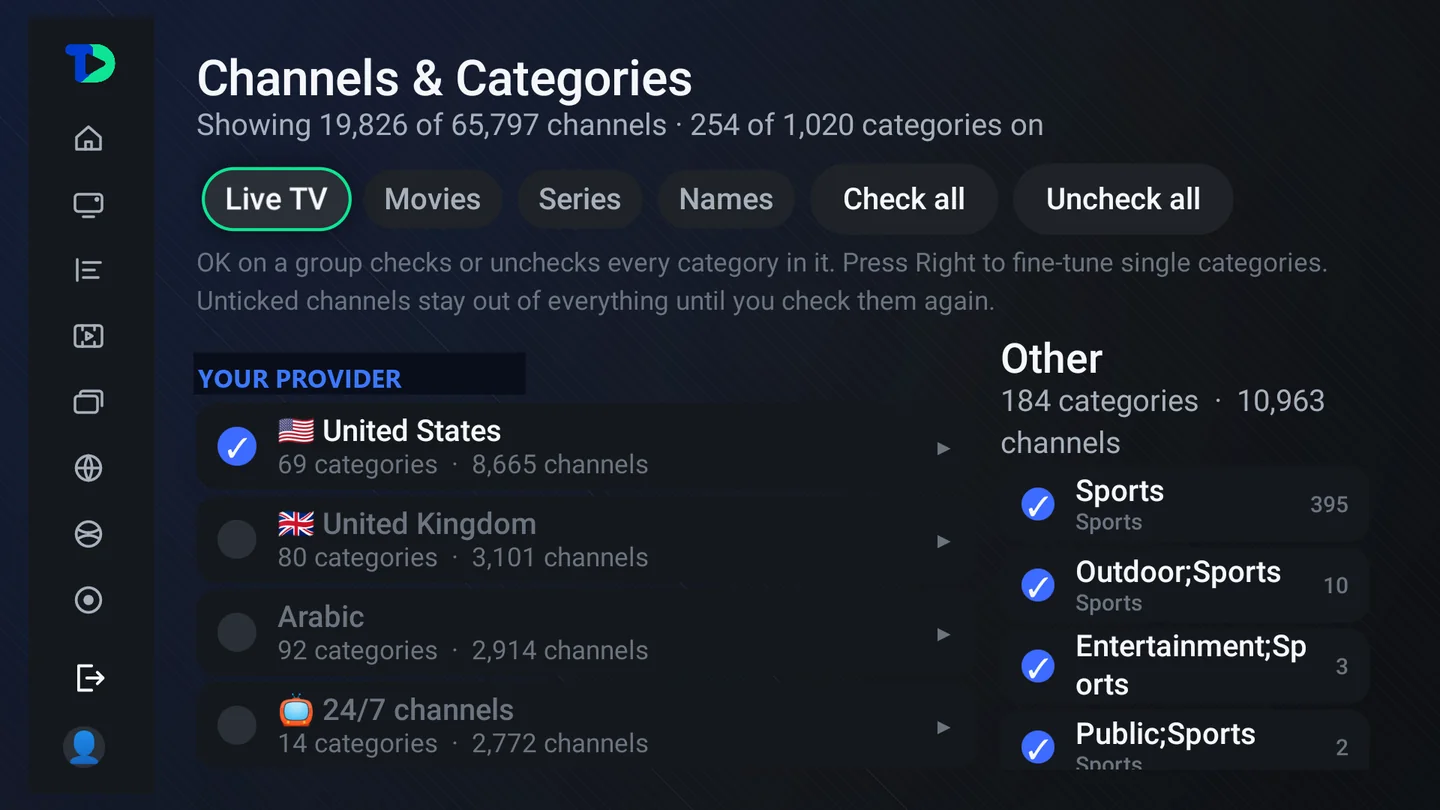
The category manager is the single most useful thing you will do on the first night, and it is two presses from Settings. Groups on the left with their counts — a country, a language, a kind of channel — and the individual categories on the right.

  • Live TV, Movies, Series and Names as separate tabs, because you may want every film category and four channel ones
  • Check all or uncheck all, then work from there — starting from nothing is usually faster
  • One entry per channel folds the same channel in four qualities into one row, and the best version plays
  • An unticked channel stays out of the guide, search, multi‑view and everything else until you check it again
The category manager: Live TV, Movies, Series and Names tabs, country groups with channel counts, and individual categories with checkboxes.
Manage Categories
Your own remote

The remote in your hand is the only one that matters

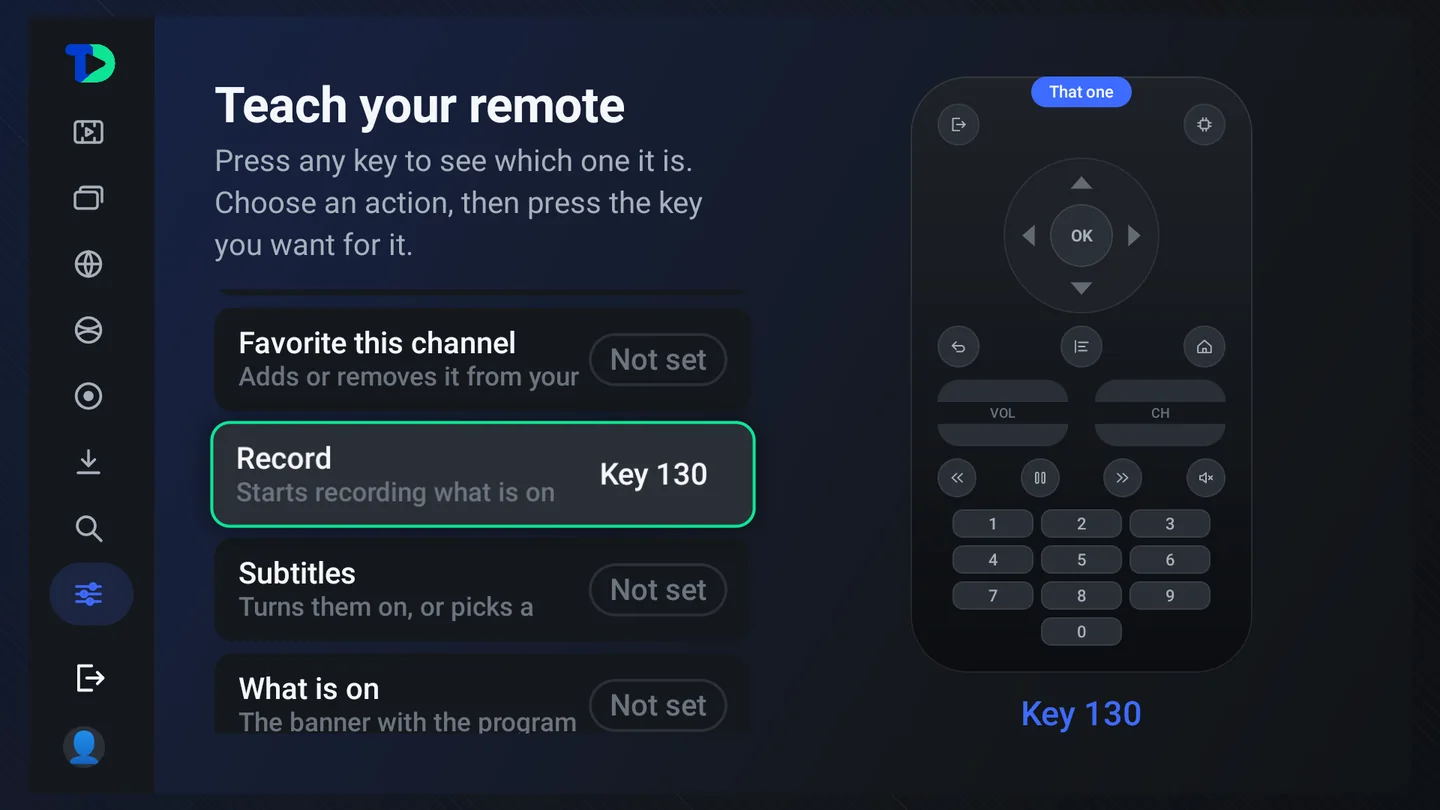
Every remote in this field is different: the Shield has a microphone key and no numbers, a cheap air mouse has a full keypad, a set’s own remote sends codes for colored buttons no app has ever claimed. Point any spare key at any action — and see which key it is before you do.

  • Twelve actions: channel up and down, previous channel, guide, go to channel, favorite, record, subtitles, what is on, multi‑view, surprise me, search
  • The drawn remote lights up the key you press and names its code, so the unlabeled one can be identified
  • Back, OK and the arrows are refused — a remote whose OK has been bound to “record” cannot be used to unbind it
  • The mapping is yours and it travels: it is in the backup with everything else
Teach your remote: the Record action bound to Key 130, with a drawn remote pointing at that key.
Teach your remote
Go deeper

Every feature. Clear instructions.

Explore the complete manual for setup, remote controls, provider management and troubleshooting. Keep this page for the highlights.

Open the manual →
What it costs

Two plans. Both paid once, for life.

TiviDeck sells software, not television. You bring the provider you already pay; we never resell channels, and we never will.

Basic
$0

Your provider on your television, free, after the seven‑day trial. No card, no account.

  • One provider — your main one
  • Its own guide
  • One profile
  • Live TV, films, series and search
  • 2 devices, as in the trial
  • Short local spots before on‑demand titles

Not in Basic: the Sports Hub, more providers or guides, more profiles and the kids’ world, pause and catch‑up, recordings, multi‑view, keeping films, sync, your own artwork.

Start free →
Personal
$9.99 once

Pay once, yours for good. Everything in Premium for one person, on two devices — your TV and your phone.

  • 2 devices — TVs and phones both count
  • Every Premium feature, listed under Family
  • No renewal, nothing to cancel, and every update still to come
  • Move up to Family any time for the difference, $4.99
Buy once · $9.99

Sign in, link your TV with its six letters, pay by card. In the app you can also buy through Google Play.

Family · most popular
$14.99 once

Pay once, yours for good. The whole house, on up to five TVs and phones — seven days free first.

  • The Sports Hub — live scores in 16 sports, game pages, the world map, alerts before kickoff, predictions, and which of your channels has the game
  • Every provider at once, and your own XMLTV guide beside theirs
  • Multi‑view — up to eight channels, in a grid or floating over the main picture
  • Pause, rewind and catch‑up on live TV, and recordings with series rules
  • A profile for everyone, each with its own providers, and a kids’ world with its own TV, bedtimes, allowances and a parental PIN
  • Films kept on the box for the journey
  • Everything in sync across the household’s TVs and phones: profiles, favorites, lists, Continue watching, settings
  • Your own channel artwork, and no advertising, ever
  • 5 devices, extra ones at $2.99 once each, up to 10
  • No renewal, nothing to cancel, nothing to remember
Buy once · $14.99

Sign in, link your TV with its six letters, pay by card. In the app you can also buy through Google Play. Households that bought Premium before keep what they bought.

For advertisers
Flexible ad formats

Reach households in your own town on the screen they actually watch, without a media buyer.

  • Choose a video spot or image placement; checkout shows the current daily rate and total before payment
  • Every creative is reviewed by a person before it airs
  • Never shown in a child profile, never on a Premium television
  • Start a campaign →
Two editions, TV and phone

Store edition

From Google Play, on TV and on phones. Plans and extra devices are bought through Google Play, and updates arrive on their own. The Enhanced edition’s add‑ons are not included.

Direct download

Enhanced edition

From tivideck.com/get, for TV and for phones. Everything in the Store edition plus the add‑ons, with plans bought by card at tivideck.com.

Either way

One household

Both editions unlock the same Premium household, so a Store TV and an Enhanced phone share profiles, lists and Continue watching. Pick the one that suits each device.

Shipped

Everything here works today.

No promises and no “coming soon”. Every feature on this page runs on real televisions and phones right now.

Shipped · the television

The television

Android TV, Google TV and Fire TV. Xtream Codes, M3U playlists, Stalker portals, Jellyfin and Emby servers, direct stream addresses and NAS (SMB) shares as a films and series library; XMLTV guides, catch‑up and restart, recordings with series rules, the live buffer, multi‑view to eight tiles, the Sports Hub with statistics and the live map, films and series with resume, Top 10 rows, cast with photos, profiles with bedtimes and allowances, the Kids world, the customization studio, the phone companion, cloud sync between boxes, backup and restore, your own channel names and numbers, Your lineup, picture‑in‑picture, and Continue watching on the launcher home row.

Shipped · the Sports Hub

Purpose‑drawn for each sport

A court, field, track, ring or pool for every one of the 16 sports and more than 350 leagues, drawn from live data, league standings, every live game together in multi‑view with one press, predictions with weekly leaderboards, your teams’ scores over whatever you watch — and kickoff alerts for the teams you follow that open the channel showing the game.

Shipped · the phone

The phone app and the household

An Android phone app with the TV’s live TV, guide, films, series, recordings, multi‑view and Sports Hub, the Caveman Room included, and the same six provider types plus NAS shares. Settings, profiles and profile photos, favorites, lists, Continue watching, the parental PIN, category order and connected services sync across the household’s TVs and phones, and any of them — or tivideck.com — can manage the household’s devices. A parent can send a message to one child’s profile, and it lands on whichever television they are watching.

Shipped · October 2026

Family help and providers per profile

Set up a relative’s household from your phone: their TV shows a code, you choose which provider each of their profiles uses and send them a new provider, sealed end to end for their devices. Every profile can have providers of its own, and its channels, guide, sports and library follow it. Favorites keep your own order, and the previous channel button lines up your last six channels.

Shipped · rooms and advertising

Game rooms and advertising

The Caveman Room with moderation and a name tag that cannot be chosen, so two people with one name are told apart. The advertising side end to end: a business uploads a spot, the price is computed server‑side, a person reviews it, and it plays only on free televisions.

Install it

On your television in two minutes.

It runs on Google TV sets and streamers, NVIDIA Shield, Fire TV sticks and cubes, and any Android TV box on Android 7.1 or newer — and there is a phone app for Android. Seven days free, then a plan from $9.99 once, for life, if you keep it.

Coming soonTiviDeck for iPhone is on its way to the App Store. iPad, Apple TV, Mac and Windows are in the works.Tell me when it’s ready

15 languagesEnglishEspañolFrançaisDeutschPortuguês (Brasil)ItalianoNederlandsPolskiČeštinaMagyarRomânăΕλληνικάTürkçeРусскийالعربيةin the TV and phone apps, chosen in Settings › Language

Fastest · 2 minutes

Install it now, by hand

The Enhanced edition, add‑ons included, with Premium bought at tivideck.com. For TV at tivideck.com/get/tv, for phones at tivideck.com/get/phone.

Get the build →
Live on Google Play

Google Play

For anybody who would rather press one button: search TiviDeck on your TV’s Play Store. Updates then arrive on their own. The Store edition buys Premium through Google Play and leaves out the add‑ons.
Downloader

Amazon Fire TV

Sticks and cubes: the Enhanced edition installs with the free Downloader app in a couple of minutes, the same build and the same plan as everywhere else.

Every step, with pictures, at tivideck.com/get.
Where it runs

Buy it once. Up to five devices.
One plan, one household, one set of profiles — on two devices with Personal, five with Family, or up to ten on Family with extra devices at $2.99 each. Pick a platform to see exactly where it stands today.
Android TV & Google TV Tested builds

The screen TiviDeck was designed on. Shield, Chromecast with Google TV, Google TV sets, and any Android TV box on 7.1 or newer.

The Enhanced edition is at tivideck.com/get/tv today; the Store edition is live on Google Play.

Sideloading, in four steps

  1. On your television, install Downloader (it is free, and on every store).
  2. Open it and type the code 1983787 (or the address tivideck.com/get/tv) — or point your phone at the code and send it across.
  3. Let it download, then choose Install. Android will ask once whether Downloader may install apps; say yes.
  4. Open TiviDeck and add your provider — or try the sample channels, or restore your setup — and the seven days start.

Type the address as it is. Nothing here asks for an account, and nothing is collected by typing it.

Downloader code
1983787

Type 1983787 (or tivideck.com/get/tv) into the Downloader app’s address box and the Enhanced edition of the TV app downloads. On a phone, open tivideck.com/get/phone.

QR code for tivideck.com/get
install page
QR code for tivideck.com/pair
the phone companion
Help

A person reads these.

Something not working, a channel that will not play, a provider that will not sign in, an idea for something new — write and say so. Tell us the box you are on and what it said, and you will get a real answer rather than a ticket number.

Before you write

Two things answer most of it faster than we can:

  • When something breaks in the manual — reconnecting streams, decoder limits, channels with no guide, and the category manager
  • The TiviDeck Discord — ask other viewers, share your setup, and vote on what we build next
  • The app’s own Settings › System page names the version it is running and what it last did. Quote that version and you skip a whole exchange

We do not sell, host or supply channels, and we cannot help with a provider’s subscription, billing or lineup — only with the player. For anything about your provider, they are the ones who can fix it.

Prefer email? Write to support@tivideck.com. Include your device and app version; never send provider passwords or API keys.