
Every screen,
explained.
TiviDeck is a television app, so this is written the way you use it: one screen at a time, each one pictured before it is described. Screenshots are captured from the running app. Settings images were refreshed on September 23, 2026 using a test lineup; channel counts and available controls vary by provider, profile and build.
Get TiviDeck
TiviDeck comes in two editions, for the TV and for Android phones. Both are the same app, with the same plans and the same household sync. They differ in where you get them, how you pay for Premium, and the add-ons.
Coming soonTiviDeck for iPhone is on its way to the App Store. iPad, Apple TV, Mac and Windows are in the works.Tell me when it’s ready
Store edition
From Google Play
- TV and phone — search for TiviDeck in the Play Store on your Android TV, Google TV or Android phone.
- Premium — bought through Google Play.
- Updates — arrive from Google Play on their own.
- Add-ons — not included.
In testing on Google Play now; the listing opens to everyone when testing ends.
Enhanced edition
Installed by hand (sideloaded)
- TV — on Android TV, Google TV or Fire TV, open the free Downloader app and type the code 1983787, or the address tivideck.com/get/tv.
- Phone — open tivideck.com/get/phone in the phone’s browser.
- Premium — bought by card at tivideck.com.
- Updates — download again from the same code or address and install over the app you have.
- Add-ons — included: Cinemeta catalogs and Stremio-compatible add-ons you add yourself, with your own debrid account, if you have one.
The code 1983787 installs the Enhanced edition only. The Store edition never needs it: it comes from Google Play. Fire TV has no Google Play, so on a Fire TV it is the Enhanced edition.
The steps, one at a time, are under Installing, and every platform is on the install page.
What TiviDeck is
TiviDeck is a player for the television subscription you already pay for. It ships with no channels in it, it does not host or resell television, and it has no catalog of its own. You bring a provider — an Xtream Codes login, an M3U playlist, a Stalker portal, a Jellyfin or Emby server, a direct stream address, or a NAS (SMB) share full of your own films and series — and TiviDeck turns it into something worth sitting in front of. Not ready yet? The welcome screen has sample channels to look around with first.
That is the whole arrangement, and it is worth being plain about it, because it decides what every screen below can and cannot do. If your provider sends no guide data for a channel, no player can invent it. What a player can do is make eight thousand channels findable, make a game easy to follow, make a child’s half of the television safe, and stay out of the way the rest of the time.
Your remote, in full
Five keys do almost everything, and one habit unlocks the rest: holding OK usually opens the options for whatever is under it.
| Key | What it does |
|---|---|
| OK | Play it, open it, choose it. |
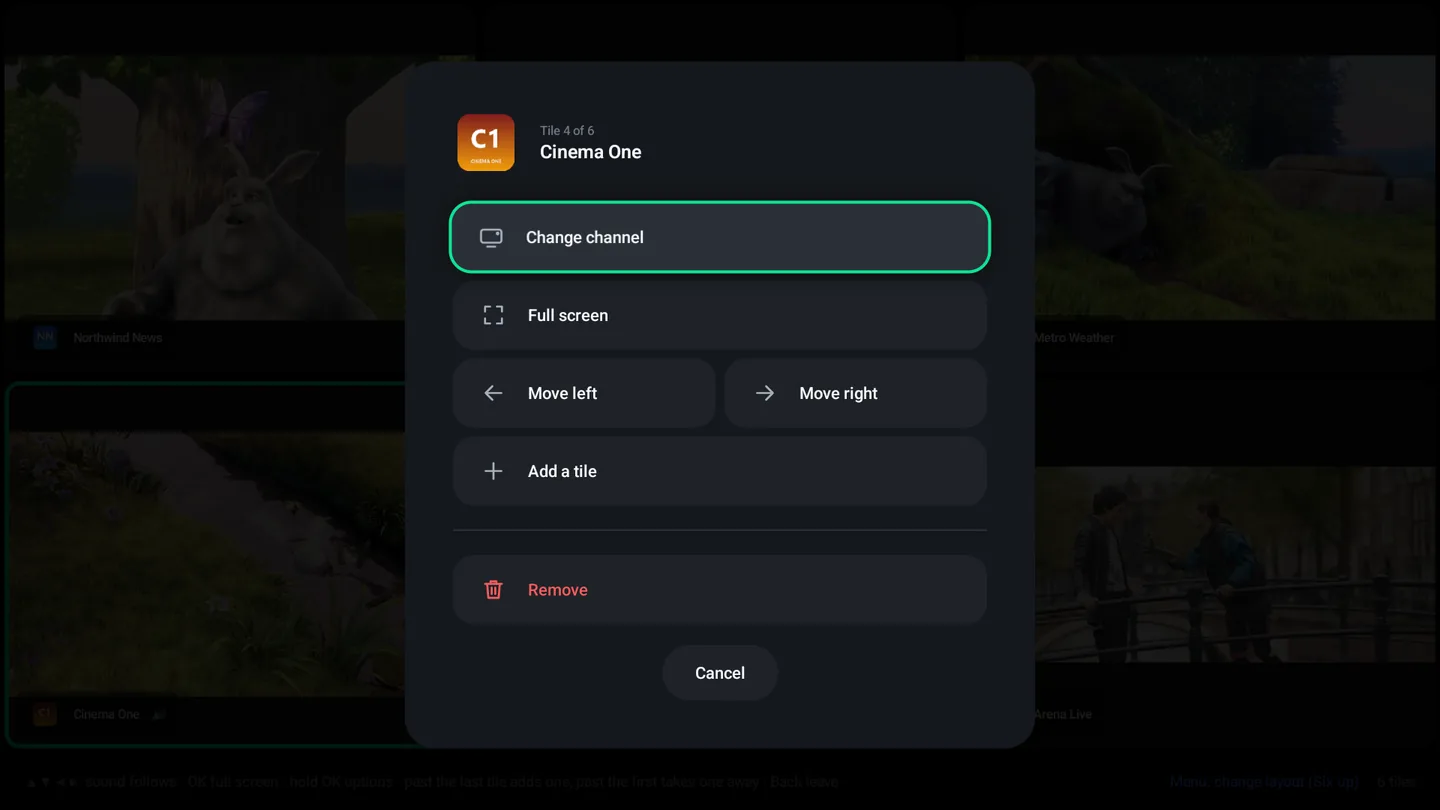
| Hold OK | The options for the thing under the cursor — a tile’s menu, a game’s page. On a channel or a category in a list it picks the row up so you can move it; → then opens its options. In the guide it also walks back through the live buffer. |
| ← → ↑ ↓ | Move. On a full-screen channel, up and down change channel, left opens the guide, and left again opens its categories — Favorites, Recent and your own lists. Down on the last channel or category goes back to the top of the list. |
| Back | Leave. It never stops the picture behind it. |
| Menu / Info | The channel’s sheet from a list; the layout in multi-view. |
Teaching your own remote
Every remote in the world is different, and the one in your hand is the only one that matters. Settings › System › Remote Control lets you point any spare key at any action.
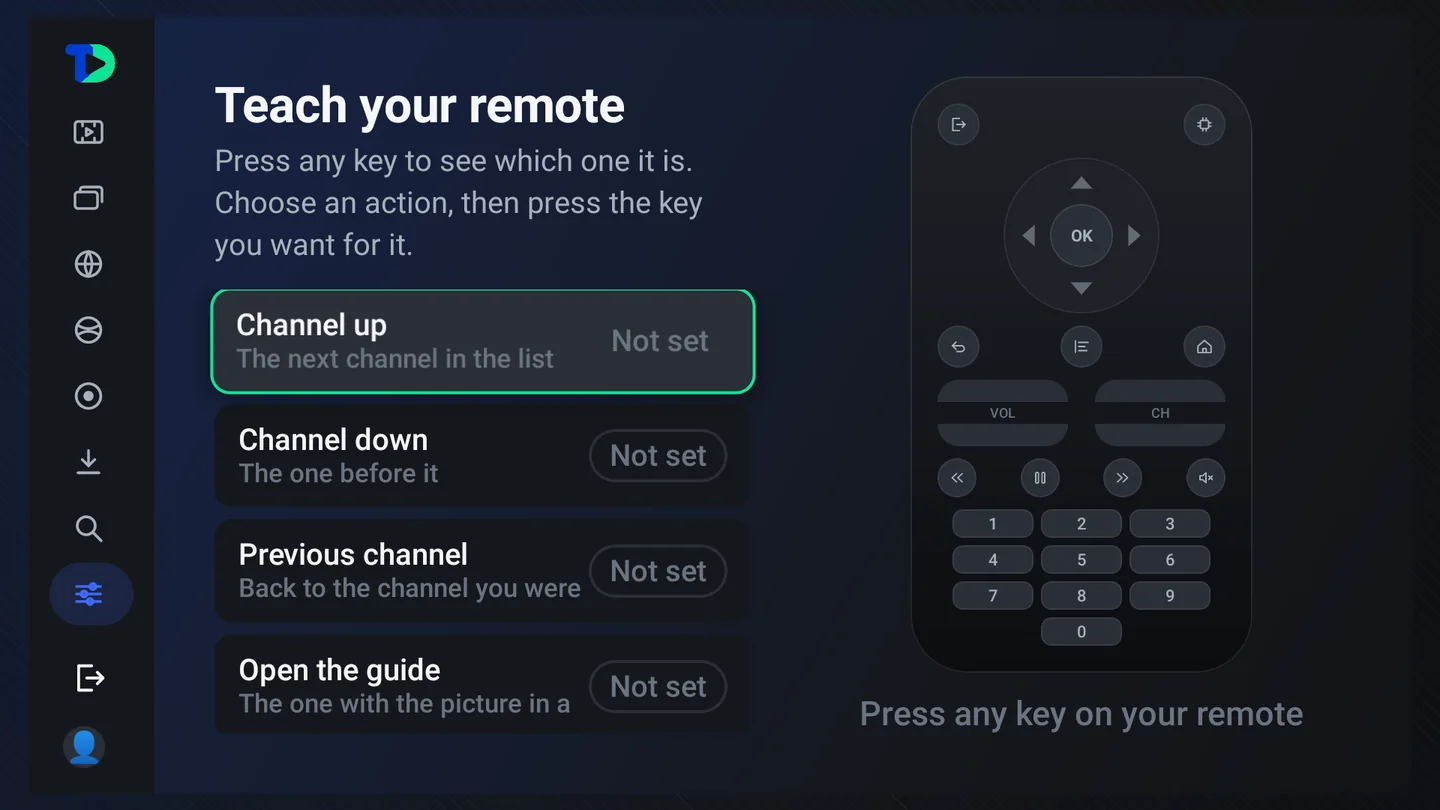
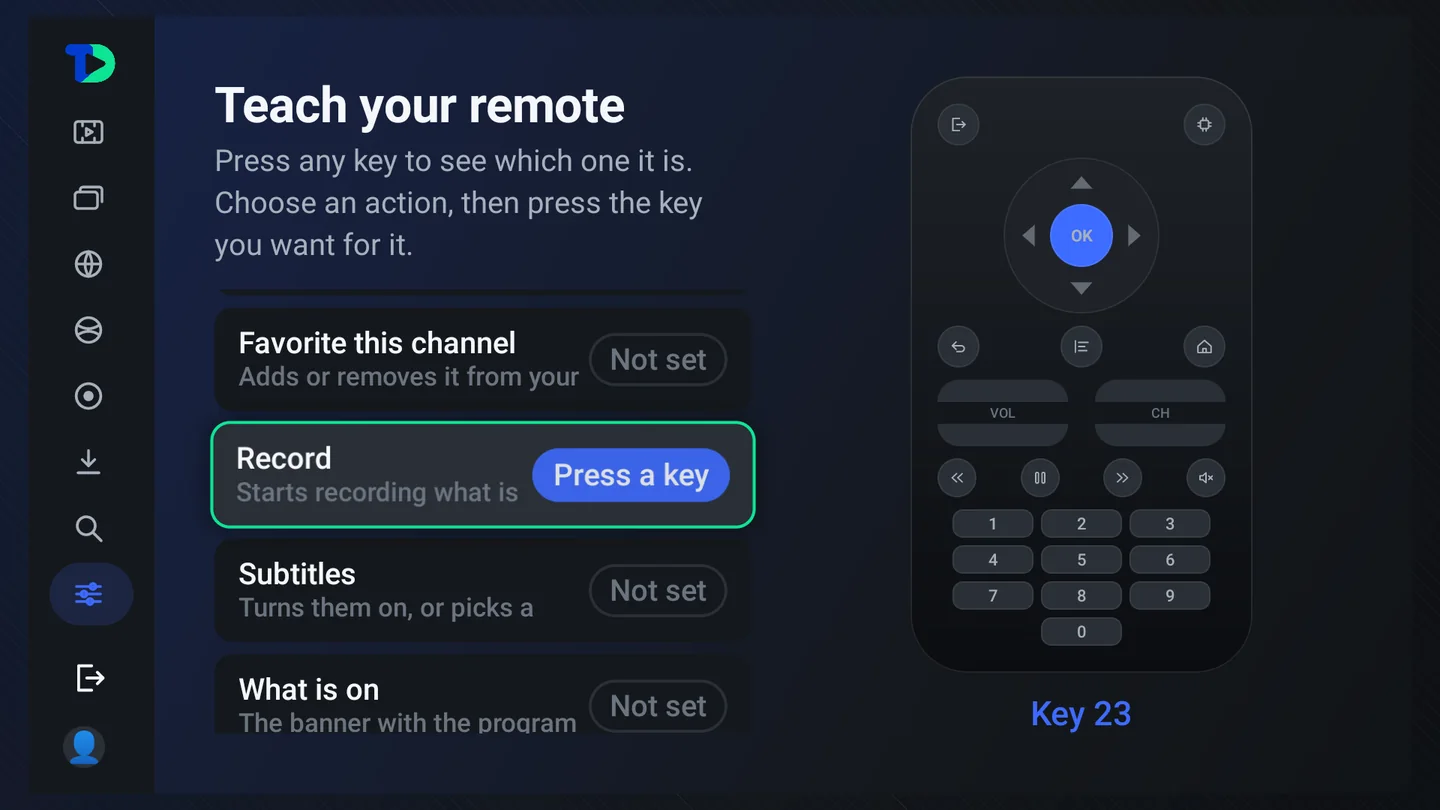
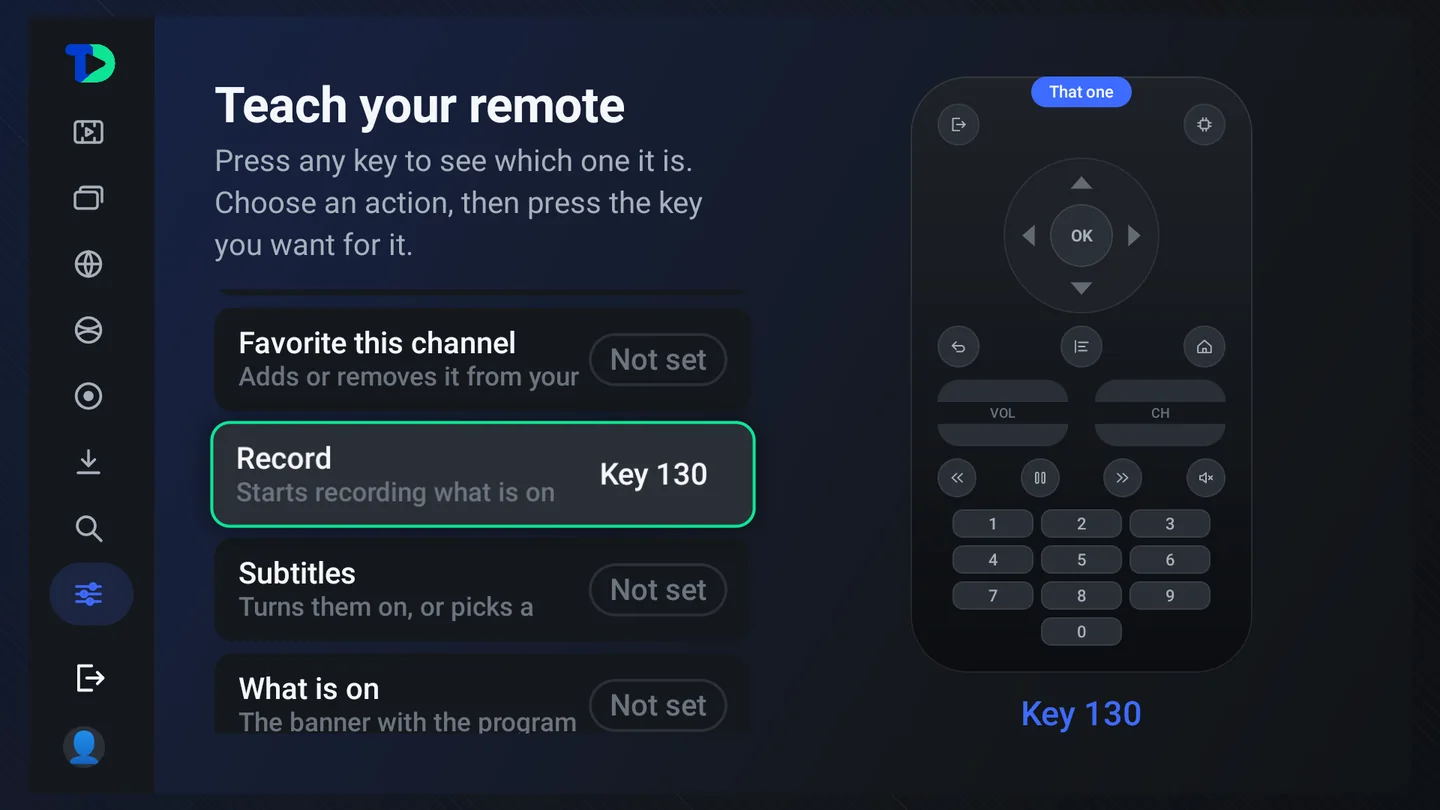
Back, OK and the four arrows are refused. A remote whose OK has been bound to “record” cannot be used to unbind it, and the household would have to clear the app’s data to get their television back. Every player that allows this has a support thread about it; this one will not.
The navigation rail
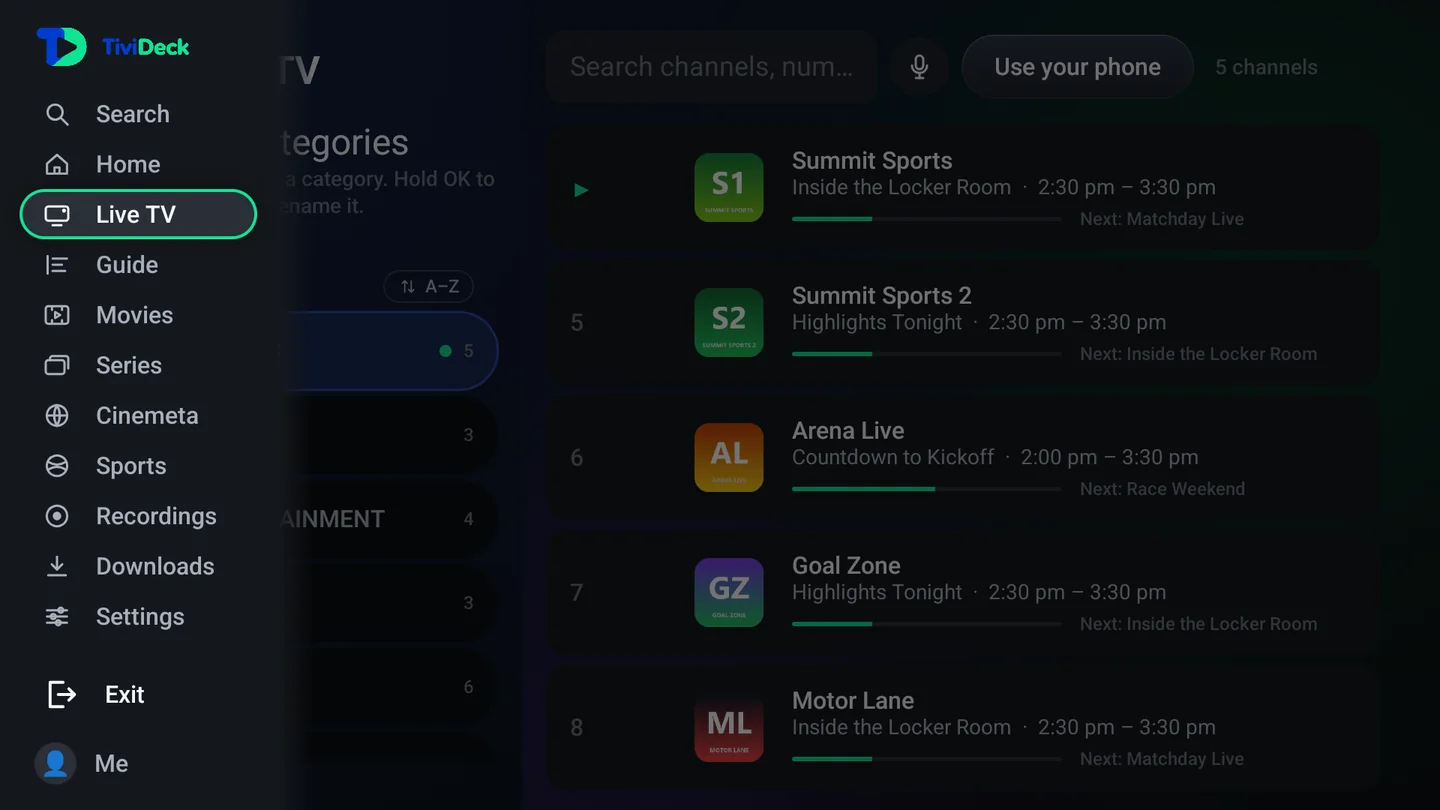
The rail lives down the left edge. It is a strip of icons until you move onto it, and then it opens into names. Open, it is only as wide as its longest name, in every language, so it covers as little of the picture as it can. Everything in the app is one press away from it.
The home screen
Home answers one question: what do I put on now. It opens on the channel you were last on, with the program that is running on it and the time it has left.
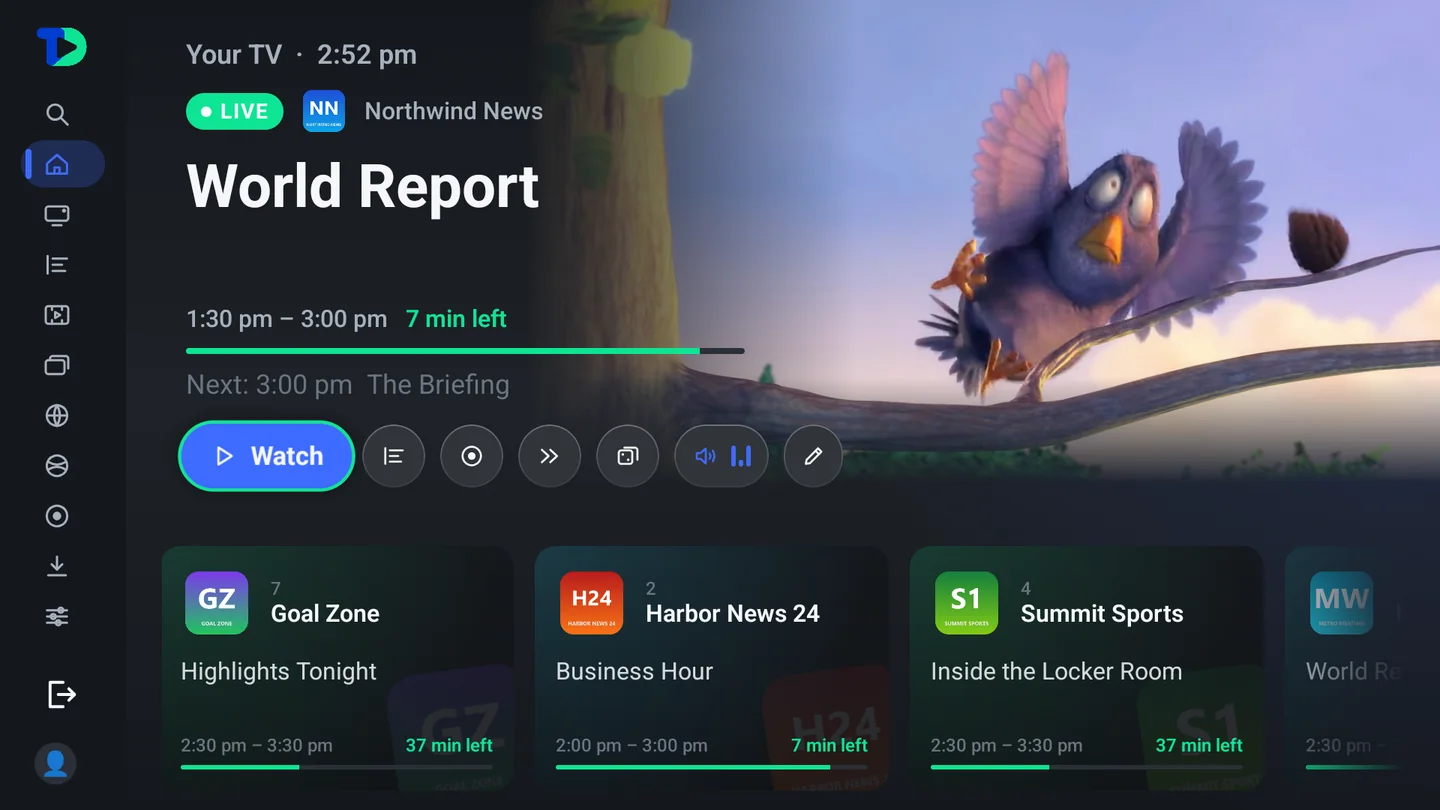
- Recent channels — the last few you were on, with their own progress. No hunting for the channel you left five minutes ago.
- Watch, Guide, Record, Next — the four things anybody does from a home screen, without leaving it.
- Surprise me — for the evening where nothing appeals. It picks from what you actually watch, not from what a provider is promoting.
- Continue watching — films and episodes with a position saved, across every device signed into the same account.
- Customize Home — the rows themselves are yours: reorder them, hide the ones you never look at.
Live TV
Live TV is the picture, full screen, with a card that names what you are on and gets out of the way. Everything else is one key from here.
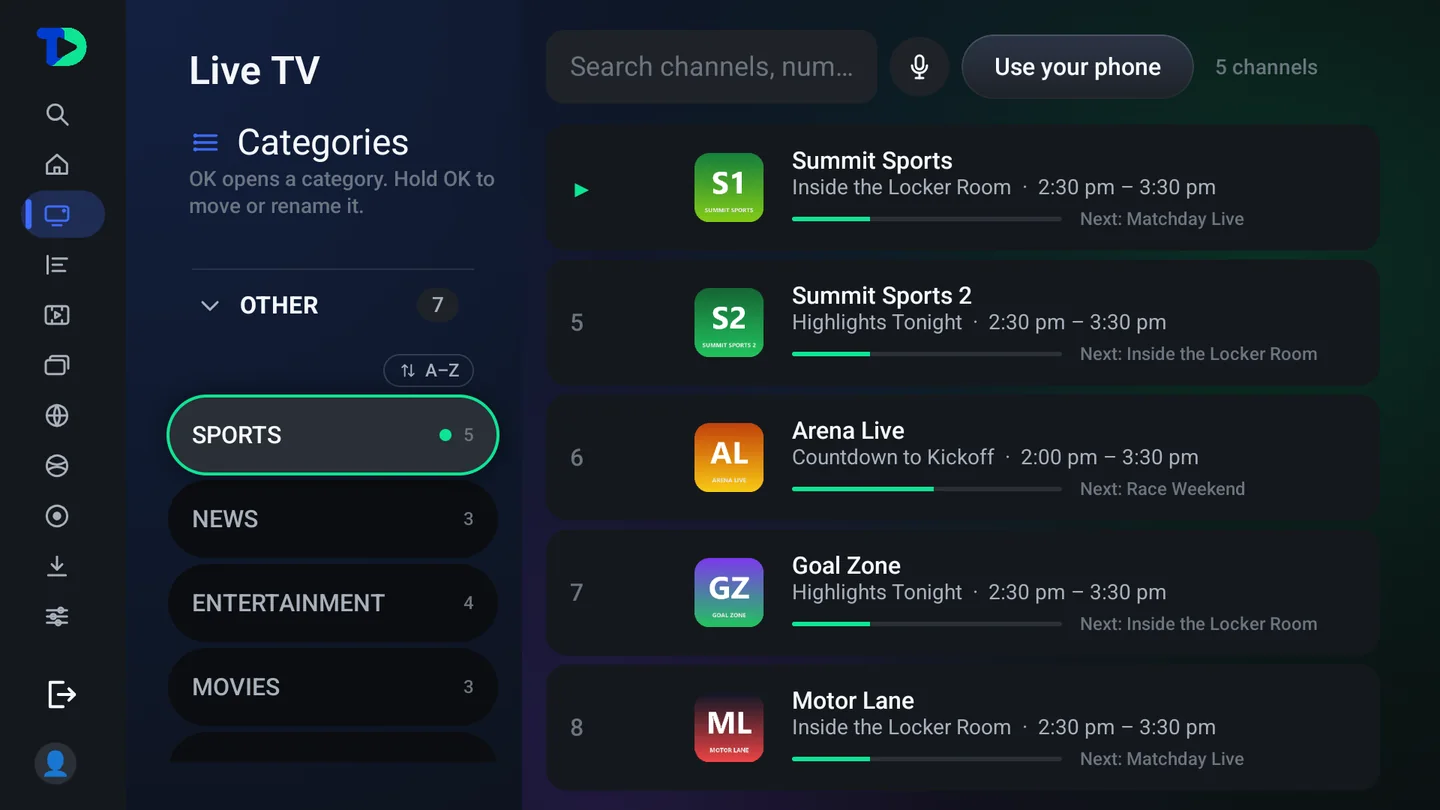
Categories
A playlist with sixty-five thousand channels in it is not a list, it is a phone book. Categories are how it becomes usable: press ← from a channel list and the drawer opens, with every category your provider ships and a count beside each one.
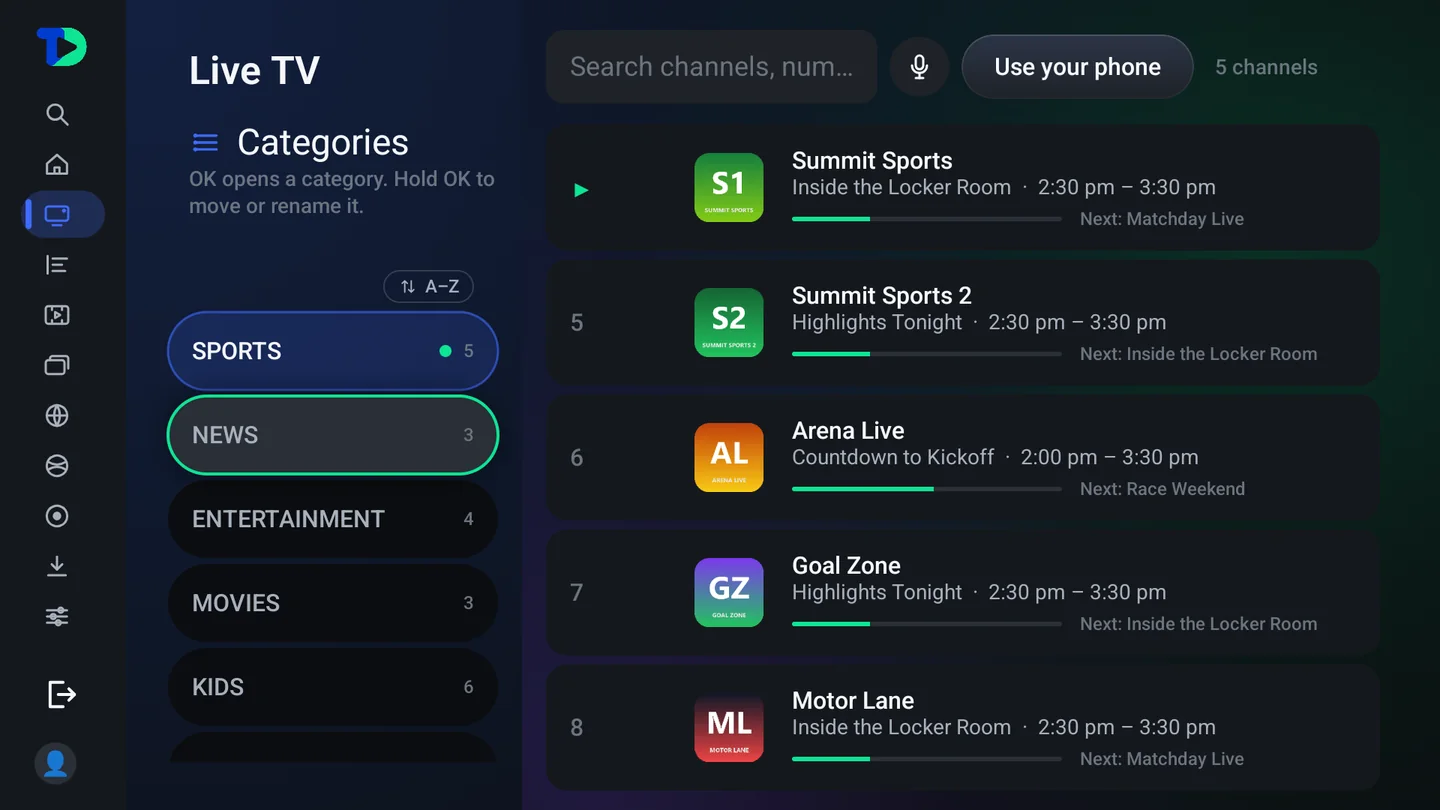
Moving categories and channels
The order of the list is yours. Hold OK on a category in Live TV’s list, or in the guide’s side panel, and it lifts: ↑ and ↓ move it, OK places it, and → opens its menu instead, to rename it, go back to the provider’s name, or lock it with the PIN. The new order is shared with the household’s other TVs and phones.
- A channel moves the same way inside its own category: hold OK on it, move it with ↑ and ↓, and press OK to place it. → opens its sheet instead.
- Favorites keep an order of their own: in Favorites, hold OK on a channel, move it with ↑ and ↓, and press OK to place it. The order is the household’s, so the guide, Home, the player’s list and the phone follow it. A list you made yourself is reordered in place the same way.
- Movies and Series — their categories move the same way: hold OK on one, move it with the arrows and press OK to place it.
- The sort and move buttons — the A–Z and up and down arrows beside each country in Live TV, the guide and Movies & Series can be put away: Settings › Playlists › Categories, Sort and move buttons in category lists, Show or Hide. Hidden, the lists show only the categories, and holding OK on one still moves or renames it. On the phone the same choice is under My TiviDeck › Settings › Appearance.
- On the phone — open My TiviDeck › Settings › Categories. Each list (Live TV, Movies, Series) has its own page, where every category can be shown or hidden, renamed, moved or locked. A Live TV category moves from the menu beside it (Move to the top, Move up, Move down); in Movies and Series, press and hold a category and drag it to its place.
- Too many categories? Choosing which ones show at all is the job of the category manager.
A channel’s own sheet
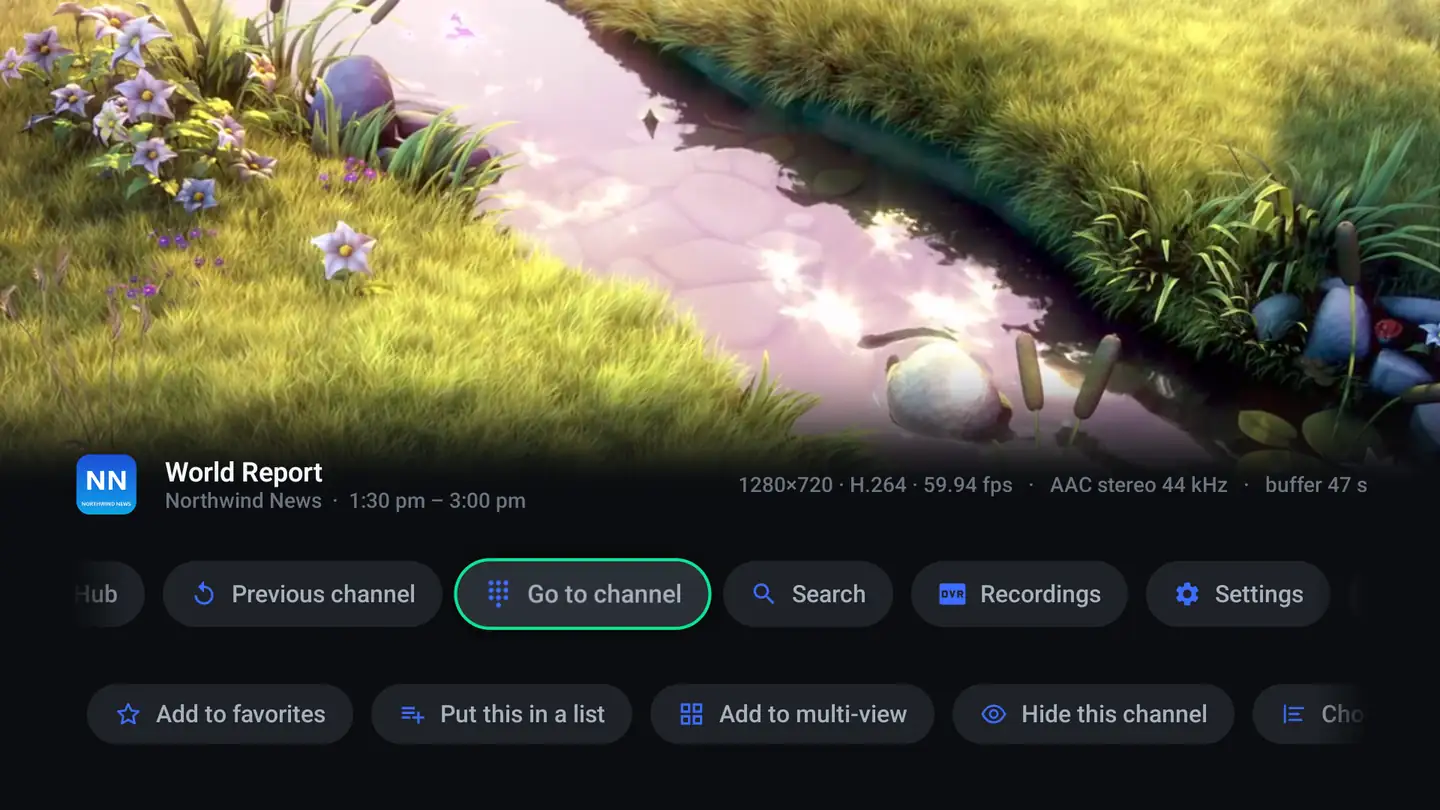
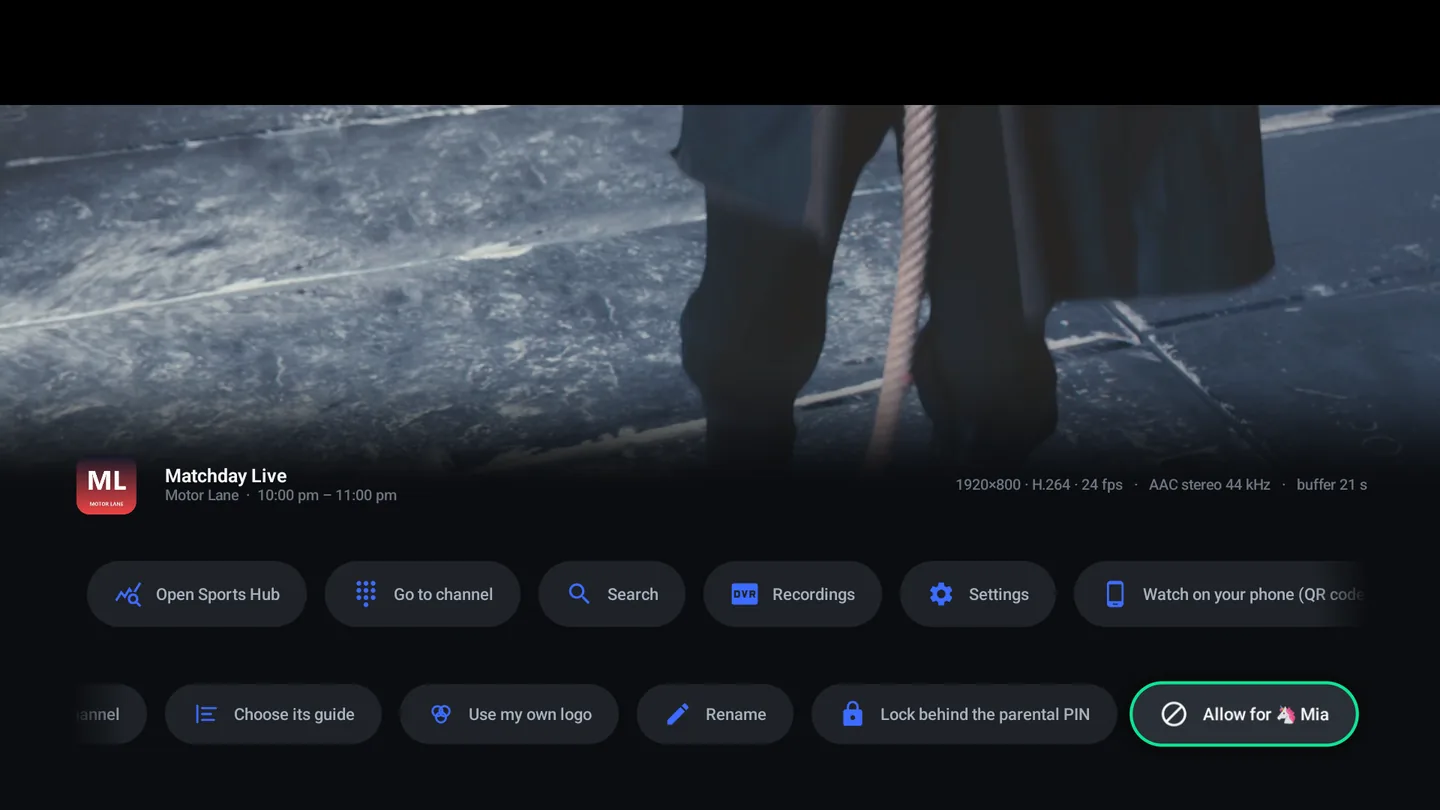
Press Menu or Info on a channel in a list — or hold OK on it and press → — and the channel’s sheet opens: favorite it, put it in one of your own lists, hide it for good, pick its logo, send it to multi-view, or set what it should do about subtitles every time you come back to it.
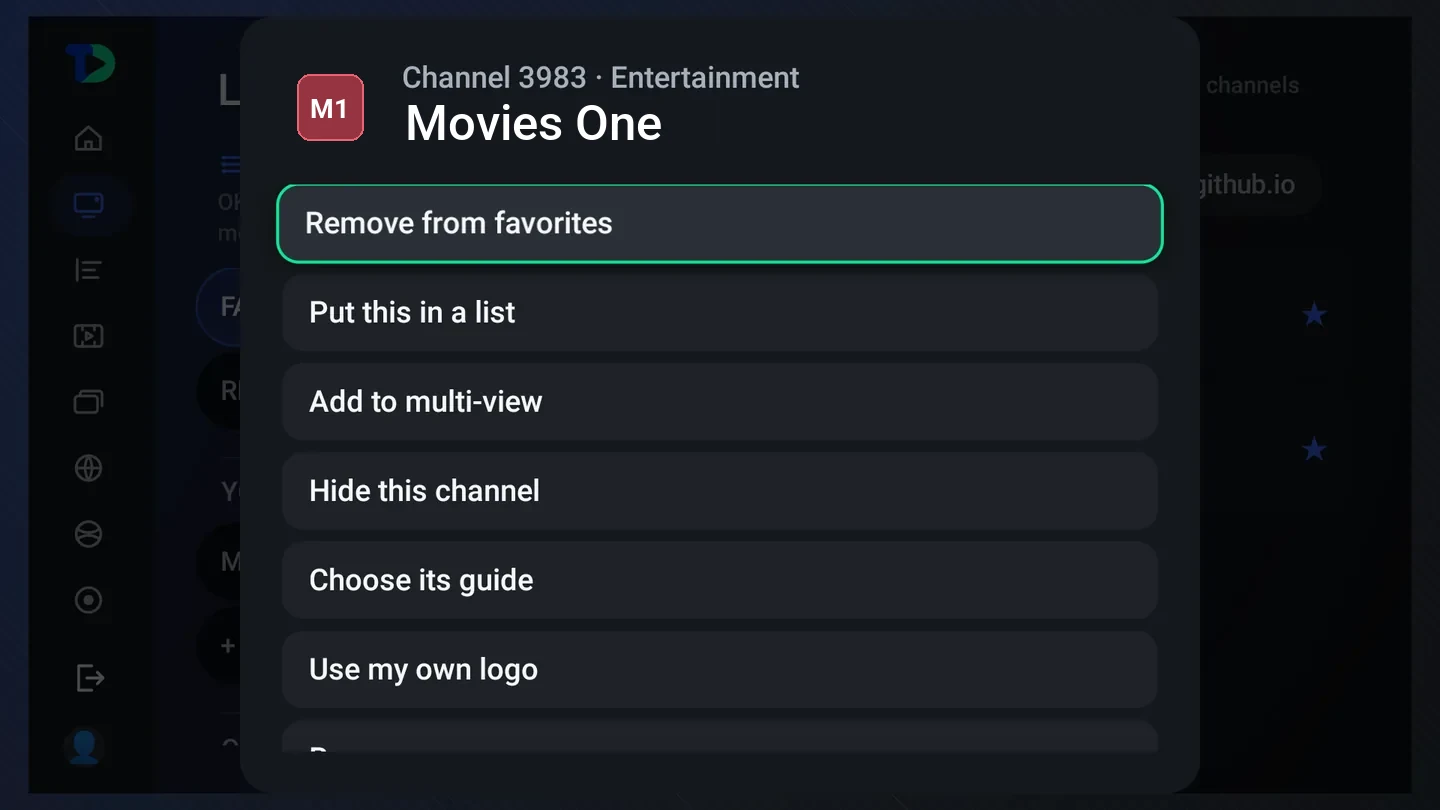
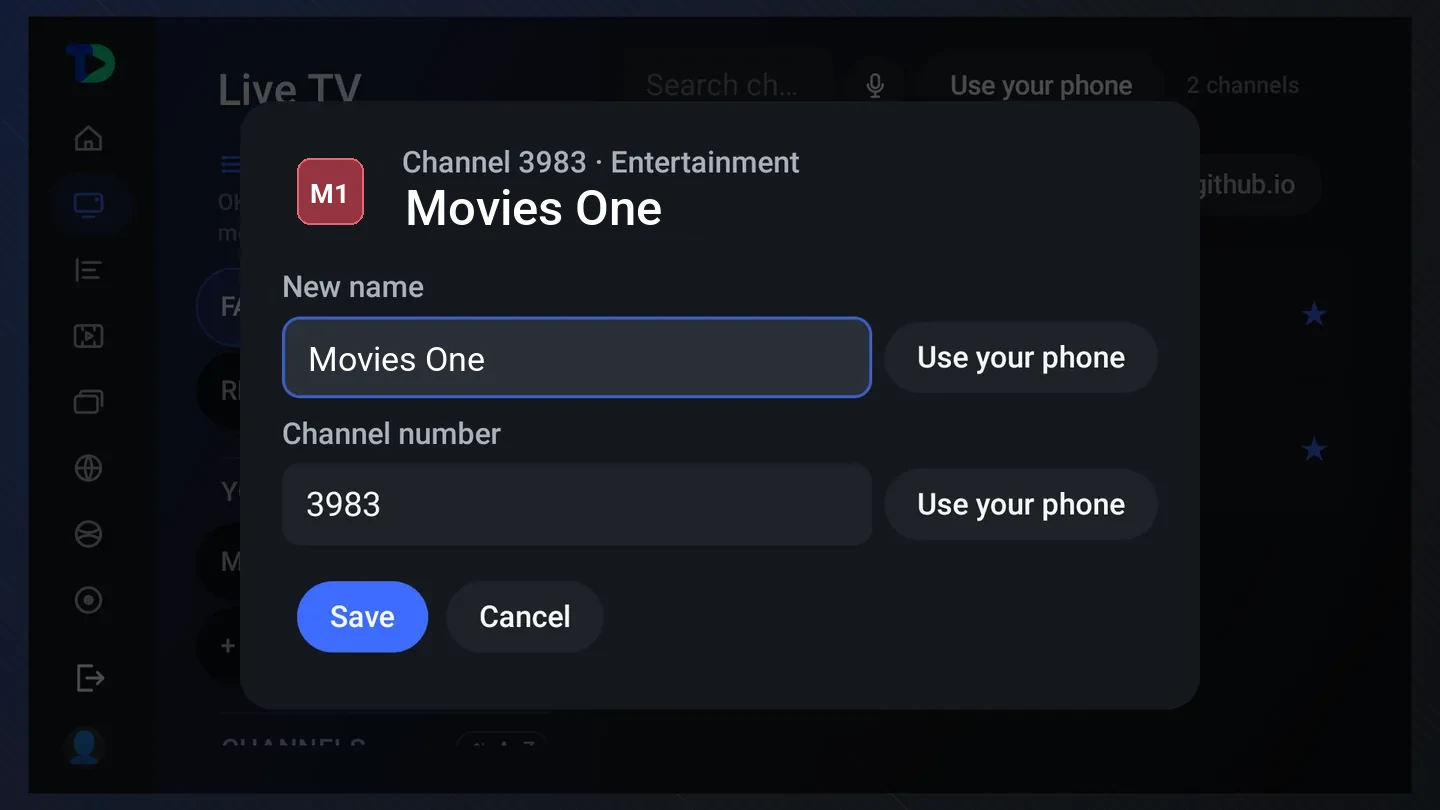
Renaming a channel and giving it your own number
Rename gives a channel the name you call it and, beside it, a number of your own. Type that number on the remote and the channel tunes; the name and number follow the household to its other TVs and phones.
- Press Menu or Info on the channel (or hold OK on it and press →) and choose Rename, near the end of the sheet. It is also in the player’s options.
- Type the name you use into New name, and the number you want into Channel number.
- Choose Save. If another channel already has that number, the two swap: the other channel takes this one’s old number, and a message says where it went.
Numbers on the remote. If your remote has number keys, typing a number in the full-screen player tunes that channel. In the TV guide, typing digits moves the highlight to that channel’s row, so you can see what is on before you tune.
Your lineup
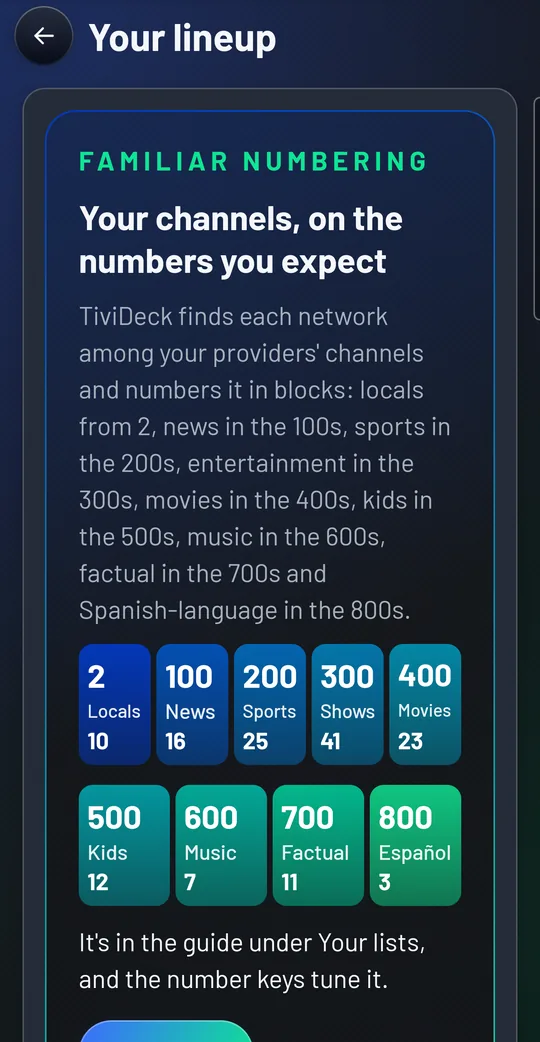
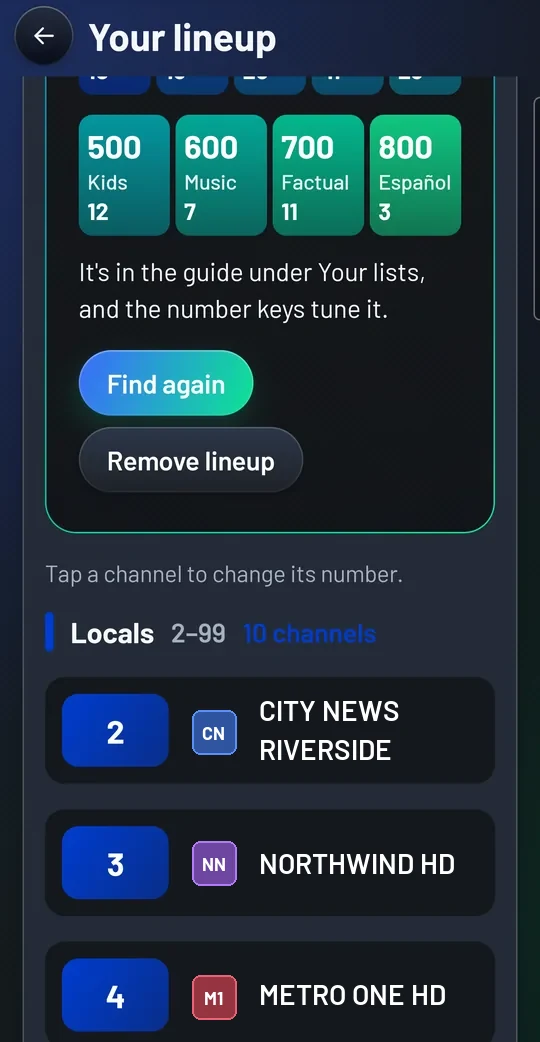
Settings › TV guide › Your lineup puts your channels on the numbers you expect: TiviDeck finds each network among your providers’ channels and numbers it in blocks — locals from 2, news in the 100s, sports in the 200s, entertainment in the 300s, movies in the 400s, kids in the 500s, music in the 600s, factual in the 700s and Spanish-language in the 800s. Find my networks, then Build my lineup. Press OK on a channel to change its number; a number already taken swaps the two. The lineup is a list of its own in the guide, the number keys tune it, and a number you typed by hand is never written over.
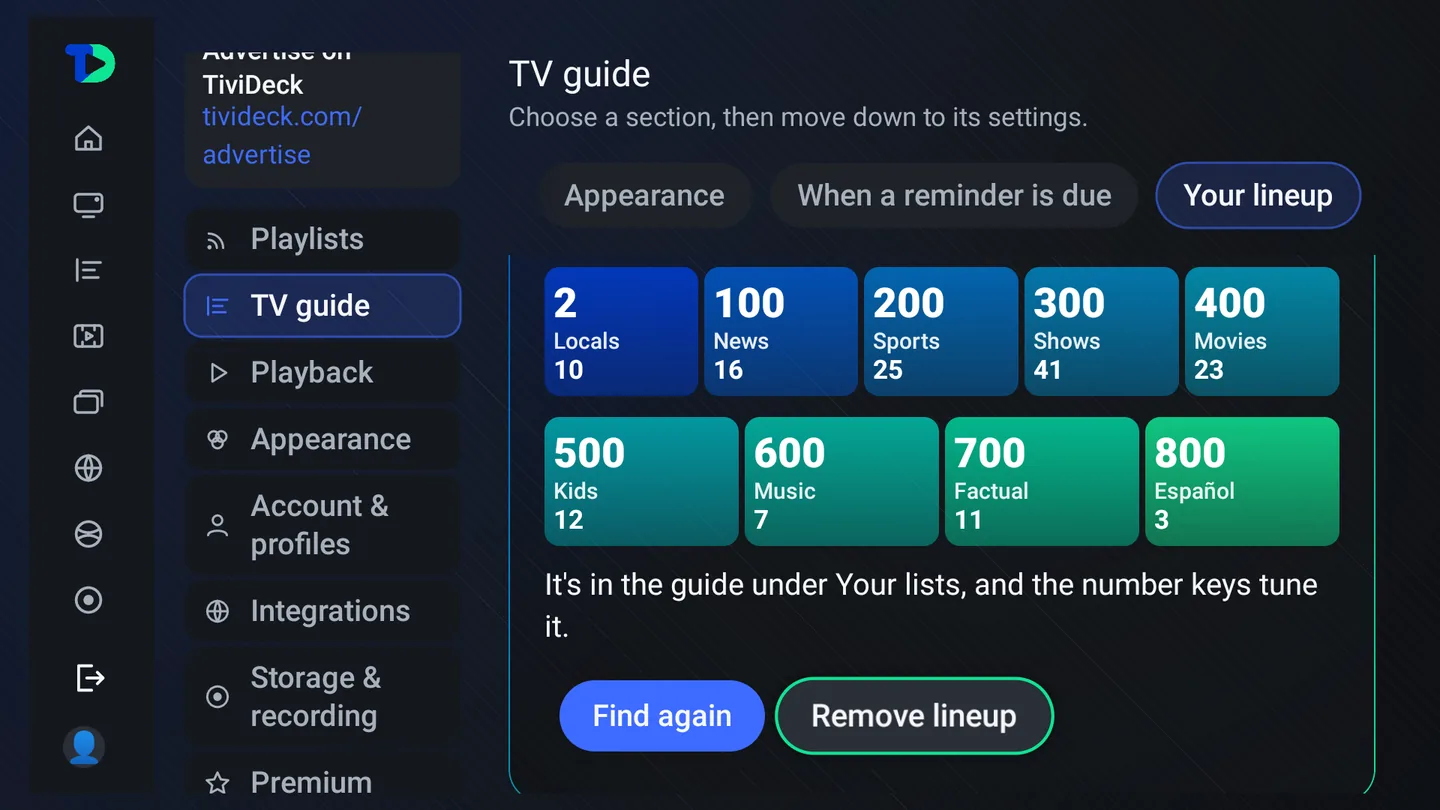
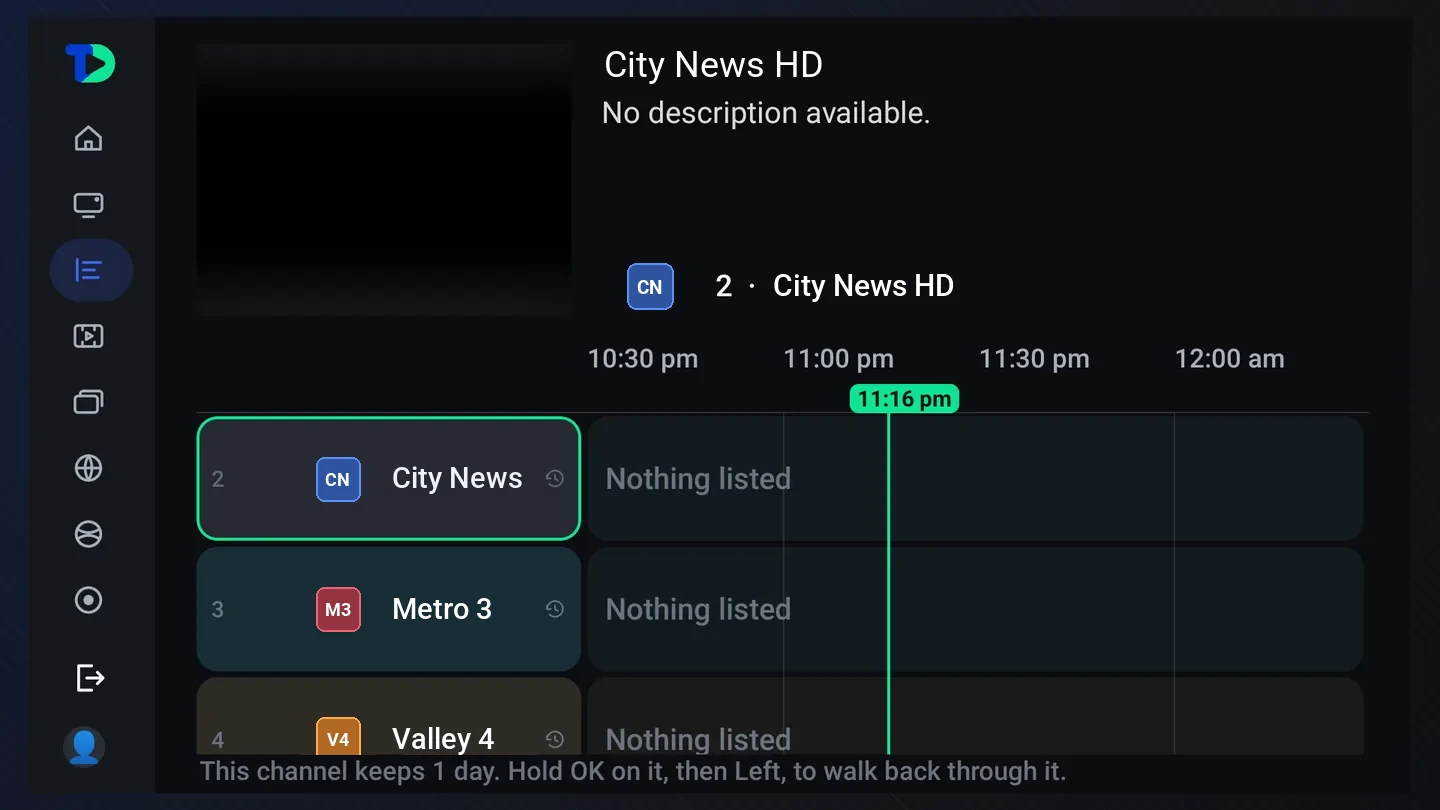
- Open Settings › TV guide, move right to the Your lineup tab and press ↓. On the phone: My TiviDeck › Settings › Your lineup.
- Choose Find my networks. TiviDeck looks through every provider’s channels and says how many networks it found, and how many your providers do not carry.
- Choose Build my lineup. Each block now shows how many channels it holds, and the channels are listed under it in order.
- To renumber a channel, press OK on it (tap it on the phone), type the new number and choose Save. If the number is taken, the box tells you which channel moves to the old number before you save. Take out of lineup removes just that channel.
- Find again looks for networks your providers have added since. Remove lineup takes the whole lineup away.
The guide
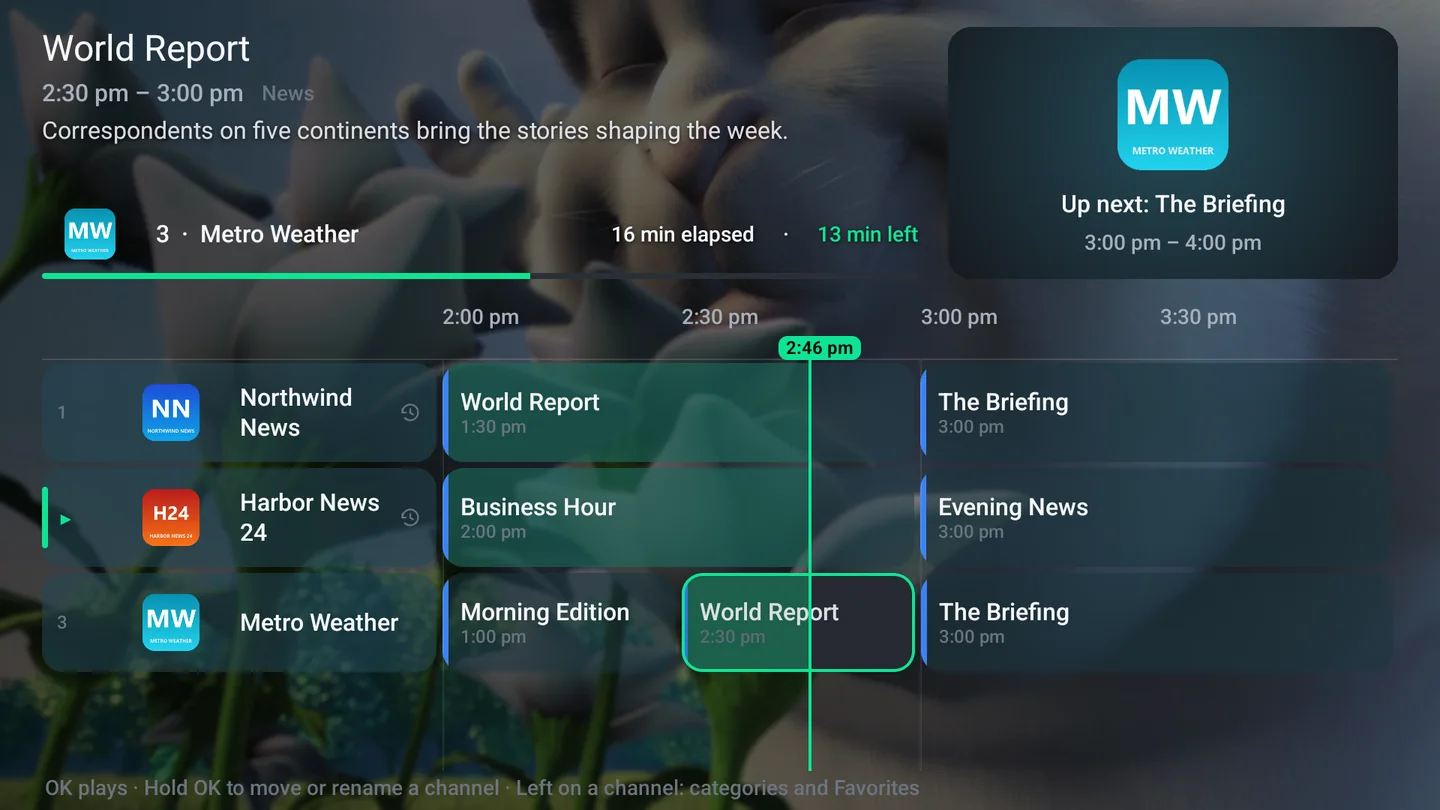
Two days forward and, where your provider allows it, some way back. The now-line is drawn across it, and the channel you are on keeps playing in the corner while you look.
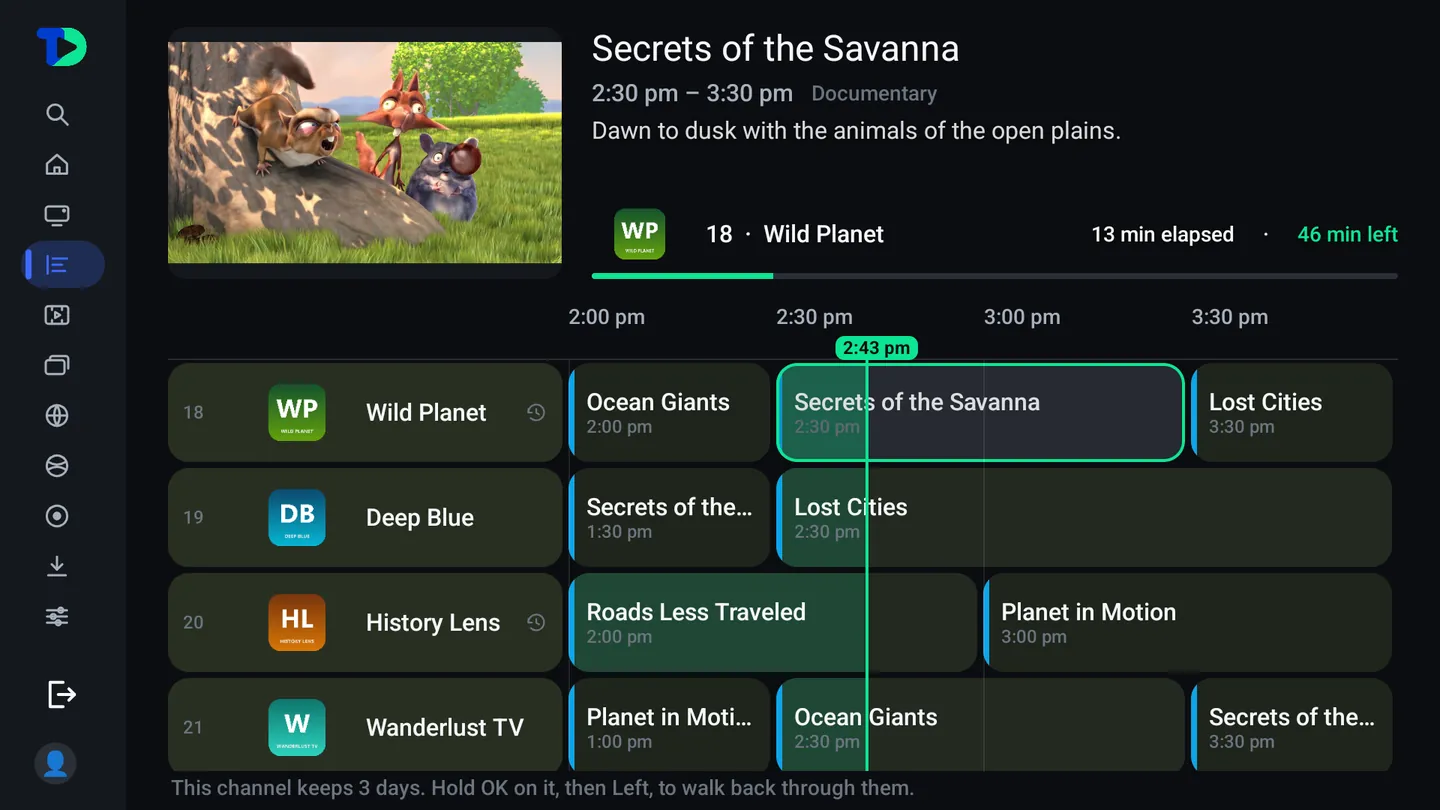
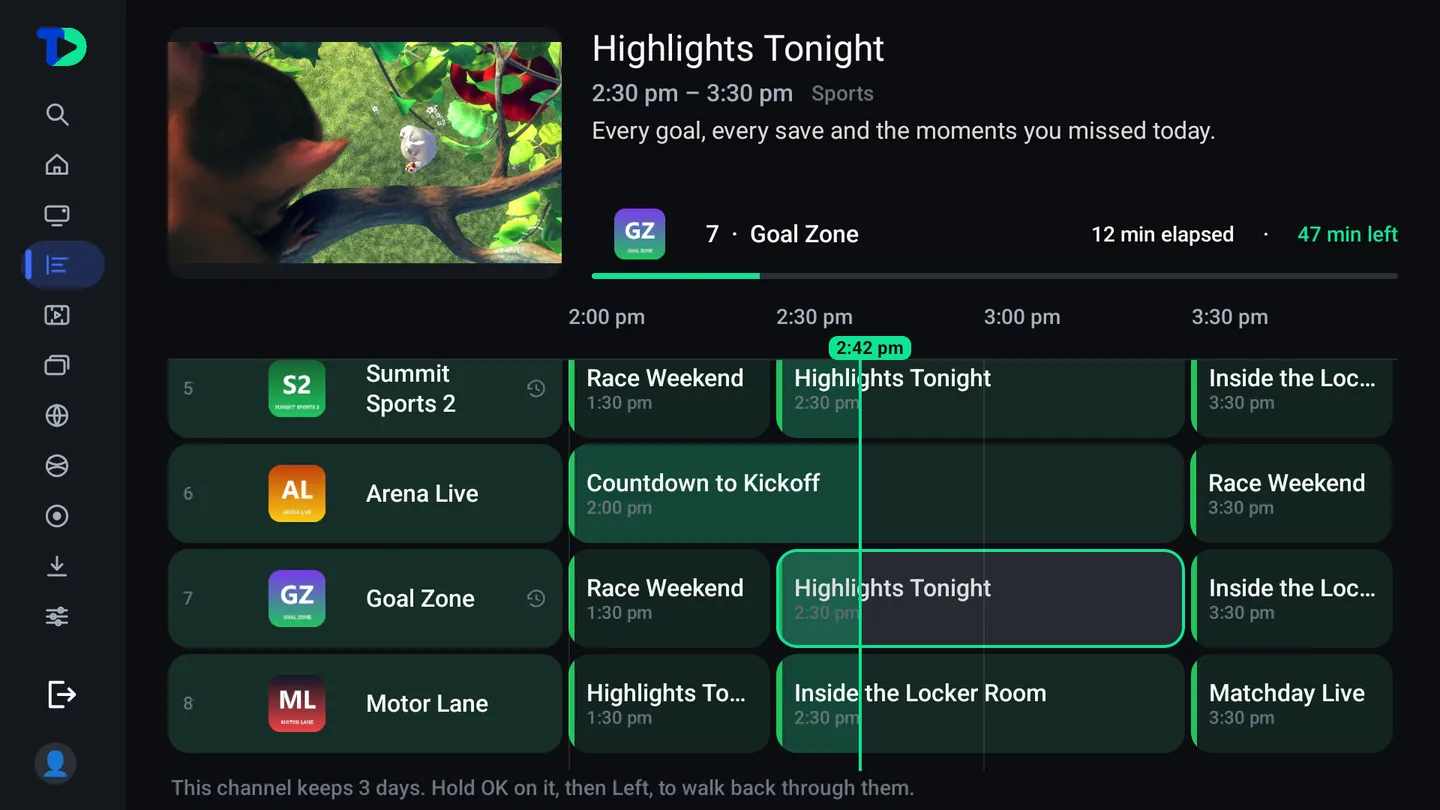
Hold OK on the program you are watching and then press ←, and you walk back through the live buffer without leaving the guide. On a channel with a buffer, the last hour or two of it is still there.
The side panel and the provider switcher
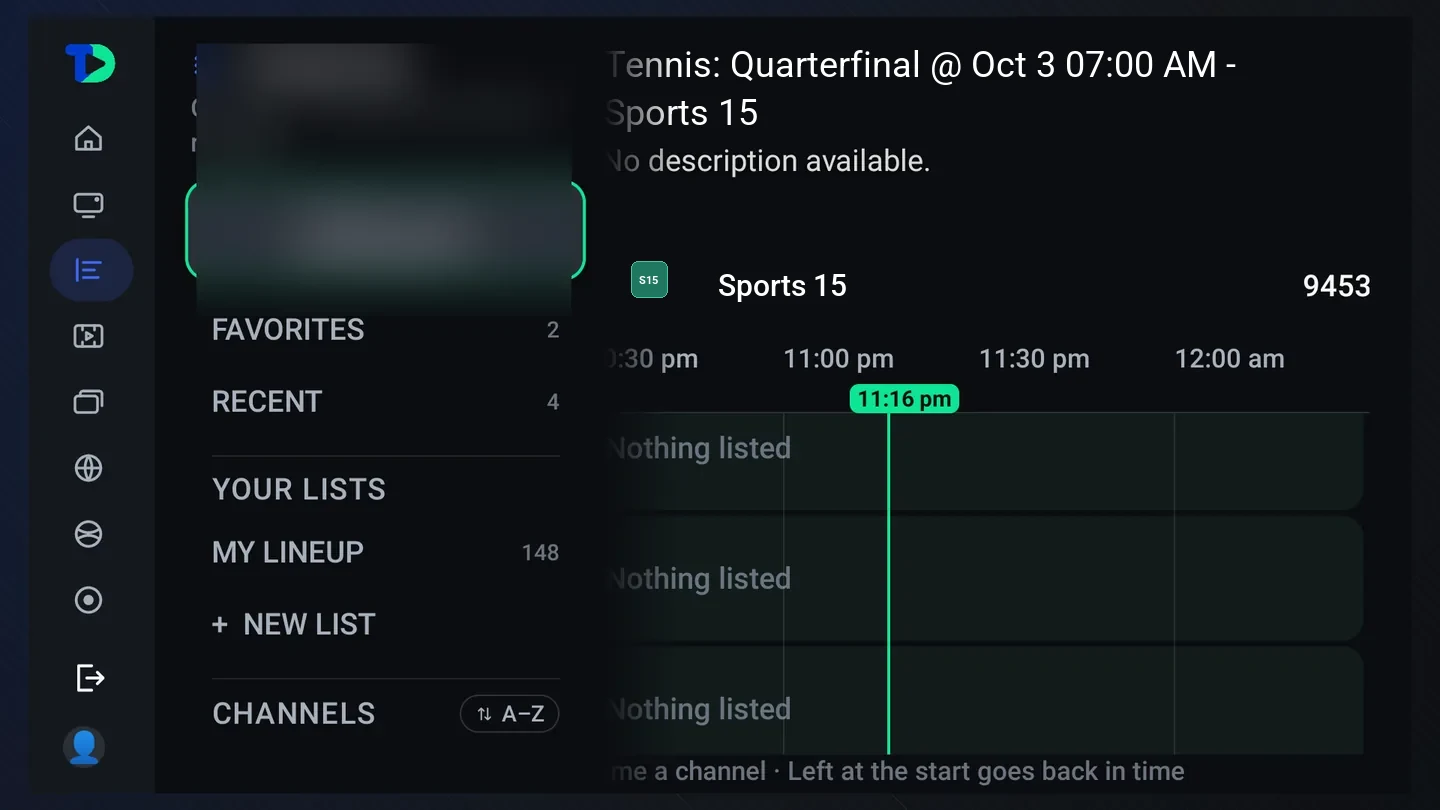
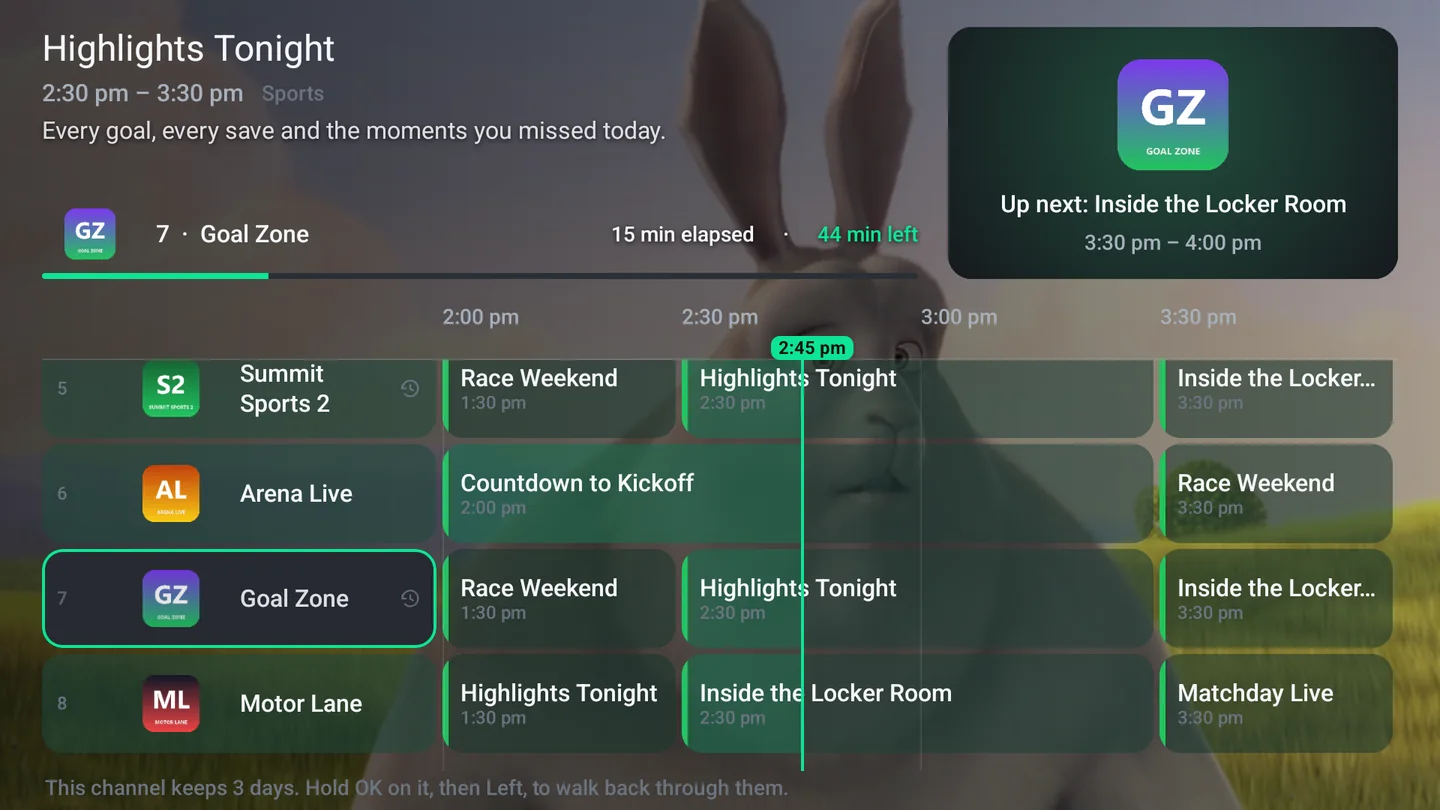
Press ← from the channel column and the guide’s side panel opens: Favorites, Recent, Your lists (with My lineup once you have built one, and + New list), then every category with its count. OK on one fills the guide with it and puts the highlight back on the grid; one more ← opens the rail.
With more than one provider, the switcher at the top of the panel chooses whose channels the guide shows. ← and →, or OK, step through each provider and All Providers; ↓ goes down into that provider’s lists and categories.
The mini guide
You do not have to leave the picture to look. ← from full screen slides the guide in over the left of the screen while the channel keeps playing. ← again opens its categories: Favorites, Recent and your own lists, with a provider switcher on top when you have more than one.
The player
Press OK on a live channel and the transport bar comes up: what is on, where you are in it, and the controls that actually apply to this channel.
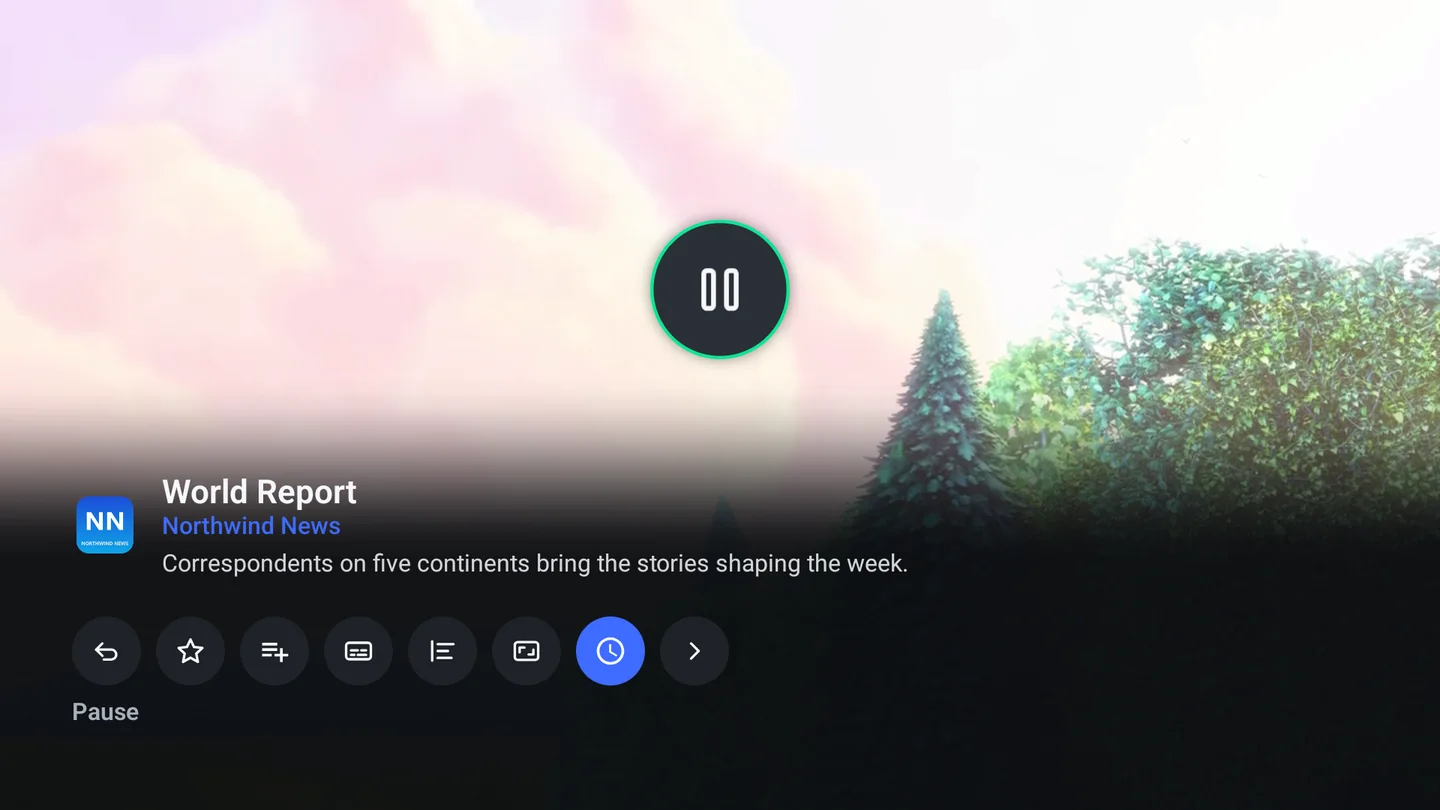
Previous channel — on the player bar, or your remote’s own Last key — flips back to the last channel at once and lines up your last six channels along the bottom of the picture for ten seconds, to jump to any of them.
The options wall
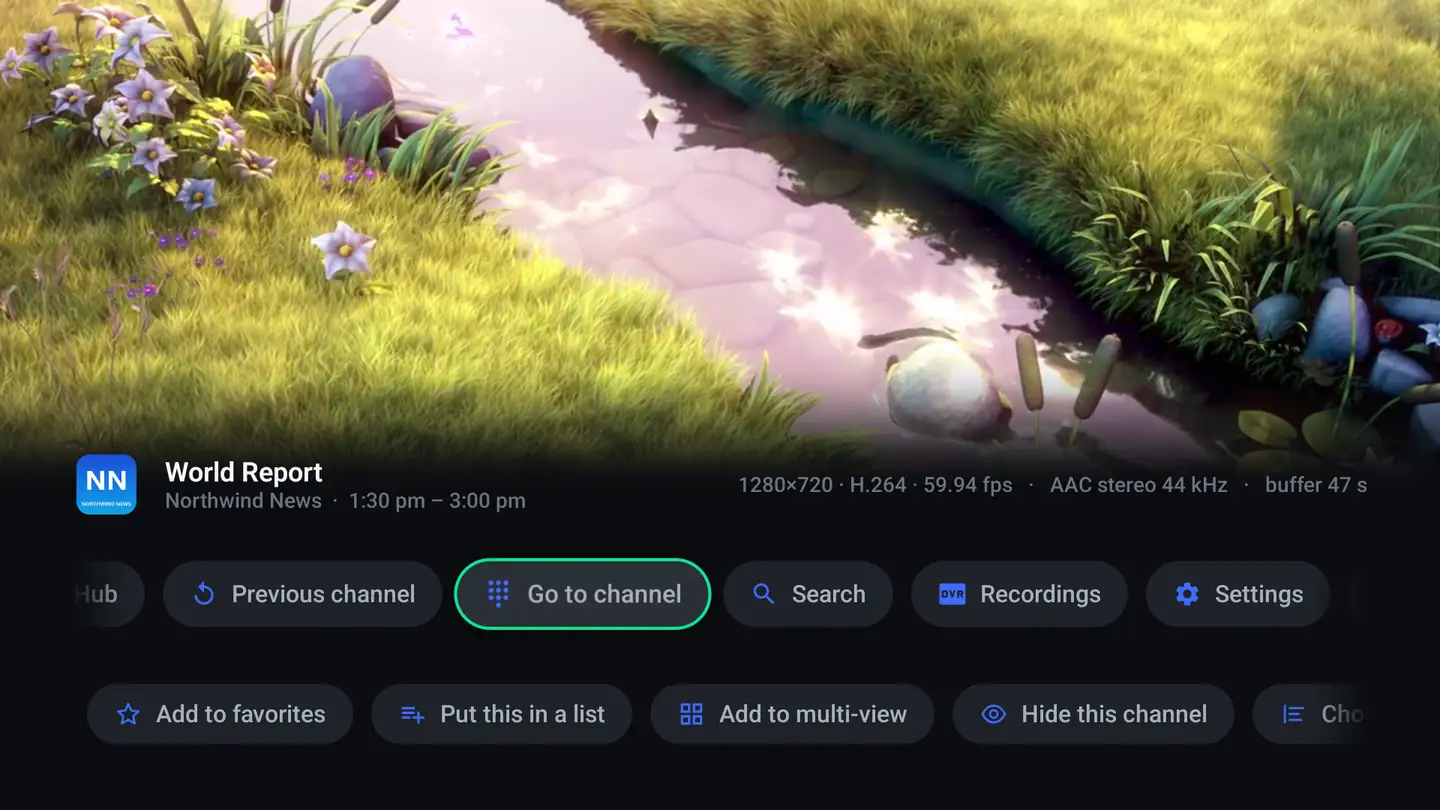
→ from full screen — or ↓ from the transport bar — opens everything else, on one line you can walk along rather than a menu you have to learn.

Minimal controls, and a channel that won’t play
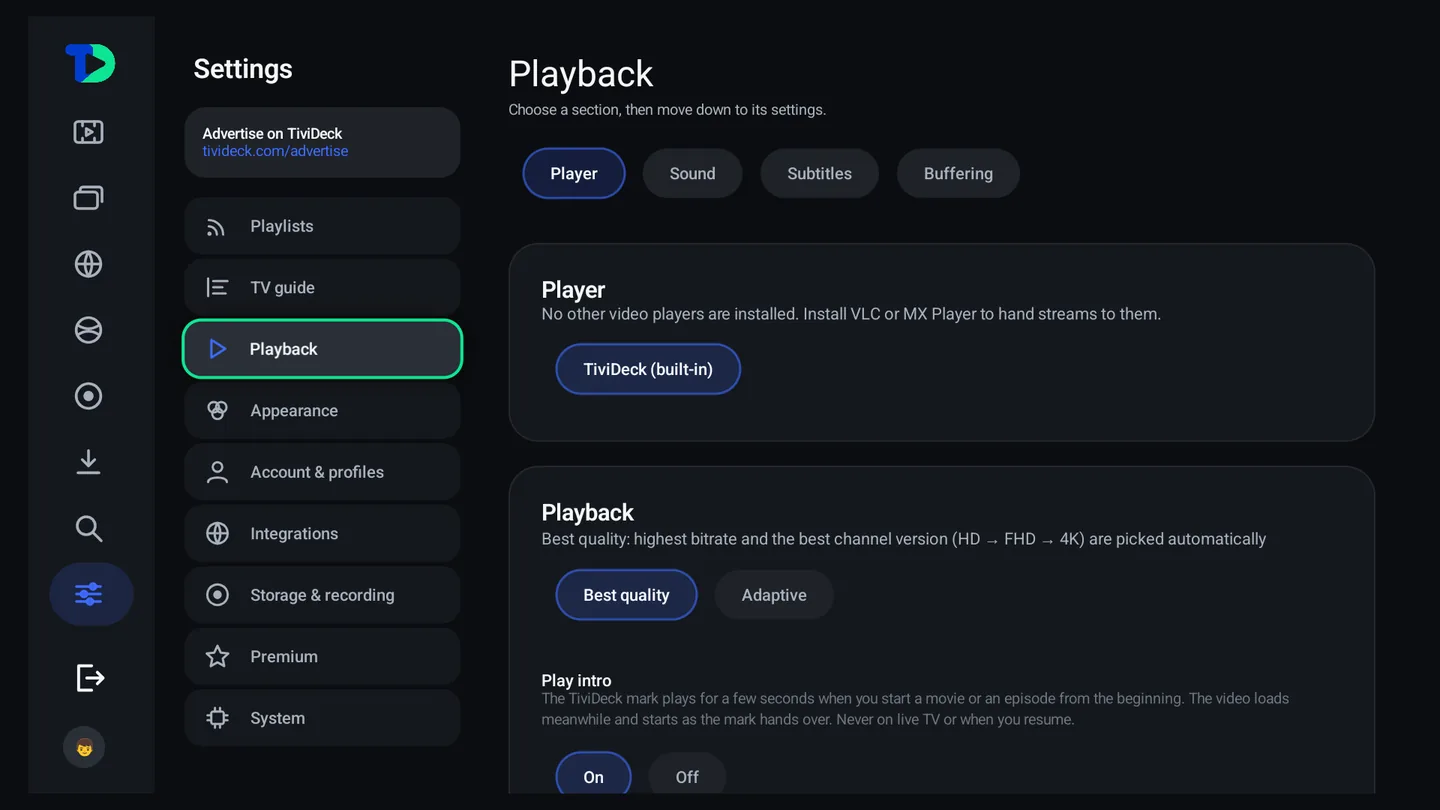
Two choices in Settings › Playback › Player change how the player behaves, in TV 1.0.43 and phone 1.0.36.
- Player controls — Full is the transport pictured above: the title, what is on and large buttons over a dark panel. Minimal puts one thin row of small buttons at the very bottom and leaves the rest of the picture clear; the channel’s card becomes one slim line too. This one is on the TV.
- When a channel won’t play — Stay keeps the message on screen until you choose what to do. Go to the next channel waits until TiviDeck has stopped retrying, counts down five seconds and starts the next channel in the list; in a series, the next episode. It never moves on when your provider says its connections are all in use, and it stops after eight channels in a row. On the phone the same choice is in My TiviDeck › Settings › Playback.
Both choices belong to the profile and follow it to the household’s other TVs and phones.
Timeshift and recording
Where a channel has a live buffer, TiviDeck keeps it, and everything else follows from that: pause a live game and it waits; rewind and the picture goes back; press record and it reaches back to the start of the program rather than starting from the moment you pressed it.
- Pause holds a live channel and the buffer keeps filling behind it.
- Record is the same button again to stop. There is no separate stop, because a stop button next to a record button gets pressed by mistake.
- Back to live appears the moment you are behind, and takes one press.
- Moments are marked on the scrub line — the points the app thought something happened — so “show me that again” is a jump, not a hunt.
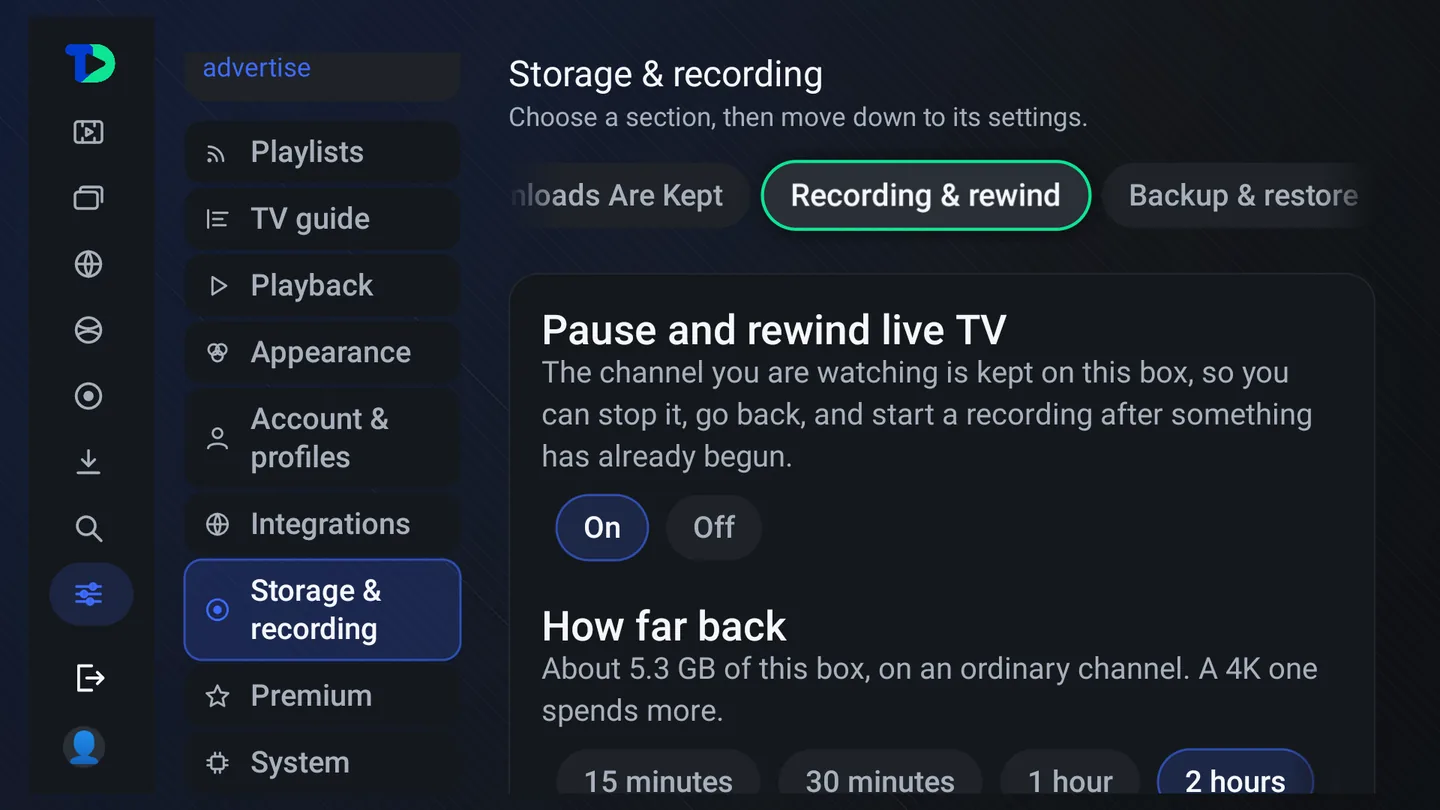
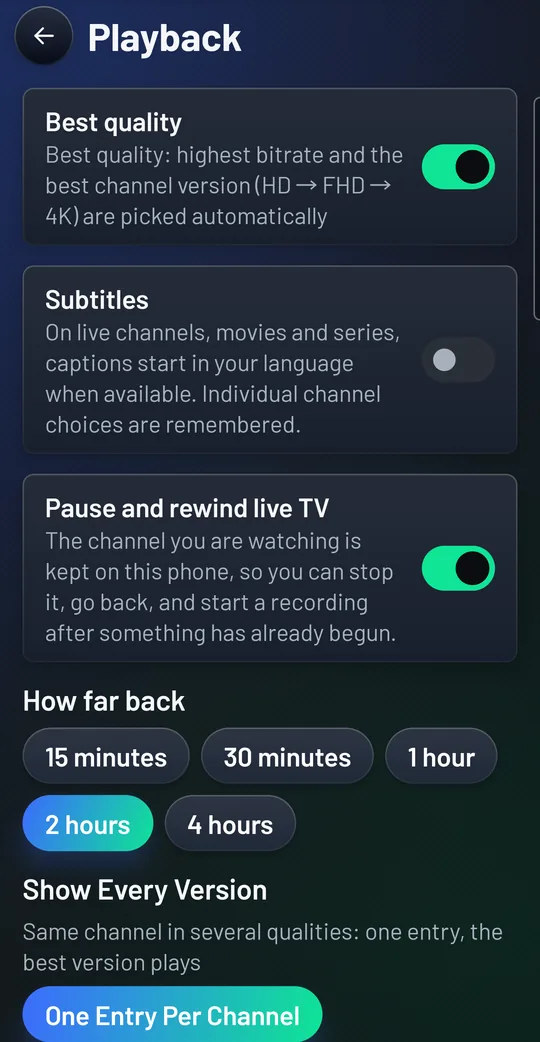
Turning it on, and how far back. Open Settings › Storage & recording › Recording & rewind. With Pause and rewind live TV on, the channel you are watching is kept on the box itself, so you can stop it, go back, and start a recording after something has already begun. How far back chooses 15 minutes, 30 minutes, 1 hour, 2 hours or 4 hours, and says how much of the box that takes on an ordinary channel (a 4K channel takes more). Room for recordings, below it, is the most the box keeps; when a new recording does not fit, the oldest one is removed. With it off, live channels play straight through and pause only stops the picture.
On the phone the same switch and choices are under My TiviDeck › Settings › Playback, and the room for recordings under Settings › Recording & rewind.
Multi-view
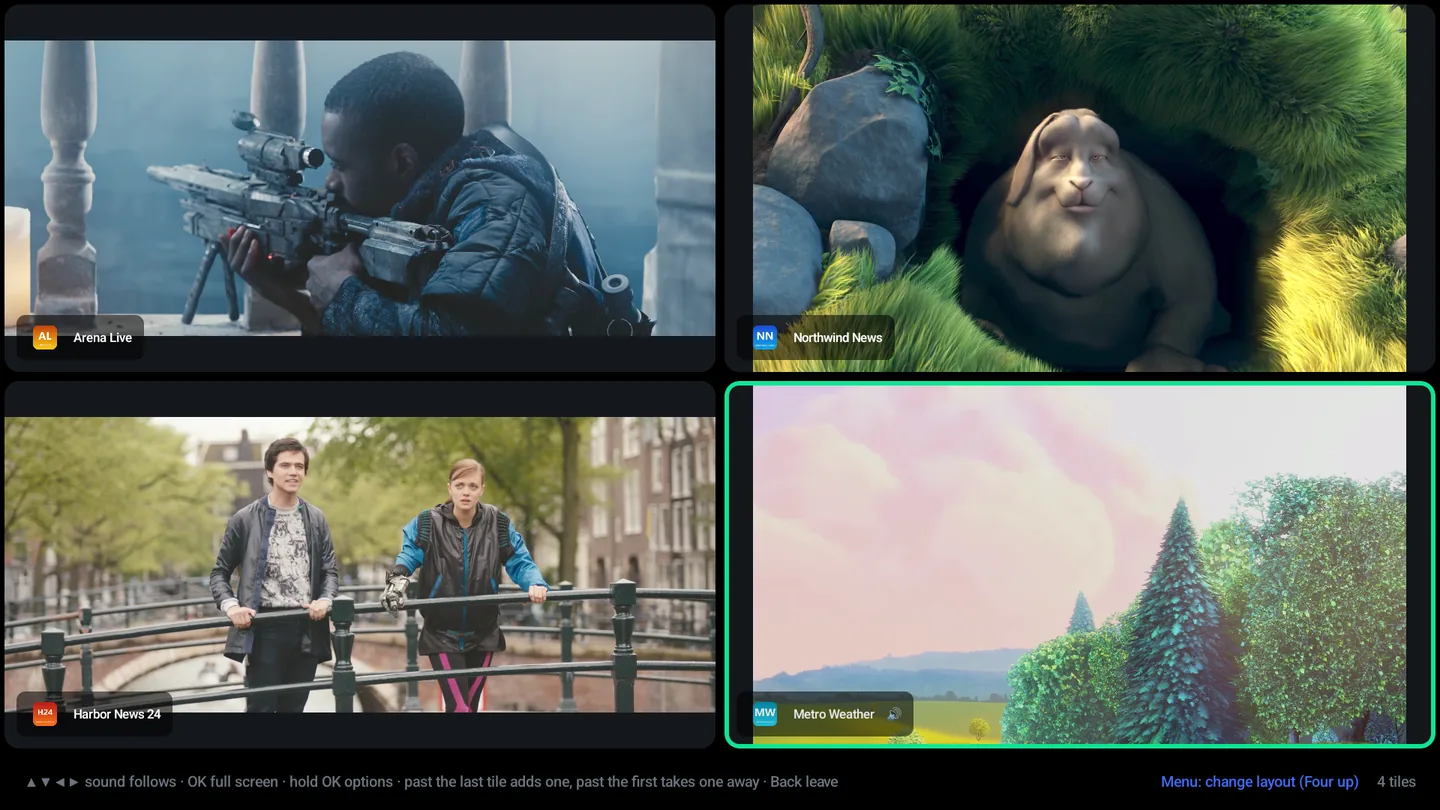
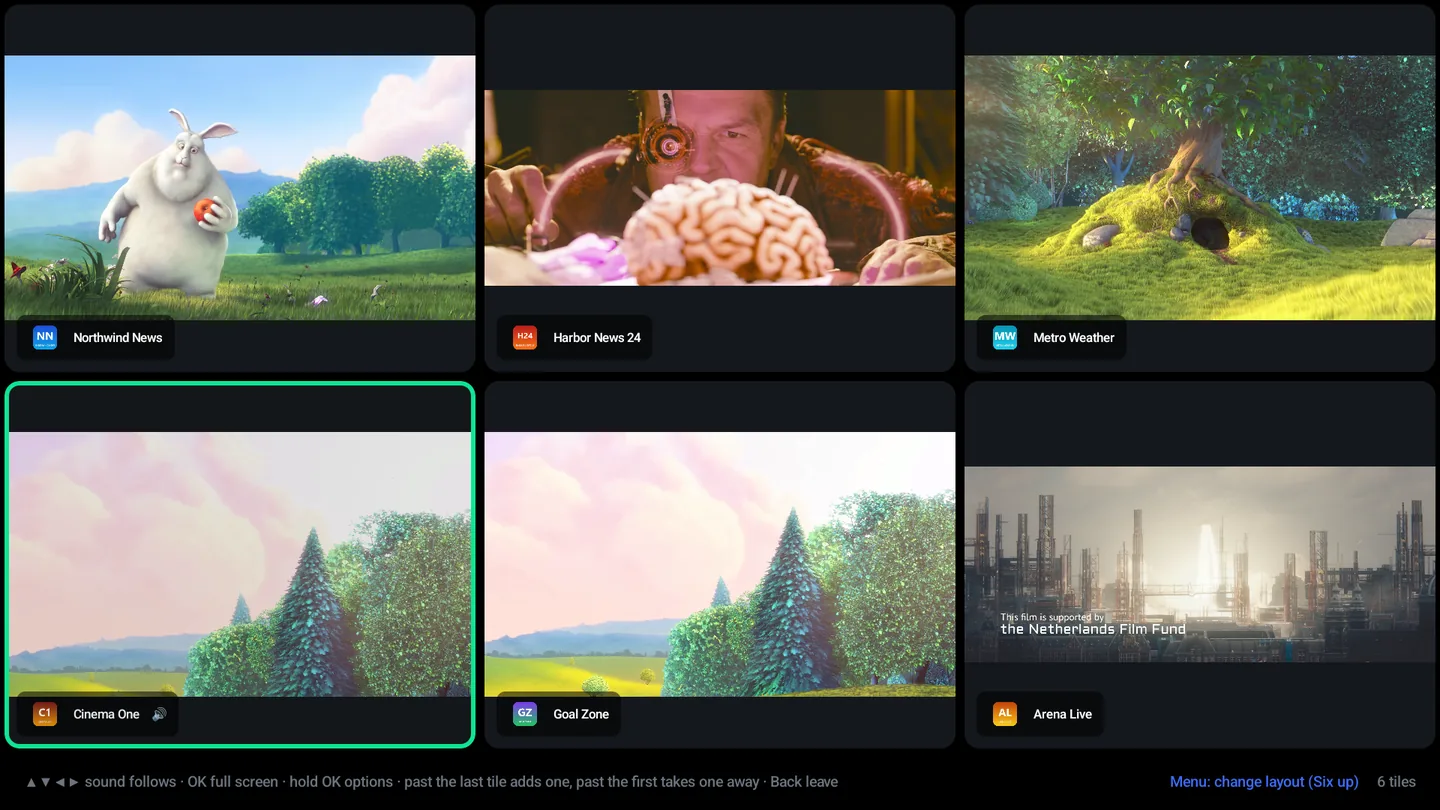
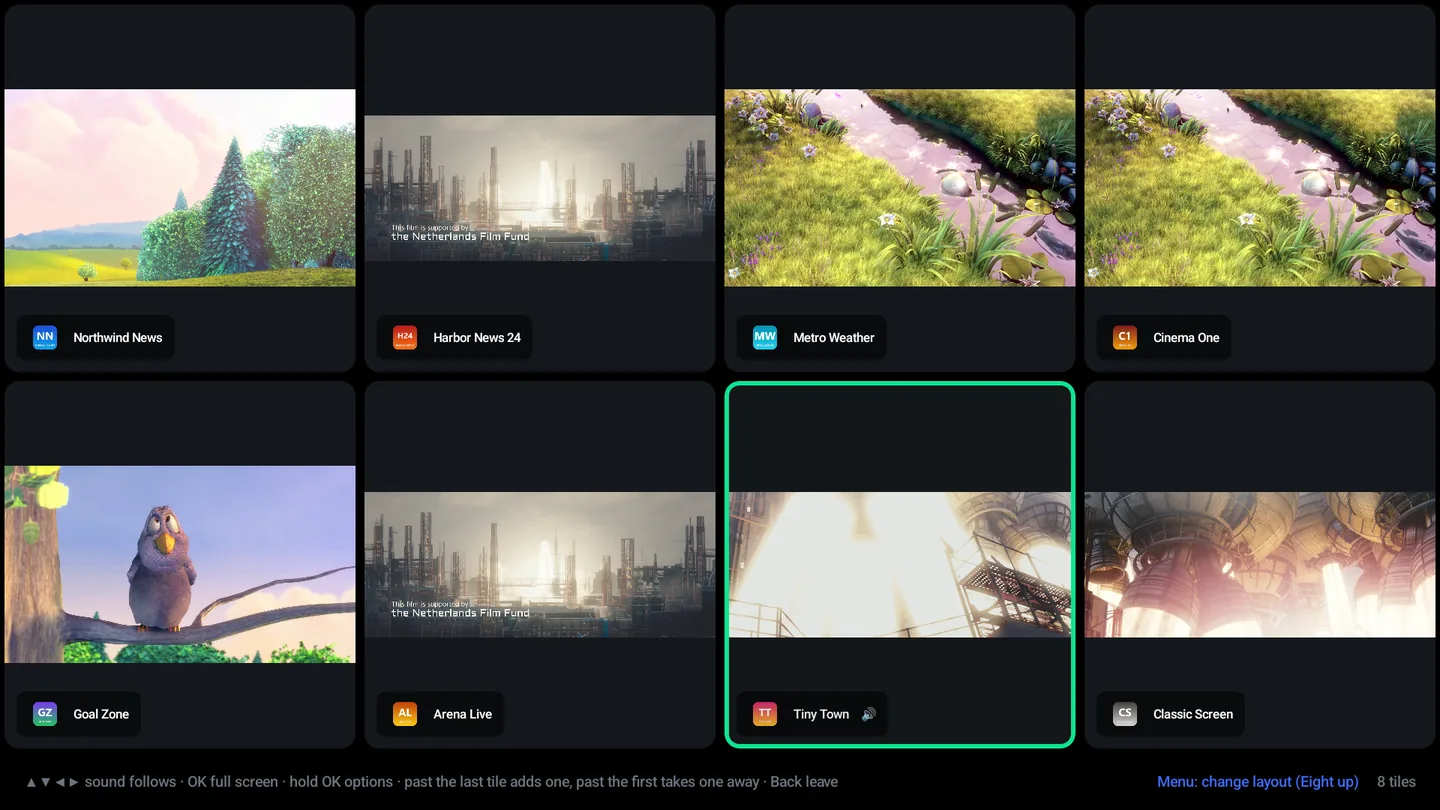
Two, four, six or eight channels at once, with the sound following whichever tile you are on. On a Saturday this is the reason people keep the app.
Working it
- Growing and shrinking — press → past the last tile and the layout grows; press ← past the first and it shrinks. Two, four, six, eight.
- Filling a tile — OK on an empty tile opens a picker with your categories in it, so a wall of sport is a few presses rather than a search each time.
- Full screen — OK on a tile that is playing blows it up. Back returns to the same wall, with every tile, the same layout, and the highlight and the sound on the tile you left. A film resumes in its tile where full screen left it.
- The layout key — Menu or Info cycles the shape.
- A tile that drops — when your provider ends a stream after a short piece, as some do, the tile asks for it again and keeps playing. A tile frozen on the same moment for twelve seconds is opened again on its own.
Eight live streams is eight connections to your provider and eight decoders on the box. A cheap stick will manage two or three; a Shield will do eight. Your provider’s own connection limit applies too — if it allows one device, it allows one device, however many tiles the app draws.
Films
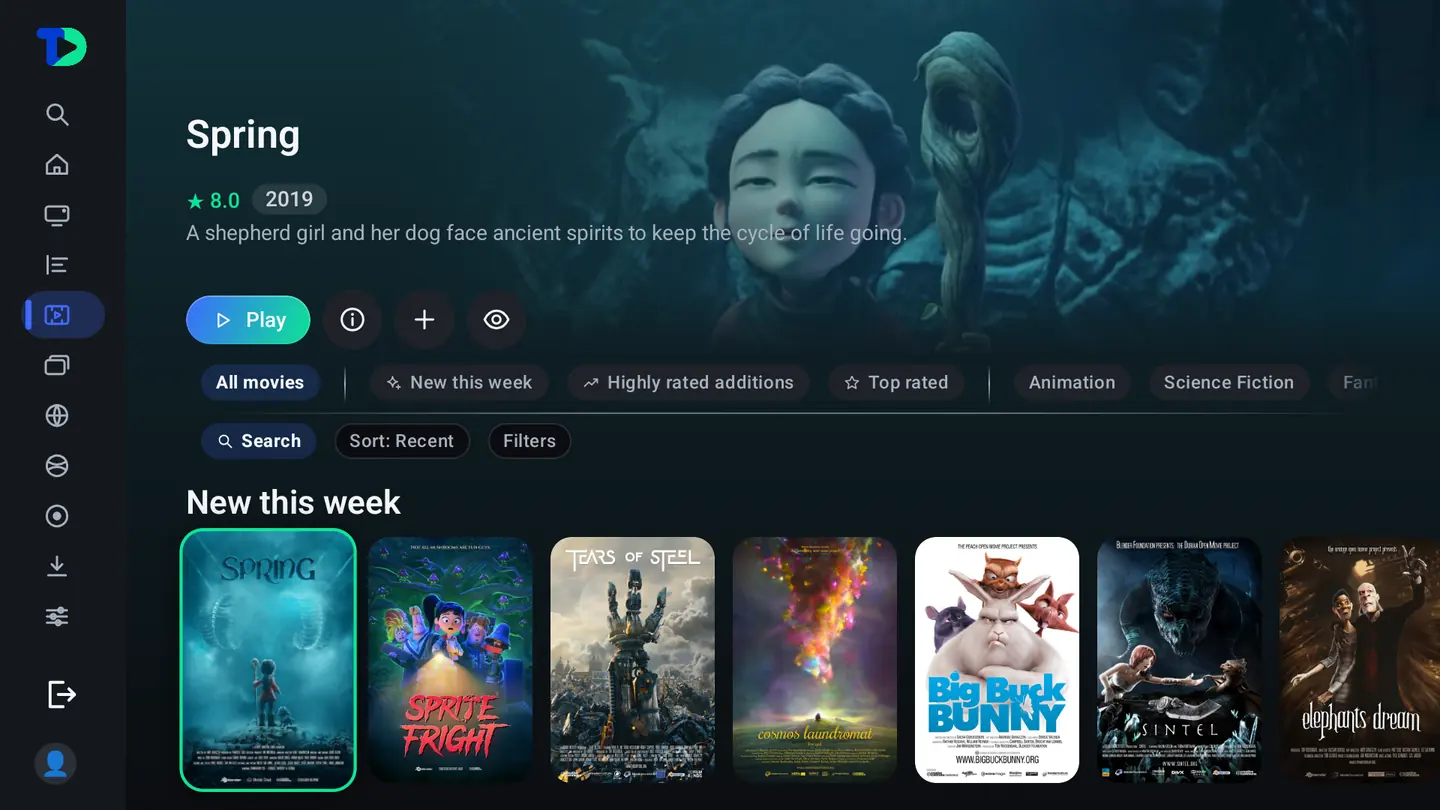
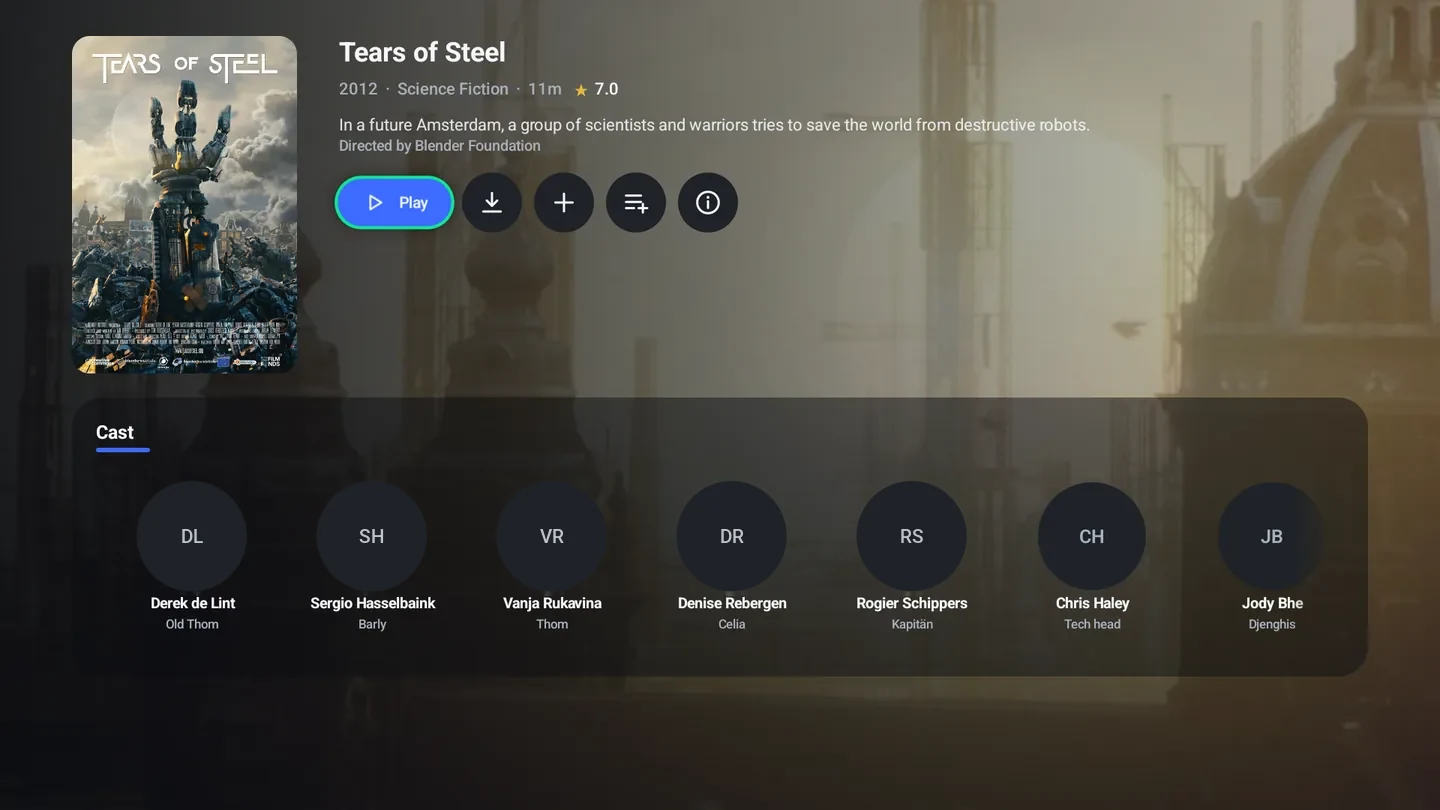
Whatever your provider ships as video-on-demand, laid out like a library rather than a list of file names.
More from this category
While a film from the library plays, More from this category on the player bar (or the Guide key on the remote) opens a panel at the side with the other titles of the film’s category, the picture still playing beside it. The highlight starts on the film you are watching. Search this category narrows the list as you type, the other face of the panel lists the categories themselves, and choosing a title plays it from where it was left. Back closes the panel. Only films the profile is allowed to open are listed, and an episode, a catch-up program or a recording has no panel.
Poster titles. Settings › Appearance › Movies & Series chooses where a card’s name goes: On the poster, or Below the poster, which keeps the artwork clean with the name and details underneath. On the phone it is in My TiviDeck › Settings › Appearance.
Series
Everything your provider ships with seasons and episodes, on the same kind of shelf as films, and it remembers the episode you stopped on.
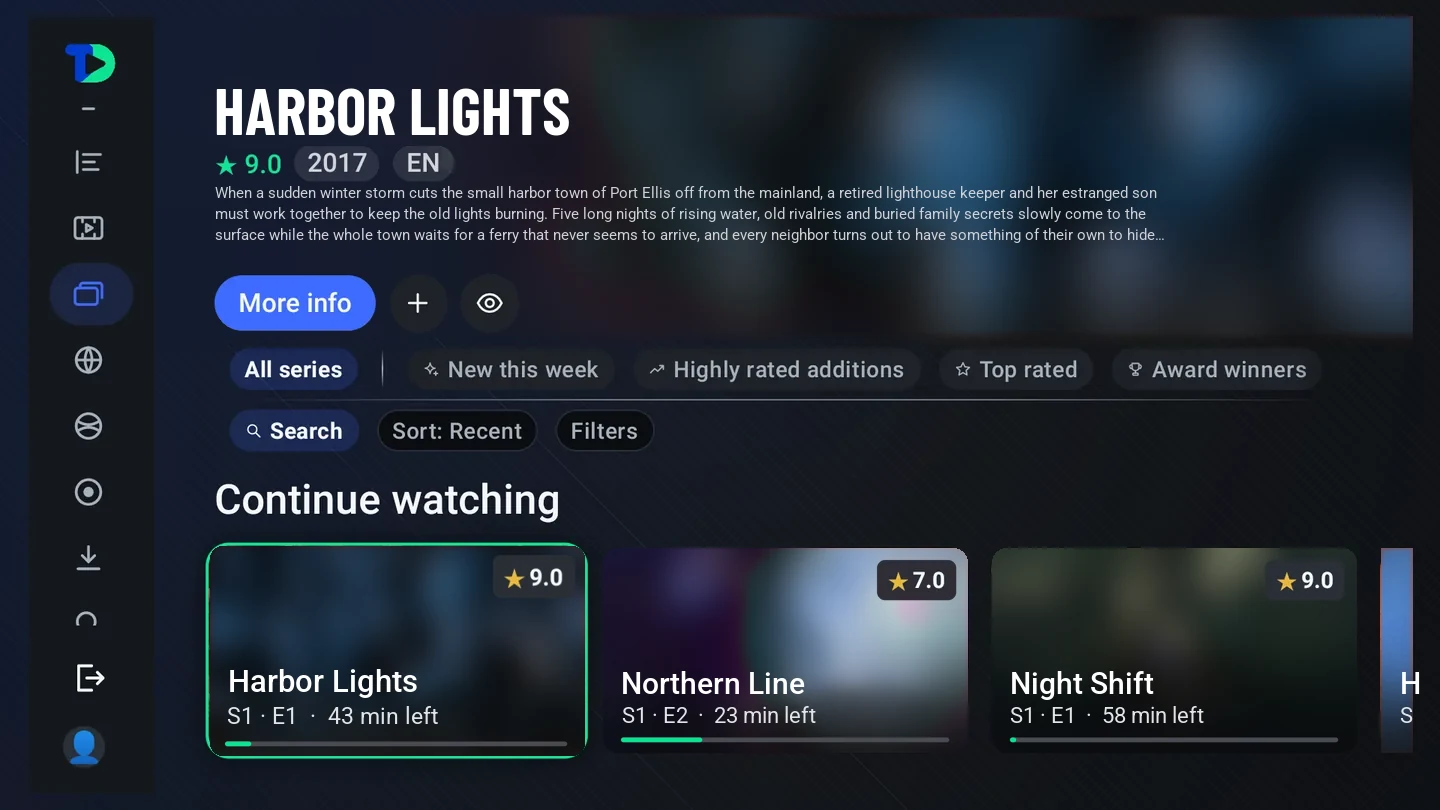
- Getting there — choose Series on the rail. The chips along the top (All series, New this week, Top rated and the rest) narrow the shelf; Search, Sort and Filters sit under them.
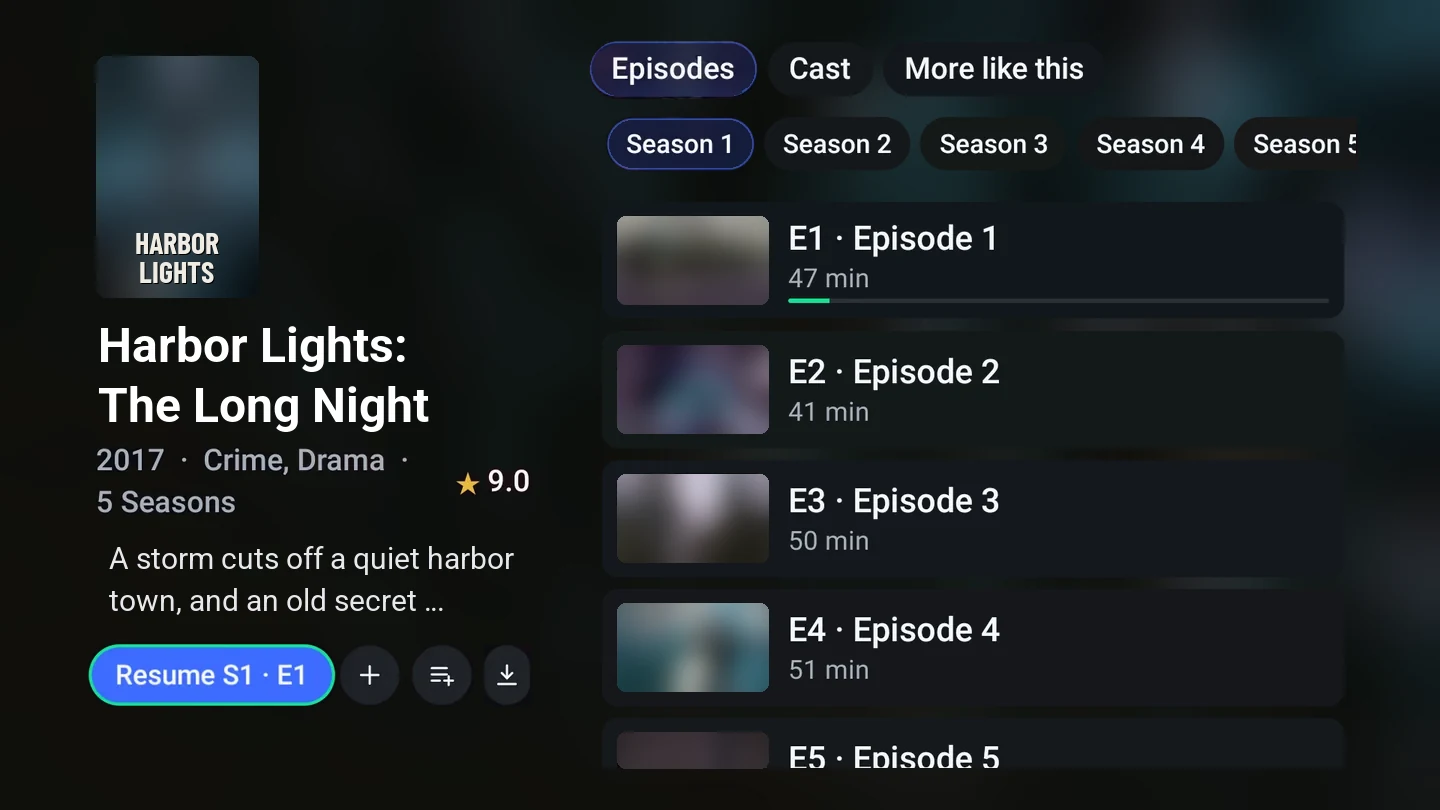
- A series’ page — OK on a poster opens it, or More info on the featured one. The first button is Resume when you have started it, or Watch S1 · E1 when you have not.
- Seasons — move right to the episodes, up to the season chips, and pick one. OK on an episode plays it; when it ends, the next one is offered.
- Keep it for later — the buttons beside Resume add the series to your list or download an episode to the box.
- Watched in another app — with Trakt connected, episodes and films you watched in other apps get their Watched tick here too, on the TV and the phone. A title you mark unwatched in TiviDeck stays unwatched on that device, whatever Trakt says.
Add-ons
On the Enhanced edition, TiviDeck can also read Cinemeta catalogs, so a film your provider does not carry still has a page, artwork and a synopsis instead of a blank — and you can add Stremio-compatible add-ons yourself and connect your own debrid account, if you have one. The Store edition does not include add-ons.
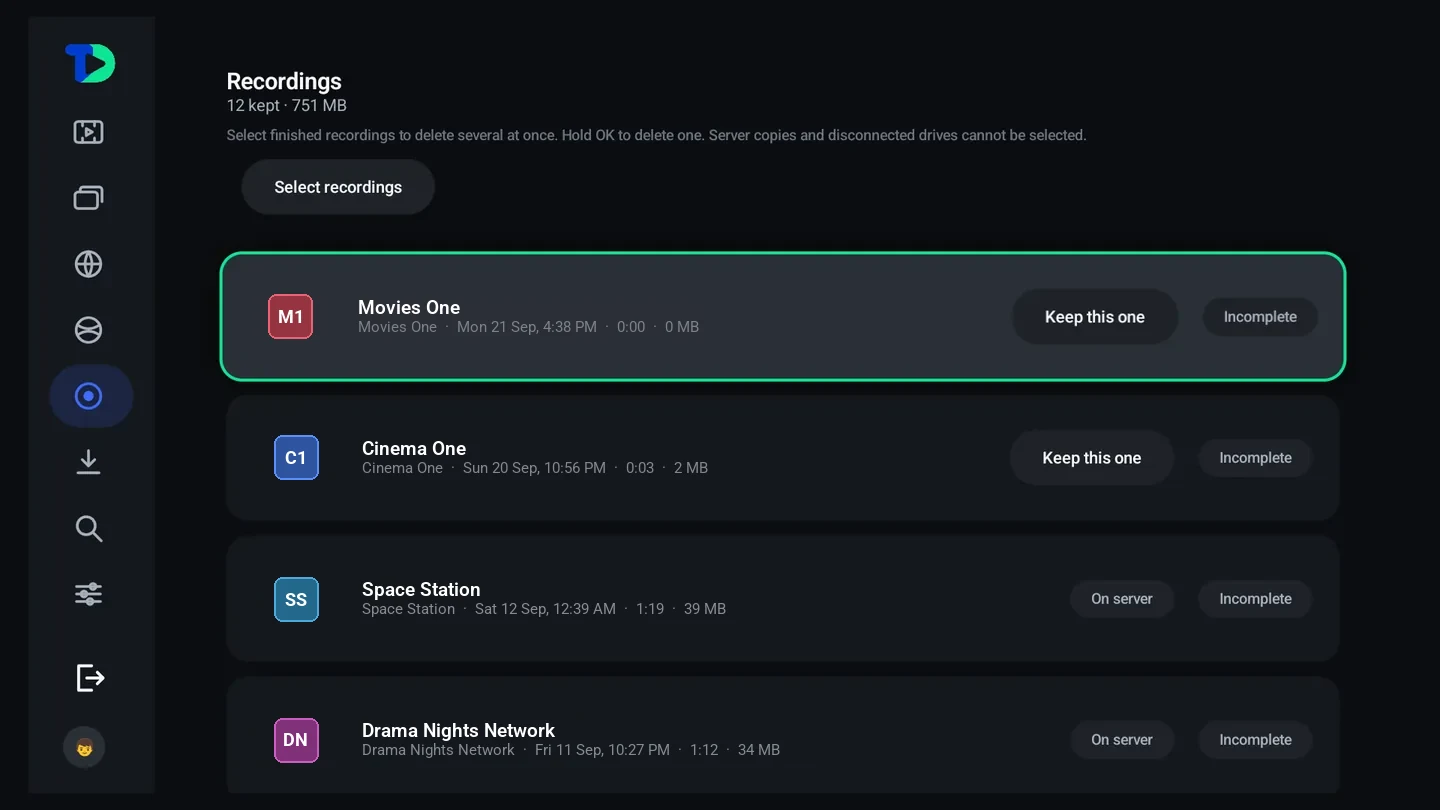
Recordings
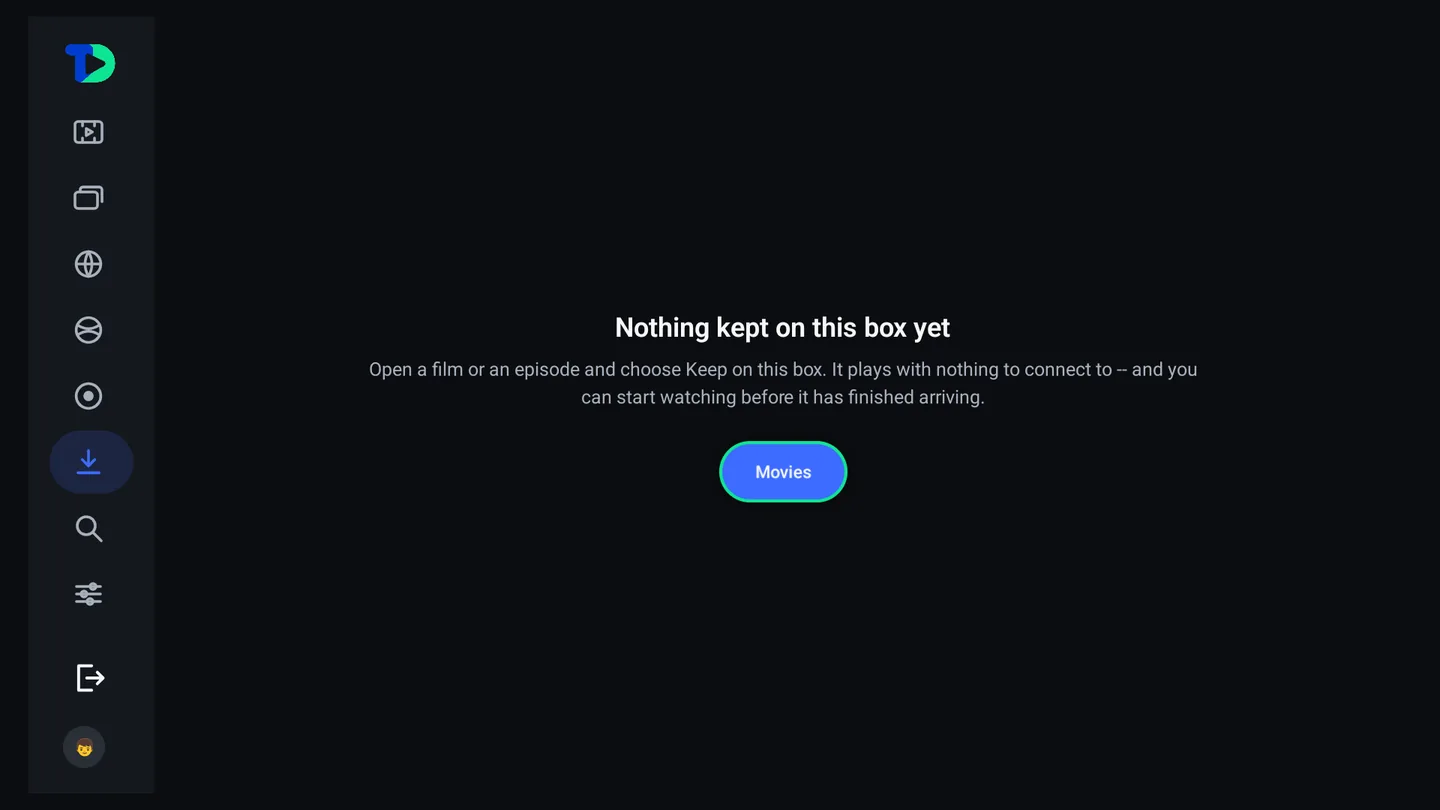
Downloads
The Sports Hub
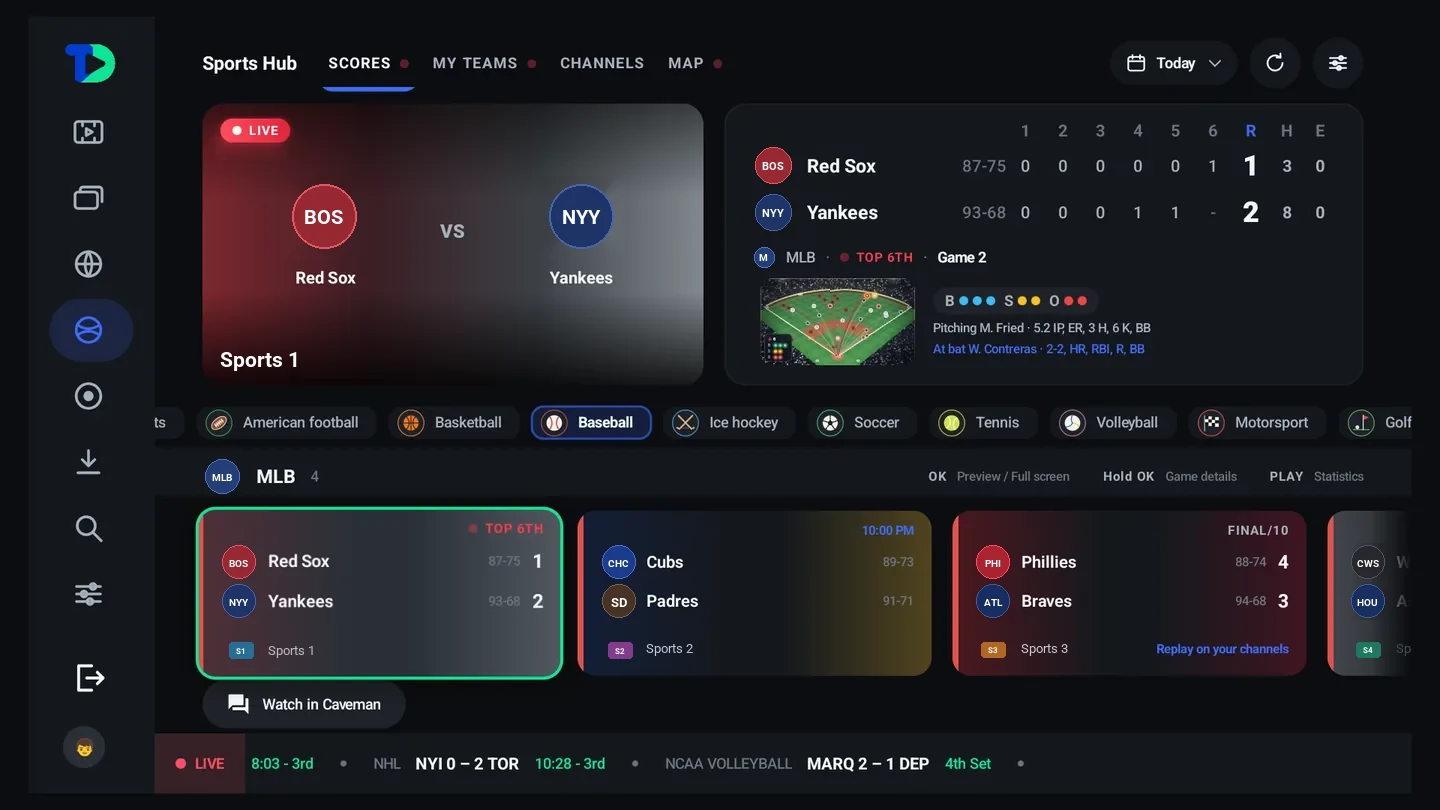
Your provider gives you channels; the Sports Hub gives you games — who is playing, who is winning, which of your channels is carrying it, and one press to be watching it.
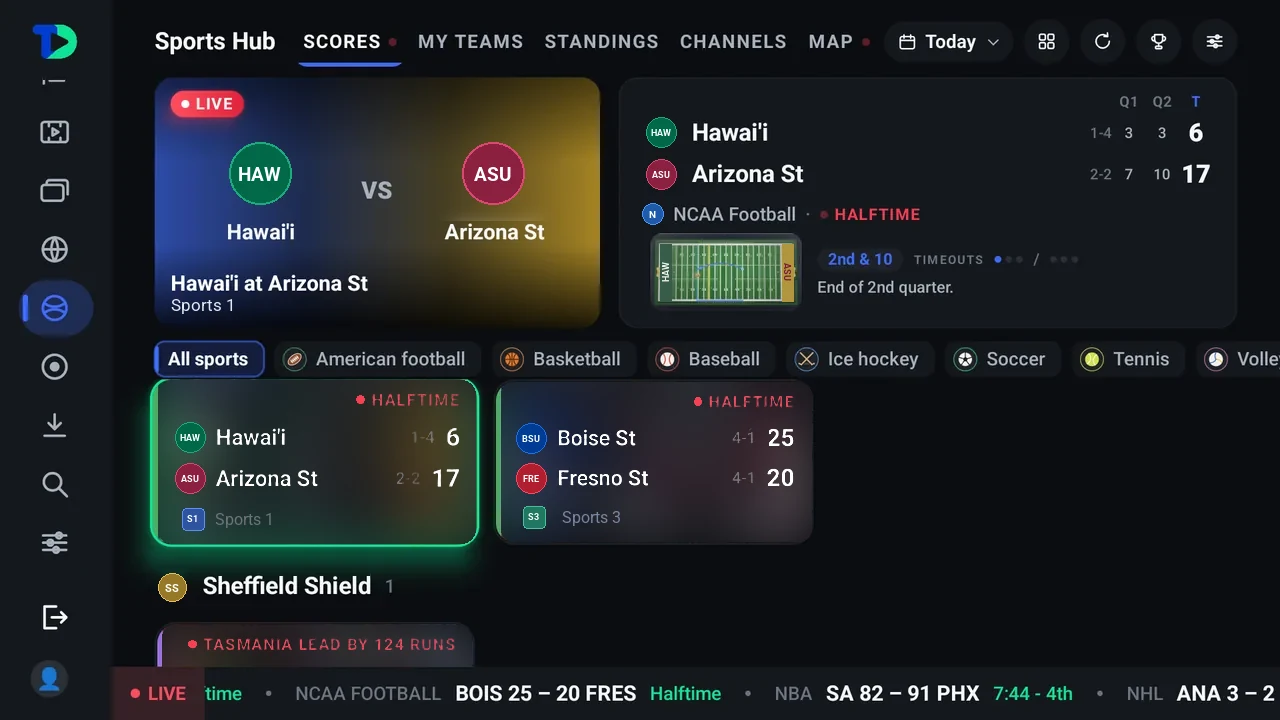
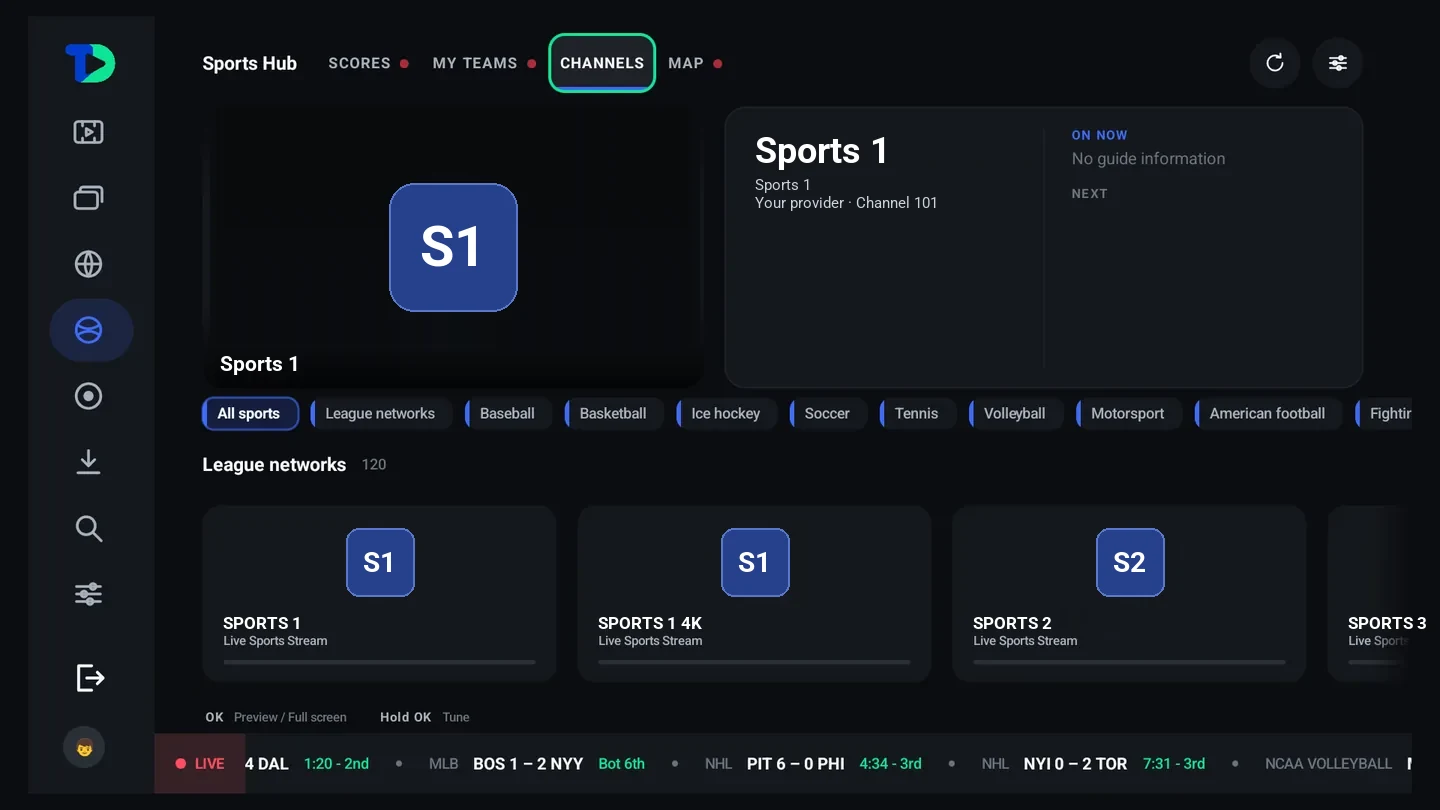
- Open Sports on the rail. The tabs along the top are Scores, My teams, Standings and Channels; Today beside them changes the day.
- Move down to the sport chips and choose one — All sports, American football, Basketball, Baseball, Ice hockey, Soccer and the rest — to see only those games.
- On a game, OK plays the channel carrying it in the preview; OK again goes full screen. Hold OK for the game’s own page, and press Play for its statistics.
If the channel carrying a game sends no picture, TiviDeck does not leave you on a black square: it moves on to the next channel showing that game and, when none of them plays, shows the game’s poster instead. (On the phone, the score card takes its place.) A provider whose connections are all in use is not treated as a dead channel; the app tells you the connections are busy.
Open TiviDeck on the Sports Hub. Choose Sports under Settings › System › Startup (on the phone, My TiviDeck › Settings › Startup) and the app opens on today’s scores. Without Premium it opens on Home instead.
Scores
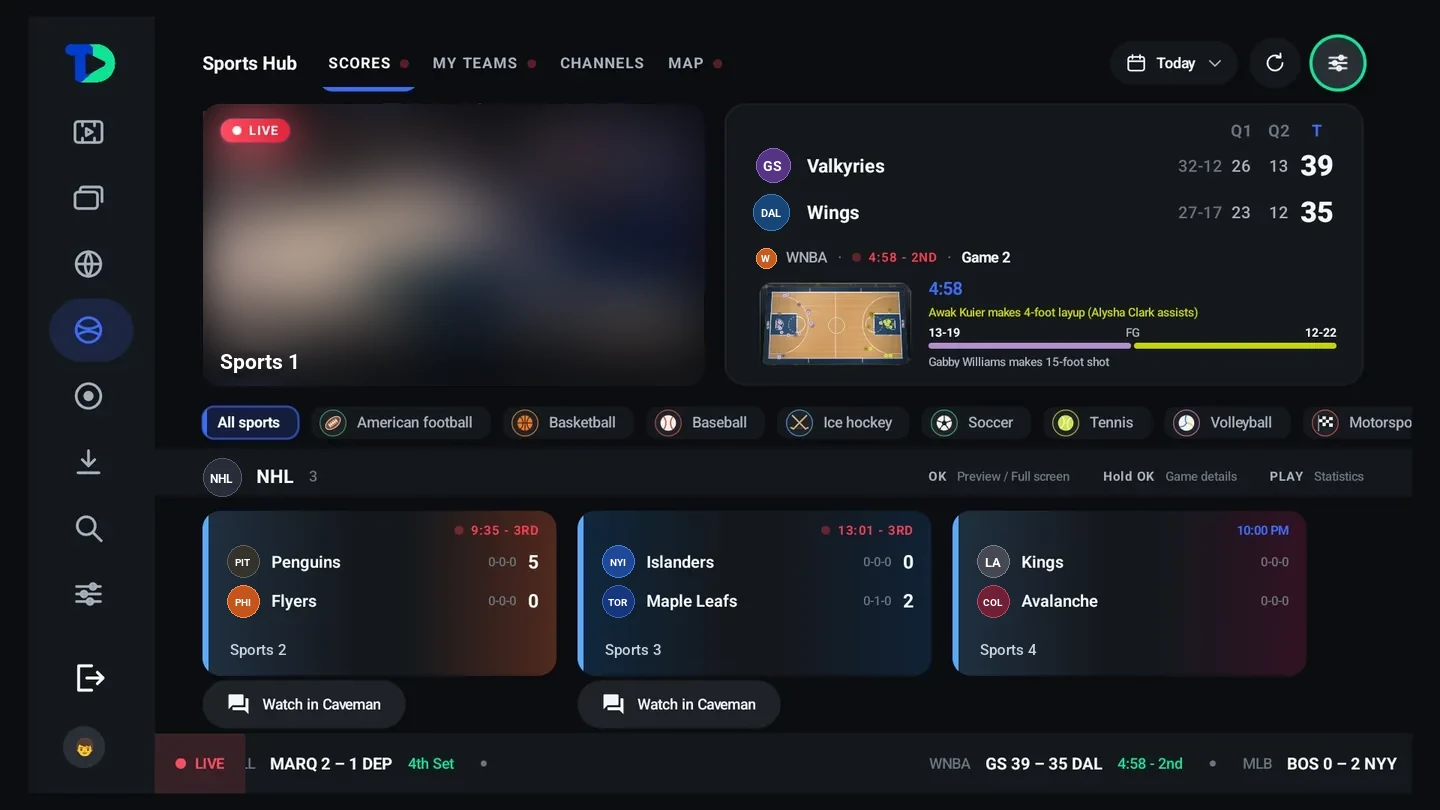
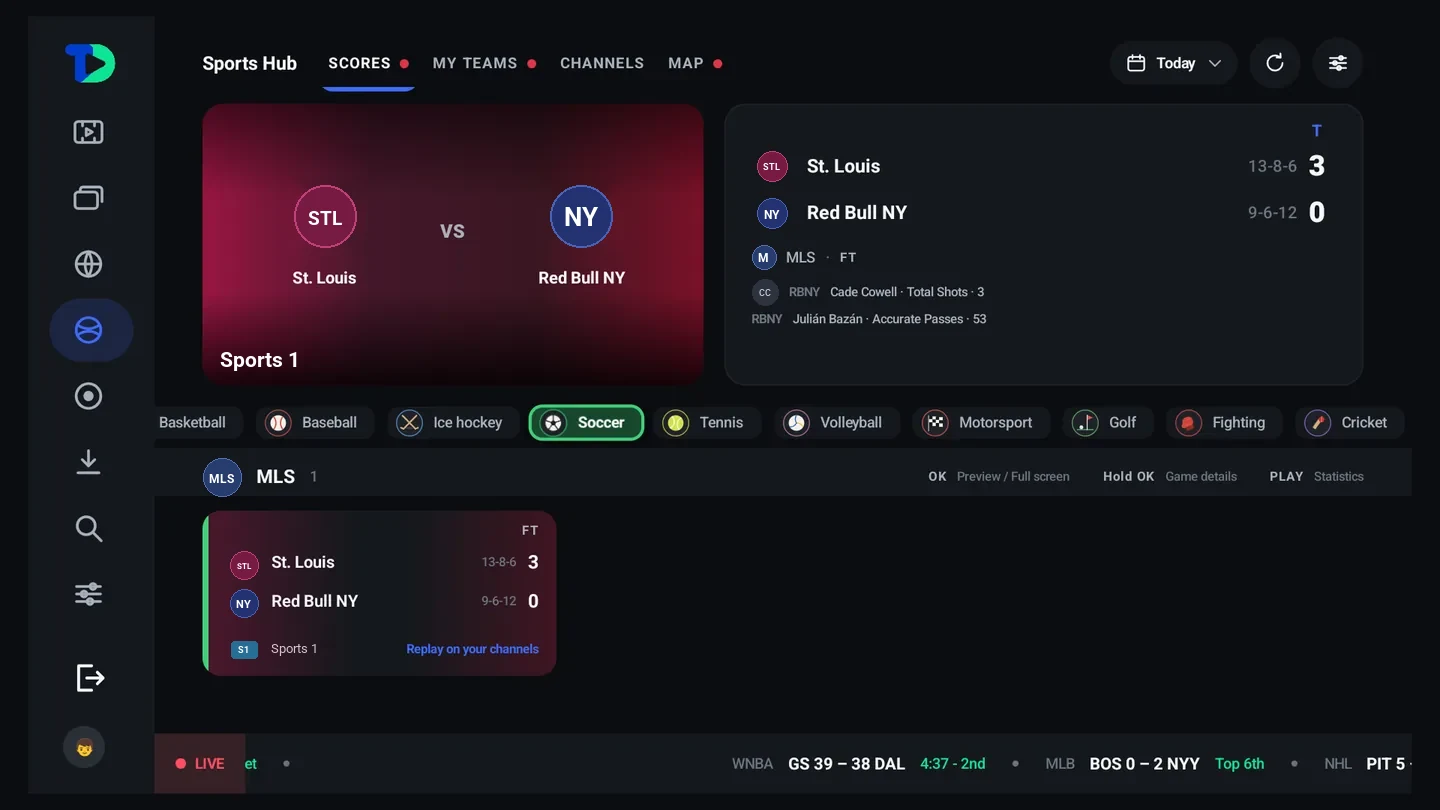
- Watch RedZone — when your lineup has NFL RedZone, the NFL heading in Scores carries a Watch RedZone button with the channel’s logo. OK plays it full screen, and Back comes back to the hub. The phone’s Sports tab has the same button on its NFL heading.
- Replay — a finished game whose start your provider’s catch-up still holds is marked Replay on its card. See Replays from the start.
Courts and fields
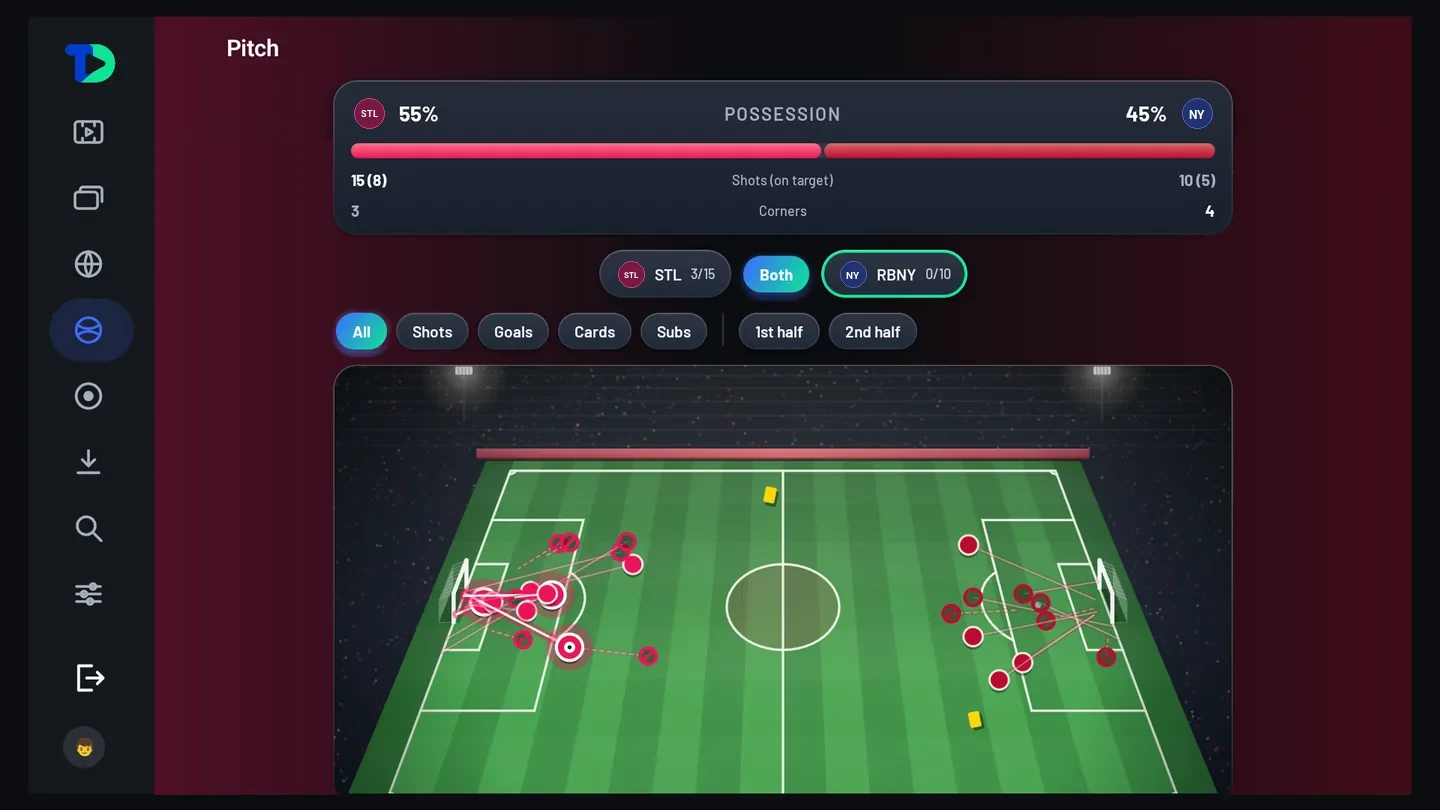
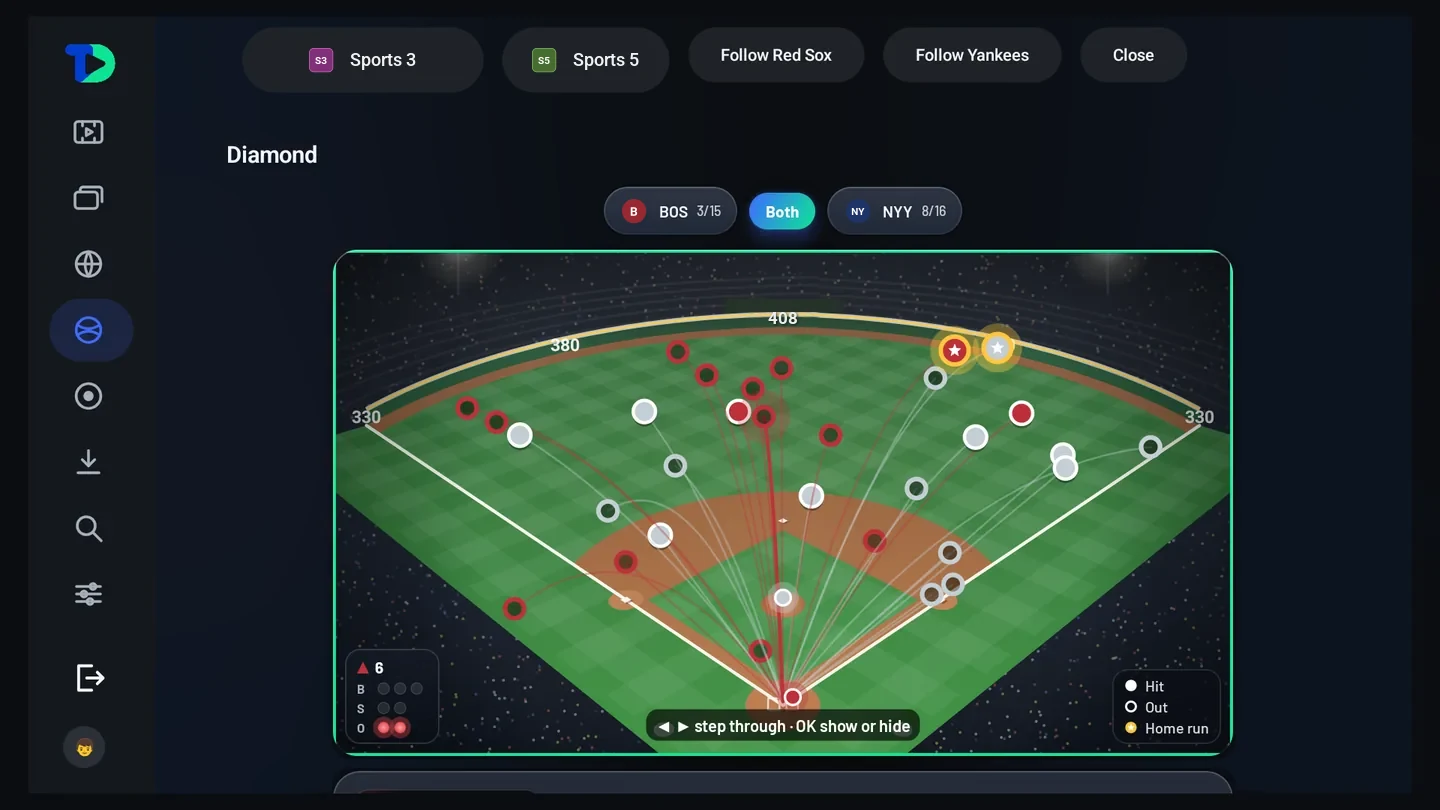
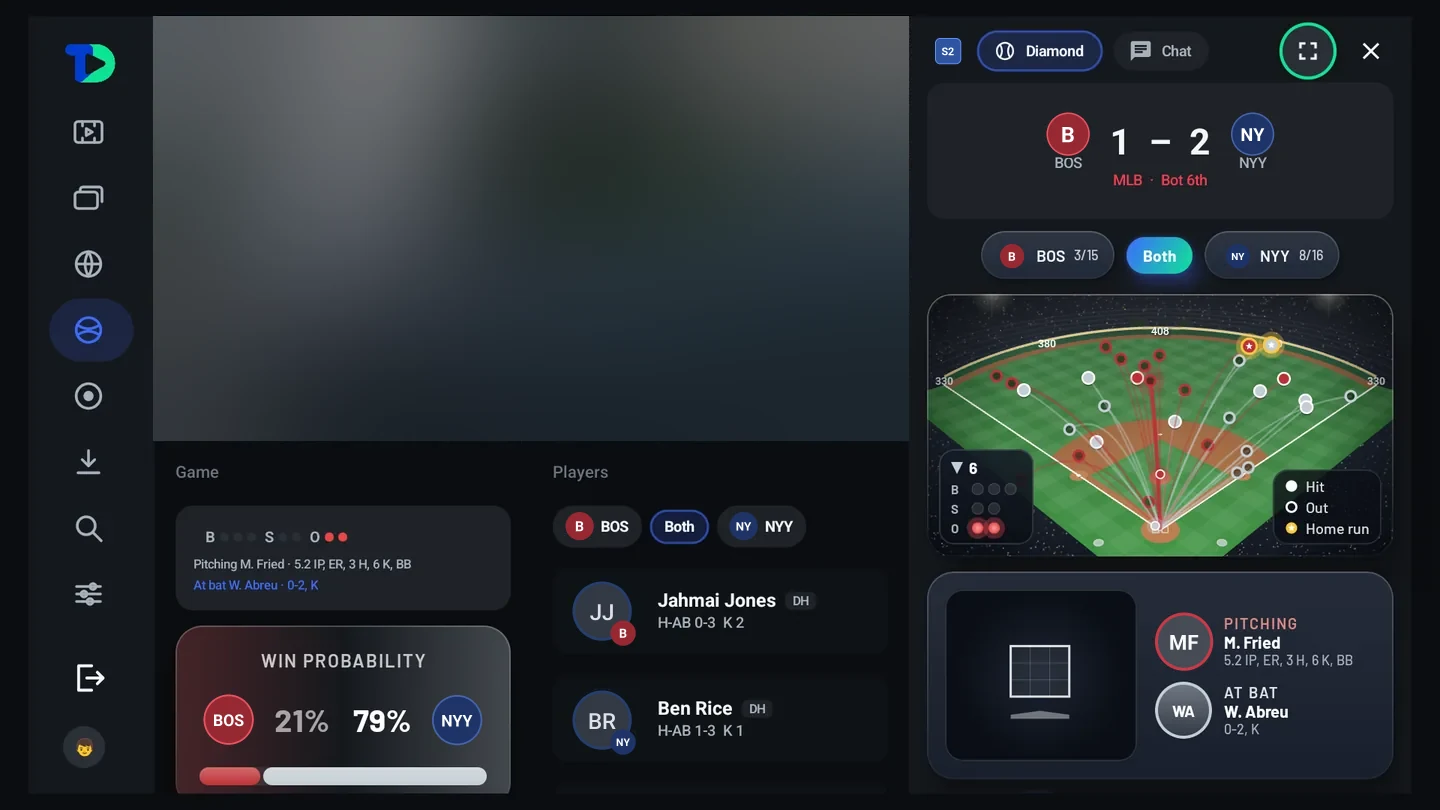
Every one of the 13 sports has its own ground on the game page — the diamond, the gridiron, the pitch, the rink, the court, the oval, the course, the track and the ring — drawn from the live data and moving with the game. Where a game sends too little to draw, the page falls back to the plain scoreboard rather than inventing anything.
My teams
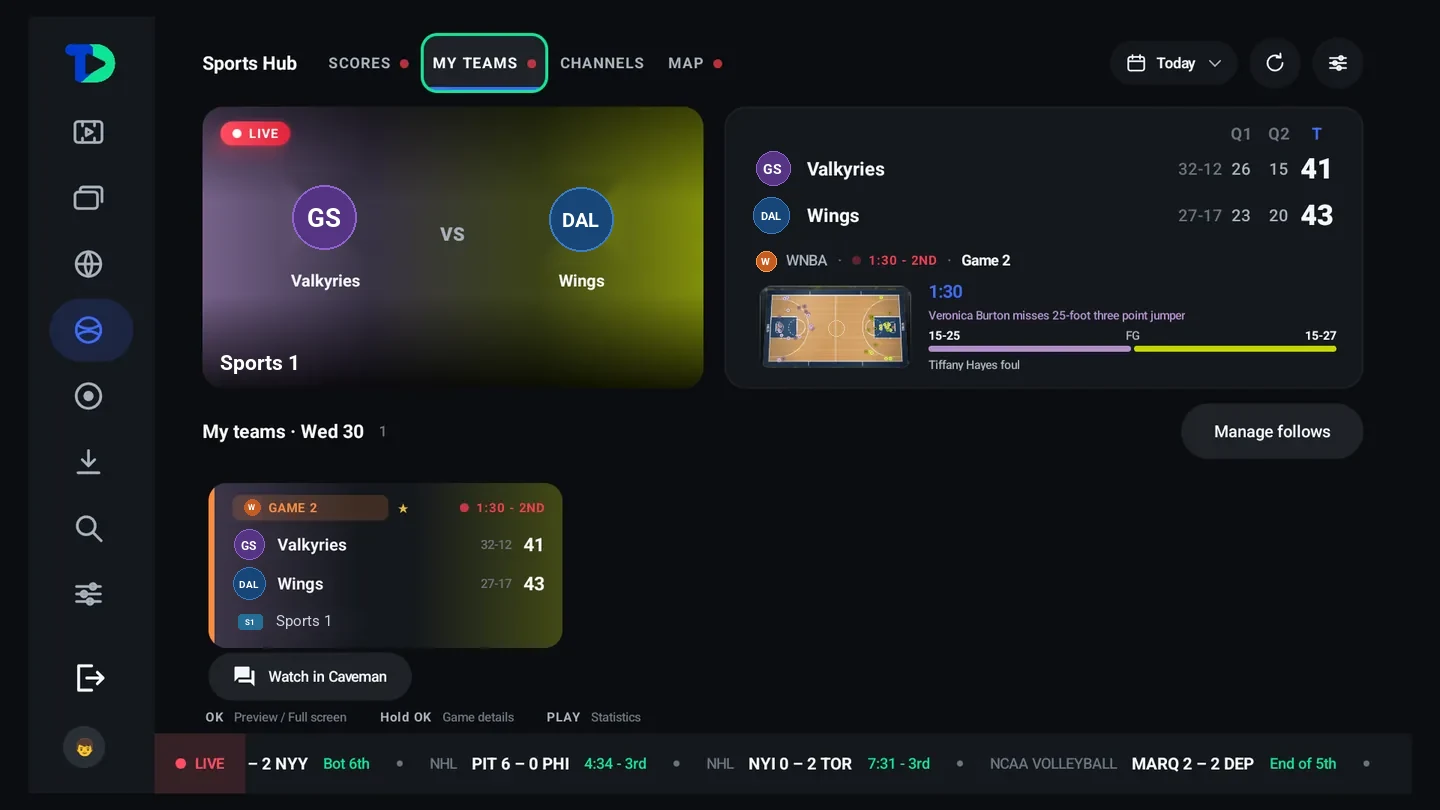
Follow a team and it stops being something you have to look for. Their games come to the top, with a full box score for the one that just finished. When a followed team kicks off, TiviDeck tells you, and the alert opens the channel showing the game.
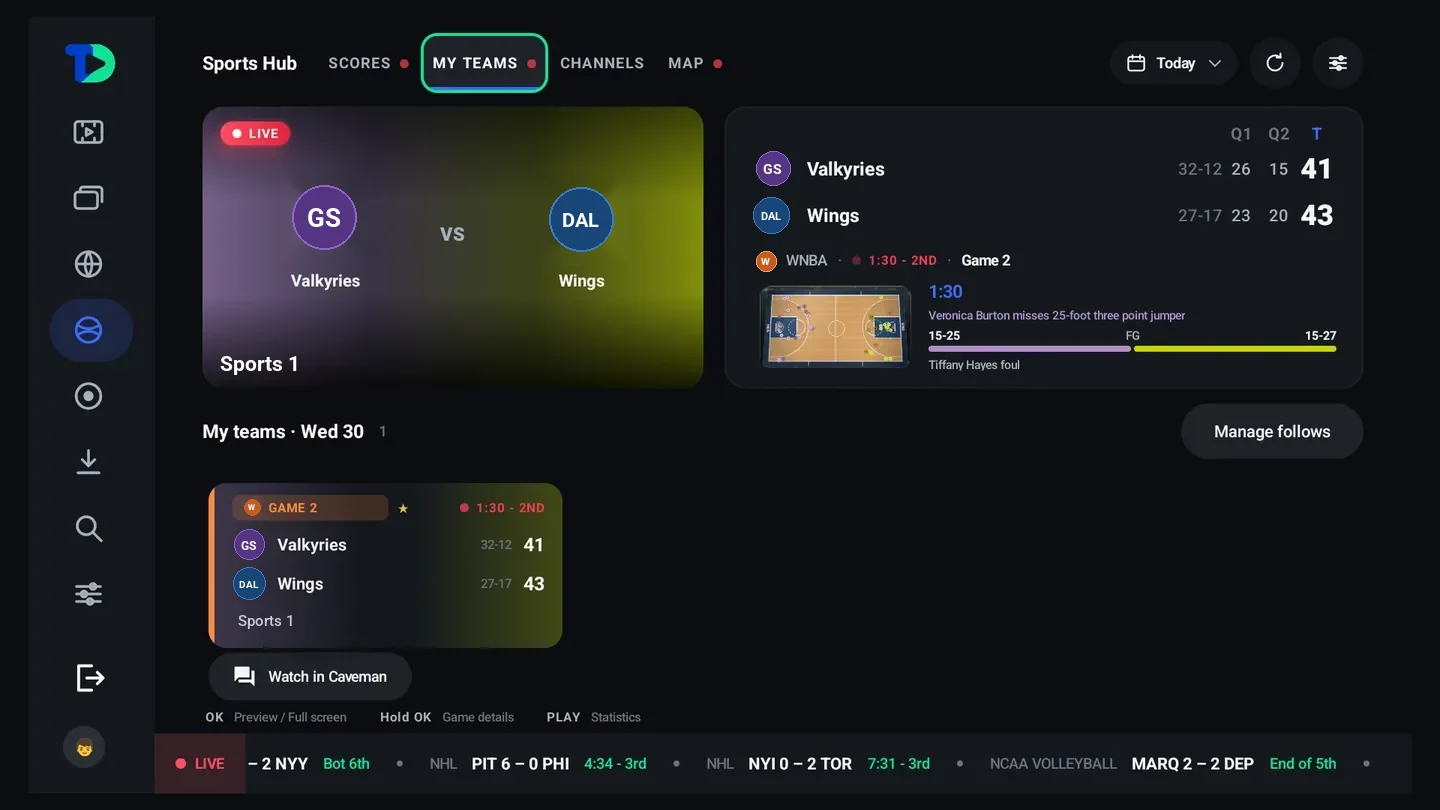
Channels
Standings
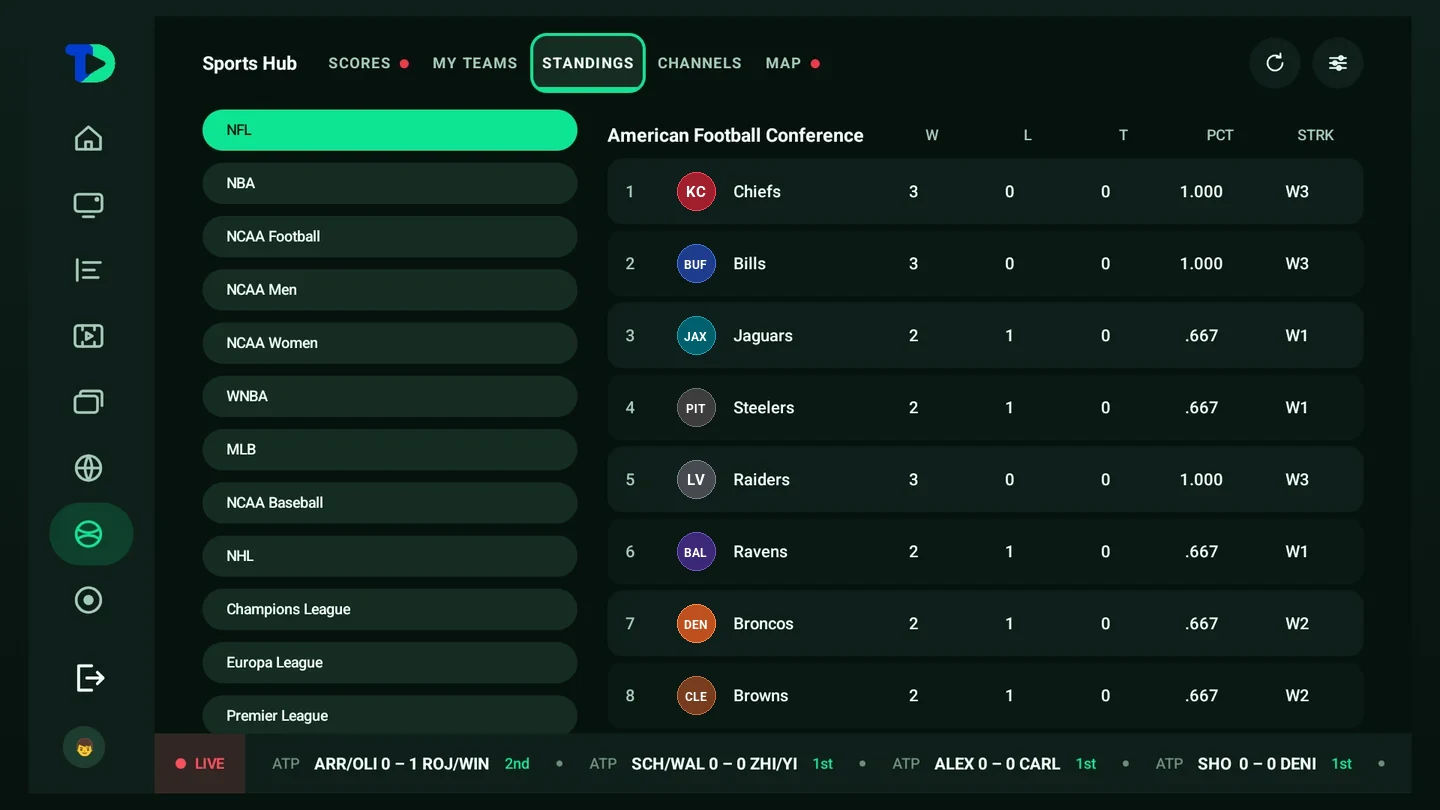
The Standings tab lists the leagues down the left — NFL, NBA, college, WNBA, MLB, NHL, the big soccer competitions and more. Move onto one and its table fills the right: position, wins, losses, ties, winning percentage and current streak.
The live map
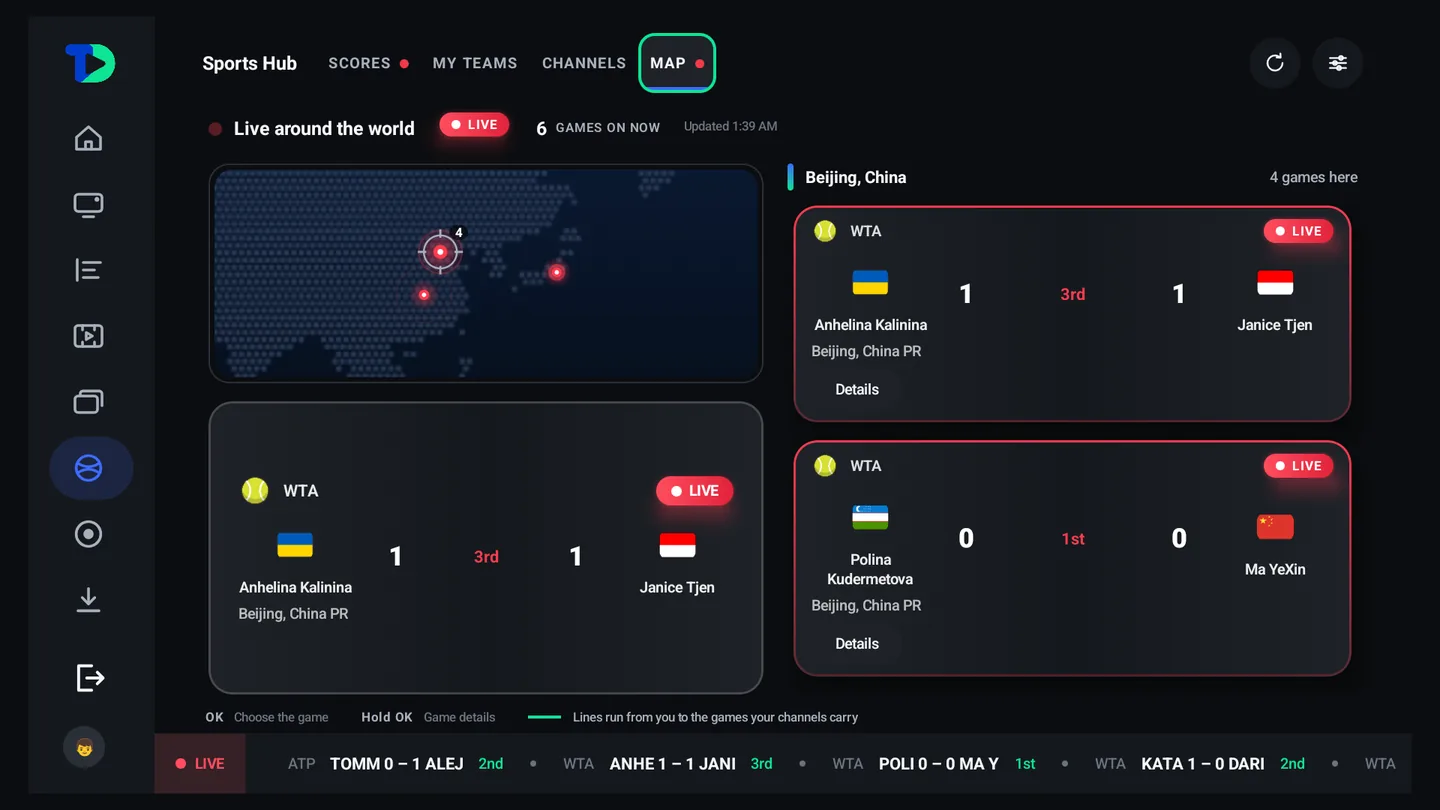
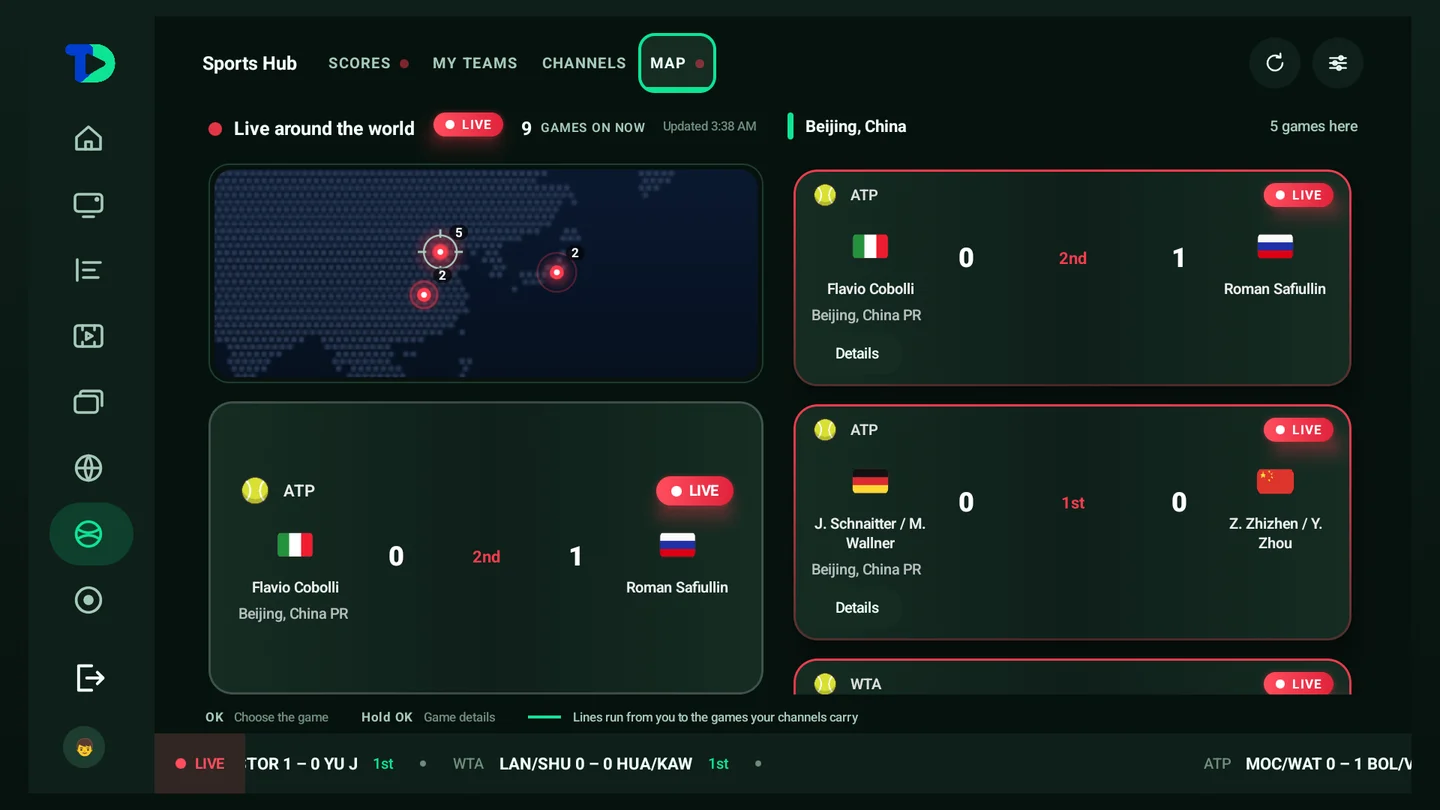
A world map that lights up where a game is being played, with lines running from you to the games your channels actually carry. It is the fastest way to answer “is there anything on” without reading a single fixture list.
A game’s own page
Hold OK on any game, anywhere in the hub, and it gets a page of its own, painted in the two teams’ colors.
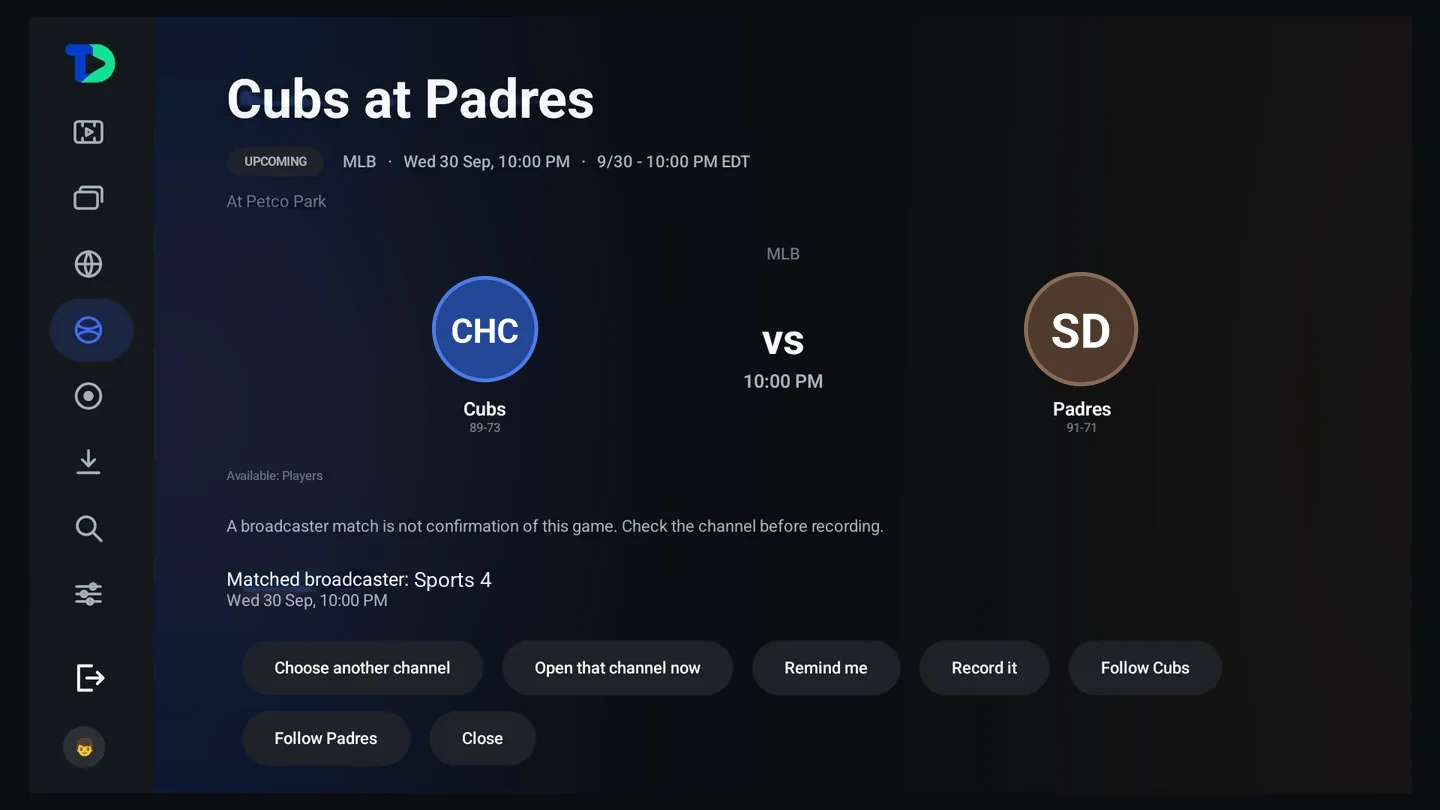
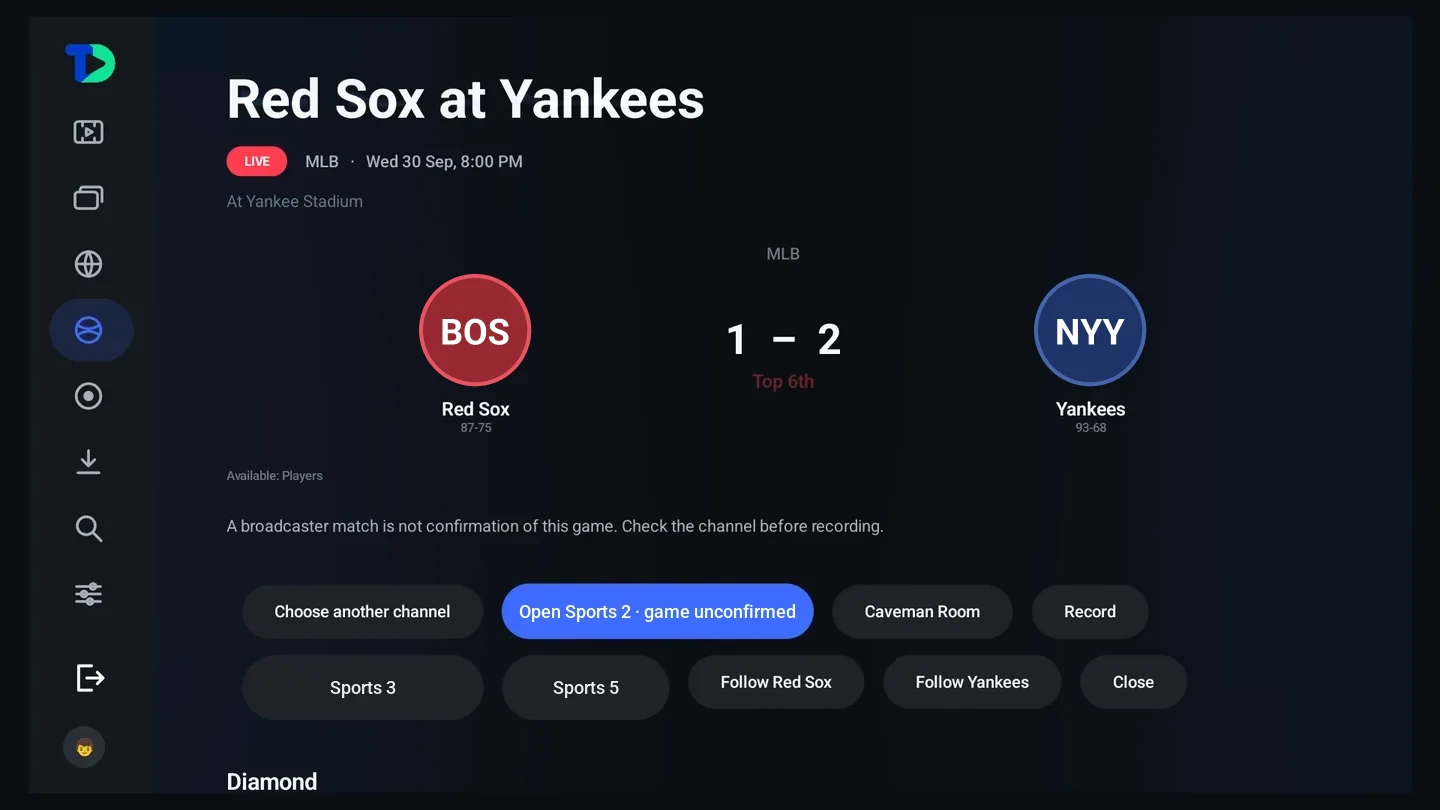
- Where it is played — the page names the ground and its town in one line, such as Arrowhead Stadium · Kansas City, MO, USA, for every sport, with whatever the game’s data has of the two. The phone’s game page has the same line.
- Choose another channel — each network in the list shows the flags of the countries its channels come from, so you can tell which feeds are inside before you open it.
Replays from the start
A game that has started can be played again from its start out of your provider’s catch-up, on the channel that carried it. The replay begins a minute before the scheduled start, so the opening is never missed.
- A finished game — its page leads with Replay from the start. Back from the replay returns to the page.
- A game still being played — Watch from the start sits next to the Caveman Room button, for when you join late.
- On the phone — a finished game’s page has Replay from the start, with the channel and the time it starts from written under it; a live game has Watch from the start. Finished game cards are marked Replay.
The button is offered only where the replay will play: the channel must keep a catch-up archive your provider plays, and that archive must still reach back to the start. A game whose start has already fallen out of the archive has no button at all. Replays come from catch-up only, never from highlights or another source.
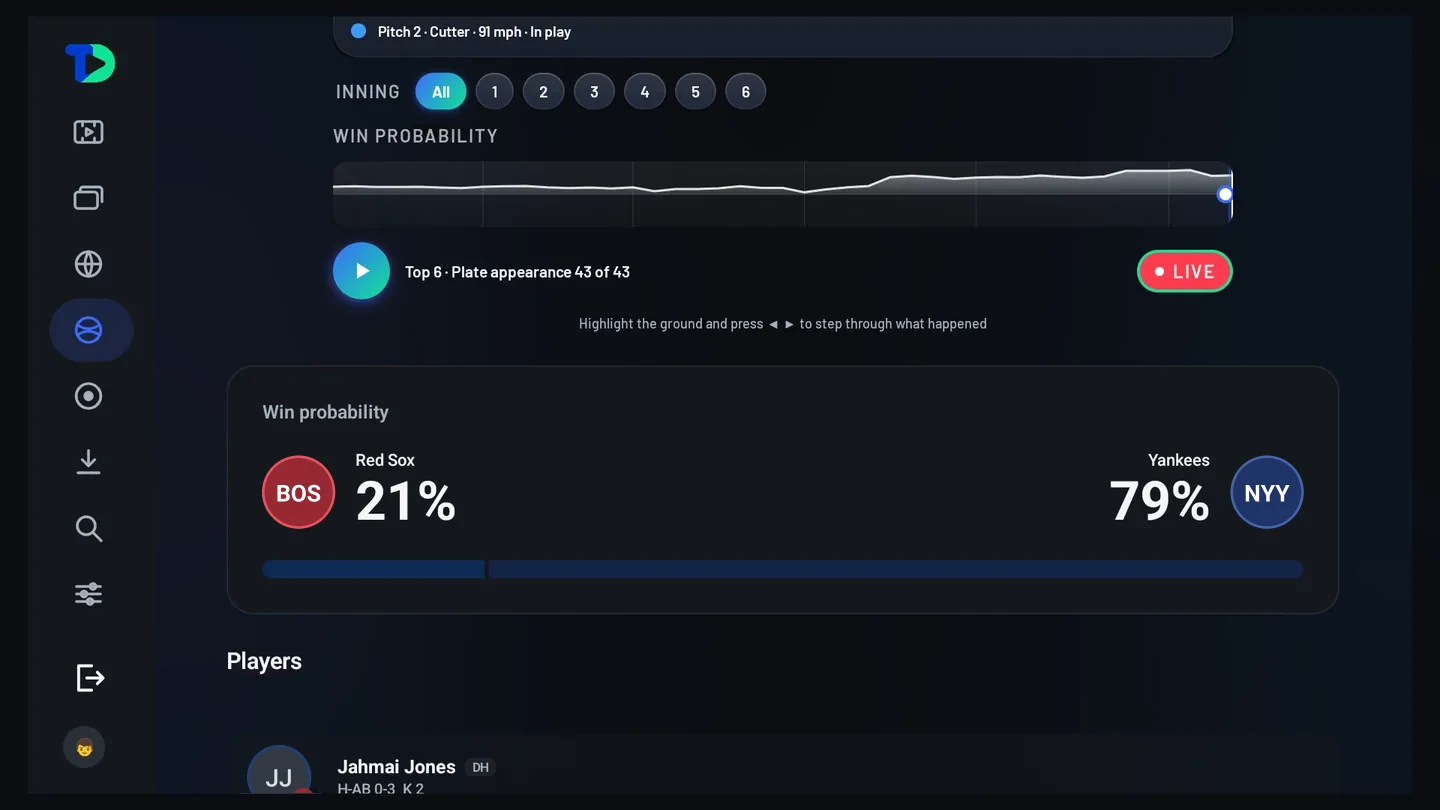
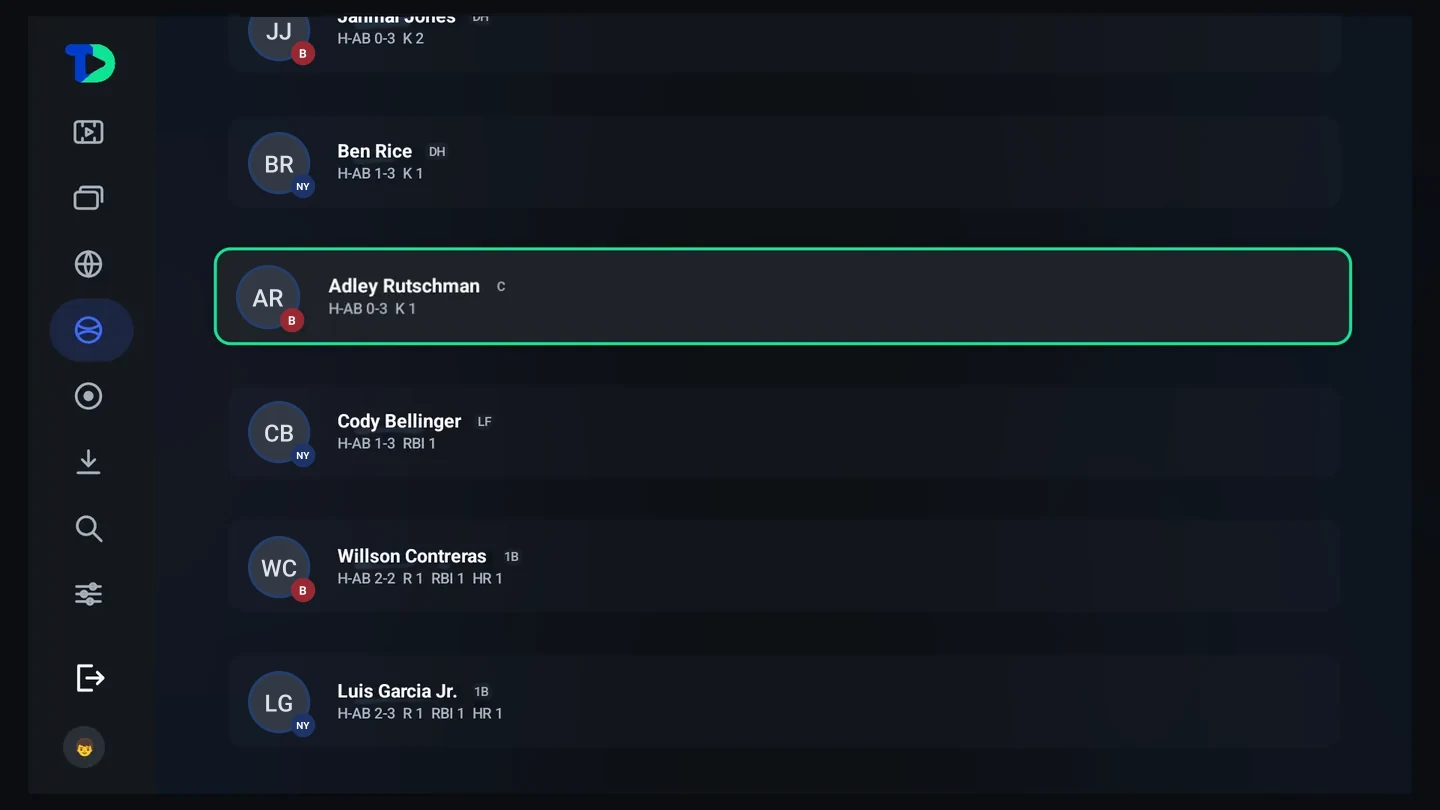
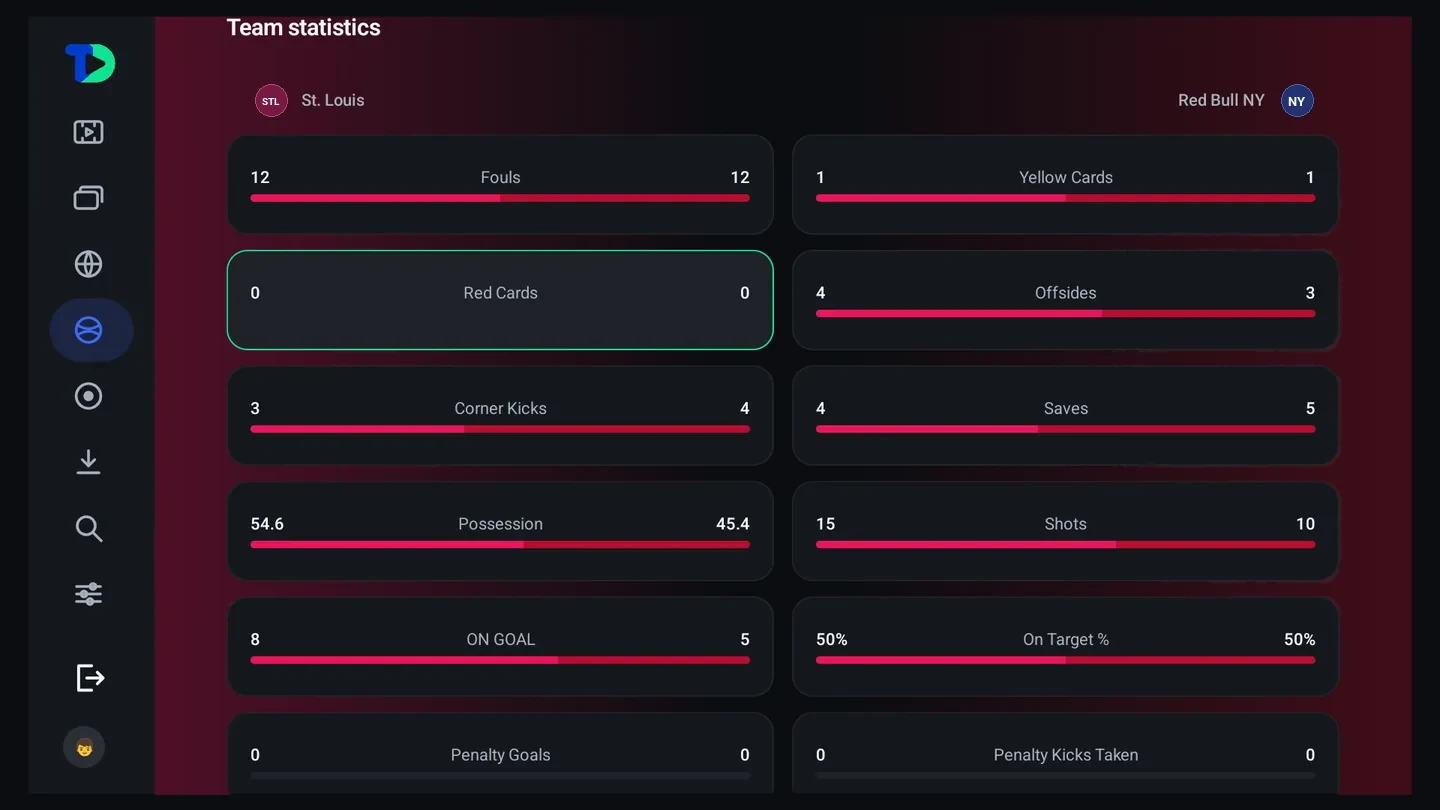
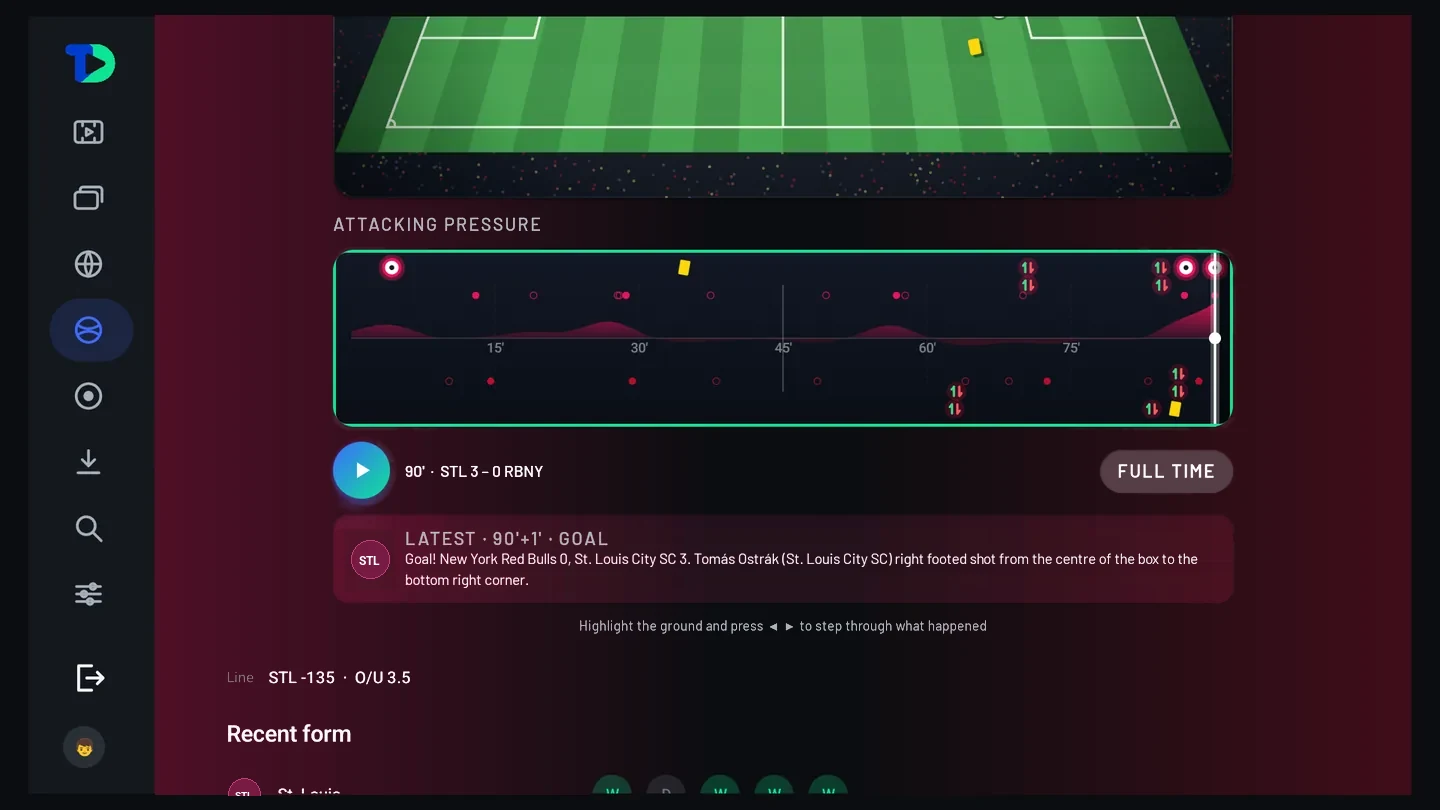
Statistics
Not a wall of numbers — the four or five things somebody actually asks out loud during a game.
The Caveman Room
Every live game has a room, and everybody in the world watching that game on TiviDeck is in it. No account, no handle to invent, no friend to add — you are in it because you are watching the game.
It sits beside the picture rather than over it, keeping the picture unobstructed. It is per game and it ends when the game ends, which is the point: there is no channel to moderate for the rest of the year, no pile of yesterday’s arguments, nothing to scroll back through. Just the people who are watching the same thing you are, at the same time.
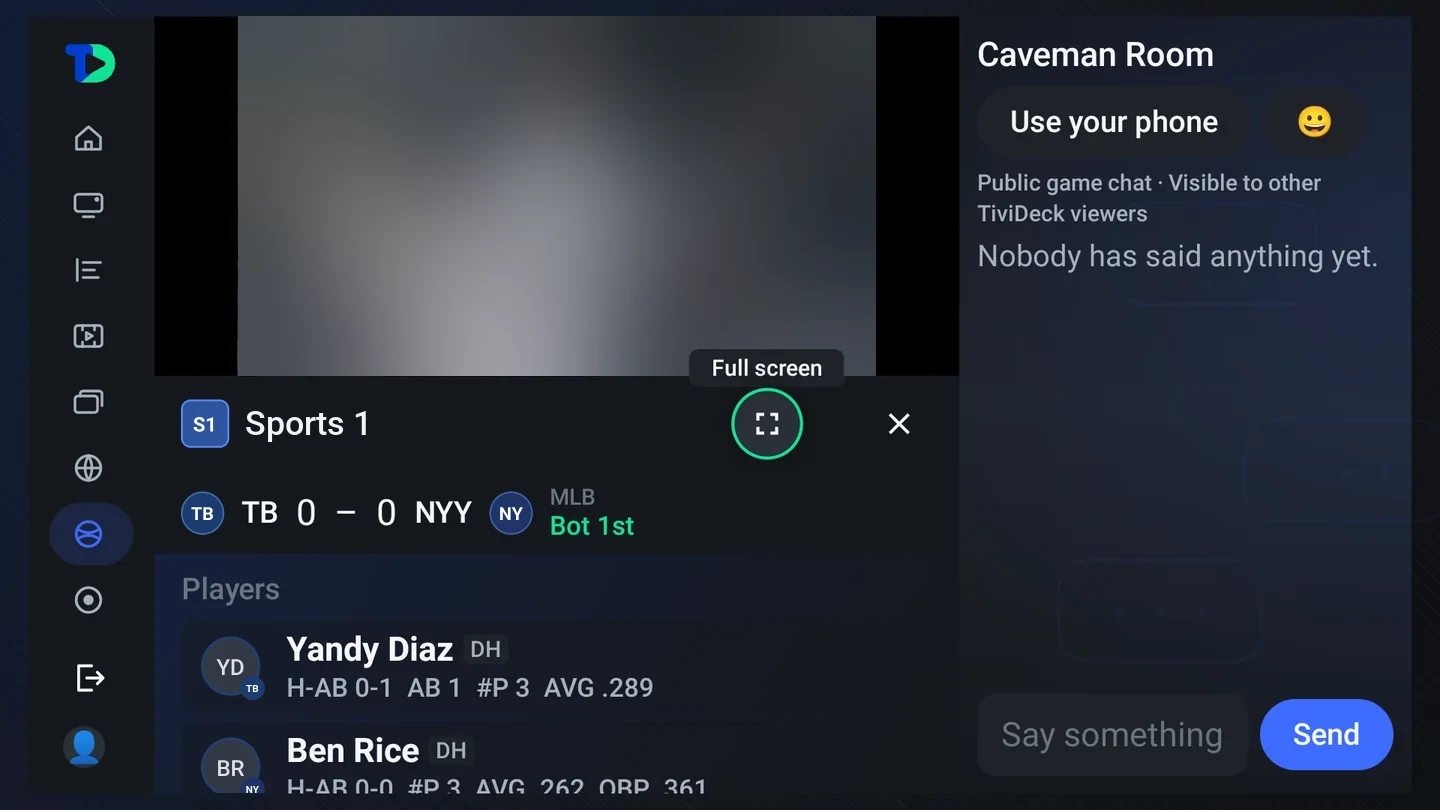
From a live game — in Scores, on the map, or on the game’s own page — there is a Caveman Room button; from the channel itself it is on the player’s options line. It is a grown-up profile feature; a child profile never sees it.
Radio in the room
When your providers carry radio stations (a Radio or SiriusXM category, or stations such as WFAN 660 AM), the Caveman Room has a Radio tab beside Chat. Choose a station and the game’s picture keeps playing while the station’s sound replaces the game’s; Stop radio brings the game’s sound back. The stations about this game come first: one naming either team, then the league’s radio, then sports radio, then every other station in your provider’s order. On the phone, a game’s page has a Radio tab of its own.
Spoiler control
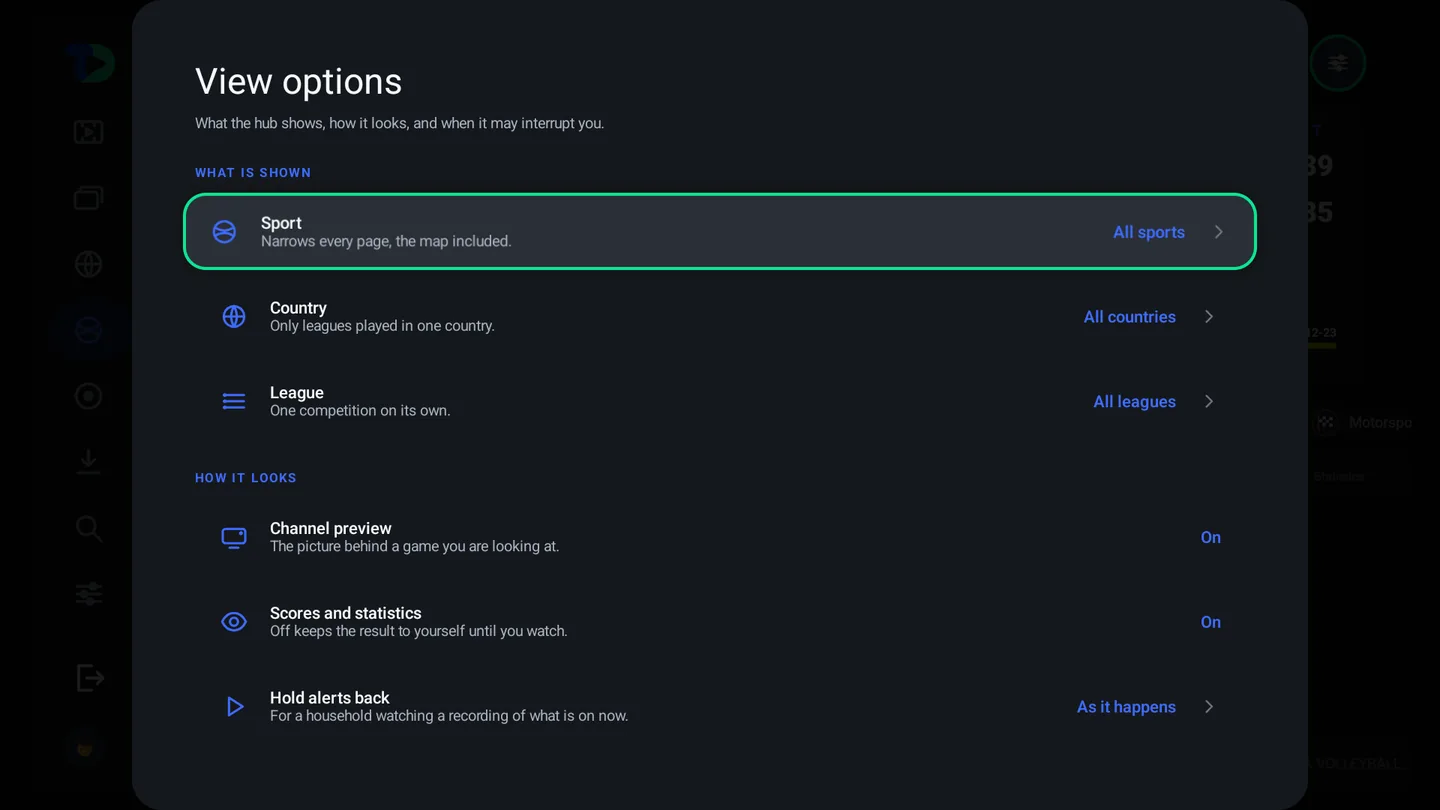
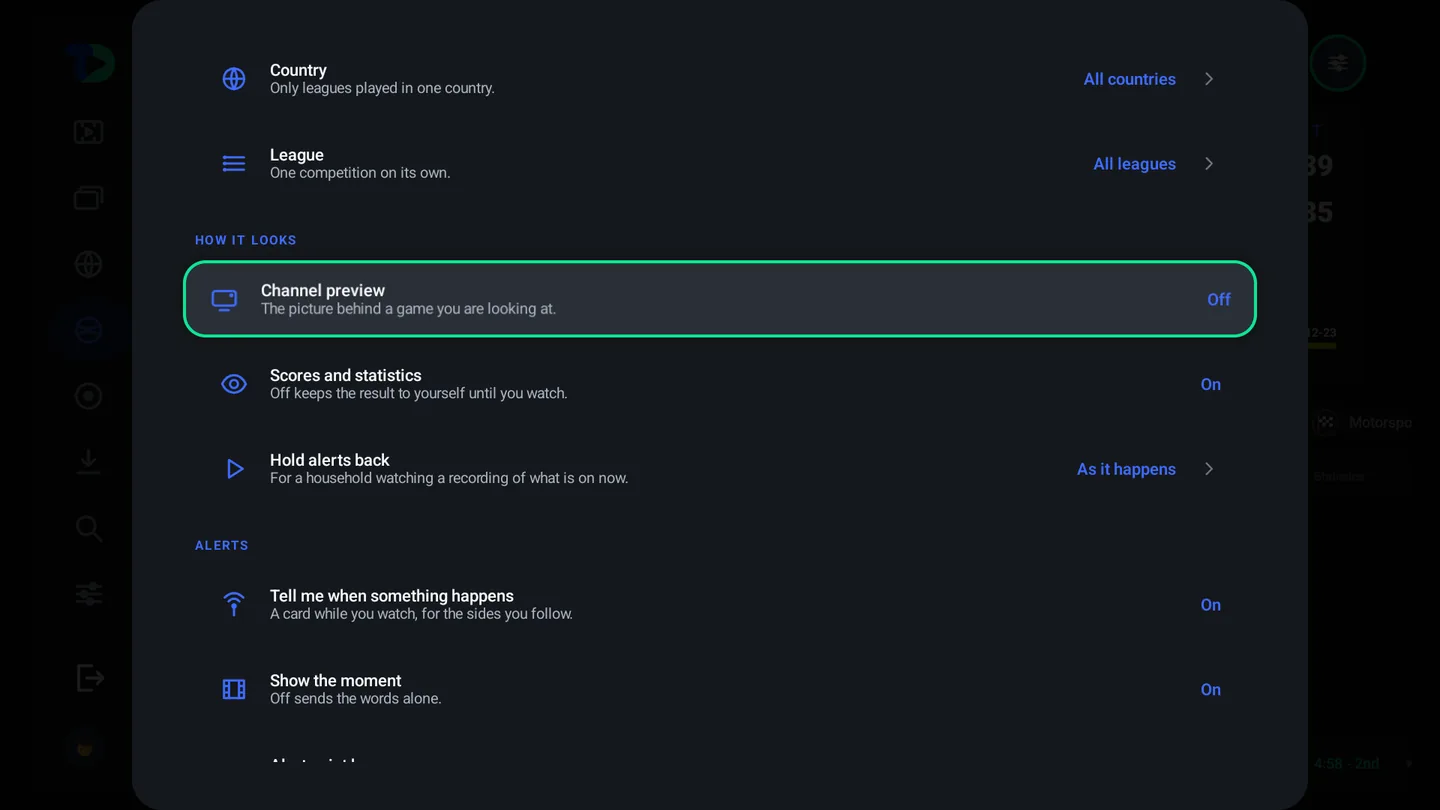
The worst thing a sports app can do is tell you the score of the game you are about to watch. TiviDeck lets you switch the numbers off — scores hidden, win probability hidden, the map still showing you that something is on without telling you how it is going.
Predictions
Every game in a team league has a Who wins? pick on its page. Choose the winner, or a draw where the sport has them, before the start; once it starts the picks close and the page shows how everyone picked. A right call is 10 points, 15 if few people saw it coming, scored on its own after the final whistle. The Sports page shows the week’s top predictors, and the leaderboard has this week, the last 30 days and each league.
Scores and a clock over the picture
When a team you follow is playing, its live score shows over whatever you are watching. In Settings › Playback it runs along the bottom of the picture, clear of the broadcast’s own score, or sits in a small box in a top corner. Clock while watching puts the time in any corner, or none. Both have a switch on the player bar, on the TV and in the phone’s player options, to clear the picture for a moment.
Two more follow settings: follow a club once and its cup and European games count too, and Language by league in the hub’s options gives a league its own channel languages — the NBA in English, Serie A in Italian.
Search
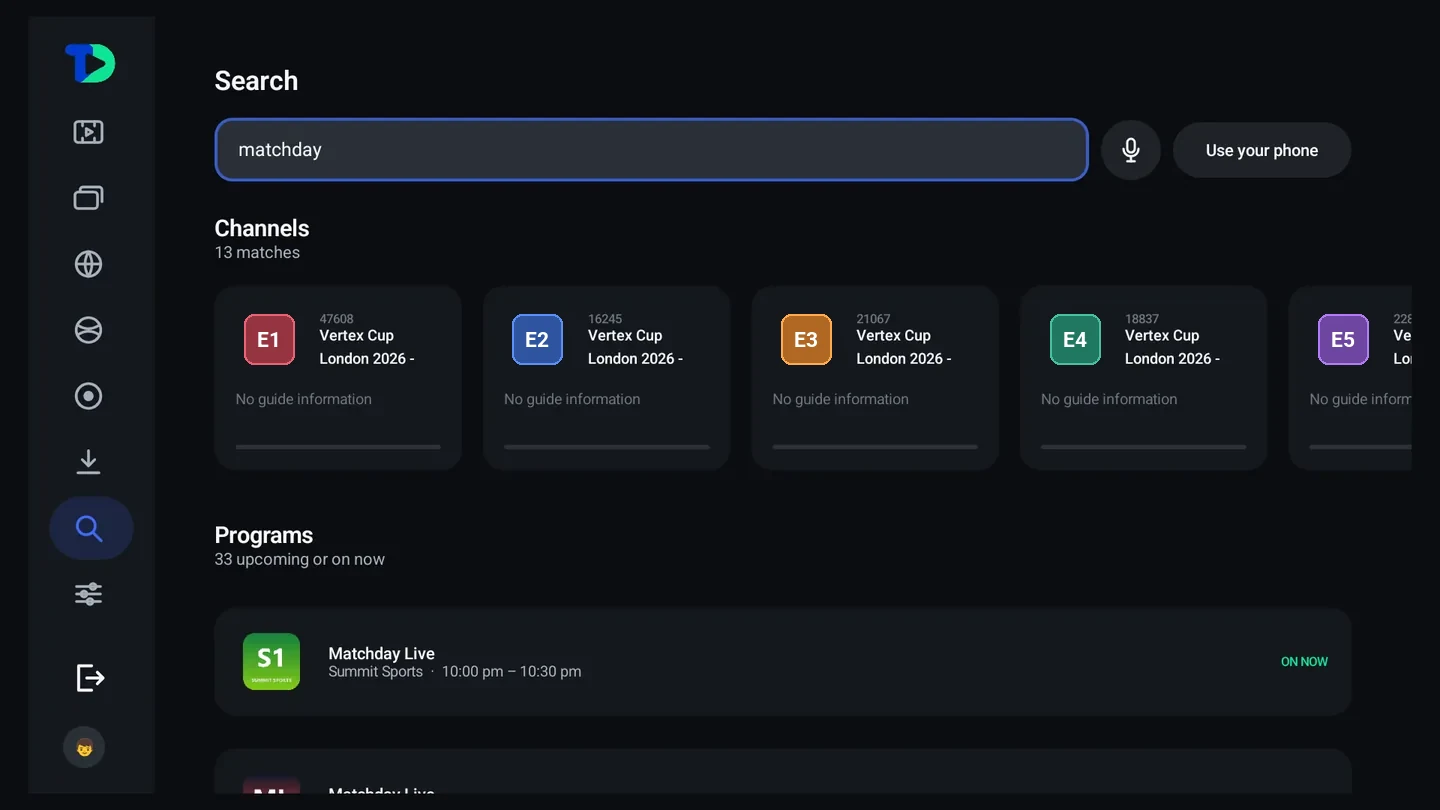
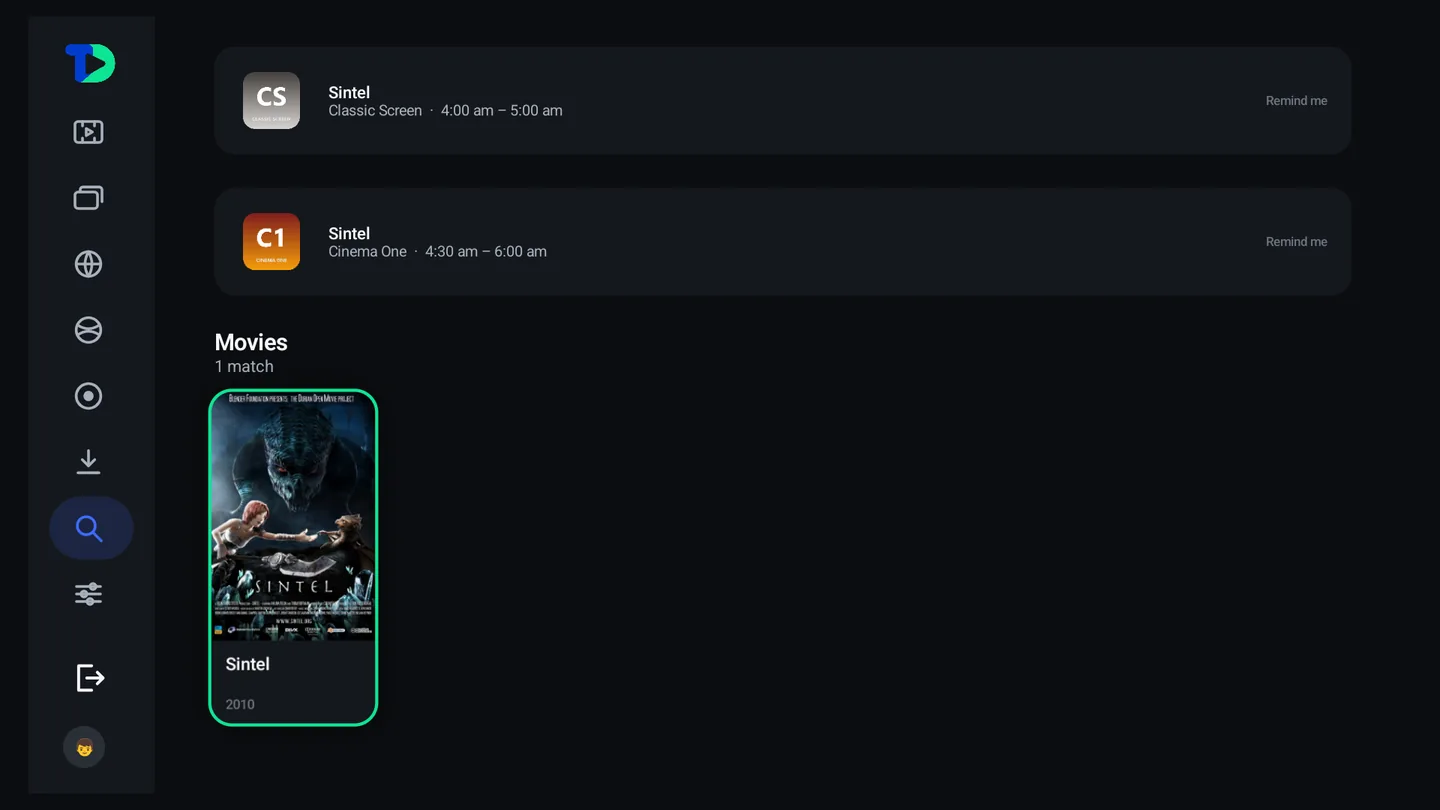
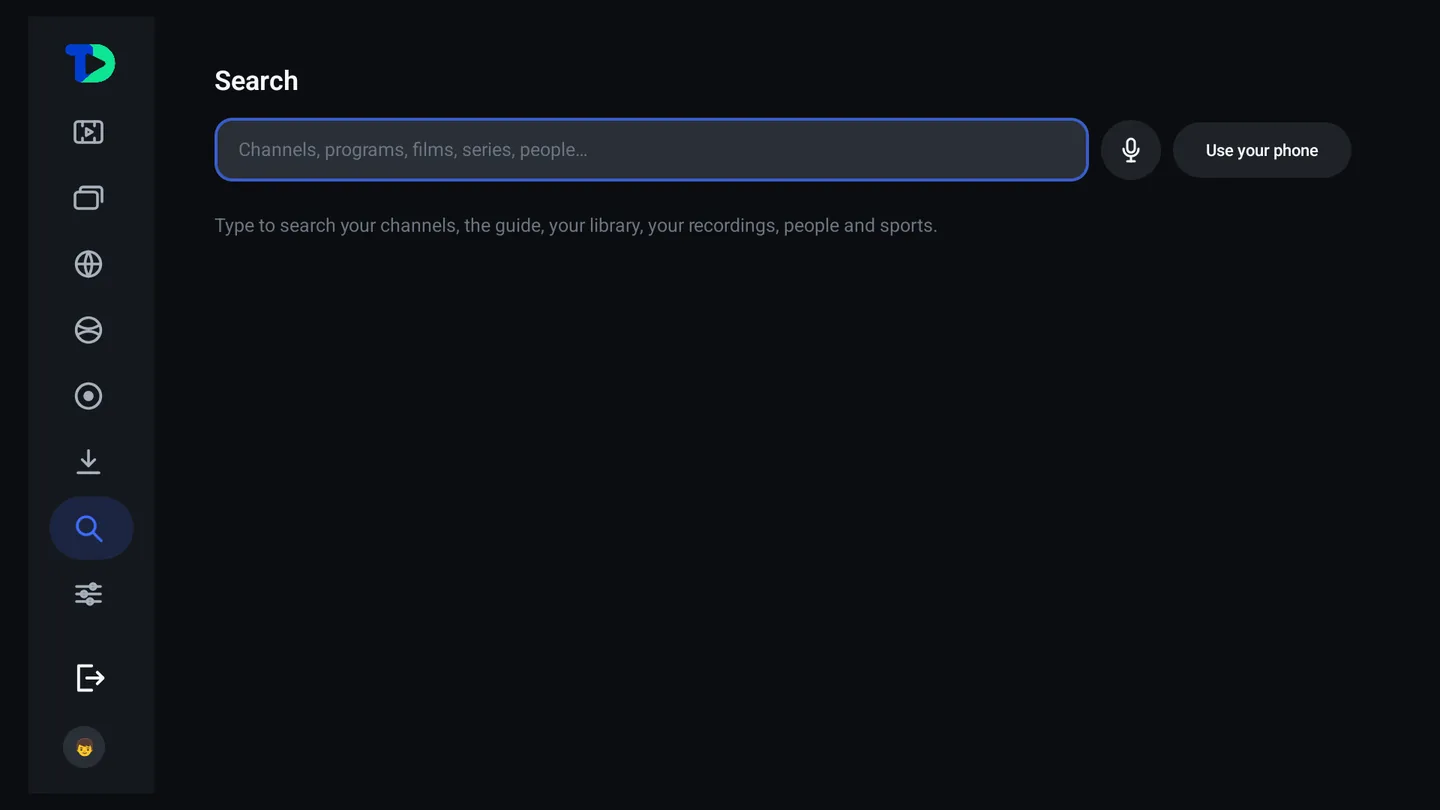
One box, searched across everything: your channels, the guide, your films and series, your recordings, people, and sport.
Who is watching
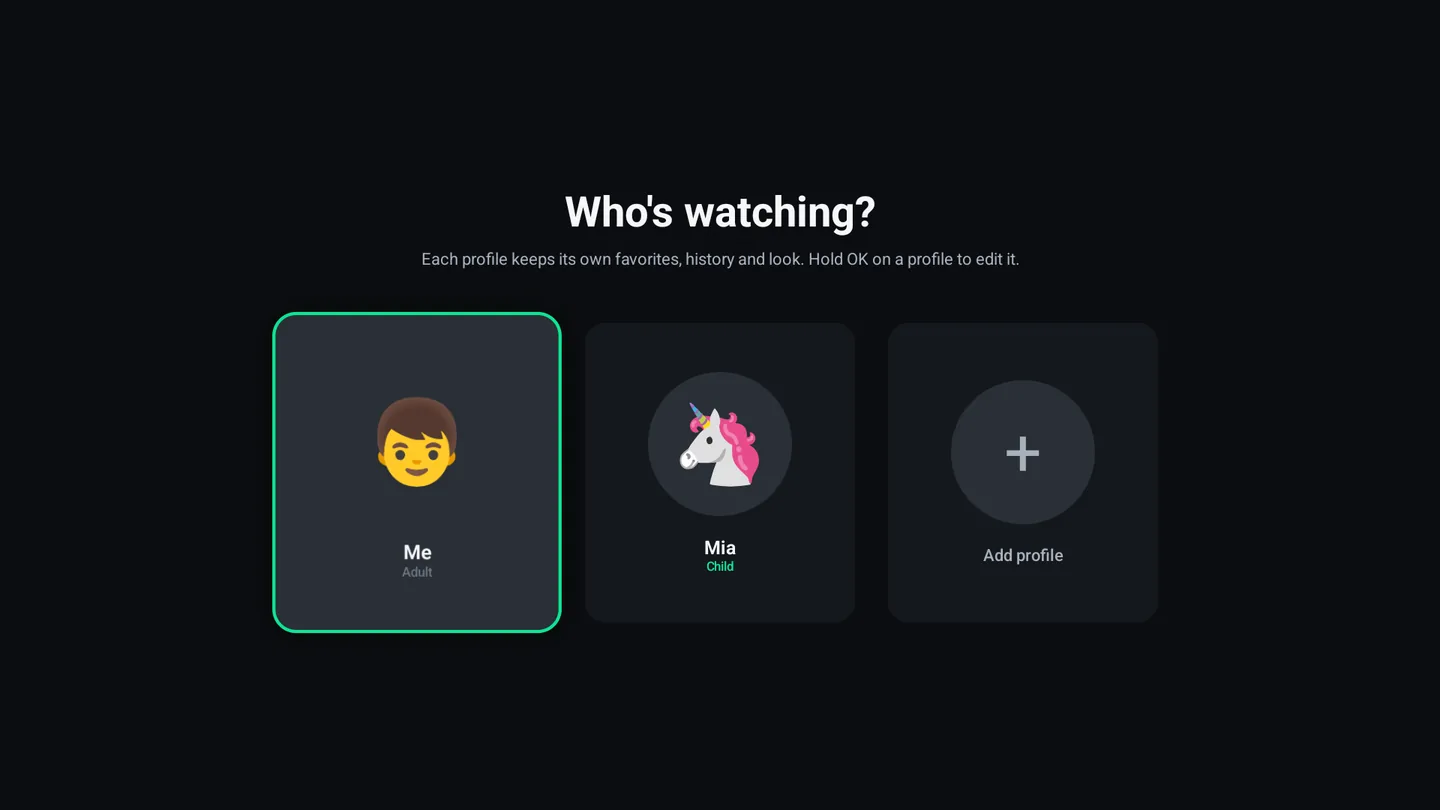
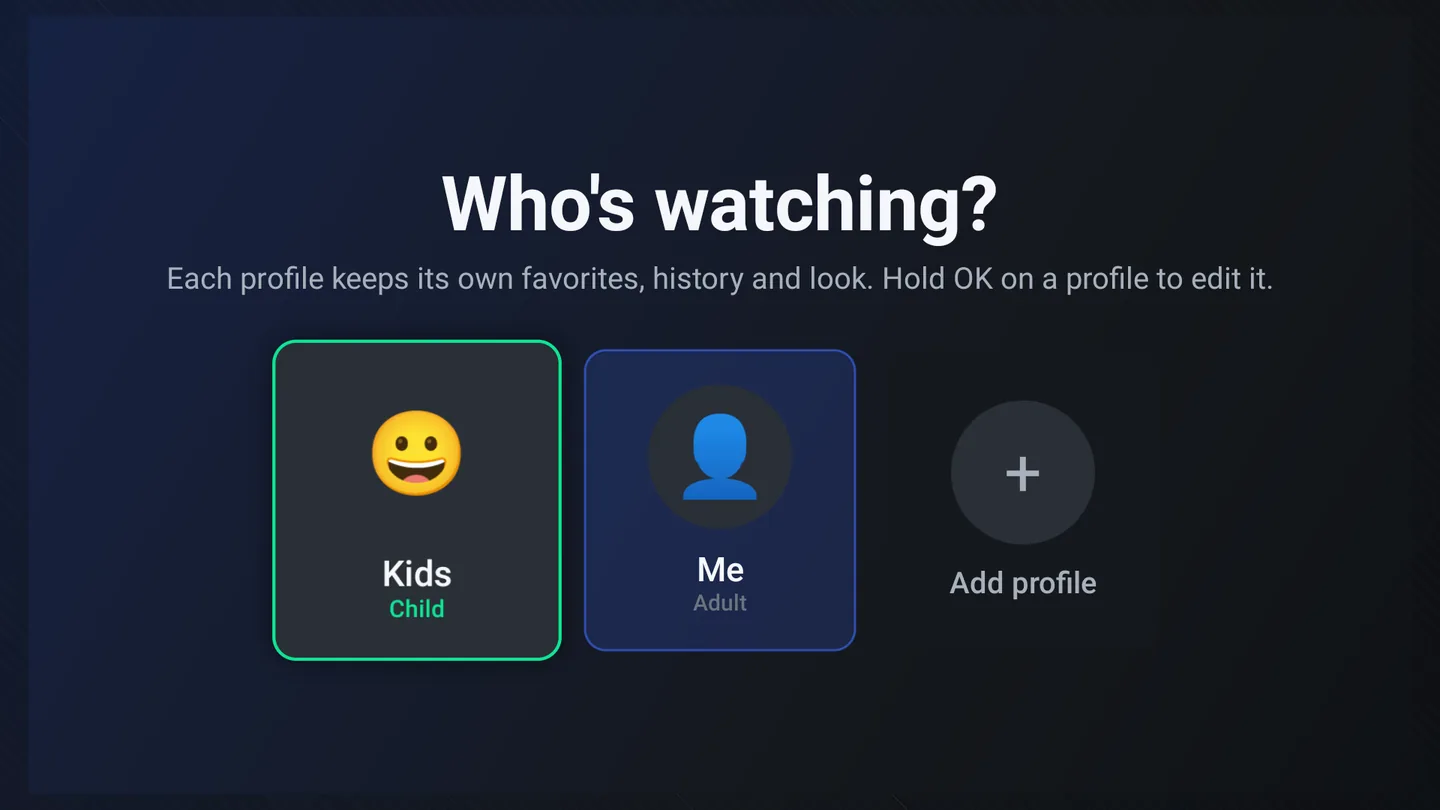
Everybody in the house gets their own profile, and a profile is not a filter over one shared television — it is its own favorites, its own history, its own continue-watching and its own look.
A message for one person
In Settings › Profiles, Send a message writes a line to one profile — Ten minutes, then bed. It appears as a card on whichever television that person is watching. If nobody is watching as them, it waits until somebody is.
A profile’s own providers
Each profile can use its own providers. On the TV, hold OK on a profile and set Providers this profile uses; on the phone, open Settings › Profiles and choose the profile. Channels, the guide, sports, films and series then come only from those providers. With every provider on, the profile sees them all. The choice syncs with the household, so it holds on every TV and phone.
Family help: a relative’s household, from your phone
Your mother lives in another country, and her playlist needs changing. Family help lets you do it from your phone, without being a member of her household.
- Her TV makes a code. Settings › Account & profiles › My account, further down: Let someone help this household, Get a code. It is good for 30 minutes and for one helper. Her phone can make one under Settings › Family help.
- You join from your phone. My TiviDeck › Settings › Family help, Help another household: type the code and your name as she will see it.
- You set it up. Her profiles appear with her providers; give each profile the providers it should use. Add a provider for them sends an Xtream Codes login or an M3U playlist.
The provider login is sealed on your phone under a one-time key, and that key is wrapped for each of her devices’ own public keys (ECDH and AES‑GCM, the same protection the household’s own sign-ins use). TiviDeck’s servers store only what they cannot read. Her TV opens it and applies the change within about two minutes of being on, and her household’s sync carries it to her other devices.
- She stays in charge. Her TV and phone list who helps, with Remove beside each helper. You can leave with Stop helping.
- You stay in your own household. A helper is never one of her devices, does not count toward her plan, and never sees her household’s other data.
- What a helper cannot do: create, rename or delete her profiles, or change her parental rules.
Family help messages
A household and the people who help it can write to each other, and so can the household’s own TVs and phones. Only that household and its helpers can read the messages.
- On the TV — Settings › Account & profiles › My account, under Let someone help this household: Messages, with the number unread beside it, as in Messages (2). The threads run across the top: This household, for its own devices, and one With each helper. Up and down scroll the conversation; at the bottom are the quick replies Thanks!, It works now and Please call me, and a box you type in with the remote.
- On the phone — My TiviDeck › Settings › Family help opens with Messages: the household’s own thread and one per helper, with the same quick replies. A helper taps the household they help, under Help another household on the same screen, and finds Messages on its page.
- On the web — signed in at tivideck.com/household, a Messages panel shows the same threads, including one for each household you help.
A message you sent is marked Seen once the other side has read it. A new message also shows over the picture on the TV for a few seconds, as a card that says who it is from and Reply in Settings › My account; it never takes the highlight or stops what is playing, and Back puts it away sooner. The card never appears while a child’s profile is watching.
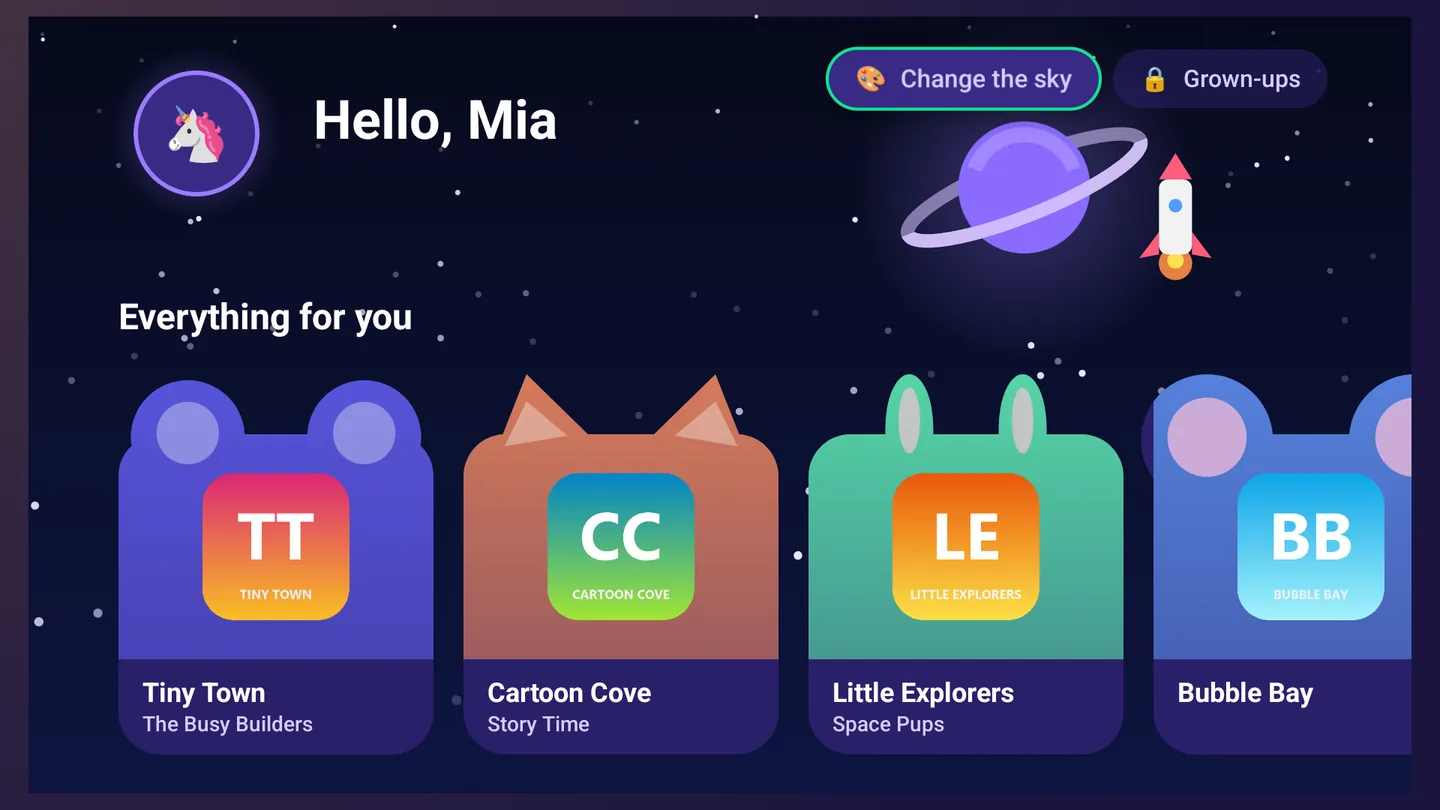
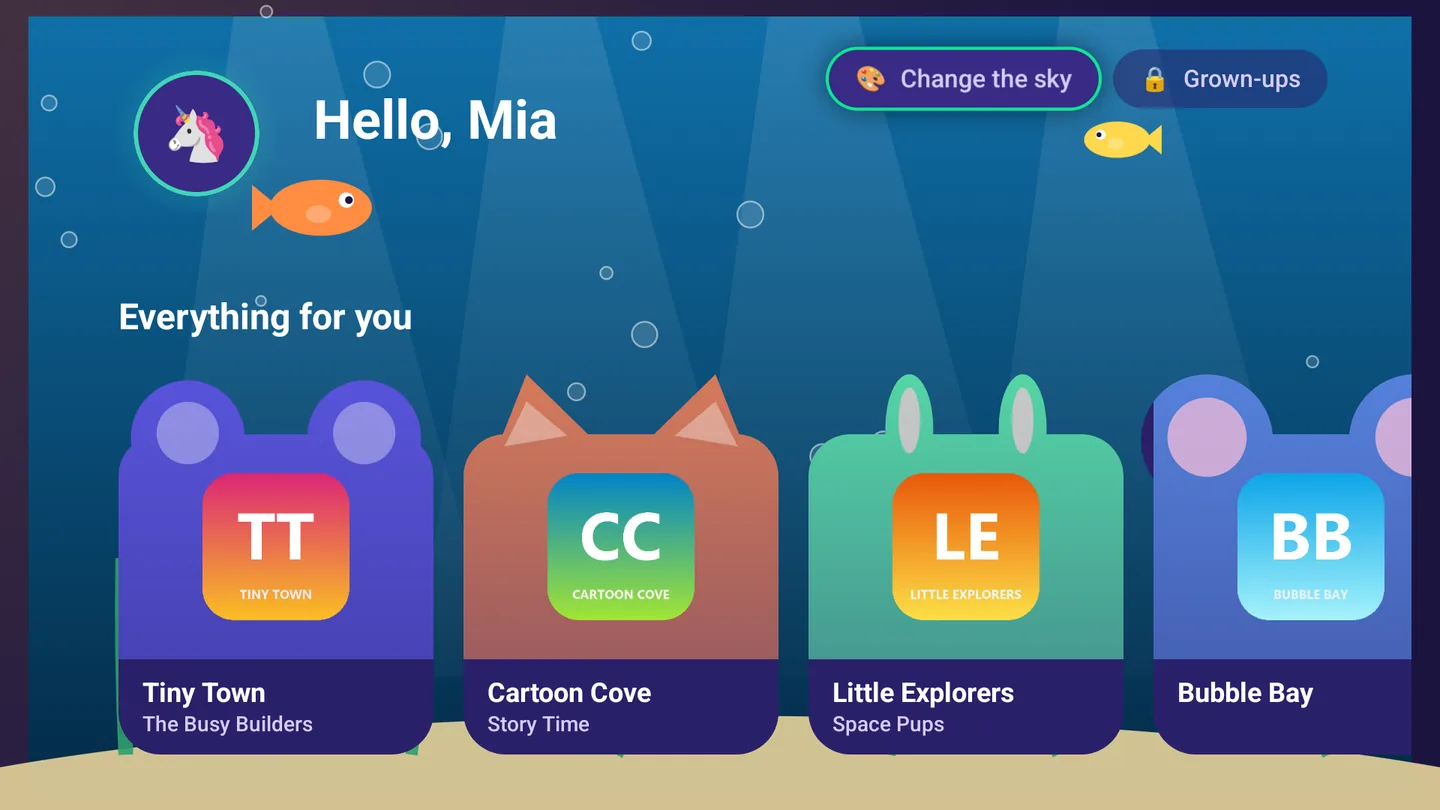
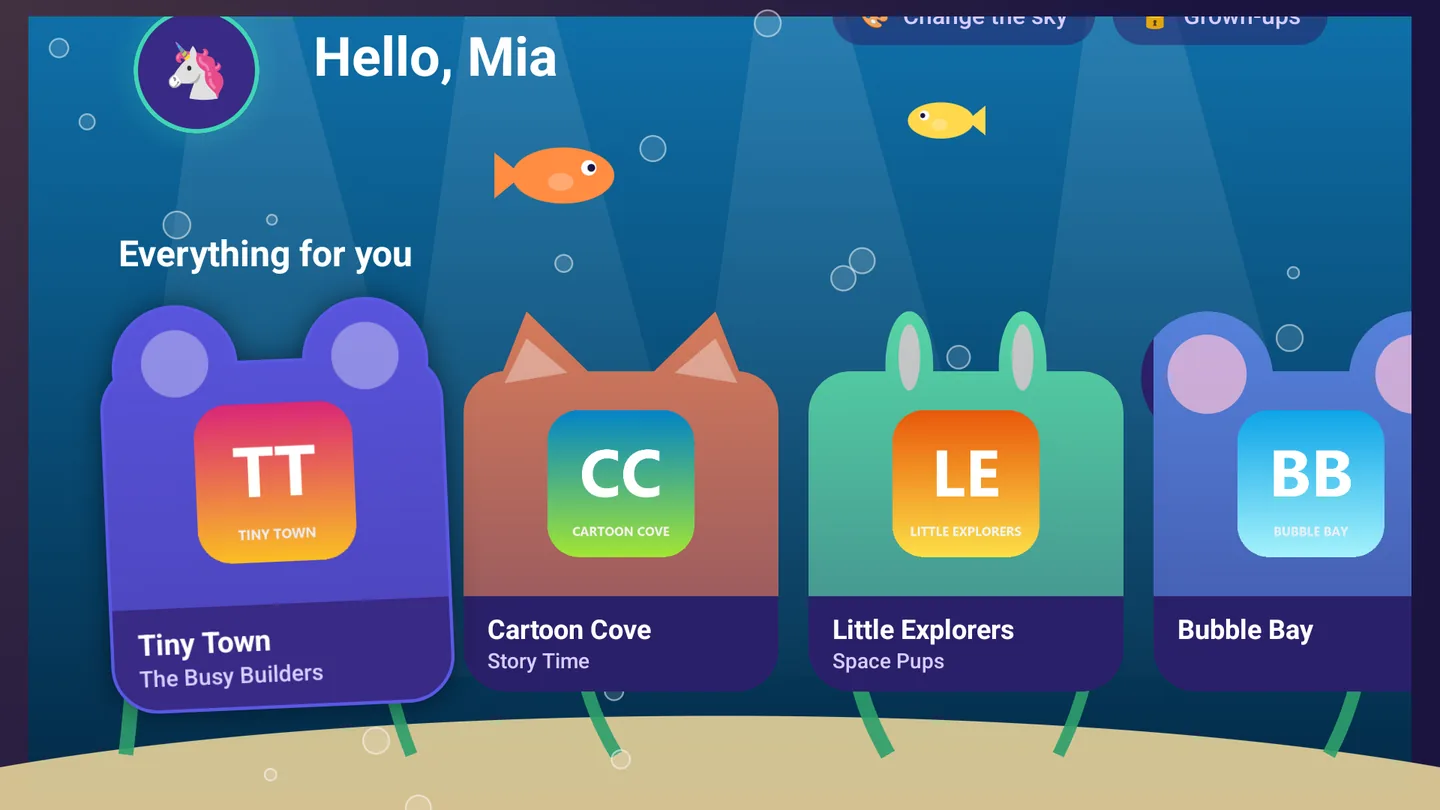
The kids world
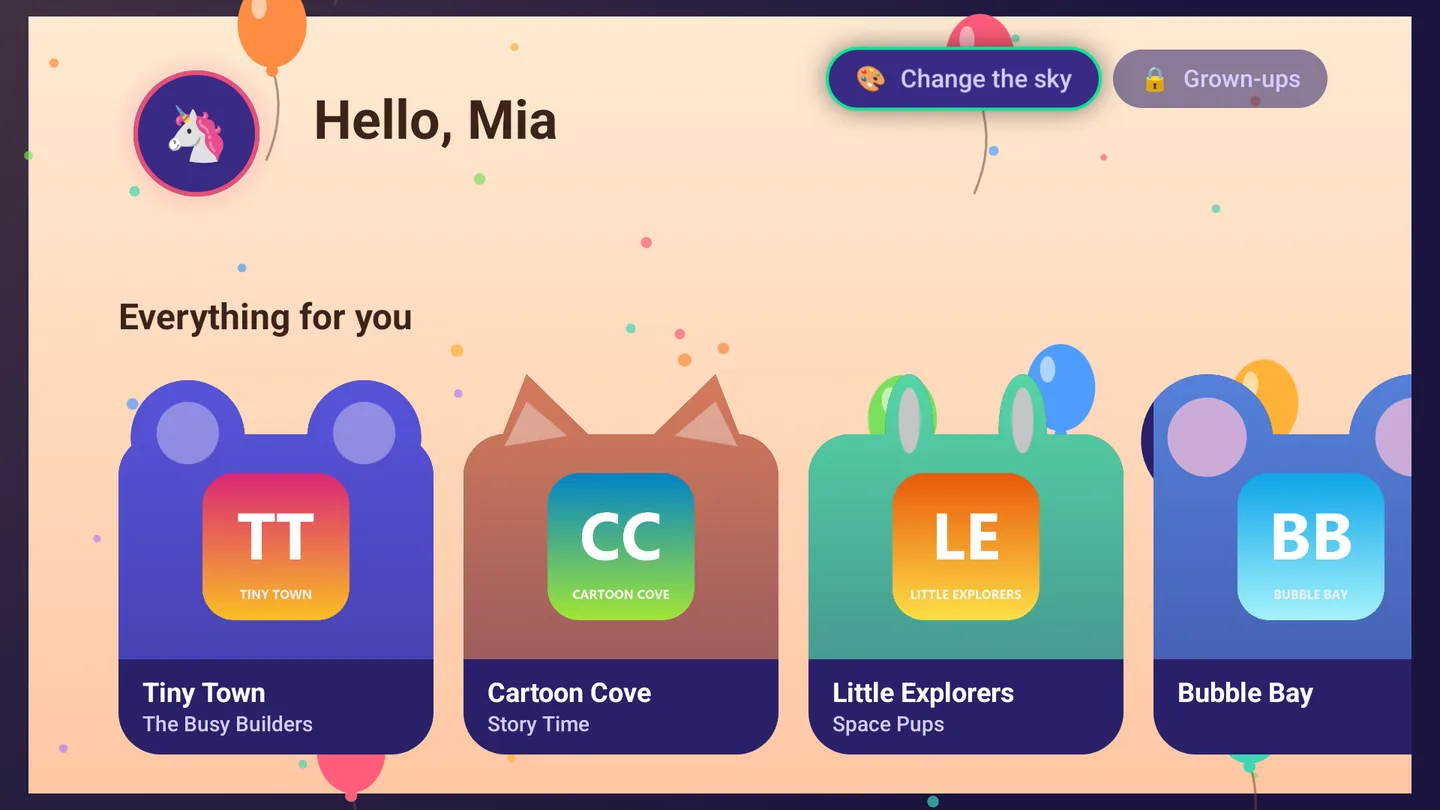
A child profile does not get a smaller version of the adult app. It gets a different app.
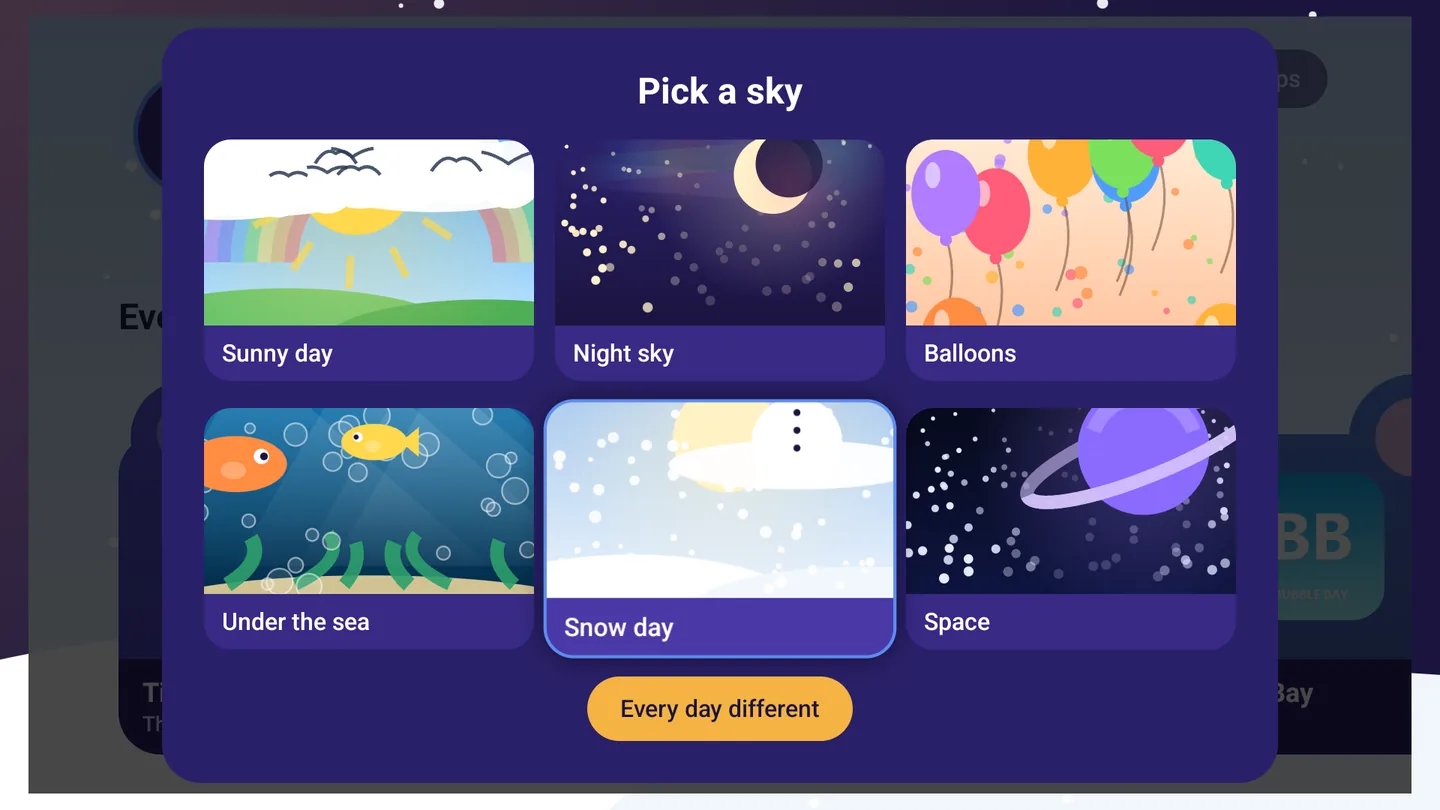
The background is theirs to choose, and choosing it is the first thing most children do. Six of them, all animated:
Search, inside the kids world. The Search door in the room opens Find something to watch: press OK to type, or the microphone to say a cartoon, a movie or a channel. It looks only through what is already on the child’s walls, so a name typed here can never bring up something their rules keep out, and Back returns to the room. On the phone, the search box sits at the top of the kids world.
All together, or by category. In the child’s rules, Movies and series in the kids’ world chooses how their films and series are laid out. All together, the usual way, keeps cartoons in one row and movies in another. By category gives each of the provider’s categories its own row, so cartoons in another language are easy to find. It changes where things sit, never what is there. The rules are in the family dashboard: Settings › Account & profiles › Parental controls, Open parental controls, then Open family dashboard.
The PIN, and what the grown-ups see
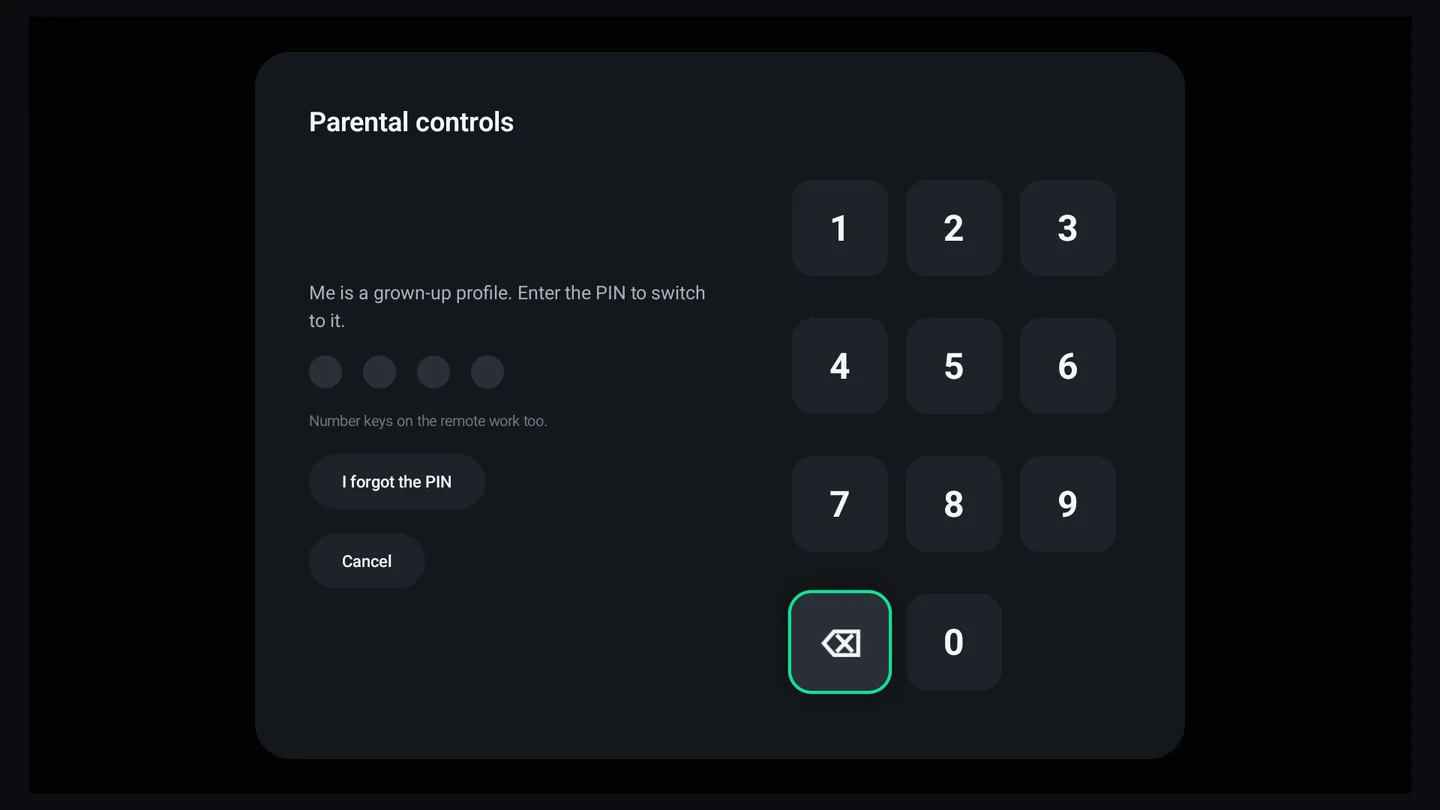
Getting out of a child profile needs the parental PIN, and so does anything that would widen what the child can reach. The same PIN guards adult categories on the main profile.
- What they may watch — by category and by channel, not by a rating nobody trusts.
- When they may watch — a schedule, so the television simply stops being available at bedtime rather than becoming an argument.
- What they watched — a history you can actually read, so you know what the room has been doing.
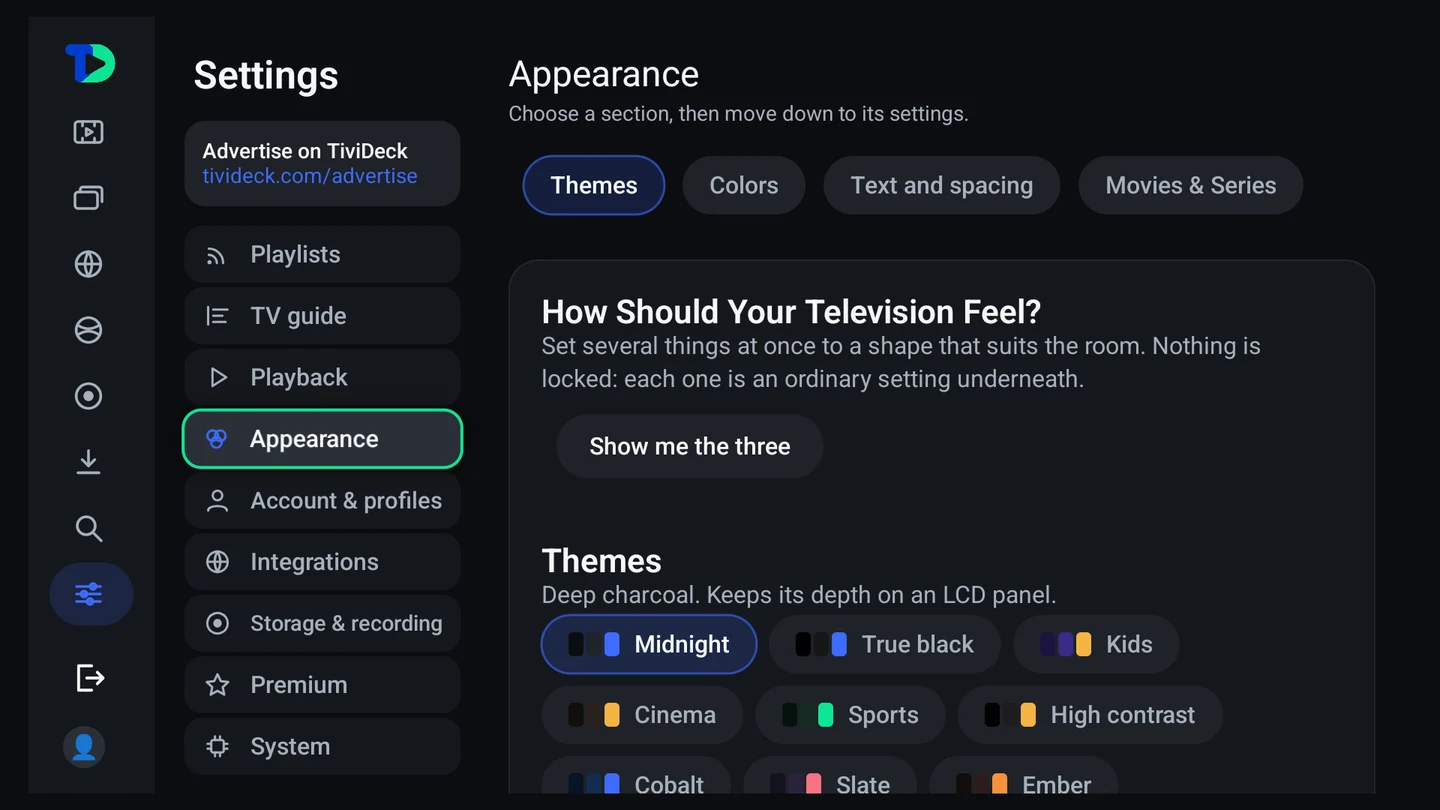
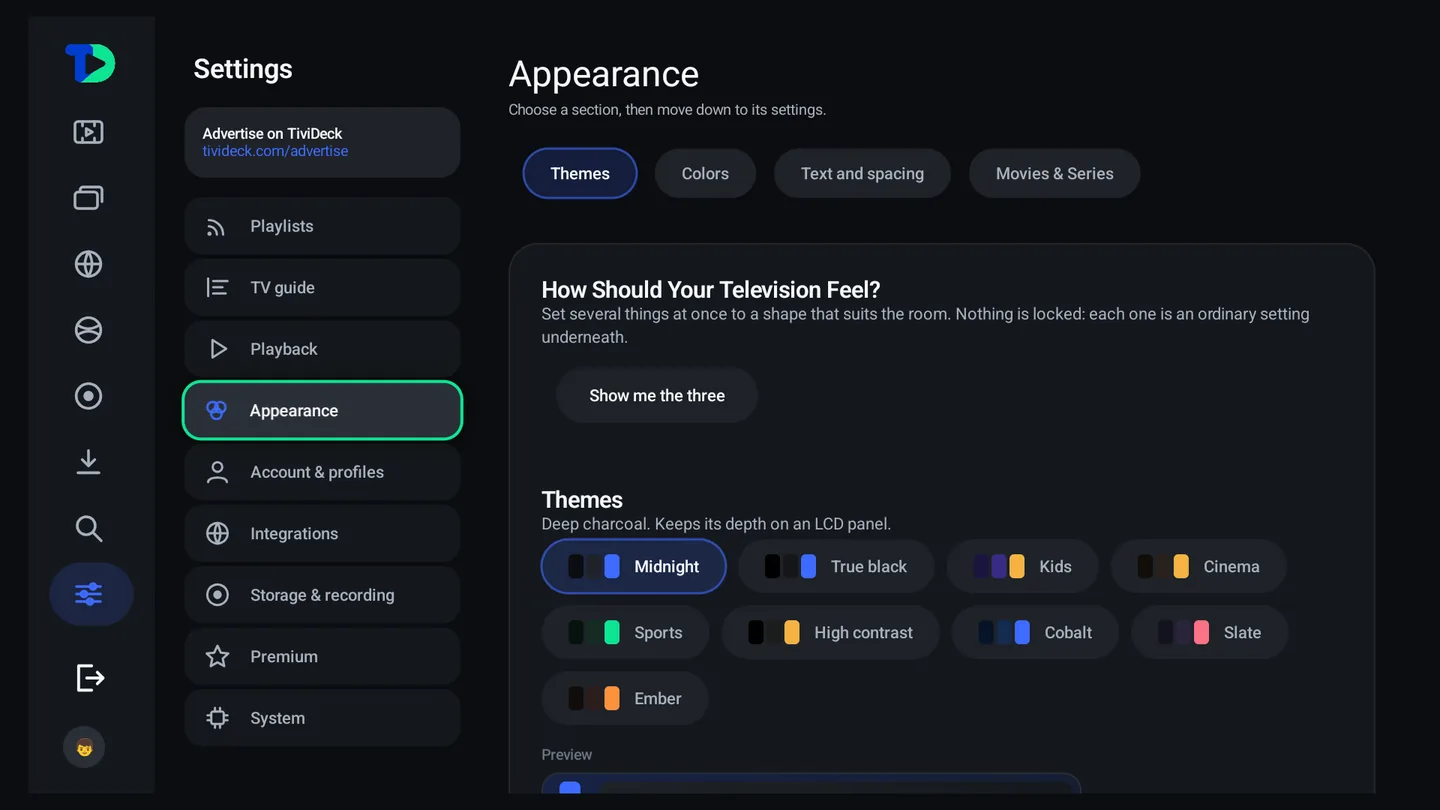
Themes
Nine complete looks, each one a background, a highlight and a set of accents that carry through every screen in the app. The preview updates as you move, before you commit to anything.
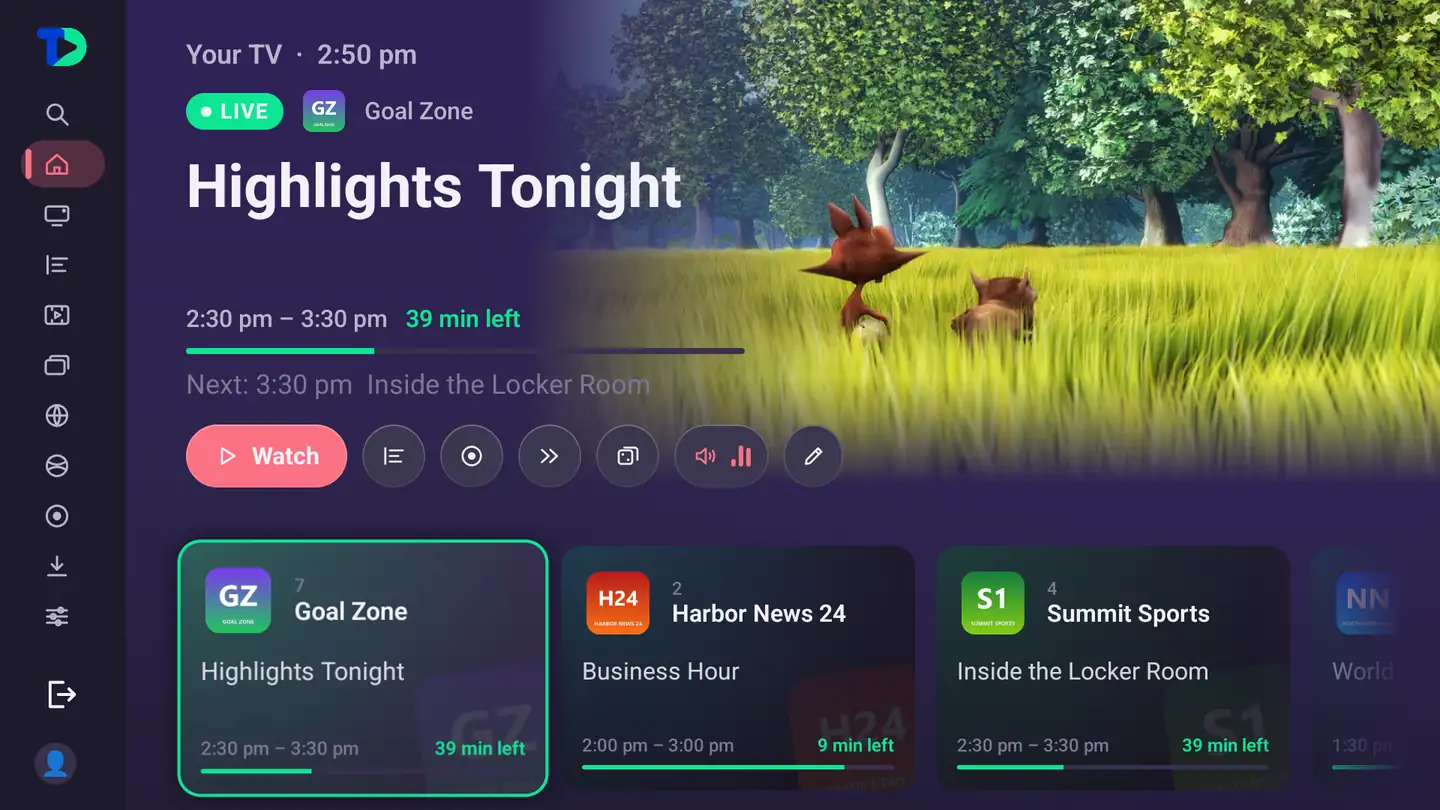
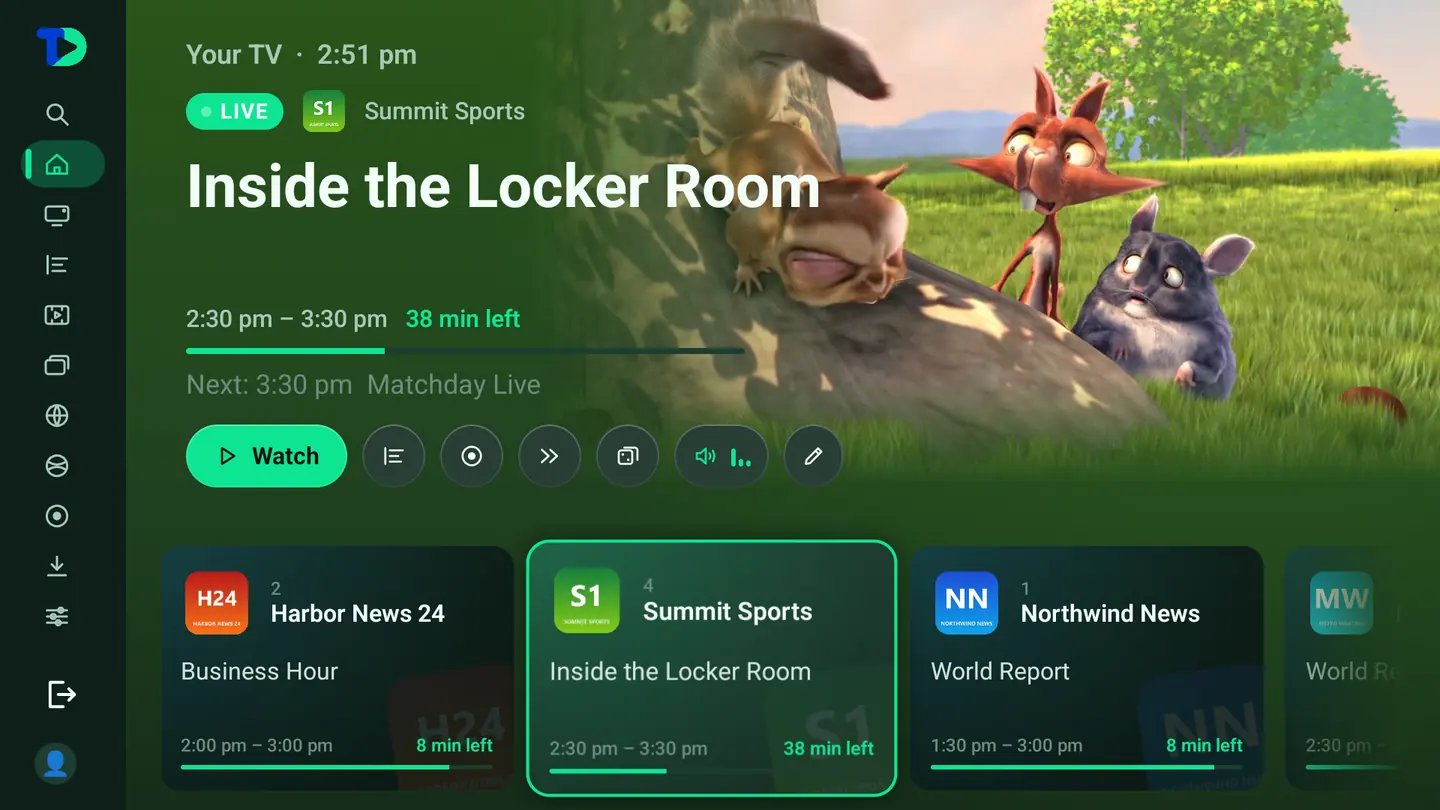
Three looks, applied
Same television, same evening, same channel — three themes. This is what a theme actually changes.
Colors, text and spacing
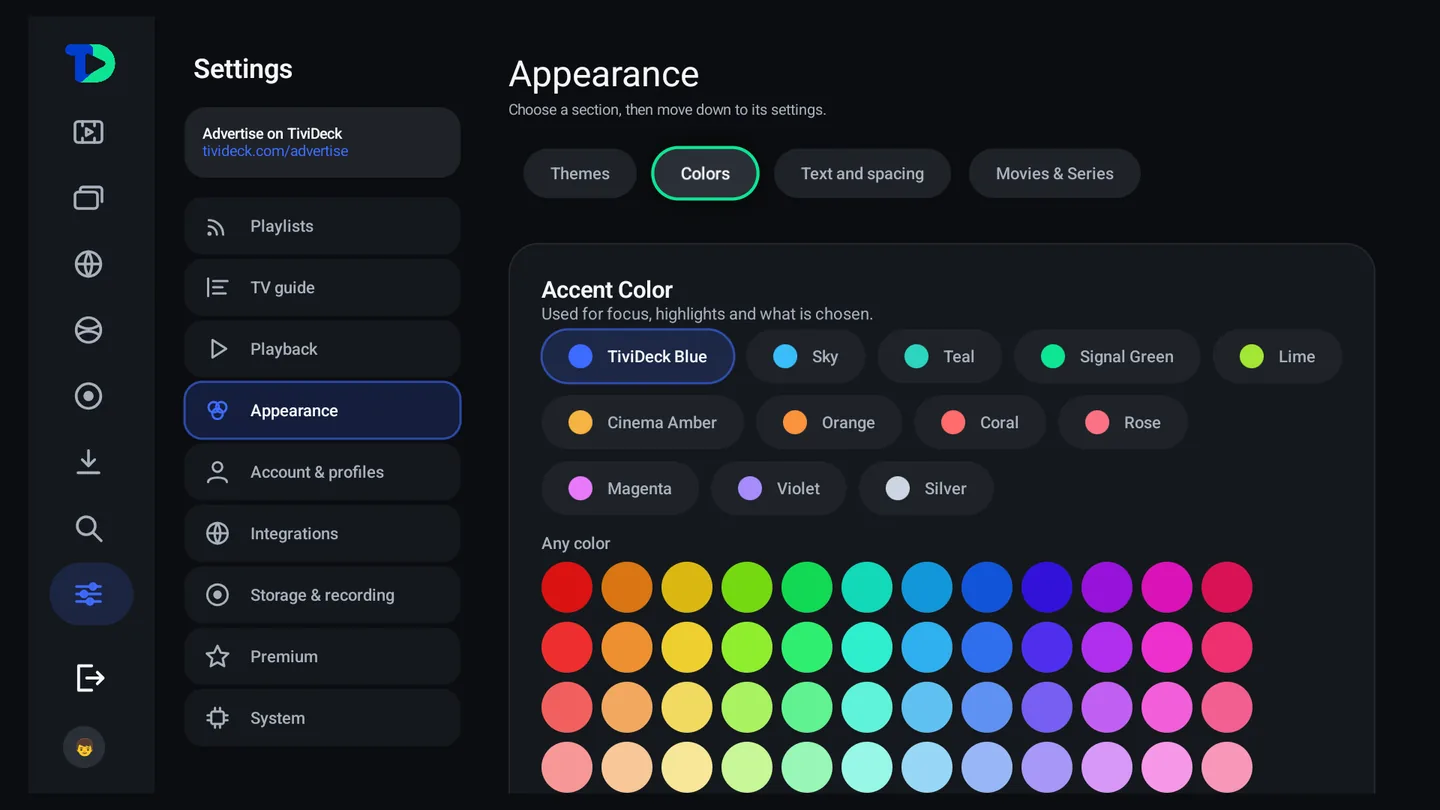
Text and spacing is the part most players never offer: the size of the type in the guide, in the library and on the player can each be set on its own. A guide that is unreadable from the sofa is not a guide.
The category manager
Sixty-five thousand channels arrive. You want a few thousand. This is the screen that does it, and it is the single most useful thing you will do on the first evening.
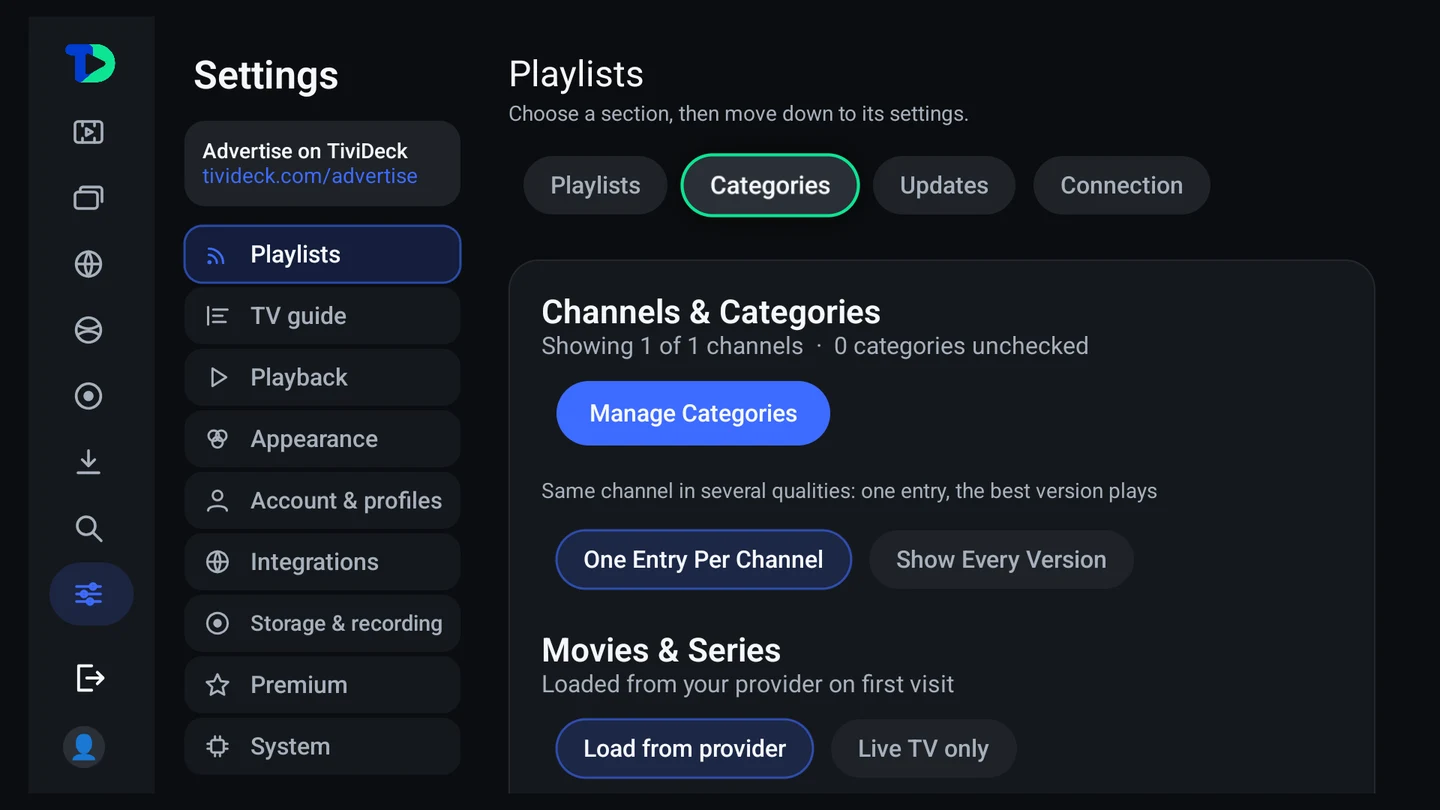
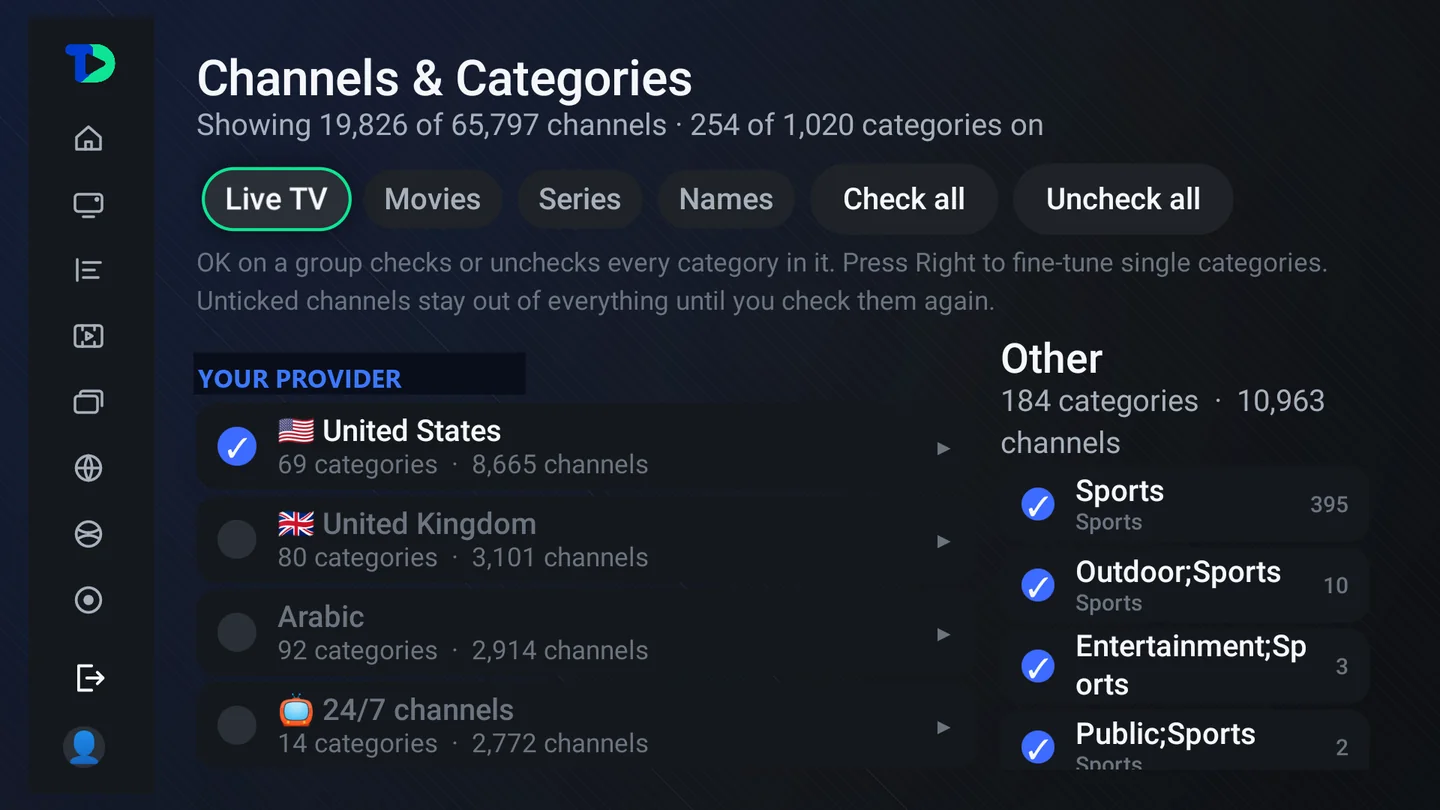
- Live TV, Movies, Series, Names — four tabs, because you may want every film category and only four channel categories.
- Check all / Uncheck all — start from nothing and add what you want, which is usually faster than removing what you do not.
- One entry per channel — the same channel in four qualities becomes one row, and the best version plays.
- Unticked channels stay out of everything — the guide, search, multi-view, the lot — until you check them again.
Language
TiviDeck is fully translated into fifteen languages: English, Spanish, French, German, Portuguese (Brazil), Italian, Dutch, Polish, Czech, Hungarian, Romanian, Greek, Turkish, Russian and Arabic. In Arabic the whole layout turns right to left. Out of the box it follows the language of your TV or phone.
15 languagesEnglishEspañolFrançaisDeutschPortuguês (Brasil)ItalianoNederlandsPolskiČeštinaMagyarRomânăΕλληνικάTürkçeРусскийالعربية
- On the TV — Settings › System › Language, then pick a language, or Match the TV to follow the television.
- On the phone — My TiviDeck › Settings › Language, then pick a language, or Same as the phone.
Channel names, program titles and guide text come from your provider and stay in the language it sends them in.
On your phone
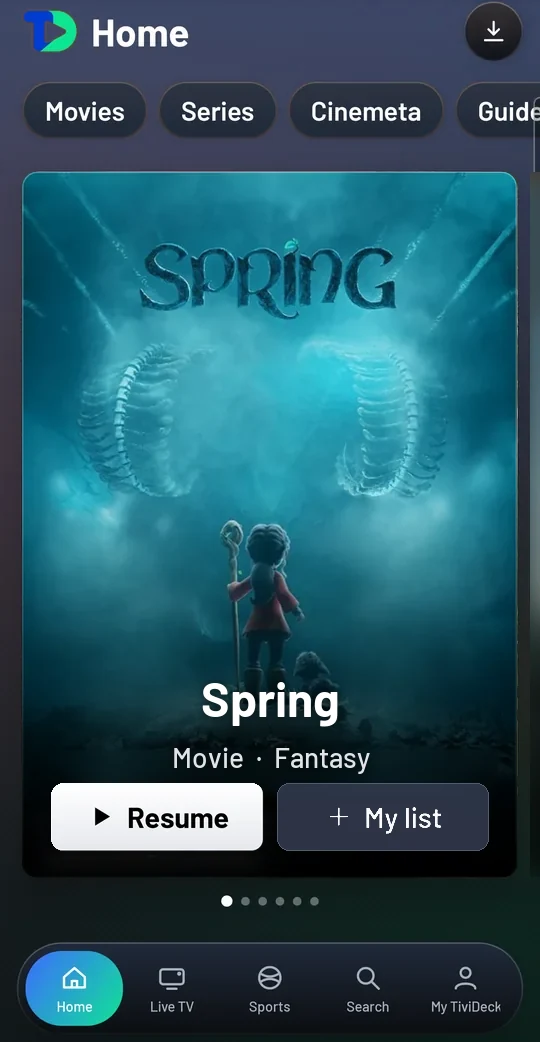
The phone app is the same TiviDeck, laid out for a thumb instead of a remote. It runs on Android 8.0 or newer, and five tabs along the foot of the screen — Home, Live TV, Sports, Search and My TiviDeck — put everything one tap away.
Getting started
The Store edition comes from Google Play. The Enhanced edition installs by hand: open tivideck.com/get/phone in the phone’s browser. Then add the provider you already pay for:
- Under Add a provider, choose the Provider type. Xtream Codes asks for the server address, username and password; Playlist (M3U) asks only for the playlist address; a Stalker portal for the portal address with its MAC; Jellyfin and Emby for the server address, username and password; Direct URL for one stream address; a NAS share for the server, the share and, if it needs them, a username and password — its video files become your Movies and Series.
- Give it a name if you like — Name (optional) — so two providers are easy to tell apart.
- Choose What to load from this provider: Live TV, Movies & series, or both. A playlist is asked about live TV only.
- Choose how Live TV categories are filed: TiviDeck categories sorts every channel by country into Sports, News, Kids and more; Provider’s categories keeps them exactly as your provider names them.
- Tap Connect.
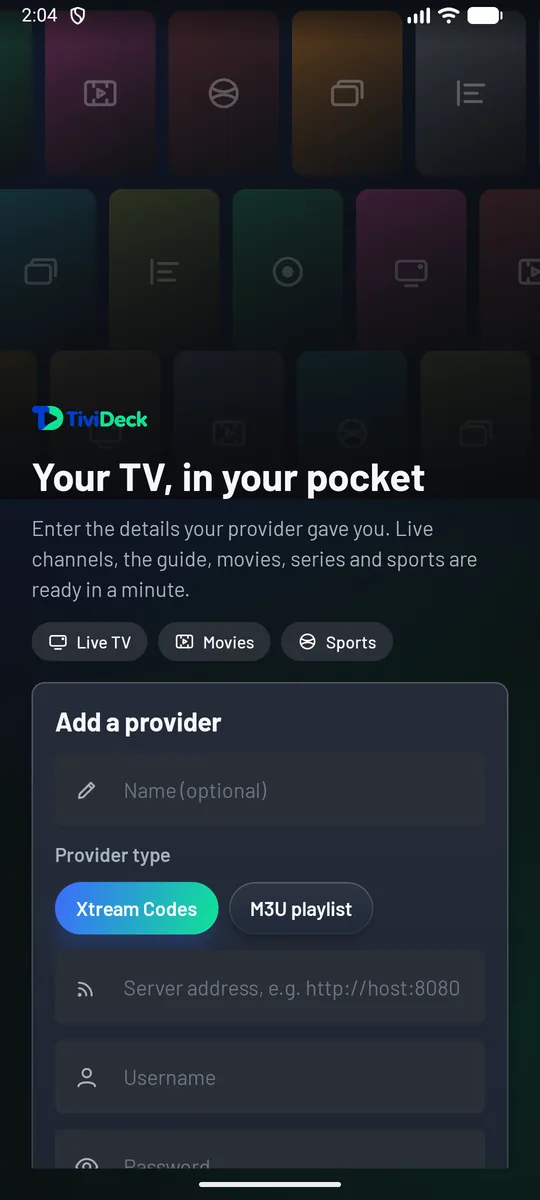
Already have TiviDeck on your TV? Link the phone to your account instead, and your Premium, providers, profiles, favorites, your list, settings and Continue watching follow you between the TV and the phone. On the TV, open Settings › Account & profiles › My account: it shows This device’s code. On the phone, open My TiviDeck › My account, type it under Type a code from another device and tap Link. Provider logins travel encrypted, sealed on the device before they leave it, so the phone does not ask for them again.
Home and the library
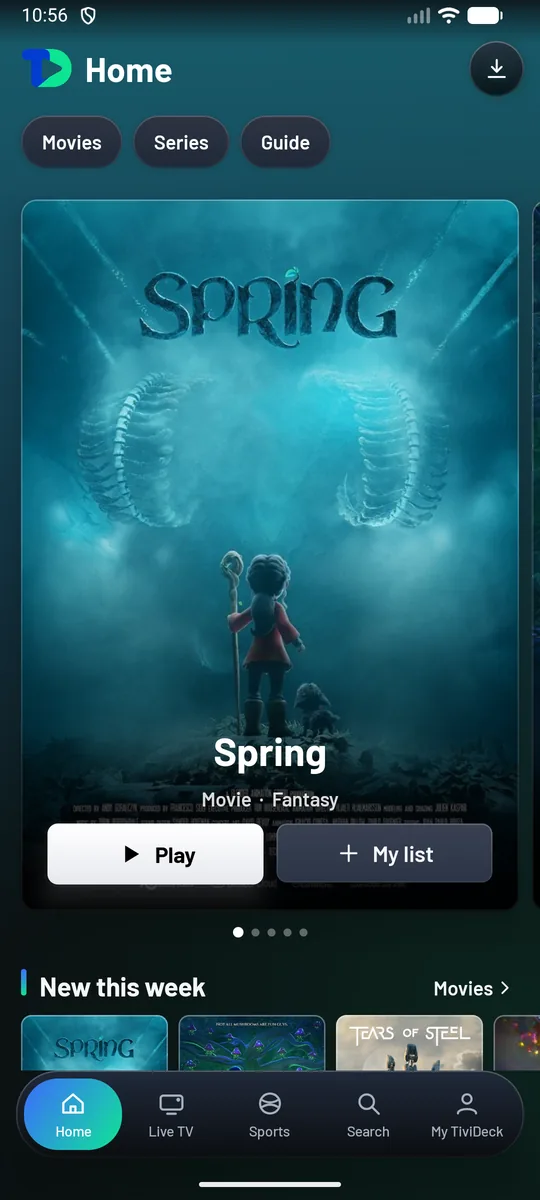
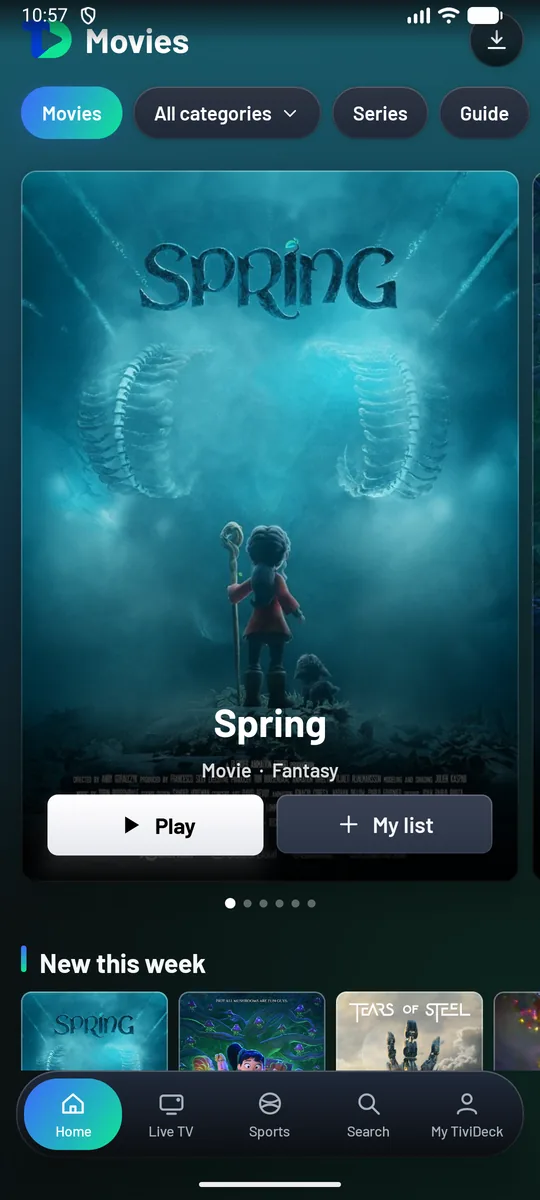
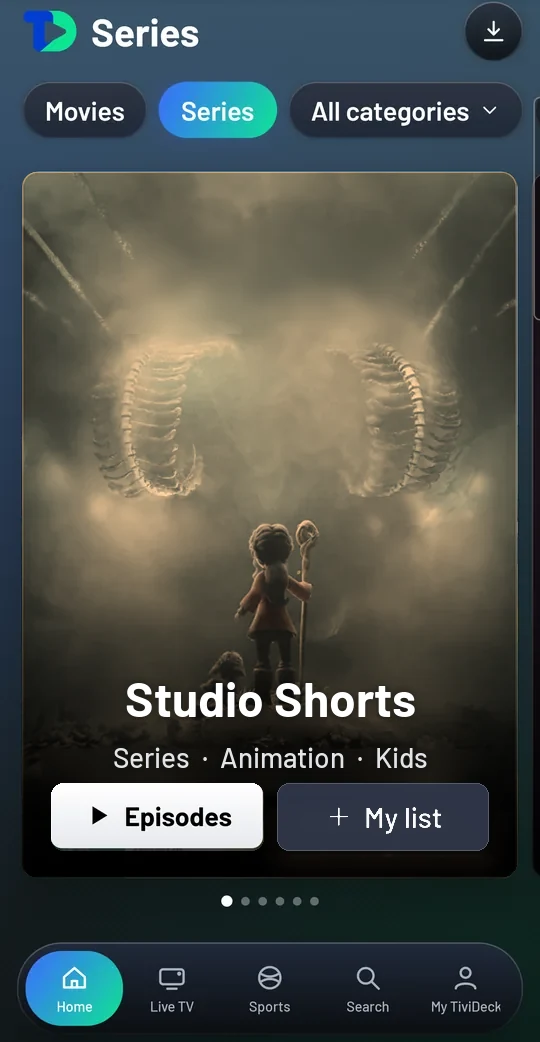
Home opens on a large featured film with Play and My list on it; swipe for the next one. The chips along the top — Movies, Series, Guide — take you straight there, and rows such as New this week run underneath. On Movies and Series, the All categories chip narrows the shelf to one of your provider’s categories.
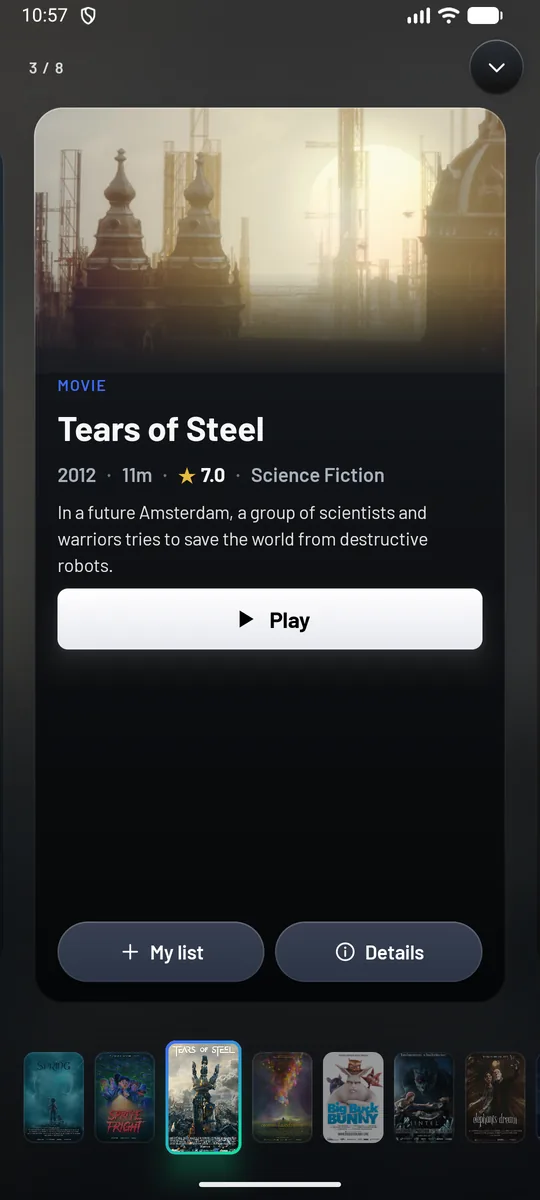
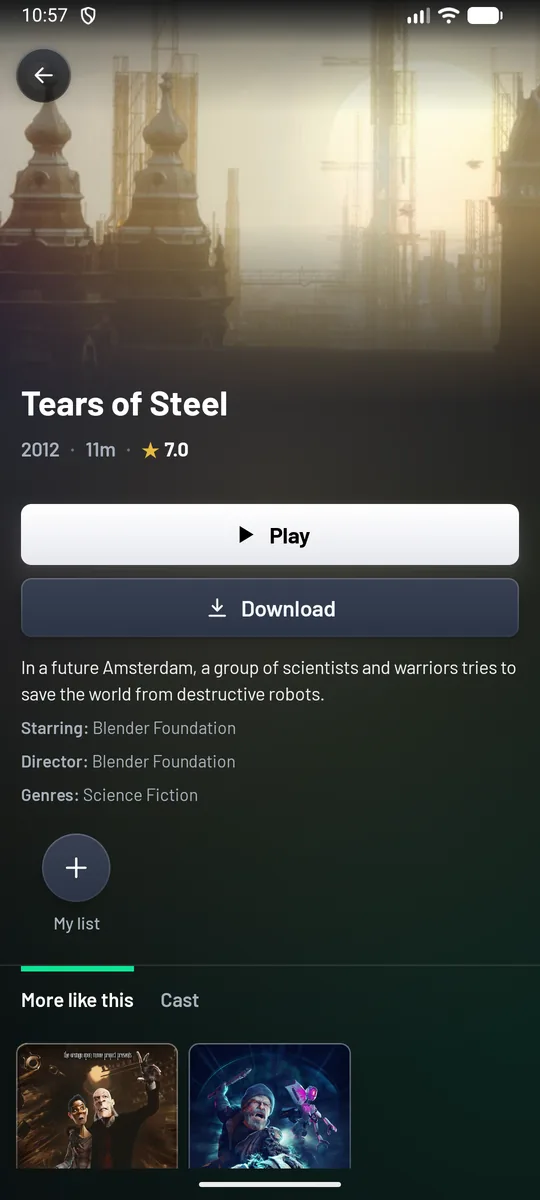
Tap a poster and a preview card opens: the year, the length, the rating, a line of story, Play, My list and Details. The rest of the row waits as a strip along the bottom, so you can look through it without going back. Details opens the film’s page, with Play, Download, the synopsis, who stars in it and who directed it, and More like this and Cast underneath.
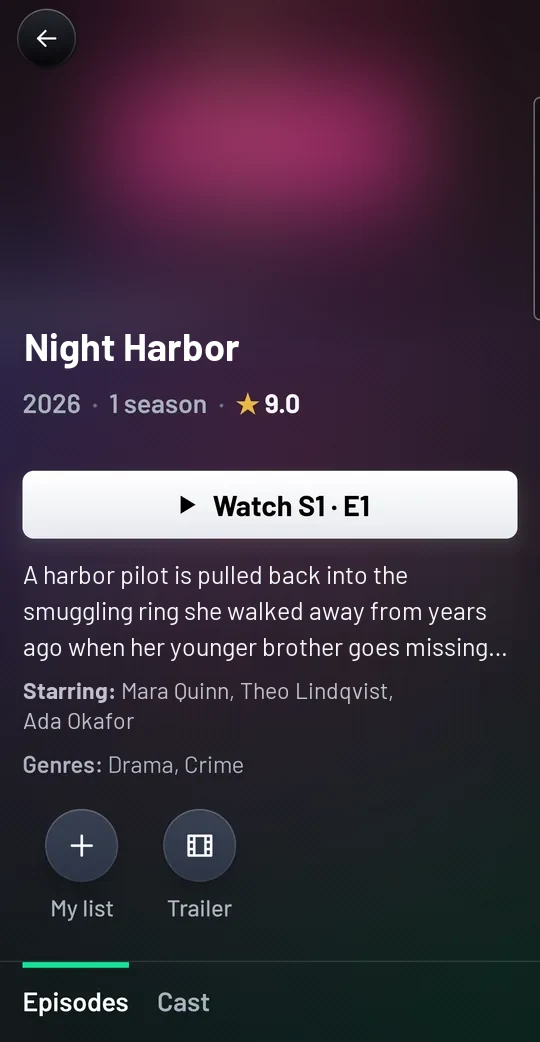
Series works the same way. Its featured series has Episodes and My list on it; a series’ page has Watch S1 · E1 (or the episode you stopped on, once you have started), the story and the cast, My list and Trailer, and the Episodes and Cast tabs underneath. Tap an episode to play it.
Live TV and the guide
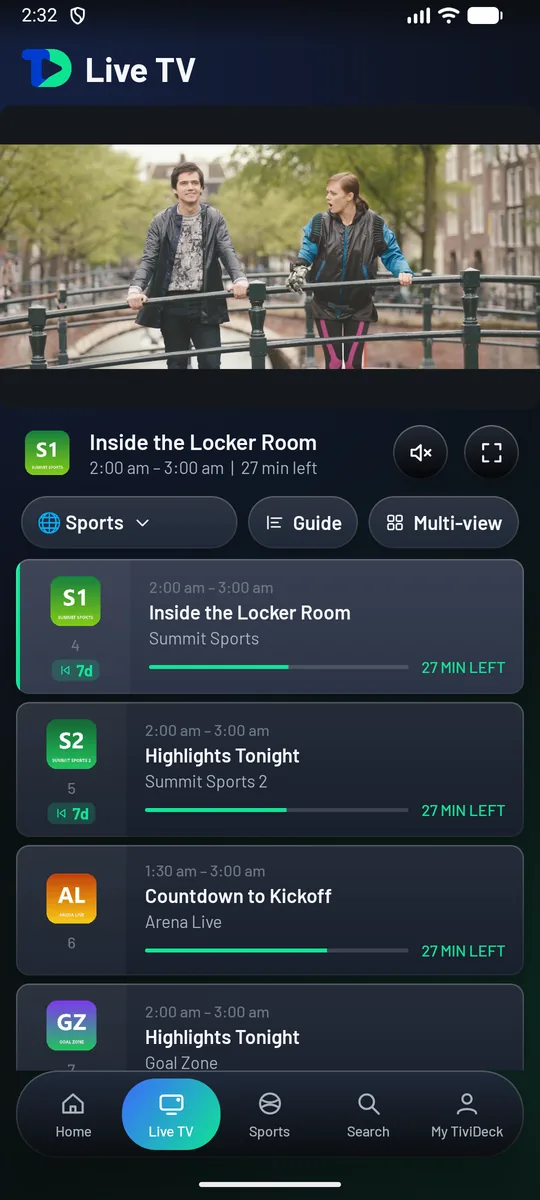
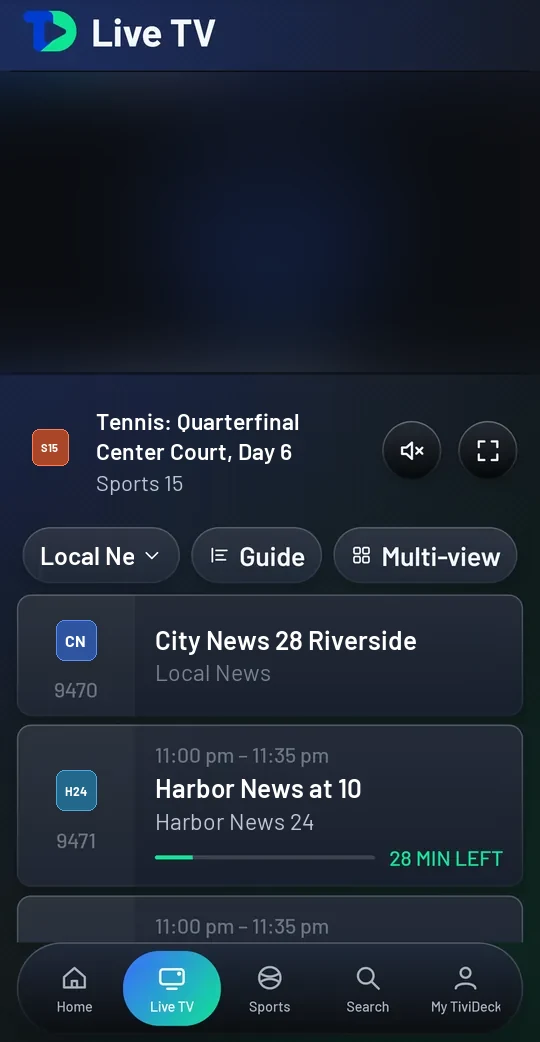
Live TV plays the channel at the top of the screen while you browse below it. Under the picture are the program, its time and the minutes left, with buttons for the sound and for full screen. Then the category chip, Guide and Multi-view, and the channel list: each channel with what is on, a bar for how far along it is and the time left. A small badge such as 7d means the channel keeps that many days to catch up on. Tap a channel to play it.
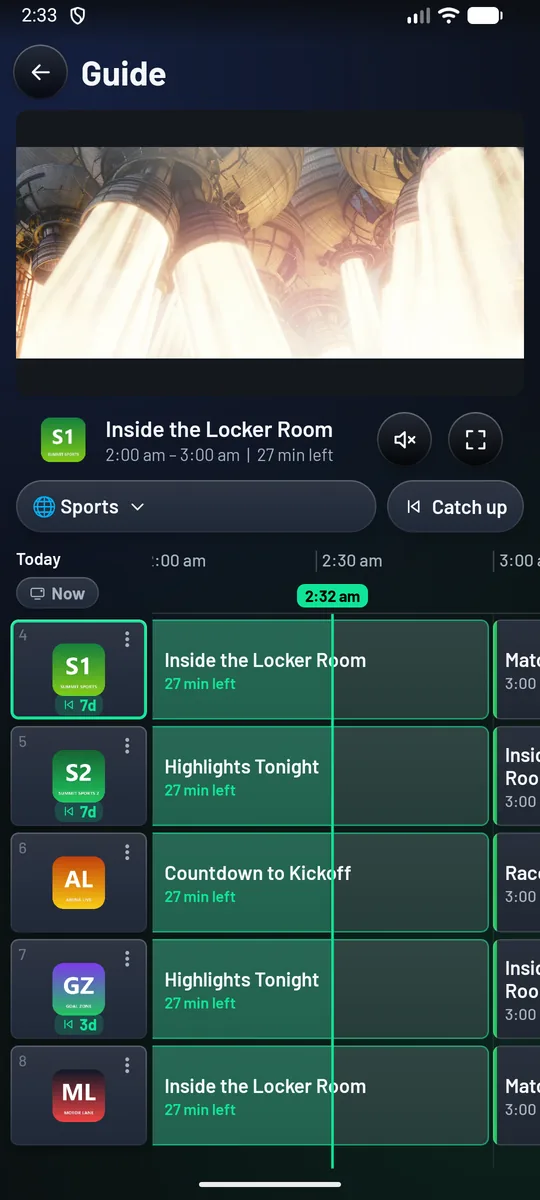
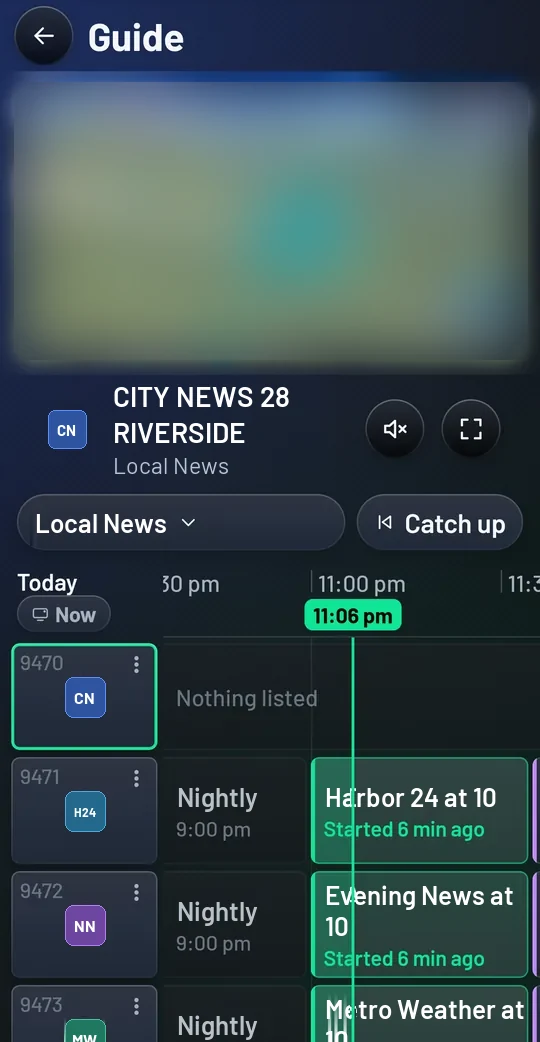
Guide lays the same channels out against the clock, with a line at the current time and Now to jump back to it. Where your provider keeps the past, Catch up goes back into it.
Swipes in the player. In full screen, a swipe up or down on the left side sets the brightness and on the right side the volume, as My TiviDeck › Settings › Playback › Swipe gestures has them. Brightness and volume answer only to a swipe that starts in the outer third of the screen, at the left or right edge, so a finger in the middle of the picture changes neither. A side set to change the channel, and the sideways swipes, still work across the whole picture.
Multi-view
From Live TV, Multi-view turns the phone sideways and shows up to four channels at once, two by two. Tap a picture to hear it — one sound at a time, marked with a speaker. Tap an empty square, Add a tile, to put a channel or a film there; hold a picture to make it full screen or take it off. Back from full screen returns to your pictures, as you left them. A picture whose stream your provider cuts short is asked for again and keeps playing, and one that freezes is opened again on its own. Every picture is its own connection, so your provider’s connection limit applies.

Sports
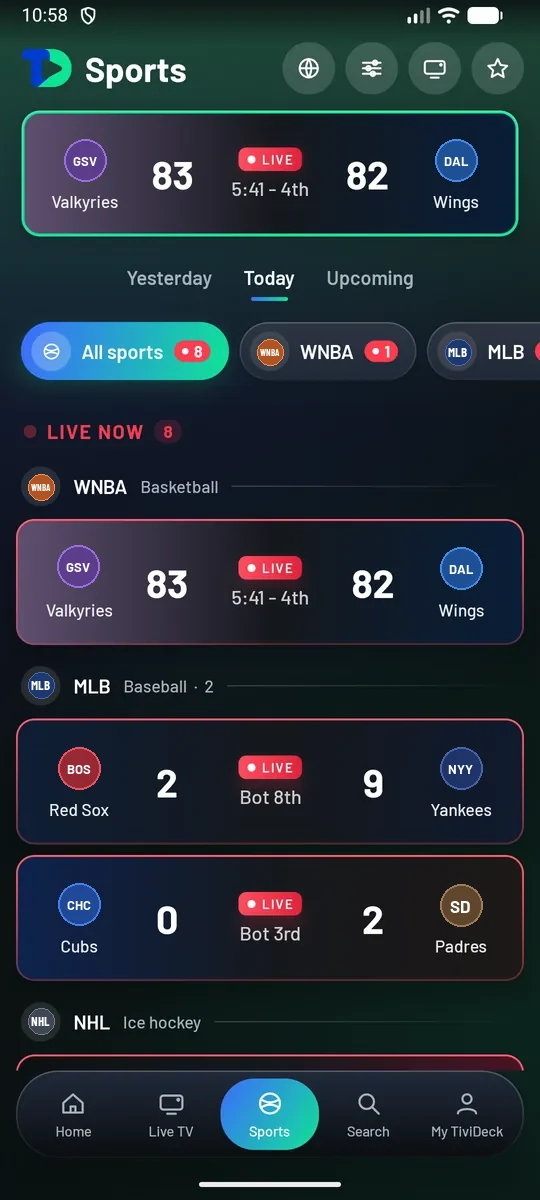
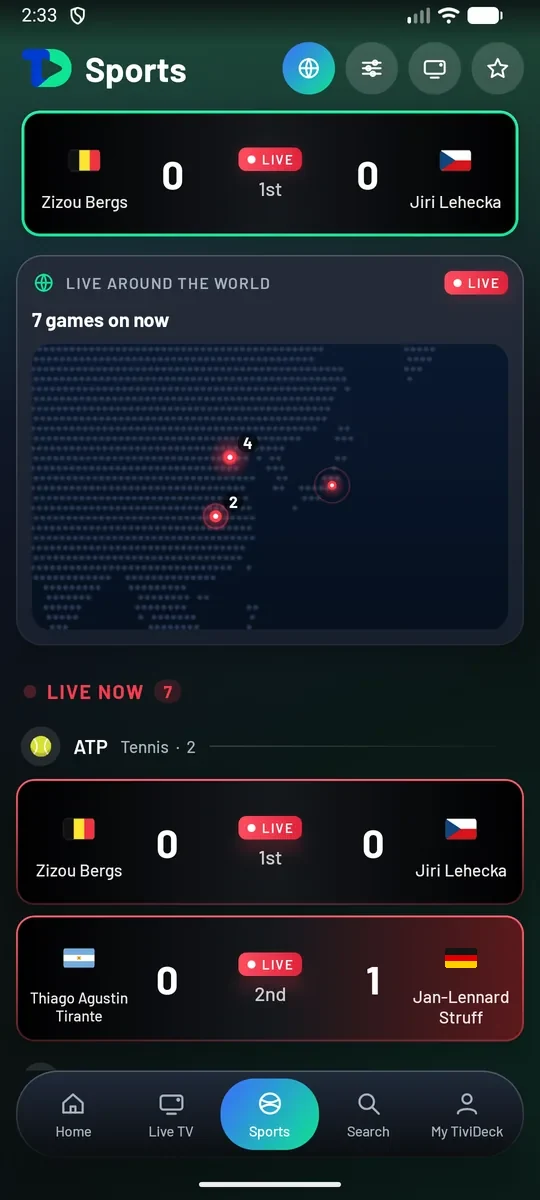
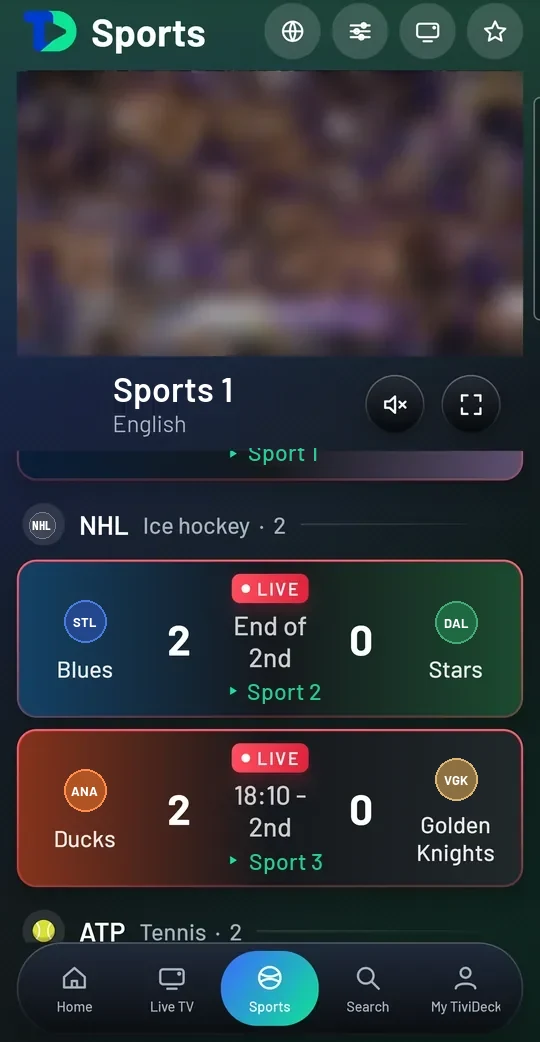
The Sports tab is the Sports Hub in your hand. Yesterday, Today and Upcoming run across the top, chips below them narrow it to one sport or league with a count of live games on each, and Live now lists every game in progress with its score as it changes. The globe at the top opens Live around the world: a map lit wherever a game is being played, with the number of games on now.
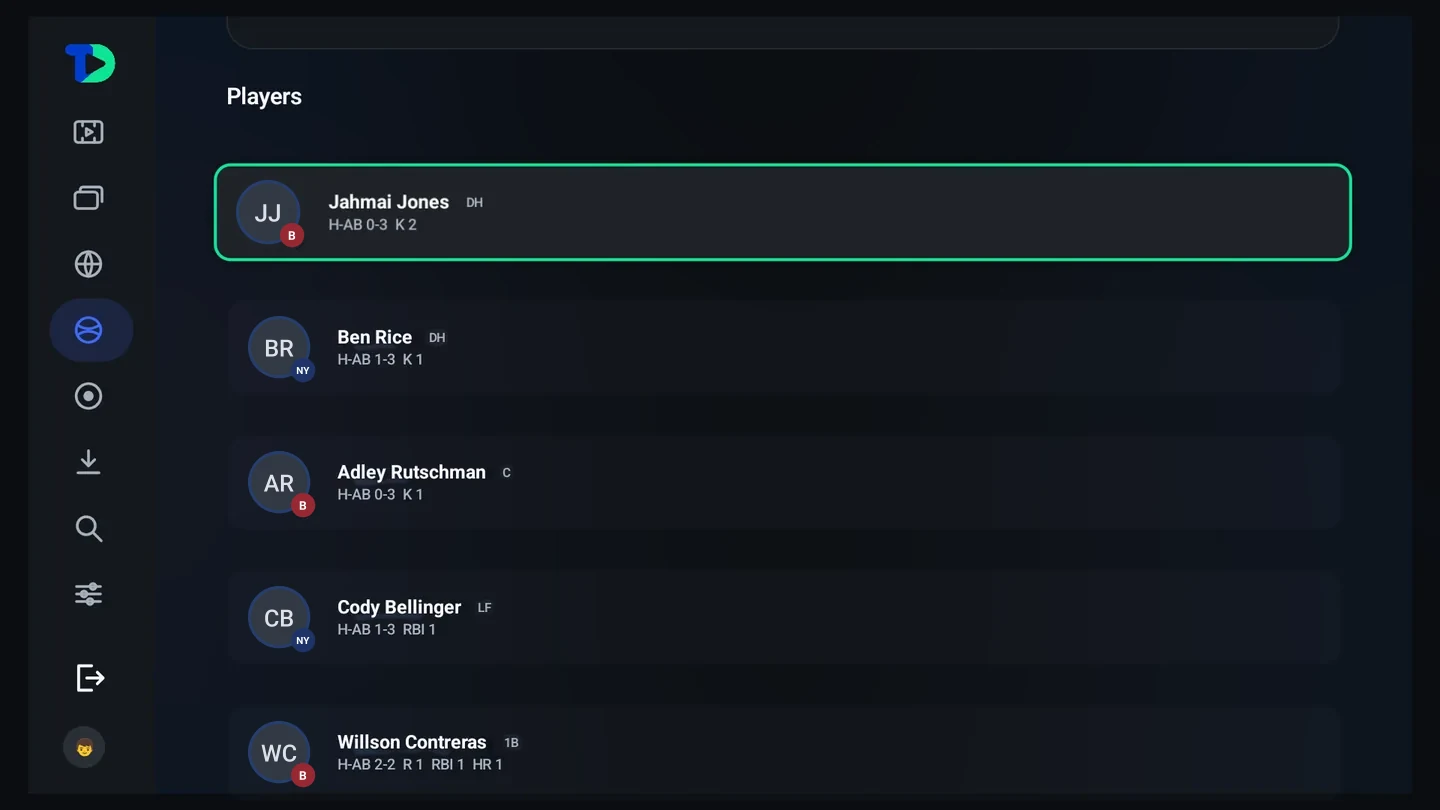
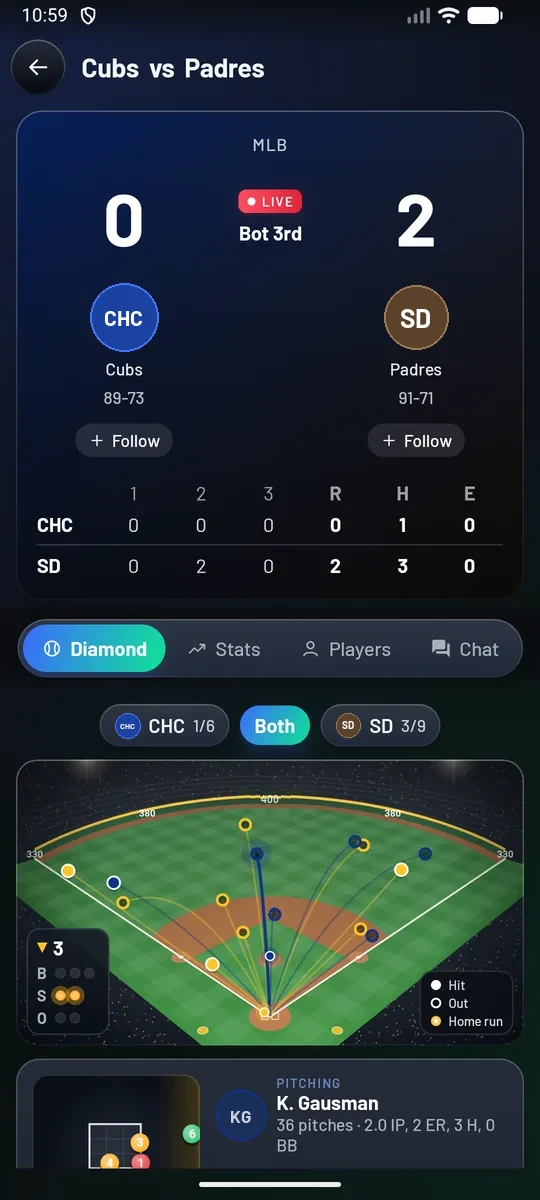
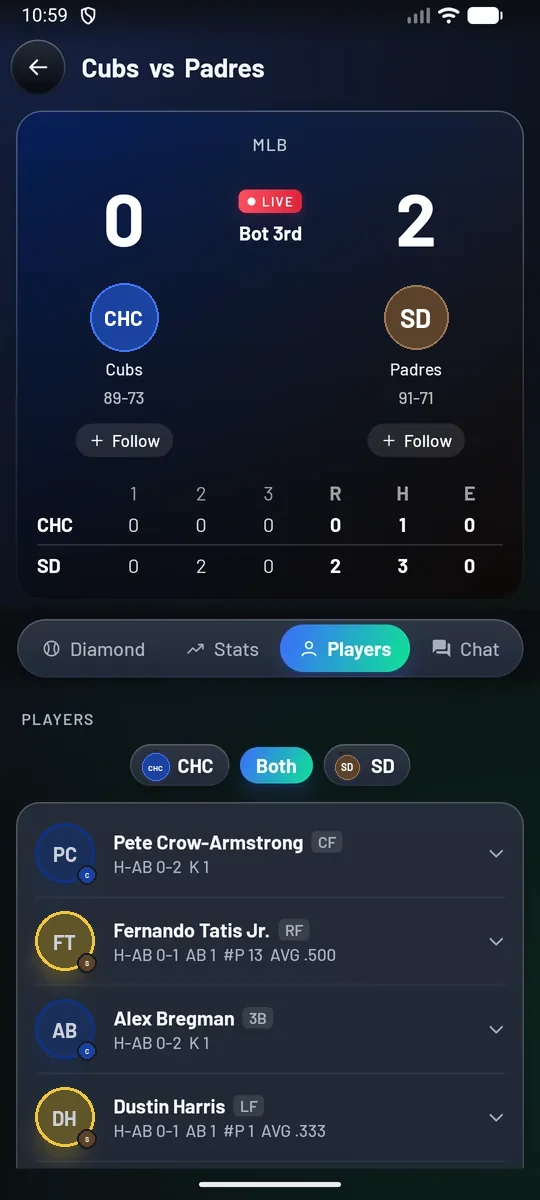
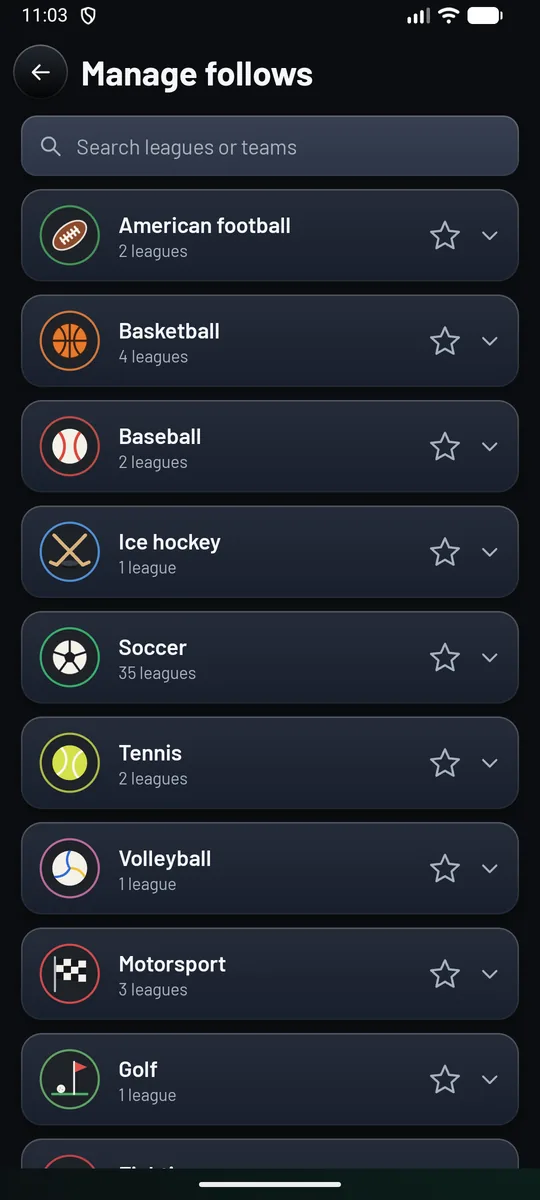
Tap a game for its own page: the live line score, a Follow button under each team, and four tabs — Diamond, Stats, Players and Chat. In baseball the diamond draws every batted ball of the game, hit, out or home run. Players gives each player’s line for this game. To choose what you follow, open Manage follows: every sport with its leagues, a star to follow one, and Search leagues or teams at the top.
A game’s page also names the ground and its town. When your providers carry radio stations it has a Radio tab: choose a station and its sound replaces the game’s while the picture keeps playing. A finished game whose start your provider’s catch-up still holds is marked Replay on its card and has Replay from the start on its page; see Replays from the start. When your lineup has NFL RedZone, the NFL heading has a Watch RedZone button.
Kids and profiles
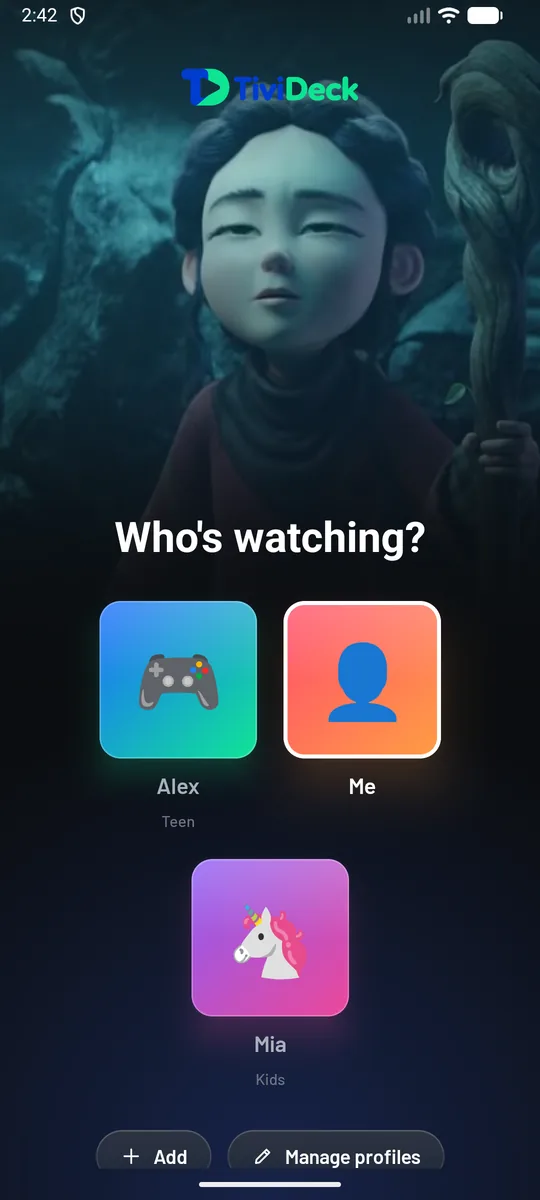
Who’s watching? greets you with the household’s profiles — here a teen, a grown-up and a child — with Add and Manage profiles underneath. A grown-up profile asks for the PIN.
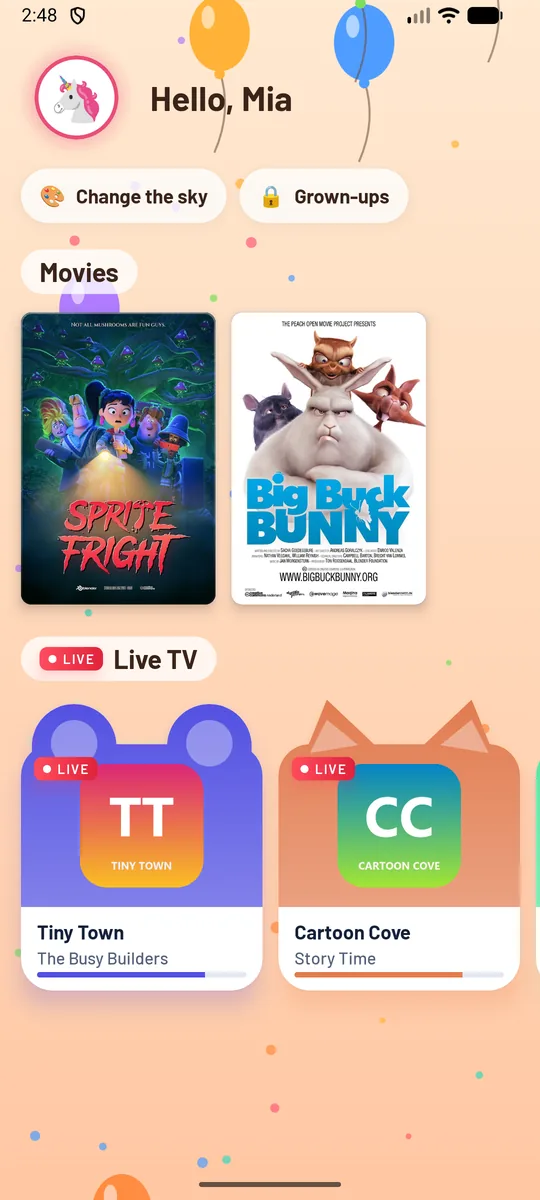
A child’s profile opens the kids’ world instead of the app: Hello, Mia, their films, and their live channels as animal-shaped cards. Change the sky is theirs to play with; Grown-ups asks for the PIN before it lets anyone out.
From the phone, Settings › Profiles › Send a message sends a line to one person: it shows on whichever television they are watching, or waits until they next choose their profile.
Search
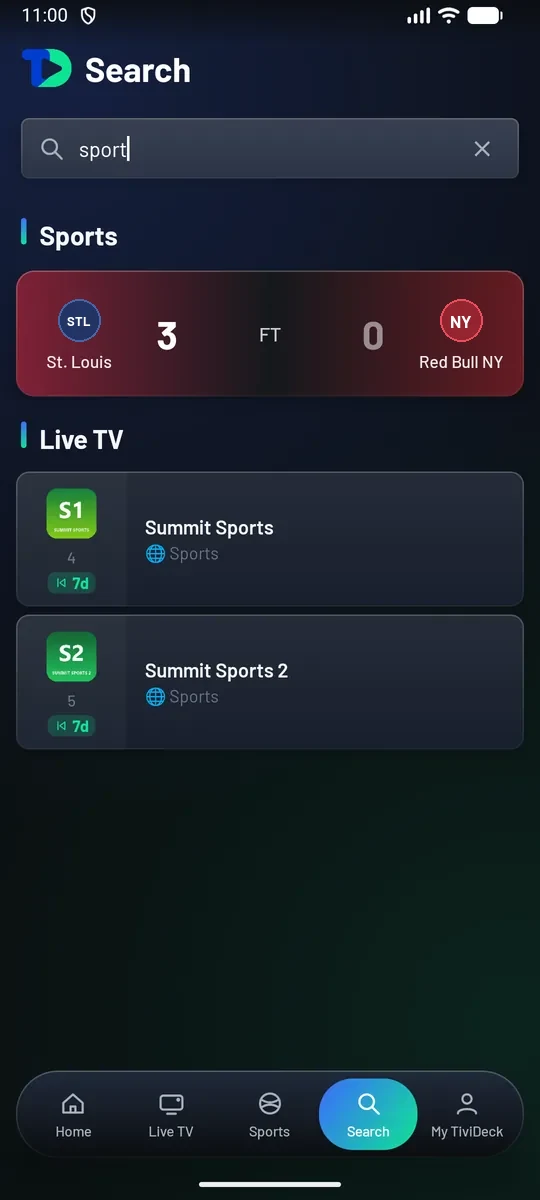
One box searches everything at once: sports, live TV channels, films and series, with the results grouped under their own headings as you type.
Home-screen widgets
The phone app has two widgets for your phone’s home screen. To add one, press and hold an empty part of the home screen, choose Widgets, find TiviDeck and drag Favorites or Your teams into place. Both can be resized.
- Favorites — your favorite channels as tiles, each with its logo and name, in the household’s order: one row of four, and a second row when you have more than four, up to eight. With fewer than four favorites, the row is made up with the channels you watched last, their names a step dimmer. Tap a tile and TiviDeck opens and plays that channel. It is redrawn whenever the app sees your favorites change and never refreshes in the background, so it costs no battery. With no favorites yet it says Star a channel to see it here.
- Your teams — the games of the teams, players and competitions you follow, up to three, as many as the widget’s height holds. For each one it shows the game on now, else the next one, else the last result: live games first, then the soonest kickoffs, then the latest finals. A live game shows its score and LIVE with the period or inning; a final shows the score with the winner brighter; a game to come shows its start time, Tomorrow or the weekday. Tap a game to open its page in the app. It is redrawn whenever the app has fresh scores, and otherwise Android refreshes it every 30 minutes. With nothing followed it says Follow a team in Sports to see its games here.
My TiviDeck, Settings and Premium
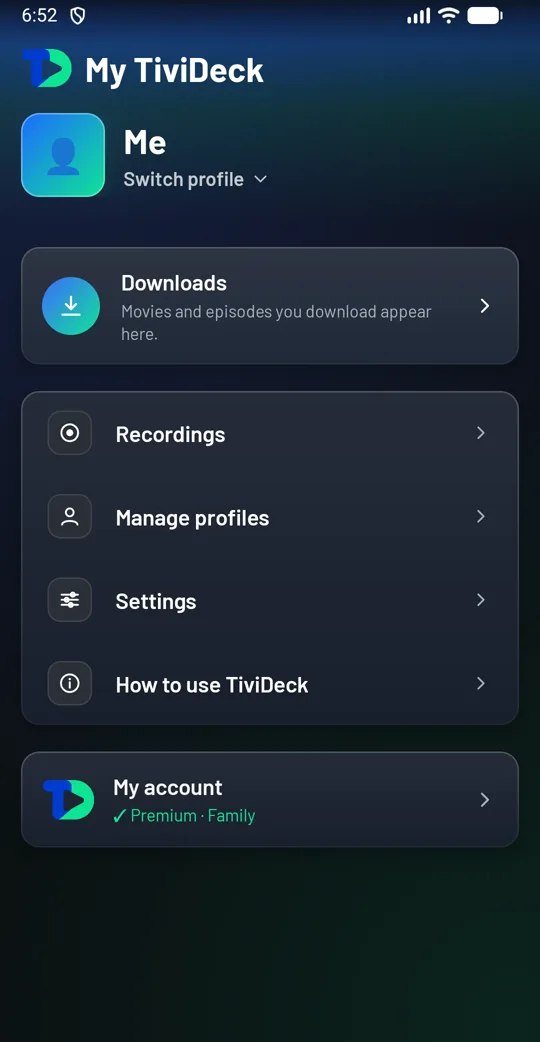
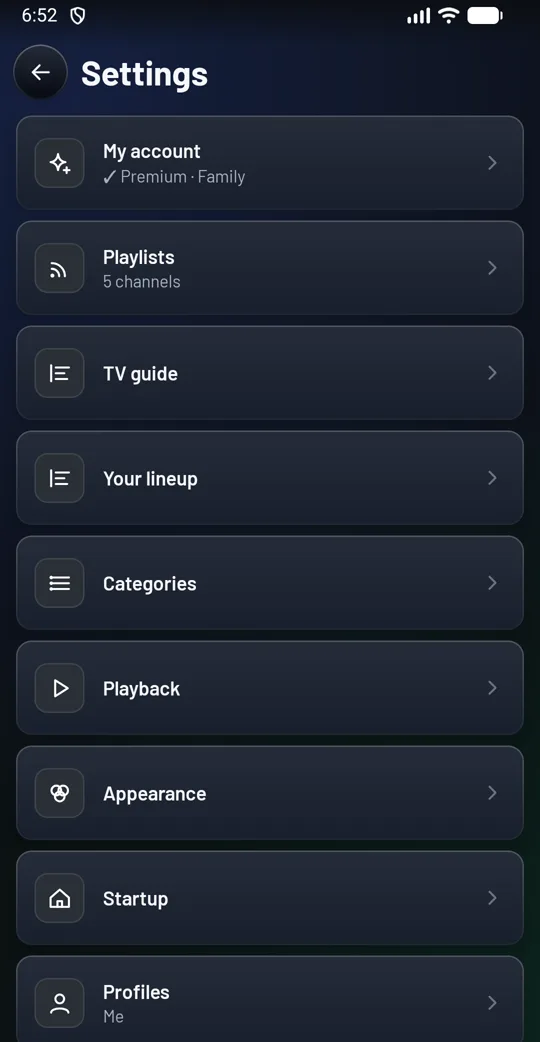
My TiviDeck is the phone’s own page: your profile with Switch profile, then Downloads, Recordings, Manage profiles, Settings, How to use TiviDeck and the My account card, which says where this phone stands (Premium, trial or neither) and opens My account: this phone’s code, a field for another device’s code, Sync now and the account’s devices. Settings starts with My account too, then Playlists, TV guide, Your lineup, Categories, Playback, Appearance, Startup, Profiles, Family help, Parental controls, Recording & rewind, Backup & restore and more further down.
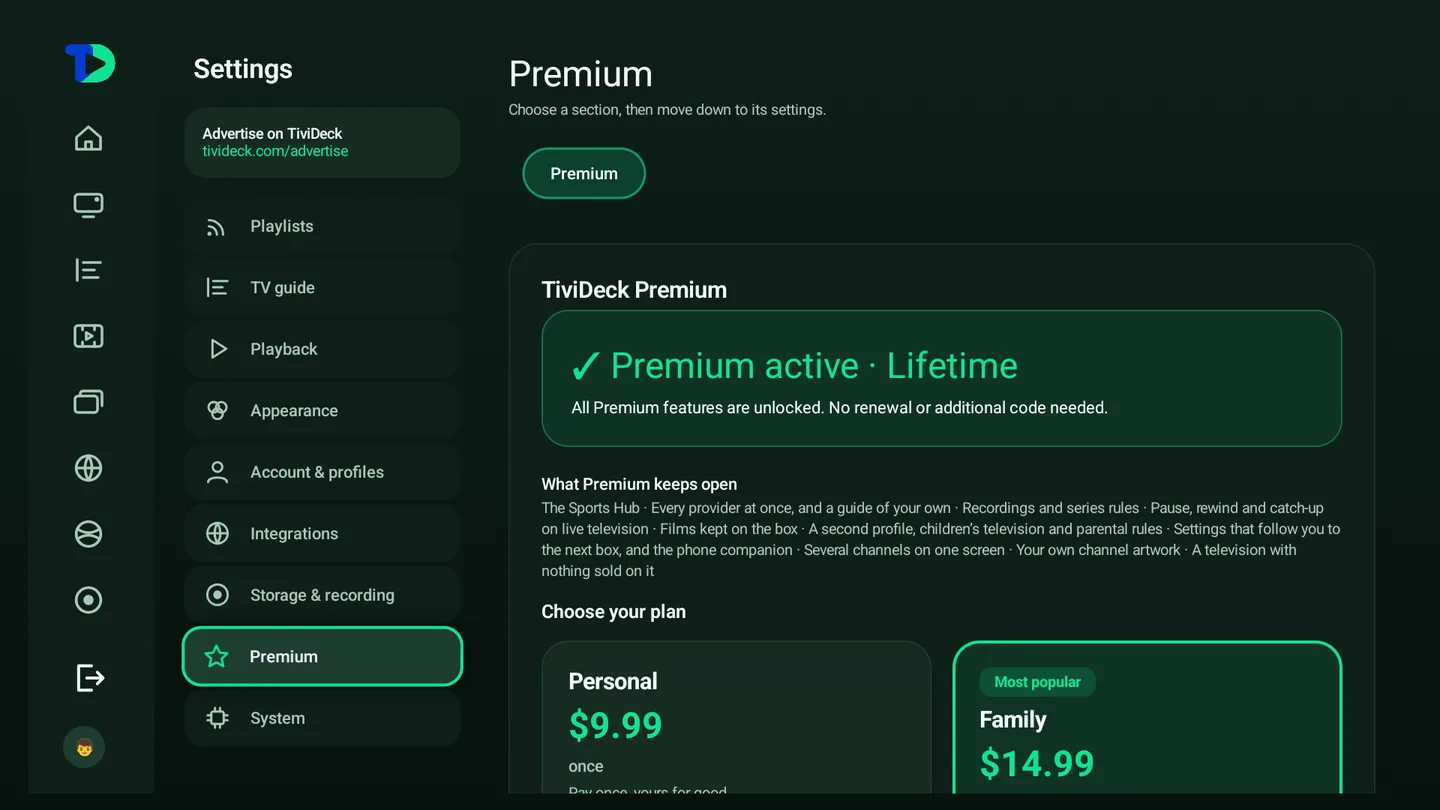
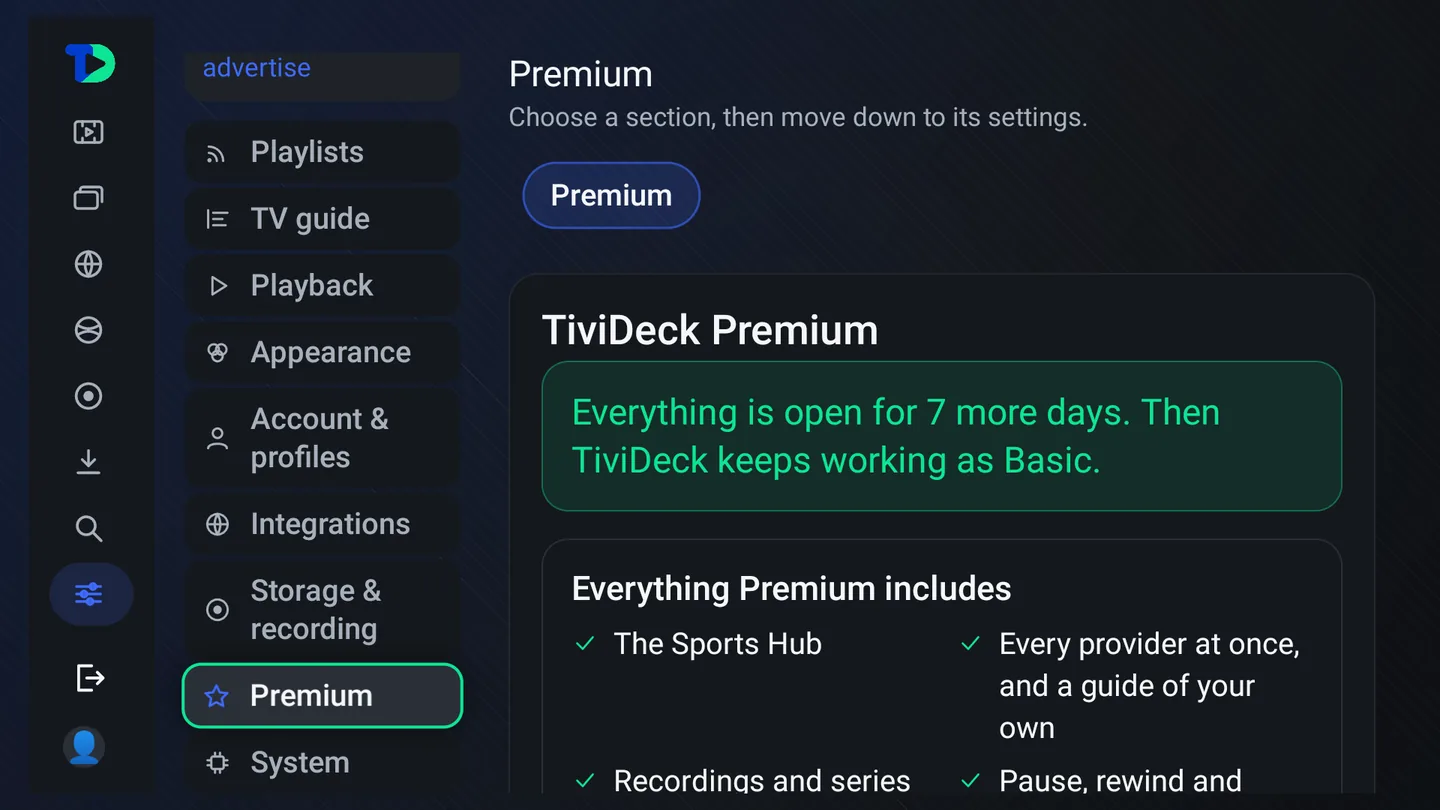
Every new household gets seven days of Premium free, on two devices; the Premium page says how many are left and lists What Premium keeps open. After that, TiviDeck keeps working as Basic, free: one provider, its own guide, one profile, live TV, films, series and search, with short local ads. The Sports Hub, more providers and guides, more profiles and the kids’ world, pause and catch-up, recordings, multi-view, downloads, sync and your own artwork are Premium.
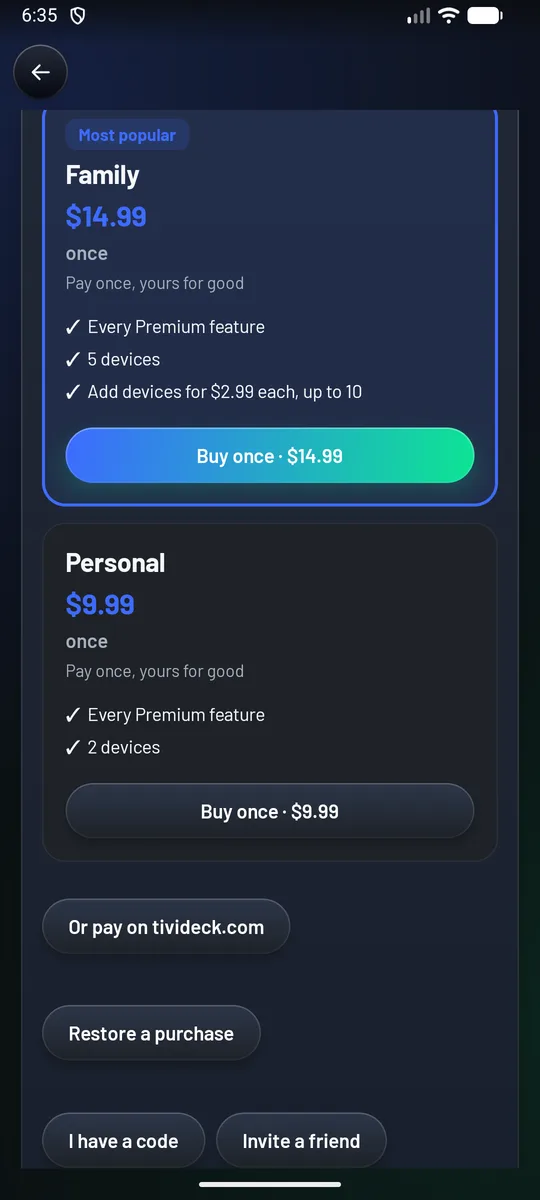
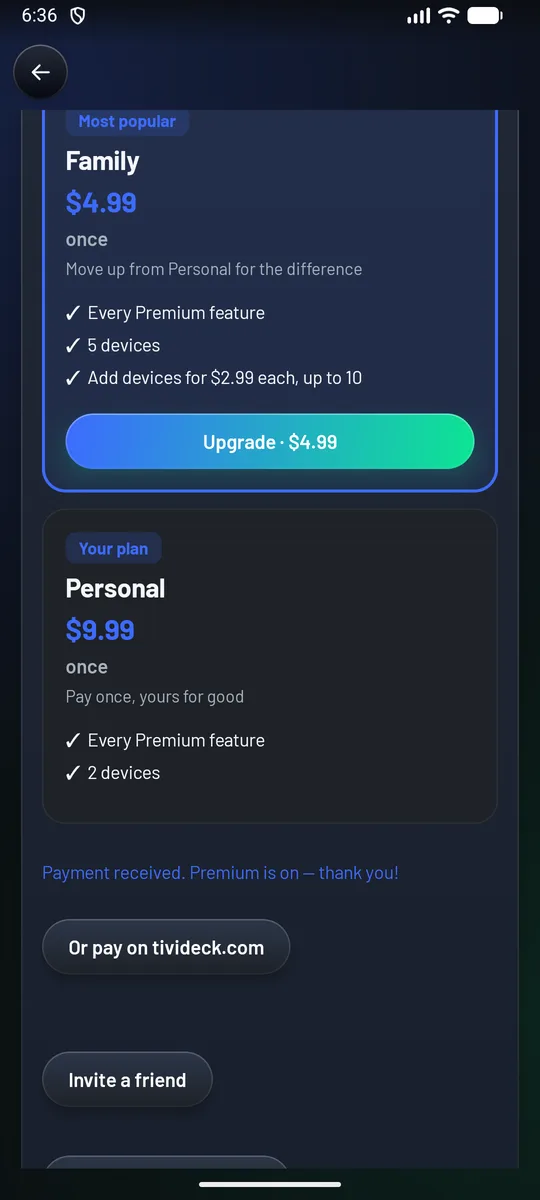
Under Choose your plan: Personal, $9.99 once, on two devices; Family, $14.99 once, on five. Both are yours for good. A household with Personal sees Family as Upgrade, for the difference, $4.99. Family can add devices at $2.99 each, up to ten. The Store edition buys through Google Play; the Enhanced edition buys by card at tivideck.com. Restore a purchase, I have a code and Invite a friend sit below the plans.
The phone companion
Typing on a television is miserable. TiviDeck’s answer is a page you open on your phone, linked to the television with six letters and no account at all.
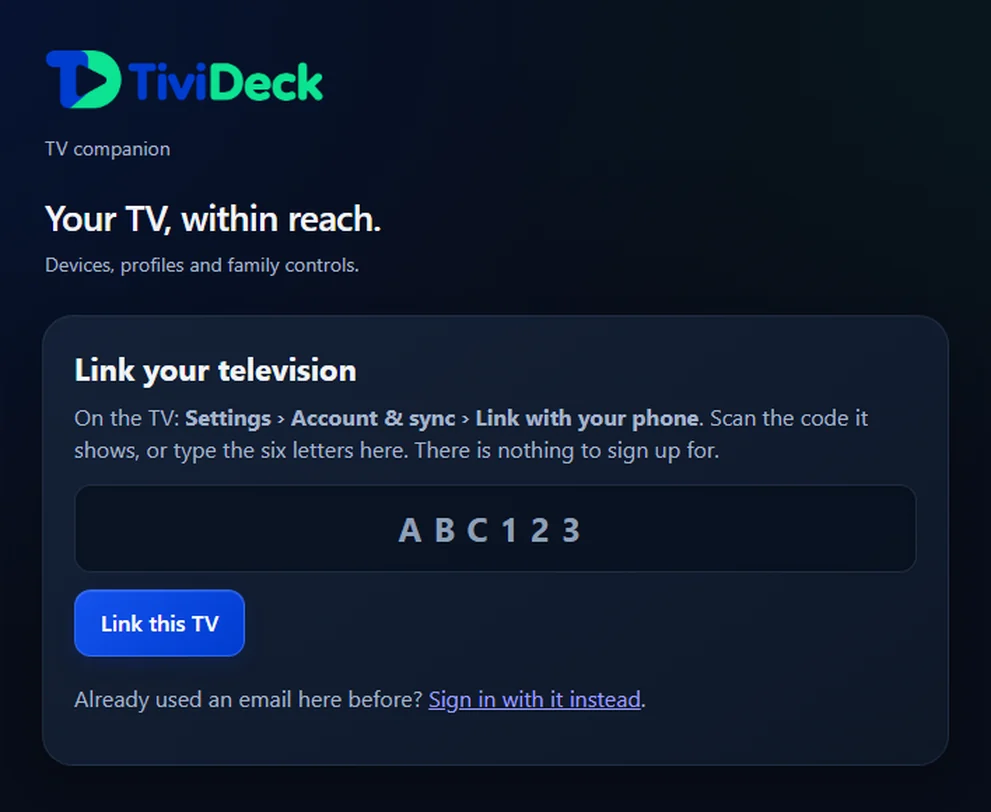
- Type for the television — a search, a playlist URL, a name. It appears on the screen as you type.
- Send a note — a line of text that appears on the television, for the room you are not in.
- Stop what is playing — from the kitchen.
- Continue on phone — hand what you are watching from the television to the phone in your hand.
The phone app
There is also a TiviDeck app for Android phones (Android 8.0 or newer), built from the same code as the television: live TV and the guide, films and series, recordings, multi-view and the Sports Hub, laid out for a touch screen; On your phone walks through it. A phone linked to your account shares its settings, profiles, favorites, lists, Continue watching, the parental PIN, the category arrangement, your channel names and numbers, the connected services (Trakt, Simkl, OpenSubtitles and, on the Enhanced edition, your debrid account) and the providers themselves, their logins sealed on the device before they travel. A few things stay with each device on purpose: who is watching on it right now, starting on boot, its remote keys and where it keeps recordings.
Backup and restore
Settings › Storage & recording › Backup & restore writes one file with everything the television has been told: your providers and their sign-ins, profiles, favorites, looks, the remote and the parental PIN. A copy also goes to Downloads › TiviDeck, so it survives an uninstall. It holds your sign-ins, so keep it somewhere private.
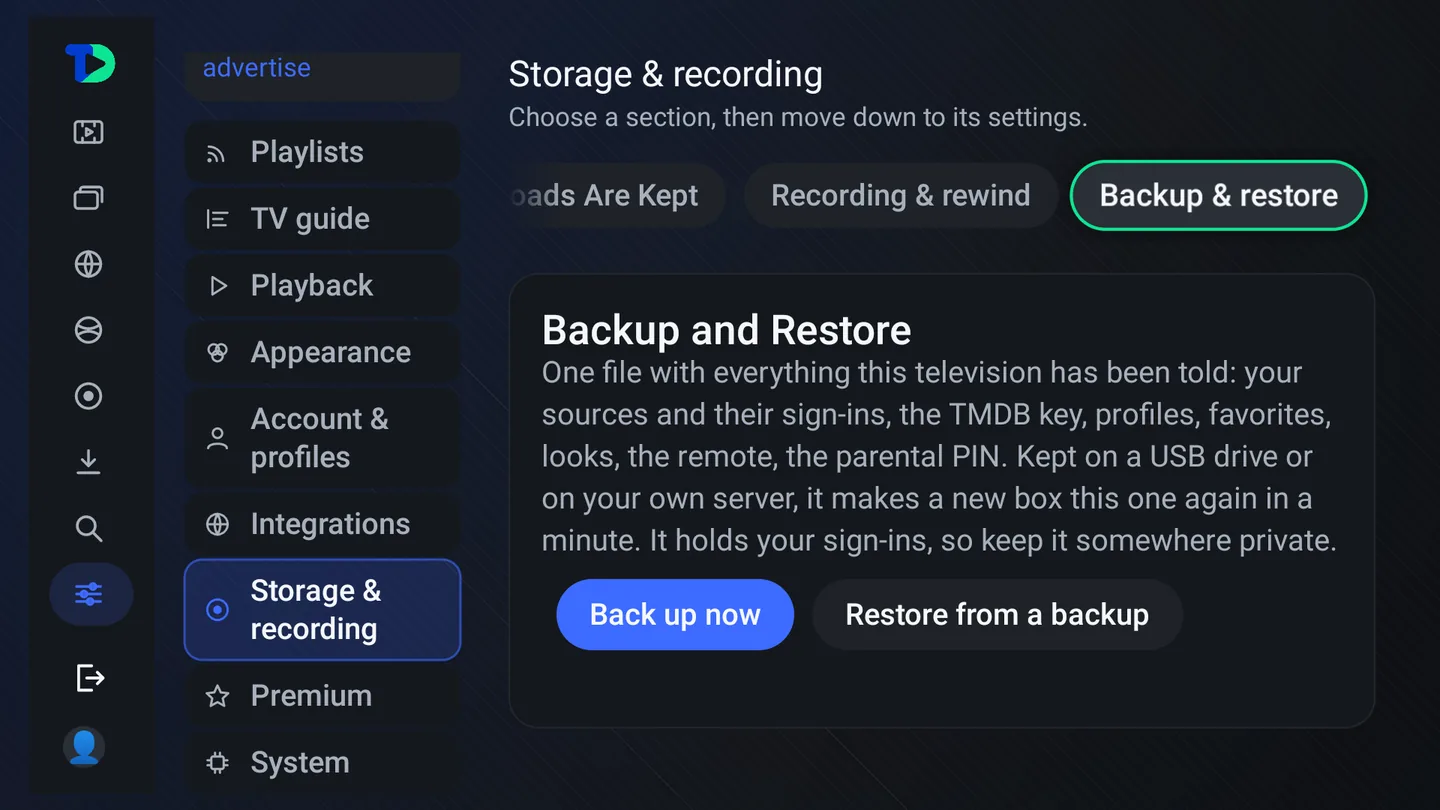
- On the TV — open Settings, choose Storage & recording, move right to the Backup & restore tab and press ↓. Choose Back up now to write the file, or Restore from a backup to bring one back.
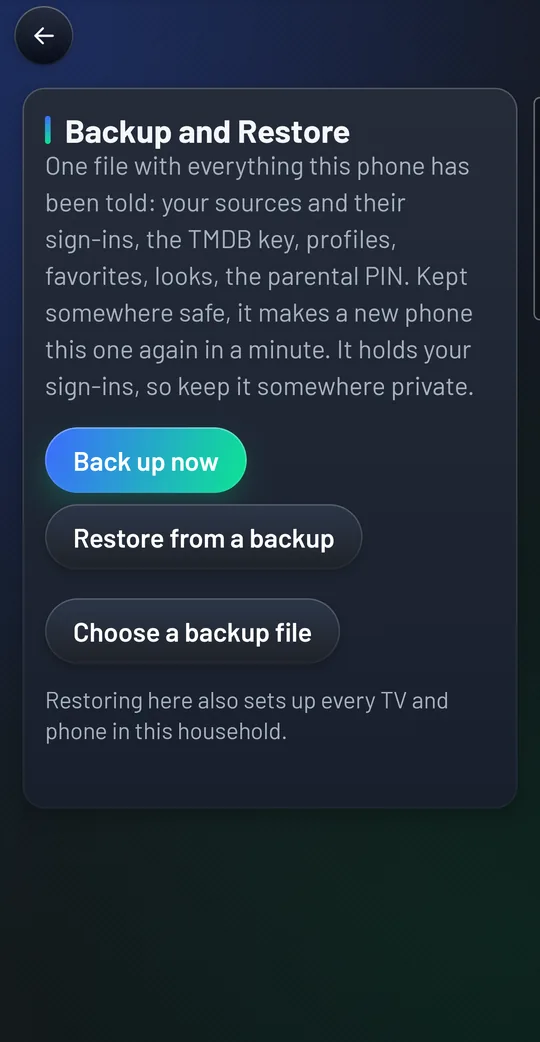
- On the phone — My TiviDeck › Settings › Backup & restore has the same two buttons, plus Choose a backup file to pick any backup on the phone, including one made on a TV. Restoring on the phone also sets up every TV and phone in the account.
Setting up a new box, or the same one after a reinstall? The welcome screen’s Restore my setup brings it back. Link to my account comes first: it is the only way that brings back your Premium too. The other ways bring back settings only: restore a Google Play purchase, pick a backup found on the device, or Restore from my phone (the TV shows a code, the phone links the TV and picks the backup file, and the TV fills in by itself).
- On the new TV, choose Restore my setup on the welcome screen, then Restore from my phone. The TV shows a six-letter code.
- On the phone, open My TiviDeck › My account, type the code under Type a code from another device and tap Link. The phone says the two are linked.
- Still on the phone, open Settings › Backup & restore › Choose a backup file and pick the file. The TV fills in by itself: providers, profiles, favorites and the rest.
My account: Premium belongs to your purchase
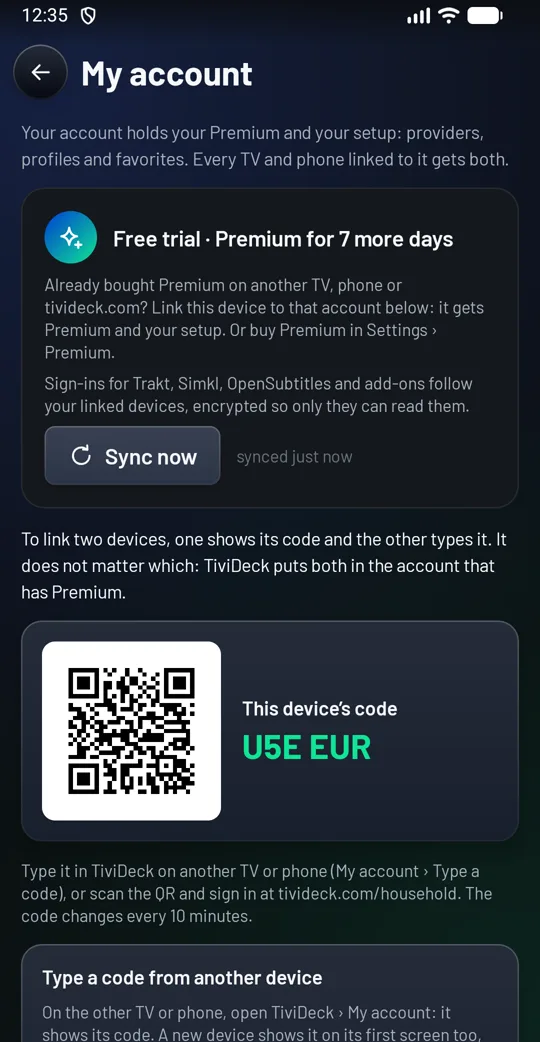
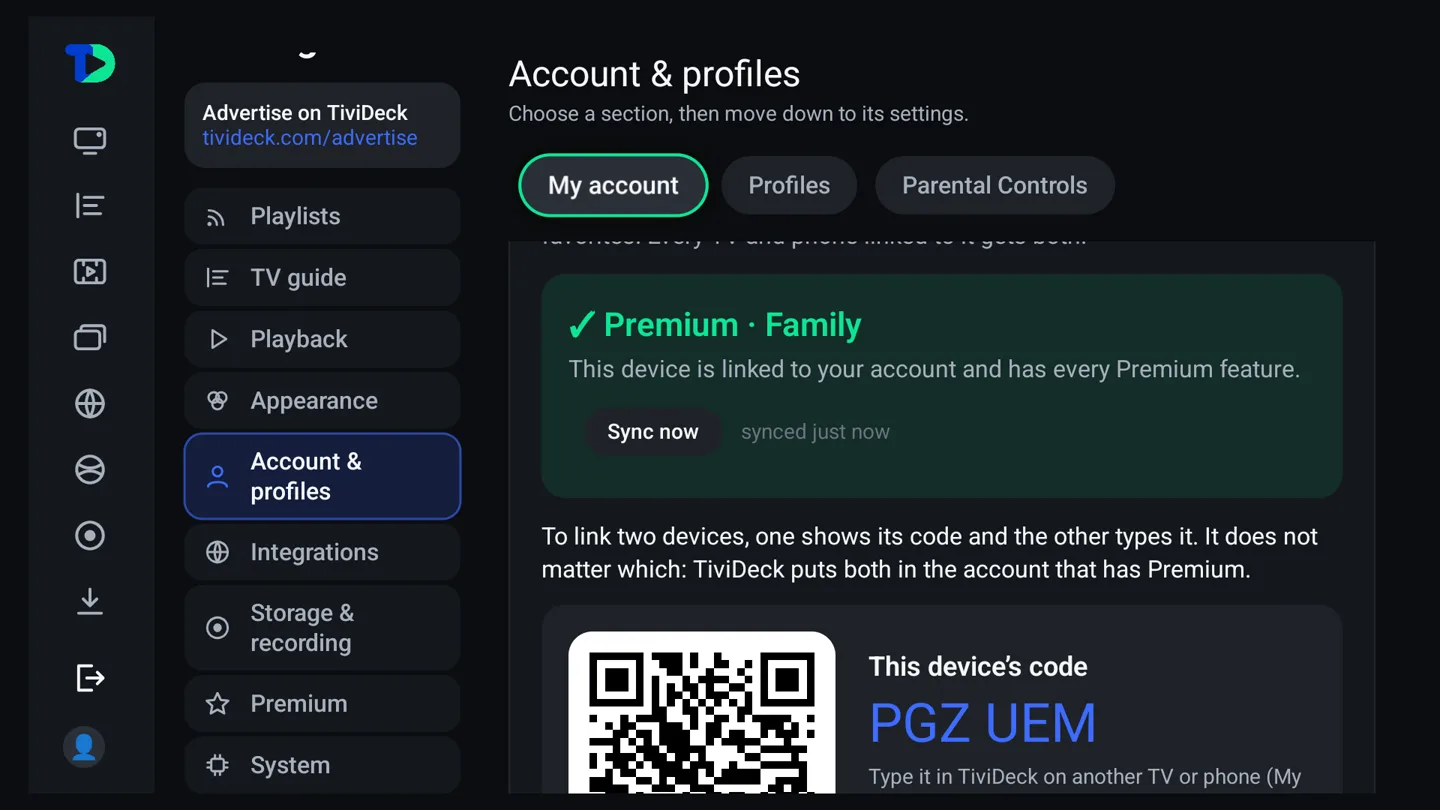
Your account holds your Premium and your setup: providers, profiles and favorites. Every TV and phone linked to it gets both. My account is the one place to link a device, see your Premium and remove a device: on the TV, Settings › Account & profiles › My account; on the phone, My TiviDeck › My account.
- On one device, open My account. It shows This device’s code, with a QR for tivideck.com/household. The code changes every ten minutes.
- On the other device, open My account, type that code under Type a code from another device and choose Link.
It does not matter which device shows the code and which one types it: TiviDeck puts both in the account that has Premium. If both already have Premium or other devices, it says so; choose Unlink this device on one of them first, then type the code again. A brand-new device shows its code on its first screen too, under Restore my setup › Link to my account.
No device keeps your Premium alive. It belongs to your purchase. Unlink or replace every TV and phone and nothing is lost: sign in at tivideck.com/household with the email you paid with and your account opens, with its Premium and setup, ready to link the next device. Google Play and App Store purchases also come back from your Google account or Apple ID. If an account has no email yet, My account shows Keep your Premium safe; signing in at the website once fixes that for good.
Your devices
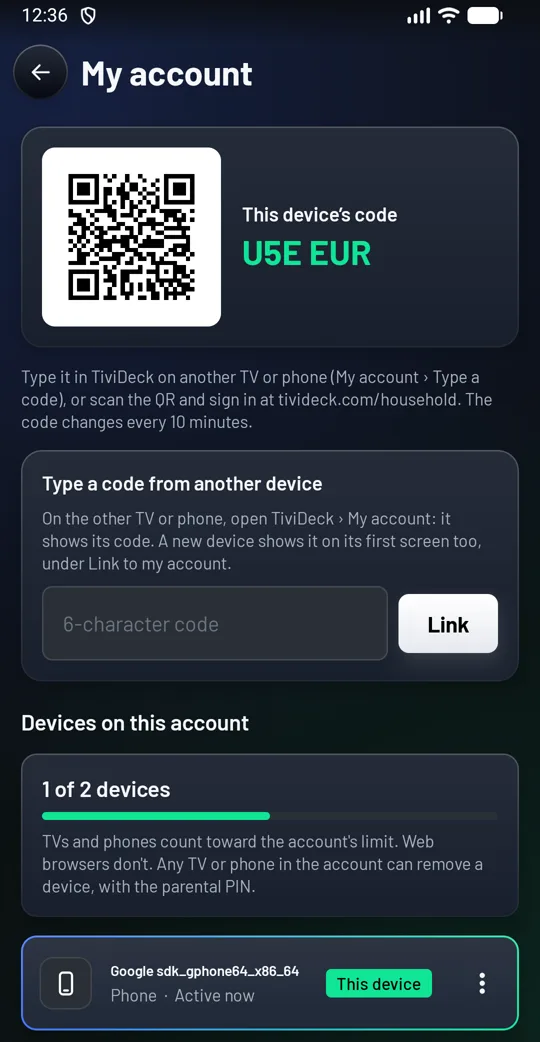
A Premium plan belongs to the account. Personal covers two devices; Family covers five. The seven-day trial, and Basic after it, cover two. TVs and phones both count; signing in on tivideck.com does not. With Family, extra devices cost $2.99 once each, up to ten in total. Accounts that bought earlier keep their original allowance.
- See them at the foot of My account: the bar counts the account’s devices against its limit, each TV and phone shows when it was last active, and This device marks the one in your hand.
- Remove one from any TV or phone in the account: choose it (on the phone, its ⋮ menu), then Remove, and enter the parental PIN. Its place is freed, and it can come back by typing a code again. The owner can also remove devices at tivideck.com/household.
- Unlink this device takes the device in your hand out of the account: no Premium and no sync on it any more.
- A device not seen for 30 days never blocks a new one: when the account is full, it gives up its place to the device you are linking.
Settings reference
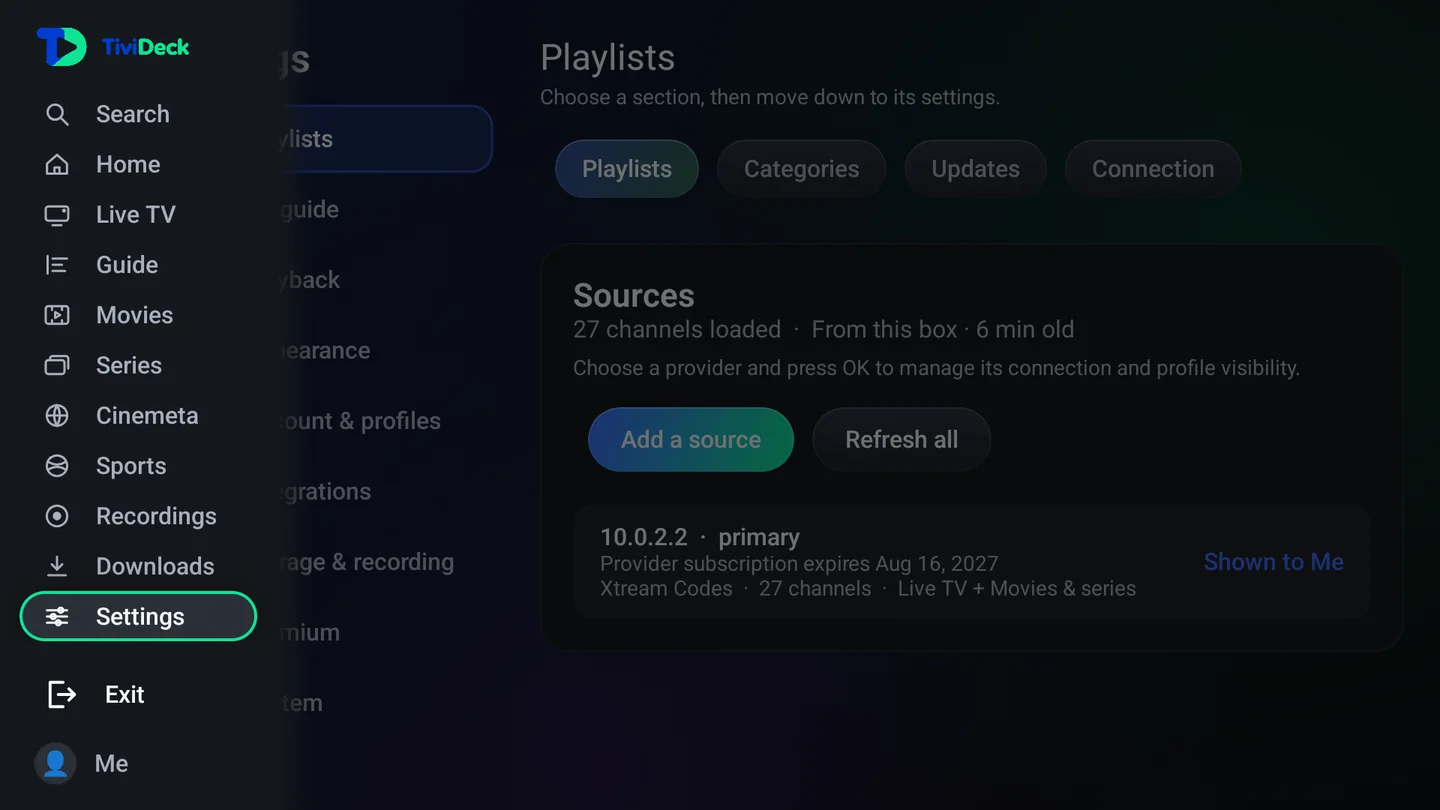
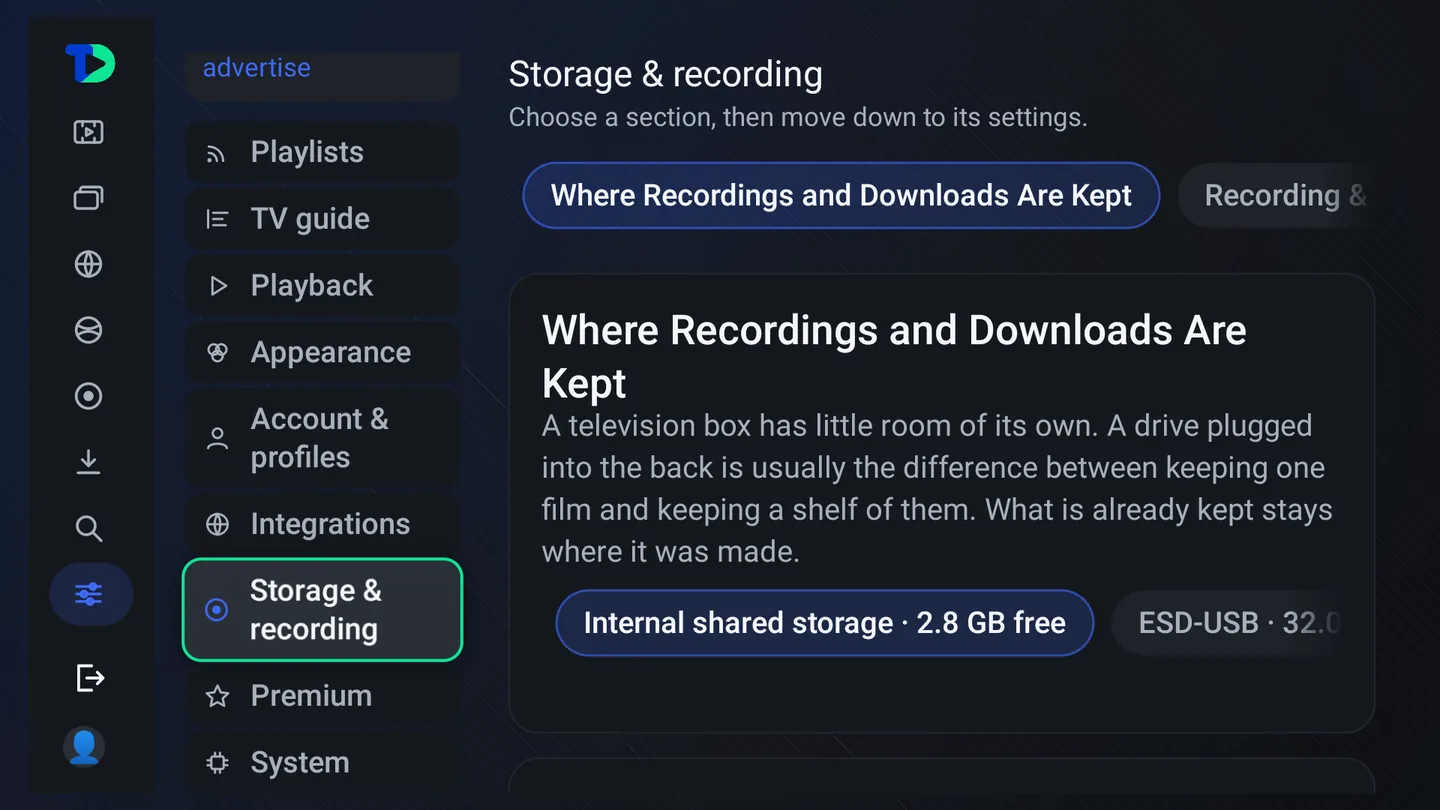
Settings now has nine categories. Choose one on the left, move right to its section tabs, then down into the grouped controls. The Advertise on TiviDeck card is visible at the top.
Getting there. Press ← until the rail opens, move down to Settings and press OK. In this manual, a path such as Settings › Storage & recording › Recording & rewind means: that category on the left, then that tab along the top. On the phone, Settings is in My TiviDeck, as one list with each part a page of its own.
| Category | What belongs here |
|---|---|
| Playlists | Sources, category visibility, updates and connection settings. |
| TV guide | XMLTV sources, guide updates, guide appearance, reminders and Your lineup. |
| Playback | Player, audio, captions and live buffer. |
| Appearance | Themes, accent colors, text and spacing, movie and series presentation. |
| Account & profiles | My account (Premium, linking devices, the account’s devices, Family help, Phone Companion), profiles and parental controls. |
| Integrations | TMDB, OpenSubtitles, Trakt, Simkl and add-ons. |
| Storage & recording | Storage location, pause and rewind live TV, recording room and backup. |
| Premium | Current plan, the account’s devices, purchase restoration and code redemption. The Store edition buys through Google Play; the Enhanced edition buys at tivideck.com. |
| System | Startup, language, remote, diagnostics, advanced settings and About. |
Add and manage providers
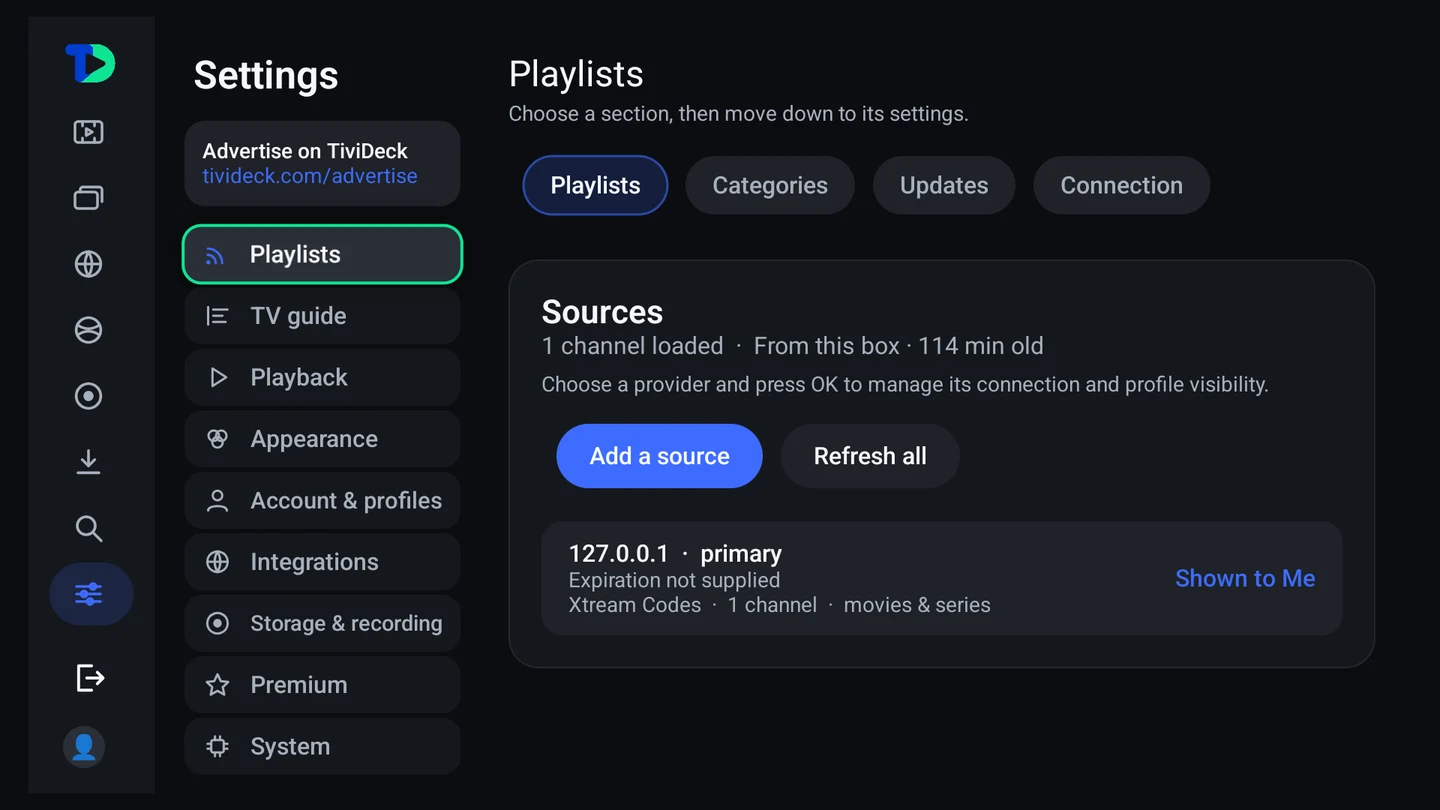
- Open Settings › Playlists, stay on the Playlists tab and move down past your providers to Add another source (Add your first source on a new box). On the phone: My TiviDeck › Settings › Playlists, then Add a provider.
- Choose the connection type supplied by your provider: Xtream Codes, Playlist (M3U), Stalker portal, Jellyfin, Emby or Direct URL — or a NAS share, whose video files become the household’s Movies and Series. Enter the provider's details exactly; use phone entry for long URLs.
- Choose a provider row and press OK to manage it. Primary selects the provider used for the movie and series library; profile visibility controls which sources that profile can see.
- Check the subscription expiration shown on the source. If your provider does not supply a date, TiviDeck says so rather than assuming lifetime access. An adult Home reminder appears near expiration when a date is available.
Your provider subscription and TiviDeck Premium are separate purchases. Renew television service with the provider.
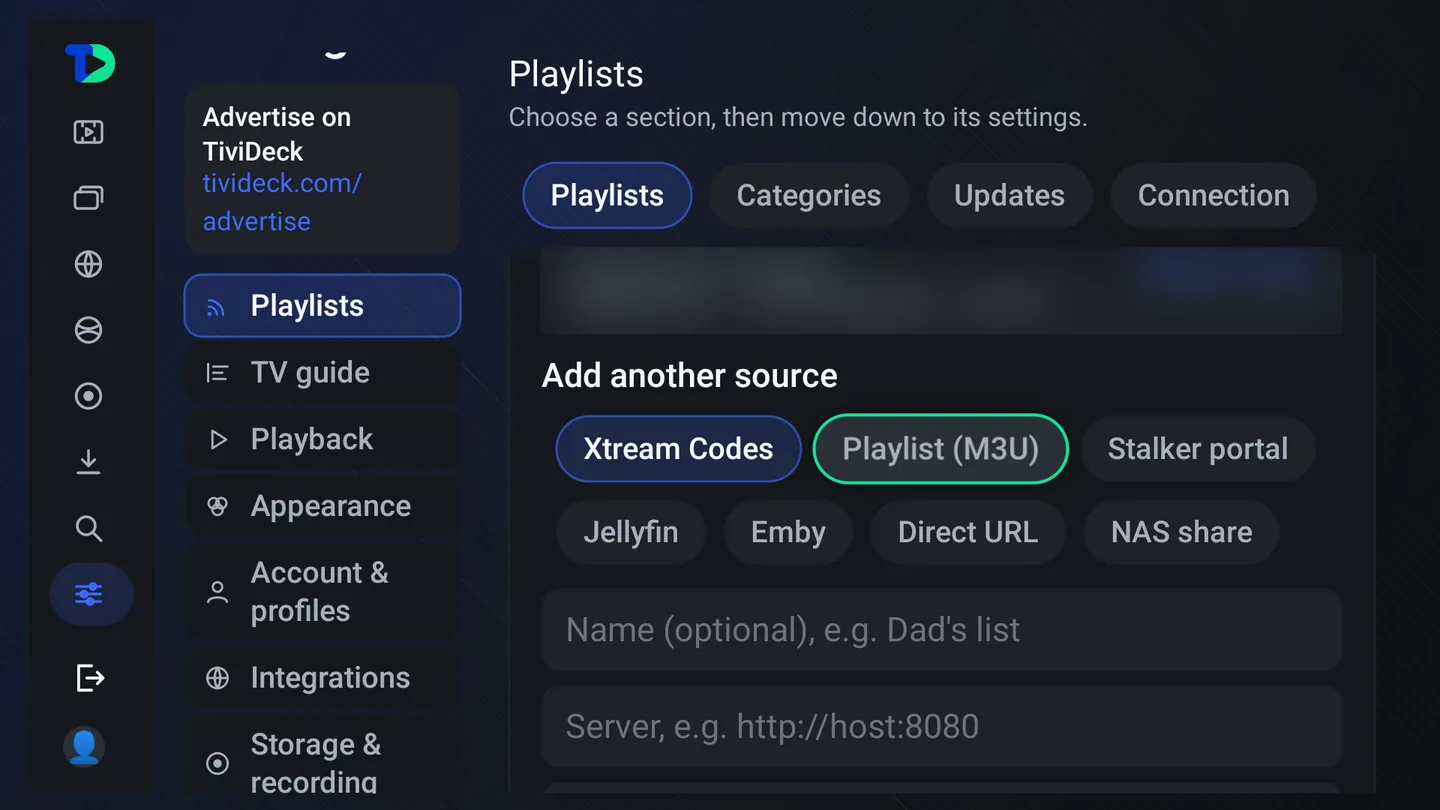
- Xtream Codes — the server address, username and password.
- Playlist (M3U) — the playlist address, usually ending in .m3u.
- Stalker portal — the portal address and the MAC address the portal knows this box by.
- Jellyfin and Emby — your media server’s address, username and password.
- Direct URL — one stream address.
- NAS share — the server name or IP, the share name, a folder inside it if you like, and a username and password unless it is a guest share. Its video files show up under Movies and Series. TiviDeck shows one provider’s library at a time: when more than one has movies and series, choose the provider and Set as primary to show its library.
Backup server addresses
Many Xtream Codes providers give more than one server address for the same account. In TV 1.0.43 and phone 1.0.36 you can add them to the provider, and if the server in use stops answering, TiviDeck switches to the next one and keeps playing.
- On the TV, open the Xtream Codes form, either while adding the provider or when editing it. Under the password, Backup server addresses has Add a backup address; each one is written like http://host2:8080, with Remove beside it. Up to five.
- On the phone, the same boxes are in the Add a provider form. For a provider you already have, open My TiviDeck › Settings › Playlists, tap the provider, change its backup addresses there and tap Save; the login is not asked for again.
- What moves it — a server that does not answer at all, drops the connection or reports a server error. A provider that says its connections are all in use is not moved, since a backup server of the same account refuses the same way, and neither is a wrong login or a missing channel.
- Where it stands — a short notice says when a provider switches, such as switched to backup server 1, without stopping the picture. The provider’s panel in Settings then says Using backup server 1, or Using the main server.
- Going back — the server that worked is used first from then on, across restarts. After six hours on a backup, the main server is tried first again.
- Kept safe — the addresses are stored encrypted beside the provider’s login and travel to the household’s other TVs and phones sealed the same way. Which server is in use is kept by each device on its own.
Connect your services
Open Settings › Integrations, choose the service, enter your own application credentials where requested and save. Use the connection or test controls to check the result. Never send these credentials to support.
- TMDB: a v3 API key or API Read Access Token supplies movie and series metadata.
- OpenSubtitles: configure your API key and account before searching for online subtitles during supported library playback.
- Trakt and Simkl: enter your registered application credentials, then complete the service's account authorization. Saving an application key alone does not connect your viewing account.
- Add-ons: Cinemeta catalogs, Stremio-compatible add-ons you add yourself and your own debrid account are in the Enhanced edition only; the Store edition does not include them. Provider limits and external-service subscriptions still apply.
- Sync: connected services are shared with the household’s other TVs and phones, so each one is set up once.
Dashboard email codes and passwords
The website dashboard manages advertisements and your household's linked TVs and phones. Signing in alone does not change any device's household or Premium plan, and it does not use one of the household's device places. Enter the email used to purchase your advertisement, request a code and enter the newest eight-digit code within ten minutes. This also creates a new dashboard account after verification.
Use Forgot password? to request a recovery code, verify it, then enter and confirm a new password. Password sign-in also requires email verification for a new dashboard session. After too many incorrect attempts, request another code; a resend is available after one minute.
Sources, the guide and playback
Premium
About and version history
Settings › System › About shows the version on the box. Version history opens what changed, one version at a time: the dropdown at the top names the version shown, this box’s own to begin with, marked This version. Press OK on it to list every version, newest first, and pick another; Back closes the list first, then the log. On the phone, My TiviDeck › Settings › About has the same dropdown, with the phone’s own version numbers. Every version is also at tivideck.com/changelog.
Installing
The Store edition comes from Google Play and installs like any other app. These steps are for the Enhanced edition, which installs by hand with the free Downloader app; Get TiviDeck explains the difference.
- Install Downloader from your television’s own store and open it.
- Type the code 1983787 (or tivideck.com/get/tv) into its address box and press Go. On a phone, open tivideck.com/get/phone in the browser.
- Choose Install when the download finishes. Android asks once whether Downloader may install apps — allow it.
- Open TiviDeck and choose how to start: add your provider, try the sample channels, or Restore my setup.
To update, download again from the same address and install over the existing app; do not uninstall or clear app data if you want to keep local settings. The full instructions, and where each platform stands, are on the install page.
When something breaks
“Reconnecting…” on a channel
The stream dropped and TiviDeck is picking it up again. If it happens on one channel only, that channel is having a bad night at your provider. If it happens whenever you open a second stream — a multi-view tile, a preview in the Sports Hub — your provider allows fewer simultaneous connections than you are asking for. That number is theirs, not ours.
A layout multi-view will not give you
TiviDeck asks the box how many video decoders it has and refuses to offer a layout it cannot actually draw. A stick that manages two pictures is not going to manage eight, and four black squares would be worse than an honest limit.
Channels with no guide information
An empty guide can mean a download problem, an expired source, missing program data or a channel that did not match. Work through these checks:
- Confirm that a live channel from that source plays. If it does not, check connectivity and the source's subscription status first.
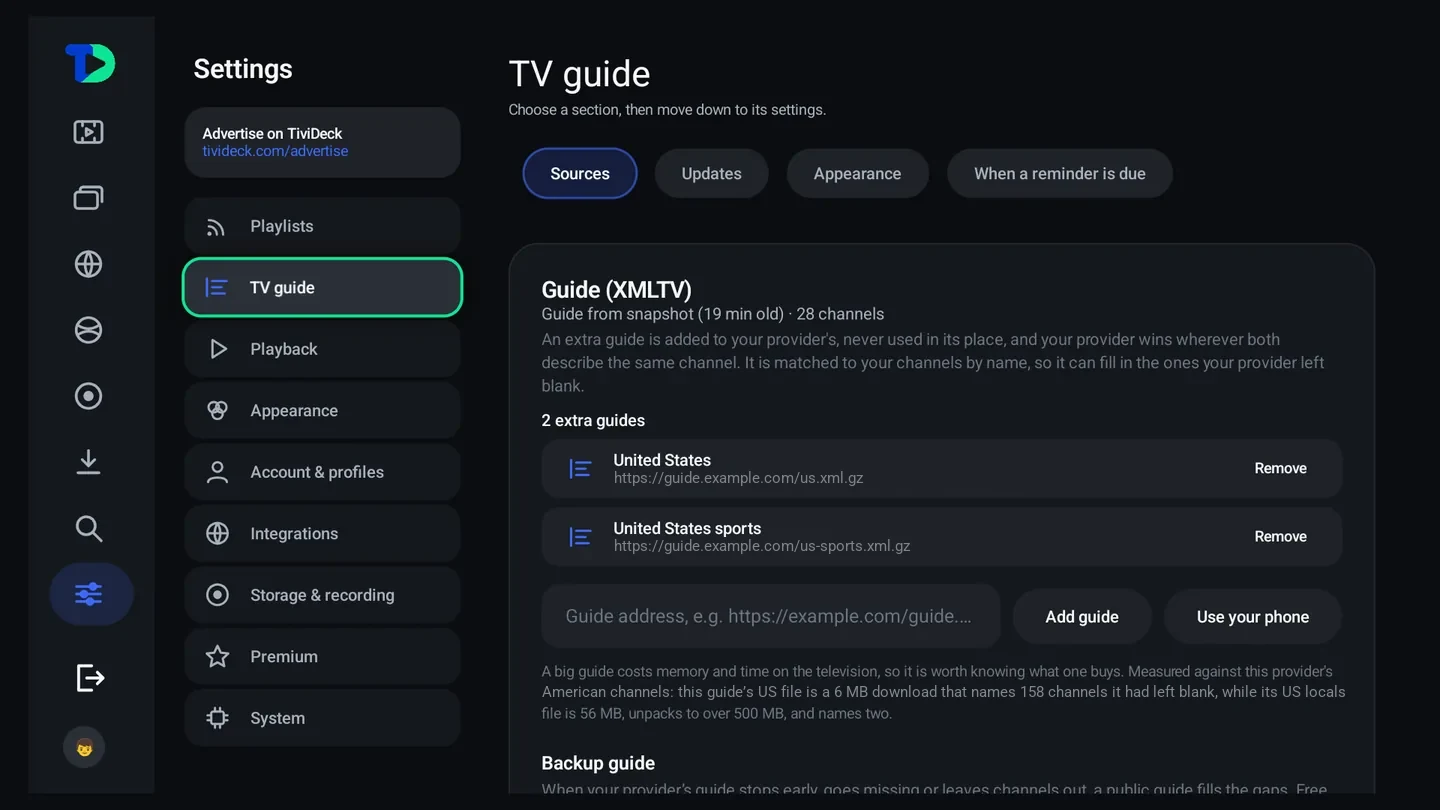
- Open Settings › TV guide › Sources and read the status. A source that answered with nothing is different from a guide still downloading.
- Check the XMLTV URL with your provider. Do not post URLs containing credentials publicly.
- Open the TV guide's Updates tab and refresh, then allow the download to finish. Compare another channel from the same provider.
- If only one channel is blank, inspect its guide association in the player's channel options. Matching must identify the correct channel, not merely a similar name.
- An additional XMLTV source can fill gaps. TiviDeck keeps provider guide data where both sources describe the same channel.
- If every program is shifted by the same amount, check the device time and ask the provider to verify the guide timestamps rather than deleting your sources.
Too many channels
See the category manager. It is the fix for almost every “I cannot find anything” complaint.
A channel is in the wrong place, or you never want to see it
Hold OK on it in a list to pick it up and move it. Press Menu or Info on it for its sheet, to put it in one of your own lists or hide it for good. Categories can be reordered the same way; see Moving categories and channels.
Contact support@tivideck.com. Include your device model, app version from Settings › System › About, the steps that failed, and the visible error. Diagnostics has playback information. Redact passwords, provider URLs with credentials, tokens and private account information from screenshots.